Can You Use Wi Fi Without A Wi Fi Card And Stay Connected
Yes, you can use Wi-Fi without a Wi-Fi card. Whether your laptop or desktop lacks a built-in wireless adapter, several simple methods let you get online. From USB Wi-Fi dongles to mobile hotspots and Bluetooth tethering, staying connected is easier than you think.
Ever sat down at your computer and realized you can’t connect to the internet? Maybe your Wi-Fi card stopped working, or your desktop never had one in the first place. The good news is that you don’t need a Wi-Fi card to get online. There are several practical ways to stay connected, and most of them are super simple.
In this guide, we will walk you through every option for using Wi-Fi without a Wi-Fi card. Whether you are using a desktop PC, an older laptop, or a device with a broken wireless adapter, you will find a solution here. We will cover USB adapters, mobile hotspots, Ethernet connections, and more. By the end, you will know exactly what to do to get back online fast.
Let’s be honest. Losing your internet connection can be frustrating. You might need to finish work, stream a movie, or just browse the web. The thought of buying a new Wi-Fi card or paying for expensive repairs can feel overwhelming. But the truth is, you have more options than you probably realize. Let’s dive in and explore them together.
Key Takeaways
- You don’t need a Wi-Fi card to go online: Multiple alternatives exist for wireless connectivity.
- USB Wi-Fi adapters are the simplest fix: They plug in and work instantly on most devices.
- Mobile hotspot tethering is widely used: Your smartphone can share its internet with any device.
- Ethernet cables offer a stable backup: Wired connections are fast and reliable when Wi-Fi isn’t an option.
- Bluetooth tethering works in a pinch: It’s slower but handy when you have no other choice.
- Built-in Wi-Fi is common in modern laptops: Check your device specs before buying extra hardware.
- Wi-Fi drivers matter: Even with a card or adapter, proper drivers ensure smooth wireless connectivity.
📑 Table of Contents
- What Is a Wi-Fi Card and What Does It Do?
- Can You Use Wi-Fi Without a Wi-Fi Card?
- How to Connect to Wi-Fi Without a Built-In Wi-Fi Card
- Comparing Wi-Fi Connection Methods Without a Wi-Fi Card
- Common Mistakes to Avoid When Using Wi-Fi Without a Wi-Fi Card
- Expert Insights: How to Choose the Best Wi-Fi Alternative
- Final Thoughts: Staying Connected Without a Wi-Fi Card
What Is a Wi-Fi Card and What Does It Do?
A Wi-Fi card is a small hardware component that lets your computer connect to a wireless network. It is also called a wireless adapter or network adapter. Most modern laptops come with a built-in Wi-Fi card already installed. Desktop computers often do not have one unless you add it yourself.
The Wi-Fi card communicates with your router. It sends and receives data through radio signals. This is how your device gets wireless internet access. Without it, your computer cannot pick up the Wi-Fi signal from your router.
Types of Wi-Fi Cards
There are two main types of Wi-Fi cards you should know about:
- Internal Wi-Fi cards: These are small boards that fit inside your computer. They connect to the motherboard through a PCIe slot or a USB header. Laptops usually have these built right in.
- External Wi-Fi adapters: These are small USB devices that plug into an outside port. They are also called USB Wi-Fi dongles. You can plug them in and start using Wi-Fi right away.
Both types do the same job. They give your device the ability to connect to a wireless network. The difference is mainly in how they install and where they sit in your computer.
Why Your Wi-Fi Card Might Stop Working
Wi-Fi cards can fail for many reasons. Sometimes it is a driver issue. Other times, the hardware just wears out. Here are some common causes:
- Outdated drivers: Your Wi-Fi card needs software called drivers to work properly. If they are old or corrupted, your connection will drop.
- Physical damage: Dropping your laptop or exposing it to moisture can harm the internal Wi-Fi card.
- Compatibility issues: A new Wi-Fi card might not work well with older operating systems.
- Router signal problems: Sometimes the issue is not the card at all. A weak router signal can look like a broken Wi-Fi card.
If your Wi-Fi card stops working, you do not have to replace it right away. There are workarounds that let you stay connected without one.
Can You Use Wi-Fi Without a Wi-Fi Card?
The short answer is yes. You absolutely can use Wi-Fi without a traditional Wi-Fi card. But you need an alternative device or method to bridge the gap. Think of it like this. If your front door is locked, you can still get in through a window. The goal is the same, just a different path.
Using Wi-Fi without a built-in Wi-Fi card is more common than you might think. Many people do it every day. They use USB adapters, share their phone’s internet, or connect through Ethernet. Each method has its own strengths. Some are faster. Some are more portable. We will cover all of them in detail below.
When You Might Need an Alternative to a Wi-Fi Card
Here are some real situations where you might need a Wi-Fi alternative:
- Your desktop PC has no built-in wireless adapter.
- Your laptop’s Wi-Fi card broke after a fall or spill.
- You are using a very old computer that only supports outdated Wi-Fi standards.
- Your internal Wi-Fi card is not compatible with the latest Wi-Fi 6 networks.
- You need a quick internet fix while traveling and don’t have your adapter handy.
In all of these cases, you can still get wireless internet. You just need the right tool or workaround.
How to Connect to Wi-Fi Without a Built-In Wi-Fi Card
Now let us get into the practical stuff. Here are the best ways to use Wi-Fi without a Wi-Fi card installed in your computer.
Method 1: Use a USB Wi-Fi Adapter
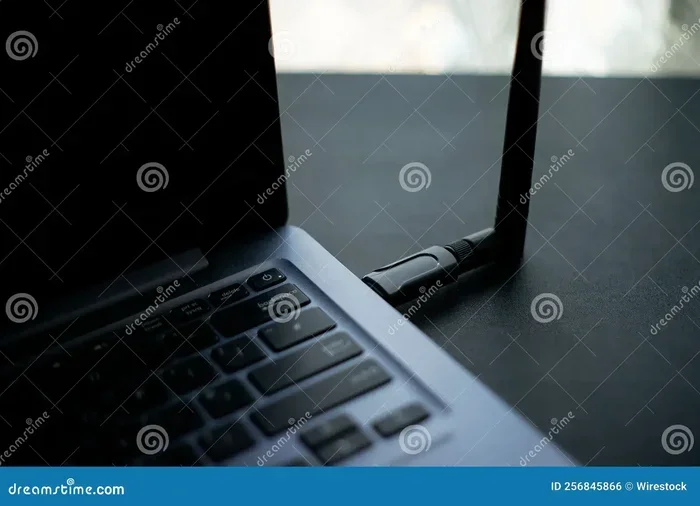
A USB Wi-Fi adapter is the easiest and most popular solution. It is a small plug-in device that gives your computer wireless connectivity in seconds. You just insert it into a USB port, install the driver, and you are good to go.
These adapters are also called USB Wi-Fi dongles. They come in different shapes and sizes. Some support the latest Wi-Fi 6 standard. Others work with older Wi-Fi networks. The beauty of a USB adapter is that it works on almost any computer with an available USB port.
Quick Tips for Choosing a USB Wi-Fi Adapter:
- Look for an adapter that supports the latest Wi-Fi standard for better speeds.
- Make sure it is compatible with your operating system, whether Windows, Mac, or Linux.
- Choose a dual-band adapter that supports both 2.4 GHz and 5 GHz frequencies.
- Pick a compact design if you plan to carry it with you on the go.
USB Wi-Fi adapters are affordable. You can find a solid one for under $20. They are a must-have for anyone who needs reliable wireless connectivity without opening up their computer.
Method 2: Share Your Phone’s Internet Through Tethering
Your smartphone is a powerful tool for staying connected. Most modern phones can share their mobile data with other devices. This is called tethering. You can use it to get Wi-Fi-like internet on your laptop or desktop.
There are three main types of tethering:
- USB tethering: You connect your phone to your computer with a cable. Your phone shares its mobile data through the USB connection. This method is fast and stable.
- Wi-Fi hotspot tethering: Your phone creates a mini Wi-Fi network. Your computer connects to it just like it would connect to a router. This is the most common method.
- Bluetooth tethering: You pair your phone with your computer using Bluetooth. The phone shares its data through the Bluetooth connection. It is slower but useful when you have no other option.
Tethering is incredibly handy when you are traveling or when your Wi-Fi card is temporarily out of service. Just keep in mind that it uses your phone’s data plan. If you have a limited data allowance, monitor your usage carefully.
Method 3: Connect via Ethernet Cable
While Ethernet is not wireless, it is still a way to get internet without a Wi-Fi card. You can plug an Ethernet cable directly from your router into your computer. This gives you a fast, stable, and reliable internet connection.
Many people prefer Ethernet over Wi-Fi for certain tasks. Online gaming, video calls, and large file downloads all benefit from a wired connection. Ethernet also bypasses any Wi-Fi card issues entirely.
When to Use Ethernet Instead of Wi-Fi:
- You need the fastest possible internet speed.
- You are working from home and need a stable connection.
- Your Wi-Fi signal is weak in your current location.
- You want to avoid interference from other wireless devices.
If you use Ethernet, you do not need a Wi-Fi card at all. Your computer connects directly to the network through the cable. It is one of the simplest and most reliable methods available.
Method 4: Use a PCIe Wireless Network Card
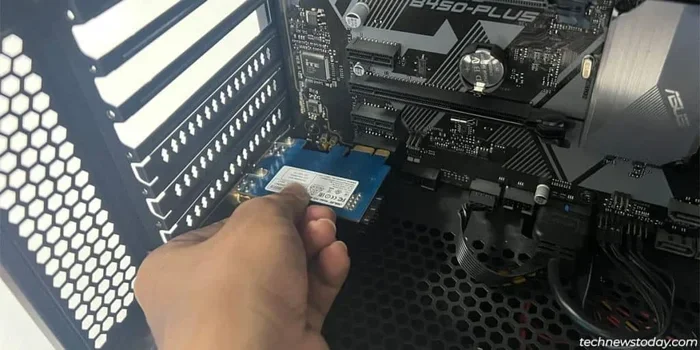
If you have a desktop computer, you can install a new internal Wi-Fi card. This is a PCIe card that goes directly into your motherboard. It gives your PC full wireless connectivity just like a built-in card would.
Installing a PCIe wireless card is a bit more technical than using a USB adapter. But it offers better performance and a more permanent solution. You get stronger signal reception and faster speeds compared to most USB options.
Steps to Install a PCIe Wi-Fi Card:
- Turn off your computer and unplug it from the power source.
- Open the computer case and locate an available PCIe slot.
- Carefully insert the Wi-Fi card into the slot and secure it with a screw.
- Close the case and plug in your computer.
- Boot up and install the drivers that came with the card.
- Scan for Wi-Fi networks and connect as you normally would.
This method is ideal for desktop users who want a permanent wireless fix. It turns your non-wireless PC into a full Wi-Fi-capable machine.
Method 5: Use a Powerline Adapter with Wi-Fi
A powerline adapter is a clever little device. It uses your home’s electrical wiring to carry internet signals. Some powerline adapters come with built-in Wi-Fi. This means you can extend your network to rooms where the router signal is weak.
You plug one powerline adapter near your router. Then you plug another adapter in the room where you need internet. The second adapter sends out a Wi-Fi signal. Your computer connects to it without needing its own Wi-Fi card.
Powerline adapters are great for large homes or buildings with thick walls. They bypass Wi-Fi signal issues and give you a strong, steady connection. They are not the fastest option, but they work very well for everyday tasks.
Comparing Wi-Fi Connection Methods Without a Wi-Fi Card
With so many options available, it can be hard to choose. Here is a comparison of the most popular methods for getting Wi-Fi without a traditional Wi-Fi card.
| Method | Speed | Ease of Use | Cost | Best For |
|---|---|---|---|---|
| USB Wi-Fi Adapter | Fast | Very Easy | Low ($10-$30) | Quick wireless fix on any device |
| Mobile Hotspot Tethering | Moderate | Easy | Free (uses phone data) | Traveling or temporary use |
| Ethernet Cable | Very Fast | Easy | Low ($5-$15) | Stable wired connections |
| PCIe Wireless Card | Fast | Moderate | Medium ($25-$60) | Desktop PCs needing permanent fix |
| Powerline Adapter with Wi-Fi | Moderate | Easy | Medium ($30-$60) | Extending network to weak signal areas |
| Bluetooth Tethering | Slow | Easy | Free (uses phone data) | Emergency backup only |
Each method has its place. Your choice depends on your needs, budget, and how often you need the connection. For most people, a USB Wi-Fi adapter is the go-to solution. It is cheap, fast, and takes about two minutes to set up.
Common Mistakes to Avoid When Using Wi-Fi Without a Wi-Fi Card
Even with the right method, there are some pitfalls to watch out for. Avoiding these common mistakes will save you time and frustration.
- Ignoring driver updates: Whether you use a USB adapter or a PCIe card, drivers keep it running smoothly. Always download the latest drivers from the manufacturer’s website.
- Using a cheap, low-quality adapter: A very cheap USB Wi-Fi adapter might not support modern Wi-Fi standards. It could give you slow speeds or drop connections frequently.
- Forgetting to secure your hotspot: When you share your phone’s internet, always set a password. An open hotspot lets anyone use your data and can create security risks.
- Placing your router in a bad spot: Even the best Wi-Fi card or adapter cannot fix a weak router signal. Keep your router in a central, open location.
- Not checking your data limits: Tethering uses your mobile data. If you have a capped plan, heavy use can lead to overage charges.
These mistakes are easy to avoid with a little awareness. A small bit of planning goes a long way toward keeping your internet connection strong and reliable.
Expert Insights: How to Choose the Best Wi-Fi Alternative
We asked networking experts for their top tips on choosing the right method to stay connected without a Wi-Fi card. Here is what they had to say.
Start with a USB adapter if you need a quick fix. It is the fastest, cheapest, and most versatile option. You can use it on any computer with a USB port. It takes seconds to set up and works with almost every device.
For desktop users, a PCIe card is the gold standard. It gives you the best performance and the most reliable connection. It is especially worth it if you game online or work with large files that need a fast, stable network.
Use tethering only as a backup. Mobile hotspot tethering is convenient, but it drains your phone battery and uses your data plan. It is great for emergencies or short-term use, but not ideal for daily browsing.
Always test your connection speed. After setting up any alternative method, run a speed test. This tells you whether your connection is performing as well as it should. If speeds are slow, try moving closer to the router or switching to a different method.
Final Thoughts: Staying Connected Without a Wi-Fi Card
The bottom line is clear. You do not need a Wi-Fi card to use Wi-Fi. There are plenty of practical, affordable, and easy-to-use alternatives. A USB Wi-Fi adapter is the fastest way to get wireless internet on any device. Mobile hotspot tethering keeps you connected when you are on the move. Ethernet cables provide a rock-solid wired backup. And for desktop users, installing a PCIe wireless card is a permanent, high-performance solution.
No matter which method you choose, the key is to act quickly when your connection drops. The longer you stay offline, the more you miss out. With the right approach, you can be back online in minutes. Keep a USB adapter in your bag, know how to tether your phone, and always have a backup plan in mind.
Staying connected in today’s world is not a luxury. It is a necessity. And with the tips in this guide, you now have the tools to keep your internet working no matter what. Do not let a missing or broken Wi-Fi card slow you down. Try one of these methods today and get back online with confidence.
Frequently Asked Questions
Can I use Wi-Fi on a desktop PC without a Wi-Fi card?
Yes, absolutely. You can use a USB Wi-Fi adapter to give your desktop wireless connectivity. Simply plug it into a USB port, install the drivers, and connect to your network. It is the easiest and most affordable way to get Wi-Fi on a desktop without a built-in card.
How much does a USB Wi-Fi adapter cost?
Most USB Wi-Fi adapters cost between $10 and $30. You can find reliable options for under $20 at most electronics stores or online retailers. Spending a little more on a dual-band adapter will give you better speeds and range.
Is tethering from my phone safe to use?
Yes, tethering is safe as long as you take basic precautions. Always set a strong password on your mobile hotspot. Keep your phone’s software updated. Avoid tethering on public or unsecured networks. These simple steps protect your data and keep your connection private.
Can I use Bluetooth to connect to Wi-Fi without a Wi-Fi card?
Bluetooth tethering lets you share your phone’s internet with your computer without a Wi-Fi card. However, it is much slower than USB tethering or a Wi-Fi hotspot. It works best as an emergency backup when you have no other options available.
Do I need to install drivers for a USB Wi-Fi adapter?
Most modern USB Wi-Fi adapters work plug-and-play on Windows 10 and 11. However, installing the latest drivers from the manufacturer’s website ensures the best performance and stability. Always check for driver updates, especially if you experience slow speeds or connection drops.
What is the difference between a Wi-Fi card and a Wi-Fi adapter?
A Wi-Fi card is usually an internal component that installs inside your computer. A Wi-Fi adapter is often an external USB device you plug in. Both do the same job, but adapters are easier to install and more portable. They are the go-to choice for most users who need a quick wireless fix.
=== CONCLUSION ===
Using Wi-Fi without a Wi-Fi card is not only possible, it is simple and affordable. Whether you grab a USB Wi-Fi adapter, share your phone’s hotspot, plug in an Ethernet cable, or install a PCIe card, you have multiple paths to stay connected. Each method has its strengths, and the right choice depends on your situation and needs.
Remember to keep your drivers updated, secure your connections, and always have a backup plan. With the knowledge you have gained from this guide, you are well equipped to handle any Wi-Fi challenge that comes your way. Do not let the absence of a Wi-Fi card hold you back. Stay connected, stay productive, and enjoy the internet no matter what device you are using.