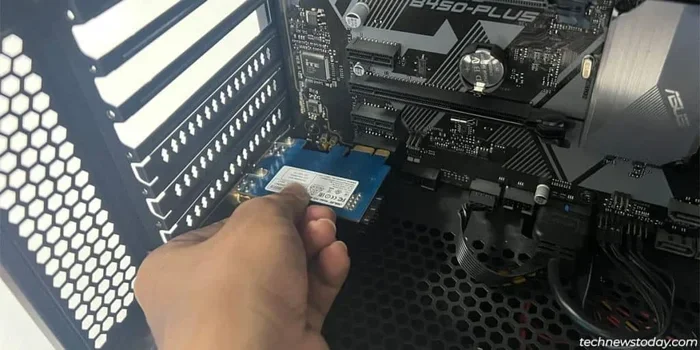
Can You Put A Wifi Card In A Pcie Expansion Slot Now
Yes, you can absolutely put a wifi card in a PCIe expansion slot. A PCIe wifi card is one of the best ways to upgrade your desktop’s wireless connectivity. Whether you need WiFi 6 speeds or a Bluetooth combo card, a PCIe slot gives you reliable, high-performance wireless access without relying on USB adapters.
If you have ever looked at your desktop computer and wondered about its wireless capabilities, you are not alone. Many people ask a simple question: can you put a wifi card in a PCIe slot? The answer is a confident yes. A PCIe wifi card is one of the most effective ways to bring strong, reliable wireless internet to your desktop. Whether your motherboard lacks built-in WiFi or your current wireless setup is underperforming, a PCIe expansion card can make a huge difference.
In this guide, we will walk through everything you need to know. We will cover the different types of wireless cards, how to install them, and why a PCIe connection beats a USB adapter in most cases. By the end, you will feel confident enough to upgrade your desktop’s wireless connection yourself.
Key Takeaways
- PCIe wifi cards plug directly into your motherboard: They offer faster speeds and more stable connections than USB alternatives.
- You need a free PCIe x1 slot: Most wireless cards use this small slot, but check your motherboard for compatibility first.
- WiFi 6 and WiFi 6E cards deliver the best performance: These newer standards offer faster speeds and less congestion.
- Installation is straightforward: You can do it in under 15 minutes with basic tools.
- Driver installation matters: Always download the latest drivers from the manufacturer’s website for the best experience.
- PCIe wifi cards support Bluetooth too: Many models include built-in Bluetooth for connecting peripherals wirelessly.
- Internal cards look cleaner and perform better: They avoid the clutter and signal issues of external adapters.
📑 Table of Contents
- What Is a PCIe Slot and Why Does It Matter for WiFi
- Types of WiFi Cards for PCIe Slots
- How to Install a WiFi Card in a PCIe Slot
- PCIe WiFi vs USB WiFi: Which Is Better
- Common Mistakes When Installing a PCIe WiFi Card
- Expert Tips for Getting the Best WiFi Performance
- Key Takeaways
- Frequently Asked Questions
- Conclusion
What Is a PCIe Slot and Why Does It Matter for WiFi
A PCIe slot stands for Peripheral Component Interconnect Express. It is a high-speed connection on your motherboard. These slots connect different components to your computer’s motherboard. They include graphics cards, sound cards, storage controllers, and yes, wireless network cards.
The PCIe slot has been around for years, and it comes in different sizes. The most common sizes are PCIe x1, PCIe x4, PCIe x8, and PCIe x16. For a wireless card, you usually need a PCIe x1 slot. This is the smallest slot and it fits perfectly for compact wifi cards.
Why PCIe Matters for Wireless Performance
Here is the big reason PCIe matters. A PCIe connection provides a direct link to your motherboard. This means data moves faster and with less interference. USB connections share bandwidth with other USB devices. PCIe lanes are dedicated. This dedicated pathway gives your wireless card a clear, fast lane to communicate with your system.
When you use a PCIe wireless card, you get lower latency and more consistent speeds. This matters for video calls, online gaming, and large file downloads. A USB wifi adapter can work, but it often deals with signal interference from other connected devices.
Do You Need a PCIe x1 Slot Specifically
Most wifi cards use a PCIe x1 connector. These cards are small and designed to fit into the x1 slot. You can also use a PCIe x1 card in a larger slot like x4 or x16. It will work just fine. The card simply uses one lane of the larger slot. The reverse is not true, though. You cannot put a larger card into a smaller x1 slot.
Before buying a card, open your computer case and check your motherboard. Look for a free PCIe x1 slot. These slots are usually located near the bottom of the motherboard. They are small and have a single latch. If you see one available, you are good to go.
Types of WiFi Cards for PCIe Slots
Not all wireless cards are the same. There are several types you can choose from. Each type offers different speeds, features, and compatibility levels. Let us break them down so you can pick the right one.
WiFi 5 (802.11ac) Cards
WiFi 5 cards are the older standard, but they still work well. They support speeds up to about 1.3 Gbps. These cards work fine for basic browsing, streaming, and everyday tasks. If you do not need the fastest speeds, a WiFi 5 card is a budget-friendly option.
These cards are widely available and affordable. They work with most routers, even older ones. If your internet plan is under 100 Mbps, a WiFi 5 card will handle it without any issues.
WiFi 6 (802.11ax) Cards
WiFi 6 is the current mainstream standard. It offers much faster speeds and better performance in crowded areas. A WiFi 6 PCIe card can reach speeds up to 2.4 Gbps or higher. These cards handle multiple devices better than older standards. They also use less power, which is a nice bonus.
If you have a WiFi 6 router, you should definitely get a WiFi 6 PCIe card. You will unlock the full potential of your router. The speeds and stability improvements are noticeable right away.
WiFi 6E and WiFi 7 Cards
WiFi 6E adds support for the 6 GHz band. This band is less crowded, which means fewer interference issues. WiFi 7 is the newest standard and offers even faster speeds. These cards are great for power users and gamers. However, they require compatible routers to take full advantage of their features.
These newer cards cost more than WiFi 5 or WiFi 6 options. But if you want the best wireless performance available today, they are worth considering.
WiFi and Bluetooth Combo Cards
Many PCIe wireless cards include Bluetooth support built in. These combo cards save you a slot and a USB port. You get both wireless internet and wireless peripheral connectivity in one card. This is a great option if you use wireless headphones, keyboards, or mice.
When shopping for a PCIe wifi card, check the specs to see if Bluetooth is included. Most combo cards support Bluetooth 5.0 or newer. This gives you a strong, stable connection for all your wireless devices.
How to Install a WiFi Card in a PCIe Slot
Installing a PCIe wifi card is easier than you might think. You do not need to be a tech expert. With a few basic tools and about 15 minutes, you can have your new card up and running.
What You Will Need
Before you start, gather these items:
- A Phillips-head screwdriver
- Your new PCIe wifi card
- Your computer case access
- The latest drivers downloaded from the manufacturer’s website
Make sure you download the drivers before you start. Once the card is installed, you will need internet access to download them. If you still have a working USB wifi adapter or Ethernet connection, use that to grab the latest drivers.
Step-by-Step Installation
Follow these steps carefully for a smooth installation:
- Power off your computer completely. Unplug it from the wall. Press the power button for a few seconds to discharge any remaining electricity.
- Open your computer case. Most cases have side panels that slide off or are held by screws. Remove the panel carefully.
- Locate a free PCIe x1 slot. Find an empty slot on your motherboard. It should be a small slot with a latch on one end.
- Remove the metal bracket covering the slot. This bracket is usually held by a single screw at the back of the case. Keep the screw safe.
- Align the wifi card with the slot. The notch on the card’s connector should match the slot. Press the card firmly and evenly until it clicks into place.
- Secure the card with the bracket screw. Tighten the screw gently. Do not overtighten.
- Close the case and plug in your computer. Power it on.
- Install the drivers. Windows may recognize the card and install basic drivers automatically. For the best performance, install the manufacturer’s drivers that you downloaded earlier.
Quick Tips for a Smooth Installation
- Ground yourself before touching internal components to prevent static damage.
- Handle the card by the edges, not the circuitry.
- Make sure the card is fully seated in the slot before tightening the screw.
- If the card has external antennas, position them vertically for the best signal.
PCIe WiFi vs USB WiFi: Which Is Better
This is one of the most common questions people ask. Both options give you wireless internet, but they work very differently. Let us compare them side by side.
| Feature | PCIe WiFi Card | USB WiFi Adapter |
|---|---|---|
| Connection type | Direct motherboard link | USB bus connection |
| Speed | Faster and more consistent | Good but shares USB bandwidth |
| Signal quality | Better, less interference | Can suffer from interference |
| Installation | Internal, requires opening case | Plug and play, no tools needed |
| Bluetooth support | Often included in combo cards | Rarely included |
| Aesthetics | Hidden inside the case | Visible outside the case |
| Price | Slightly higher | More affordable |
| Portability | Fixed installation | Easy to move between devices |
For most desktop users, a PCIe wifi card is the better choice. It delivers faster speeds, more stable connections, and a cleaner setup. USB adapters are convenient for laptops or temporary setups. But for a permanent desktop upgrade, nothing beats a PCIe card.
One situation where a USB adapter wins is when you have no free PCIe slots. In that case, a USB wifi adapter is your only option. But if you do have a slot available, go with PCIe every time.
When a USB Adapter Still Makes Sense
USB adapters are not useless. They are great for people who cannot open their computer case. They also work well for laptops where PCIe slots are not available. And if you only need basic internet access, a USB adapter gets the job done. Just do not expect the same performance as a PCIe card.
Common Mistakes When Installing a PCIe WiFi Card
Even simple tasks can go wrong if you are not careful. Here are the most common mistakes people make when installing a PCIe wifi card. Avoid these, and your installation will go smoothly.
Forgetting to Update Drivers
This is the number one mistake. Windows will often install a basic driver automatically. But the manufacturer’s driver gives you better performance and stability. Always download the latest driver from the card maker’s website before or right after installation.
Not Checking Slot Compatibility
Some people buy a card without checking their motherboard. Make sure you have a PCIe x1 slot available. Also check that the card’s length fits your case. Some full-height cards may not fit in smaller cases.
Overtightening the Bracket Screw
The bracket screw just needs to be snug. If you overtighten it, you can crack the motherboard or strip the screw hole. A gentle tighten is all that is needed.
Ignoring Antenna Placement
If your card has external antennas, do not stuff them flat against the case. Position them vertically or at an angle for the best signal reception. Good antenna placement makes a real difference in your wireless speed and range.
Skipping the Antenna Connection
Some PCIe wifi cards have removable antennas. If your card came with antennas, make sure you plug them in. A card without connected antennas will have very poor wireless performance.
Expert Tips for Getting the Best WiFi Performance
Installing the card is only half the battle. Here are some expert tips to help you get the most out of your new PCIe wifi card.
Position Your Router Well
No wifi card can overcome a poorly placed router. Keep your router in a central location. Elevate it off the floor. Avoid placing it near thick walls, metal objects, or electronics that cause interference. A good router position dramatically improves your signal strength.
Use the 5 GHz Band When Possible
Most modern wifi cards support both 2.4 GHz and 5 GHz bands. The 5 GHz band is faster and less congested. Use it whenever your devices are close enough to the router. The 2.4 GHz band has better range but slower speeds.
Keep Your Card and Drivers Updated
Manufacturers release driver updates that improve performance and fix bugs. Check for updates every few months. This keeps your wireless connection running at its best.
Consider a Card with External Antennas
Cards with external antennas generally perform better than those with internal antennas. The antennas can be positioned for optimal signal reception. If you have dead spots in your home, external antennas can help reach those areas.
Run a Speed Test After Setup
After installing your new card, run a speed test at sites like Speedtest.net. Compare the results to your internet plan. This confirms that the card is working properly and that you are getting the speeds you pay for.
Use a PCIe WiFi Card With a Bluetooth Adapter for Full Wireless Freedom
Many modern PCIe wireless cards come with built-in Bluetooth. This means you can connect wireless headphones, game controllers, and keyboards without any extra hardware. A combo card simplifies your setup and saves you money compared to buying separate adapters.
When shopping for a PCIe wifi card, look for one that supports Bluetooth 5.0 or newer. This ensures fast, stable connections for all your wireless peripherals. Bluetooth 5.0 has a longer range and better battery efficiency than older versions.
Key Takeaways
- Installing a PCIe wifi card is simple: You need a free PCIe x1 slot, a screwdriver, and about 15 minutes of your time.
- PCIe cards outperform USB adapters: They offer faster speeds, lower latency, and better signal quality.
- WiFi 6 is the sweet spot for most users: It provides excellent speeds and works with most modern routers.
- Always install manufacturer drivers: This ensures you get the best performance and stability from your card.
- Check your motherboard before buying: Confirm you have a free PCIe x1 slot and that your case has enough room.
- External antennas improve performance: Position them vertically for the best signal strength and range.
Frequently Asked Questions
Can any PCIe wifi card work with my desktop?
Most PCIe wifi cards work with any desktop that has a free PCIe x1 slot. However, always check your motherboard’s manual to confirm compatibility. Some older motherboards may not support newer wifi standards. Also, make sure your case has enough clearance for the card and its antennas.
Do I need to install drivers for a PCIe wifi card
Yes, you should always install the latest drivers from the manufacturer’s website. Windows may install a basic driver automatically, but the official driver gives you better performance, stability, and access to all features. Download the drivers before you install the card if possible.
Can I use a PCIe x1 wifi card in a larger PCIe slot
Yes, a PCIe x1 card can fit into a PCIe x4, x8, or x16 slot. It will work perfectly fine. The card simply uses one lane of the larger slot. This makes PCIe wifi cards very versatile and easy to install in most desktop computers.
Is a PCIe wifi card better than a USB wifi adapter
For most desktop users, yes. A PCIe card offers faster speeds, more stable connections, and less interference than a USB adapter. PCIe provides a dedicated connection to the motherboard, while USB shares bandwidth with other devices. The only advantage of USB is portability and ease of use.
Does a PCIe wifi card support Bluetooth
Many PCIe wifi cards include Bluetooth support. These combo cards let you connect wireless peripherals like headphones, keyboards, and mice. Check the product specifications to confirm Bluetooth support before purchasing. Most modern combo cards support Bluetooth 5.0 or newer.
How much does a PCIe wifi card cost
Prices vary depending on the standard and features. WiFi 5 cards start around $15 to $25. WiFi 6 cards typically range from $25 to $60. WiFi 6E and WiFi 7 cards can cost $60 to $150 or more. A mid-range WiFi 6 card offers the best value for most users.
Conclusion
The answer to whether can you put a wifi card in a PCIe expansion slot is a definitive yes. A PCIe wifi card is one of the simplest and most effective upgrades you can make to your desktop. It brings fast, reliable wireless internet directly into your system through a dedicated motherboard connection.
Whether you choose a budget WiFi 5 card or invest in a cutting-edge WiFi 6E model, you will enjoy better performance than any USB adapter can provide. The installation process is straightforward, and the results are immediate. You get faster speeds, lower latency, and a cleaner setup without external clutter.
Do not let a weak wireless connection hold you back. Grab a PCIe wifi card, follow the steps in this guide, and enjoy a stronger wireless network today. Your desktop deserves the best connection possible, and a PCIe expansion slot is the perfect way to deliver it.