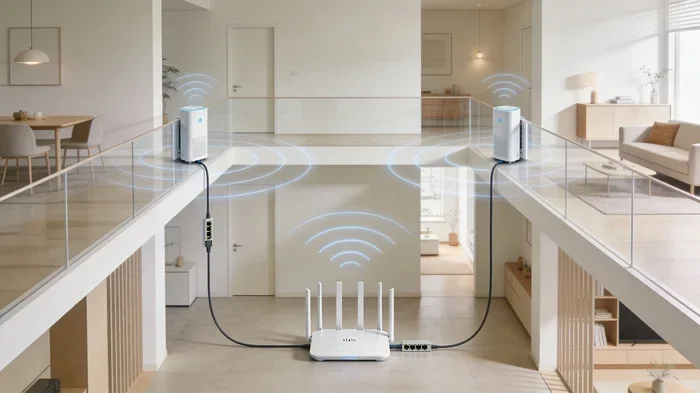
Can You Extend Wi Fi With Another Router Wirelessly
Yes, you can extend Wi-Fi with another router wirelessly, and it is simpler than most people think. You can use wireless repeating, bridge mode, or WDS to boost your signal and eliminate dead zones. This guide walks you through every method, compares options, and gives practical tips to get the best results without buying expensive gear.
Have you ever walked into a room and found your wireless signal drops to nothing? It is a frustrating experience that almost everyone faces at some point. Maybe your bedroom is too far from the main router. Or perhaps your basement has thick walls that block the Wi-Fi signal completely.
The good news is that you do not need to buy a brand new mesh Wi-Fi system to fix this problem. You can actually use a second router to extend your Wi-Fi wirelessly. This method is called wireless repeating or bridging, and it works with most modern routers. In this guide, we will walk you through every option step by step.
By the end of this article, you will know exactly how to boost your wireless connectivity using equipment you may already own. We will cover the different methods, compare their pros and cons, and share tips that most guides skip. Let us get started.
Key Takeaways
- Wireless extension is possible: You can use a second router to repeat your Wi-Fi signal without running cables.
- Multiple methods exist: Wireless repeating, bridge mode, and WDS are the most common approaches.
- Mesh networks are the modern solution: They offer the easiest and most reliable wireless extension.
- Speed loss is real: Wireless repeating can cut your bandwidth in half, so placement matters a lot.
- Compatibility is key: Not all routers support wireless bridging, so check your model first.
- Setup is manageable at home: Most methods take 15-30 minutes with no special skills needed.
📑 Table of Contents
- Understanding How Wi-Fi Extension Works
- Why You Might Need to Extend Wi-Fi Wirelessly
- Method 1: Extending Wi-Fi Using Wireless Repeating
- Method 2: Using Bridge Mode for Seamless Extension
- Method 3: Setting Up a Wireless Distribution System (WDS)
- Mesh Wi-Fi: The Modern Alternative
- Common Mistakes to Avoid
- Expert Insights on Wireless Router Extension
- Key Takeaways
- Conclusion
Understanding How Wi-Fi Extension Works
Before you set up a second router, it helps to understand what is actually happening. When you extend Wi-Fi wirelessly, the second router receives the signal from your main router and then rebroadcasts it. Think of it like a relay race. The first runner carries the signal partway, and the second runner passes it along to the far end of your home.
There are three main ways this works in practice. The first is wireless repeating, where the second router picks up your network name and shares it again. The second is bridge mode, which connects the two routers more directly. The third is using a wireless distribution system, commonly known as WDS. Each method has its own strengths and weaknesses.
What Is a Wireless Repeater?
A wireless repeater is basically a router that sits between your main router and the area with weak signal. It receives the wireless network from your primary router and then creates a new broadcast of that same signal. The repeater does not create a new network name unless you want it to. It simply amplifies what is already there.
The biggest advantage of a repeater is simplicity. You do not need cables running through your walls. You just place the second router in a spot where it can still catch a decent signal from the main router. Then it pushes that signal further into your home. This makes repeaters a popular choice for home network setup projects.
What Is Bridge Mode?
Bridge mode is a slightly different approach. When a router operates in bridge mode, it connects to your main router and creates a single unified network coverage area. Devices connected to the second router are essentially part of the same network as those connected to the first router. This means you can walk from one room to another without losing your connection.
Bridge mode works best when the two routers can communicate through a wireless bridge. A wireless bridge creates a direct link between the two devices, which helps maintain better speeds compared to simple repeating. However, not all routers support bridge mode, so you need to check your device specifications first.
What Is WDS?
WDS stands for Wireless Distribution System. It is a built-in feature found on many routers that allows them to communicate with each other wirelessly. When WDS is enabled, the second router connects to the first router using a wireless link rather than an Ethernet cable. This creates a seamless wireless signal boost across your home.
WDS is powerful, but it has limitations. Both routers need to support WDS, and they usually need to be from the same manufacturer or at least compatible with each other. If you are unsure whether your router supports WDS, check the manual or visit the manufacturer’s website. This is one of the most overlooked steps when people try to extend Wi-Fi with another router.
Why You Might Need to Extend Wi-Fi Wirelessly
There are several reasons why a single router might not cover your entire home. Understanding these reasons helps you choose the right extension method. Let us look at the most common scenarios.
Large homes are the number one culprit. If your house is over 2,000 square feet, a single router probably cannot reach every room. Walls, floors, and furniture all weaken the wireless signal as it travels. The further the signal has to go, the weaker it gets.
Thick walls and building materials matter a lot. Brick, concrete, and even metal studs in walls can block or reduce Wi-Fi signals significantly. If your router is on one side of a brick wall, the other side might have a Wi-Fi dead zone where the signal barely reaches.
Multiple floors create challenges too. Wi-Fi signals spread outward and downward more easily than upward. If your router is on the ground floor, the second floor might get a weak or inconsistent connection. This is especially true in two-story homes.
Old routers lack modern technology. Older routers may only support 2.4 GHz bands or older wireless standards like 802.11n. These devices simply do not have the range or speed that newer routers offer. Adding a second router can help compensate for this limitation.
Network congestion affects performance. If you have many devices connected to one router, the available bandwidth gets shared among all of them. A second router can help distribute the load and improve the internet speed experience for each device.
Method 1: Extending Wi-Fi Using Wireless Repeating
Wireless repeating is the most straightforward way to extend your Wi-Fi with another router. It requires no cables between the routers and takes only a few minutes to set up. Here is how to do it.
Step-by-Step Setup Guide
- Check router compatibility. Make sure your second router supports wireless repeating or repeater mode. Most routers made after 2015 have this feature built in.
- Reset the second router. Factory reset the second router before you begin. This clears any old settings and gives you a clean slate to work with.
- Connect to the second router. Use a computer or phone to connect to the second router’s default Wi-Fi network or through an Ethernet cable.
- Access the router settings. Open a web browser and type in the router’s IP address, usually 192.168.0.1 or 192.168.1.1. Log in with the default admin credentials.
- Enable repeater mode. Look for a setting called “Repeater Mode,” “Range Extender,” or “Wireless Bridge” in the router’s admin panel. Enable it.
- Select your main network. The second router will scan for available networks. Choose your main router’s network name and enter the password.
- Choose a channel and frequency. Set the second router to use the same channel and frequency band as the main router for the best results.
- Save and reboot. Save all settings and restart both routers. Wait a minute or two for them to reconnect properly.
Where to Place the Second Router
Placement is the most important factor in wireless repeating. You want the second router to be close enough to the main router to get a strong signal. At the same time, it needs to be far enough from the main router to reach the areas with weak coverage.
A good rule of thumb is to place the second router about halfway between the main router and the dead zone. If the second router is too far from the main router, it will repeat a weak signal, which defeats the purpose. You can use a signal strength app on your phone to test the signal at different locations before finalizing the placement.
Avoid placing the second router inside cabinets, behind large furniture, or near metal objects. These all block the wireless connectivity and reduce performance. Open spaces work best for both routers.
Method 2: Using Bridge Mode for Seamless Extension
Bridge mode offers a more stable connection than simple wireless repeating. It creates a direct link between the two routers, which helps preserve your internet speed better than repeating does. Here is how to set it up.
Setting Up Bridge Mode
- Log into the second router’s admin panel. Use the same process as described above for wireless repeating.
- Find the bridge mode setting. Look for “Bridge Mode,” “Access Point Mode,” or “WDS Bridge” in the settings menu.
- Disable DHCP on the second router. This is critical. The main router should be the only device assigning IP addresses on your network. If the second router also runs DHCP, it can cause conflicts and connection issues.
- Connect to the main router’s wireless network. In the bridge settings, select your main router’s SSID and enter the password.
- Set a static IP address. Assign the second router an IP address within the same range as the main router but outside the DHCP pool. For example, if your main router is at 192.168.1.1 and the DHCP pool goes up to 192.168.1.100, set the second router to 192.168.1.2.
- Save settings and restart both routers. Give them a minute to establish the bridge connection.
Bridge Mode vs. Repeater Mode
Bridge mode generally provides better performance than repeater mode because it creates a dedicated wireless link between the two routers. Repeater mode, on the other hand, uses the same radio to both receive and transmit data, which cuts the available bandwidth roughly in half. Bridge mode avoids this bottleneck.
However, bridge mode requires more careful setup. You need to manage IP addresses and DHCP settings correctly. If you are not comfortable with these technical details, repeater mode might be the easier starting point. Both methods achieve the same goal of extending your wireless coverage, but bridge mode does it more efficiently.
Method 3: Setting Up a Wireless Distribution System (WDS)
WDS is a more advanced method that allows multiple routers to work together as a single wireless network. It is especially useful if you have three or more routers to set up across a large property.
Enabling WDS on Your Router
Not all routers support WDS, so this is the first thing you need to check. Look in your router’s settings for a WDS or “Wireless Bridge” option. If you find it, follow these steps:
- Note your main router’s MAC address. You will need this to link the second router to the first. The MAC address is usually printed on a sticker on the back of the router.
- Enable WDS on both routers. Go into the wireless settings on each router and turn on WDS. Enter the MAC address of the other router when prompted.
- Set the same wireless channel. Both routers must broadcast on the same channel for WDS to work properly. Choose a channel that has the least interference from neighboring networks.
- Use the same security settings. Both routers should use the same encryption type and password so that devices can move freely between them.
- Disable firewall features on the second router. WDS works best when the second router acts as a simple signal bridge rather than a security gatekeeper.
Pros and Cons of WDS
WDS has some clear advantages. It creates a seamless network coverage area where devices can roam between routers without dropping the connection. It also does not require any cables, making it a clean solution for homes where running Ethernet is impractical.
On the downside, WDS can be complex to set up, especially if your routers are from different manufacturers. Compatibility issues are common. WDS also reduces wireless signal strength because the same radio handles both the upstream and downstream connections. For best results, use WDS with routers from the same brand.
Mesh Wi-Fi: The Modern Alternative
While using a second router wirelessly is a great budget option, you should also know about mesh Wi-Fi systems. A mesh network uses multiple nodes or units that work together to cover your entire home with strong, consistent Wi-Fi signal.
Mesh systems are designed from the ground up to work as a team. Unlike using a second standard router, mesh nodes communicate with each other seamlessly. They share the wireless bandwidth intelligently and automatically route traffic through the fastest path. This means less speed loss compared to traditional wireless repeating.
Popular mesh systems include Google Nest Wi-Fi, TP-Link Deco, and Amazon Eero. These systems are easy to set up through a phone app and manage remotely. They also handle network adapter switching smoothly, so your phone and laptop move between nodes without any noticeable interruption.
If you are willing to invest a bit more upfront, a mesh system is often the best long-term solution for whole-home wireless connectivity. But if you already have a second router lying around, the methods in this guide will help you put it to good use.
Common Mistakes to Avoid
Even with the best setup, certain mistakes can undermine your wireless signal boost. Here are the most common pitfalls and how to avoid them.
- Placing the second router too far away. If the repeater or bridge is too far from the main router, it will rebroadcast a weak signal. The result is slow speeds in the extended area. Keep the second router within good range of the main router.
- Using different wireless channels. Both routers should operate on the same channel for the best performance. Mismatched channels cause connection drops and slowdowns.
- Forgetting to update firmware. Outdated router firmware can cause compatibility issues and security vulnerabilities. Always check for firmware updates before setting up a new configuration.
- Leaving DHCP enabled on both routers. This creates IP address conflicts that can bring down your entire network. Always disable DHCP on the second router when using bridge mode or WDS.
- Using a dual-band router on the wrong band. If your main router broadcasts on both 2.4 GHz and 5 GHz, make sure the second router is set to use the same band. Mixing bands can cause confusion and connection problems.
- Ignoring the SSID naming. If both routers broadcast the same network name, devices may struggle to decide which router to connect to. Some users prefer to give the second router a slightly different name to manually control which router devices use.
Quick Tips for Best Results
- Restart both routers after making any configuration changes.
- Use a Wi-Fi analyzer app to find the least congested channel in your area.
- Keep both routers’ firmware up to date for the best compatibility and security.
- Test your speeds at various locations after setup to confirm the extension is working properly.
- Consider upgrading to a dual-band router if your current router only supports 2.4 GHz, as dual-band routers offer better range and speed.
Expert Insights on Wireless Router Extension
Network engineers often recommend starting with the simplest method first. Wireless repeating is the easiest to set up and requires the least technical knowledge. If you find that the speeds are not satisfactory, you can then try bridge mode or WDS for better performance.
One thing that many guides overlook is the importance of your network adapter on the receiving end. Even if you extend your Wi-Fi signal perfectly, an old or outdated network adapter in your laptop or phone can limit the speeds you actually experience. Make sure your devices support modern wireless standards like 802.11ac or 802.11ax for the best results.
Another expert tip is to periodically check your signal strength after the setup is complete. Walls and furniture can shift over time, and a placement that worked perfectly six months ago might not be optimal anymore. A quick check every few months can help you maintain strong network coverage throughout your home.
Key Takeaways
- Yes, you can extend Wi-Fi wirelessly: Using a second router as a repeater, bridge, or WDS node is entirely possible and effective.
- Choose the right method for your needs: Repeating is simplest, bridge mode offers better speeds, and WDS provides the most seamless multi-router setup.
- Placement is critical: The second router must be close enough to the main router to get a strong signal while reaching the areas that need coverage.
- Avoid common setup mistakes: Disable DHCP on the second router, match channels and bands, and keep firmware updated.
- Consider mesh Wi-Fi for a modern solution: Mesh systems offer the easiest and most reliable whole-home coverage if you are open to new equipment.
- Your devices matter too: Ensure your phones, laptops, and tablets support modern wireless standards to take full advantage of the extended network.
Conclusion
Extending Wi-Fi with another router wirelessly is a practical and cost-effective way to improve your home network. Whether you choose wireless repeating, bridge mode, or WDS, each method has its own benefits. The right choice depends on your router compatibility, home layout, and how much effort you want to put into the setup.
The key is to start with a clear plan. Check your router’s capabilities, choose the method that fits your comfort level, and follow the steps carefully. Avoid the common mistakes we highlighted, and take the time to test your setup in different parts of your home. With the right approach, you can eliminate Wi-Fi dead zones and enjoy strong, reliable wireless connectivity in every room.
Remember that technology evolves quickly. What works today might be improved by new solutions tomorrow. But the fundamentals of wireless signal boost and smart router placement will always remain relevant. Start with what you have, apply what you learned here, and enjoy a better online experience throughout your home.
Frequently Asked Questions
Can any router be used as a wireless extender?
Most routers made after 2015 support some form of wireless extension. Look for repeater mode, bridge mode, or WDS in your router’s settings. If your older router does not support these features, you may need to update its firmware or consider using it as a wired access point instead.
Will extending Wi-Fi wirelessly slow down my internet speed?
Yes, wireless repeating can reduce your speed by up to 50 percent because the second router uses the same radio to receive and transmit data. Bridge mode and WDS also cause some speed loss, but typically less than simple repeating. For the best speeds, consider using an Ethernet cable to connect the second router if possible.
Do I need to buy a special router to extend my Wi-Fi?
No, you do not need to buy a special router. Any compatible router can work as a wireless extender. However, if you want the easiest and most reliable experience, a mesh Wi-Fi system is designed specifically for this purpose and offers the best performance with the least setup effort.
What is the difference between a Wi-Fi extender and a second router?
A Wi-Fi extender is a dedicated device designed solely to repeat your existing signal. A second router can do the same job but also offers additional features like more Ethernet ports and advanced settings. Using a second router as an extender gives you more flexibility and often better performance than a basic extender.
How far should the second router be from the main router?
The second router should be placed about halfway between the main router and the area with weak signal. It needs to be close enough to the main router to receive a strong signal, yet far enough to extend coverage into the dead zone. Use a signal strength app to test the best location before finalizing the placement.
Can I use two different brand routers together for wireless extension?
Yes, you can use routers from different brands, but compatibility may be limited. WDS and bridge mode work best when both routers are from the same manufacturer. If you mix brands, wireless repeating is usually the most reliable option. Always check both routers’ manuals for WDS and bridge mode support before attempting setup.