Can You Open Bluetooth Settings On Any Device Easily
Yes, you can open Bluetooth settings on virtually any device — whether it is a smartphone, laptop, tablet, or desktop computer. This guide walks you through the exact steps for every major platform, along with troubleshooting tips for when things go wrong. You will learn how to pair devices, fix common Bluetooth problems, and get your wireless connection running smoothly in minutes.
Have you ever been in a situation where you want to connect your wireless headphones or Bluetooth speakers to your device, but you cannot find the Bluetooth settings? It happens to all of us. The good news is that opening Bluetooth settings is incredibly easy on virtually any device. Whether you are using an iPhone, an Android phone, a Windows laptop, or a Mac, the process is straightforward and quick.
In this guide, we will walk you through exactly how to open Bluetooth settings on any device. We will cover every major platform, share practical tips for Bluetooth pairing, and help you troubleshoot when things do not work as expected. By the end of this article, you will feel confident connecting any wireless device to your computer, phone, or tablet.
The world of wireless connectivity has changed how we listen to music, take calls, and work on the go. Understanding your Bluetooth menu is the first step to unlocking all of this convenience. Let us dive right in.
Key Takeaways
- Opening Bluetooth settings is simple on all major platforms — iOS, Android, Windows, and macOS all have built-in options.
- Bluetooth pairing only takes a few seconds once you know the correct steps for your device.
- Common Bluetooth issues like connectivity drops can be fixed with basic troubleshooting steps.
- Bluetooth range and visibility settings matter for a smooth wireless experience.
- Updating your device software often resolves Bluetooth problems before they become bigger issues.
- Bluetooth works with a wide range of devices including headphones, speakers, keyboards, and more.
📑 Table of Contents
What Is Bluetooth and Why Does It Matter?
Bluetooth is a short-range wireless technology that lets devices communicate with each other without cables. It was invented in the 1990s and has become one of the most widely used wireless standards in the world. Today, billions of devices rely on Bluetooth connection every single day.
When you use Bluetooth headphones, a Bluetooth speaker, or even a wireless keyboard, you are using this technology. It operates on a frequency of 2.4 GHz and typically has a range of about 30 feet. Modern versions of Bluetooth, like Bluetooth 5.0 and beyond, offer faster speeds and longer range.
Understanding how Bluetooth works helps you troubleshoot issues more effectively. The technology uses something called Bluetooth pairing to establish a secure link between two devices. Once paired, they remember each other and reconnect automatically in most cases.
How to Open Bluetooth Settings on Different Devices
Every device has its own way of accessing Bluetooth settings. Below, we break down the process for the most popular platforms. Follow the steps that match your device.
Opening Bluetooth Settings on iPhone
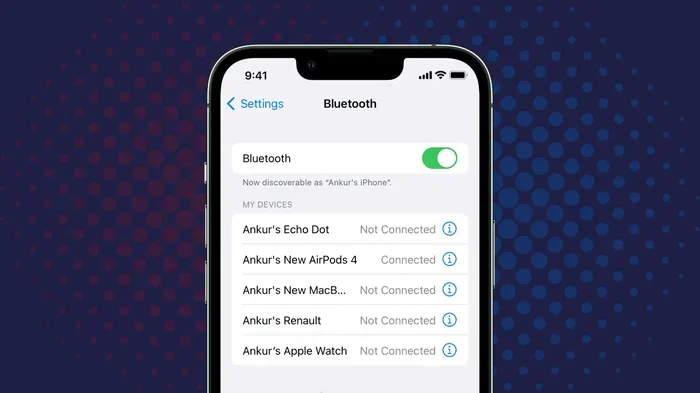
Apple makes it very easy to find Bluetooth settings on your iPhone. Here is how to do it:
- Unlock your iPhone and open the Settings app.
- Tap on Bluetooth near the top of the menu.
- Toggle the switch to turn Bluetooth enabled if it is off.
- Your iPhone will start searching for nearby Bluetooth devices.
- Tap on the device you want to pair with.
You can also swipe down from the top right corner of your screen to open the Control Center. Tap and hold the wireless connectivity icon to quickly access Bluetooth preferences. This is the fastest method if you are in a hurry.
Pro tip: If your iPhone does not find a device, make sure the other device is in Bluetooth discovery mode. Most devices flash a light or show a blinking indicator when they are ready to be found.
Opening Bluetooth Settings on Android
Android phones vary slightly depending on the manufacturer, but the process is very similar across all of them. Here is the standard way:
- Open your Settings app from the home screen or app drawer.
- Scroll down and tap on Connected Devices or Bluetooth, depending on your phone.
- Toggle the Bluetooth switch to turn it on.
- Your phone will scan for available wireless devices nearby.
- Tap the device you want to connect to.
You can also swipe down from the top of your screen to access the quick settings panel. Look for the Bluetooth icon and tap it to toggle Bluetooth on quickly. For more options, tap the gear icon next to the Bluetooth tile to open full Bluetooth settings.
Some Android phones have a dedicated Bluetooth menu that lets you manage paired devices, rename connections, and adjust Bluetooth visibility settings. Explore these options to get the most out of your wireless experience.
Opening Bluetooth Settings on Windows
If you are using a Windows laptop or desktop, opening Bluetooth settings is just a few clicks away:
- Click the Start menu in the bottom left corner of your screen.
- Go to Settings (the gear icon).
- Click on Devices or Bluetooth & Devices.
- Toggle Bluetooth to the On position.
- Click Add Device to search for new Bluetooth devices.
You can also use the quick action center by clicking the notification icon in the bottom right corner. Click the Bluetooth tile to quickly toggle it on or off. For faster access, you can pin Bluetooth to your taskbar for one-click opening.
Windows also lets you manage Bluetooth drivers through Device Manager. If your Bluetooth connection keeps dropping, checking your drivers is a great first step. Right-click the Start button, select Device Manager, expand the Bluetooth section, and look for any yellow warning icons.
Opening Bluetooth Settings on Mac
Apple computers make it easy to access Bluetooth settings as well. Here is how:
- Click the Apple menu in the top left corner.
- Select System Preferences (or System Settings on newer Macs).
- Click on Bluetooth.
- Toggle Bluetooth on if it is off.
- Your Mac will display a list of available Bluetooth devices.
You can also click the Bluetooth icon in the menu bar at the top of your screen for quick access. If you do not see it, go to System Preferences, select Bluetooth, and check the box that says “Show Bluetooth in menu bar.”
Mac users can also use the Bluetooth preferences pane to manage device names, remove old connections, and adjust Bluetooth visibility. This is especially useful if you have multiple wireless devices and need to keep your connection list organized.
Common Bluetooth Problems and How to Fix Them
Even though Bluetooth technology is reliable, you may run into issues from time to time. Here are the most common problems and how to solve them.
Bluetooth Not Turning On
If you try to turn on Bluetooth but it does not respond, try these steps:
- Restart your device. A simple reboot often fixes minor software glitches.
- Check if Airplane Mode is on. Airplane Mode disables all wireless connections, including Bluetooth.
- Make sure your device software is up to date. Go to your device settings and check for system updates.
- If you are on a Windows PC, run the Bluetooth troubleshooter built into Windows.
Bluetooth Pairing Failures
Sometimes two devices just will not connect. This is frustrating but usually easy to fix:
- Make sure both devices are within Bluetooth range. The typical range is about 30 feet.
- Turn Bluetooth off on both devices and then turn it back on.
- Put the device you want to connect into discovery mode again.
- Remove the device from your Bluetooth devices list and try pairing fresh.
- Check if the other device is already connected to something else. Many devices can only connect to one source at a time.
Bluetooth Keeps Disconnecting
If your Bluetooth connection drops frequently, here is what you can do:
- Move closer to the device you are connecting to. Walls and obstacles can weaken the signal.
- Check for interference from other wireless devices like Wi-Fi routers or microwaves.
- Update the Bluetooth driver on your computer. Outdated drivers cause many connection issues.
- Reset your Bluetooth settings entirely and re-pair your devices.
Bluetooth Tips for Better Performance
Getting the most out of your wireless connectivity is easier than you think. Here are some practical tips that make a real difference.
Keep Your Devices Close
Bluetooth range matters more than most people realize. While modern Bluetooth can reach up to 30 feet or more, walls, furniture, and even other electronics can weaken the signal. Keep your devices in the same room for the best Bluetooth experience.
Update Your Software Regularly
Software updates often include fixes for Bluetooth connectivity issues. Make it a habit to check for updates on your phone, laptop, and tablet regularly. This simple step can prevent many common problems before they start.
Manage Your Paired Devices
Over time, your Bluetooth devices list can get cluttered with old connections you no longer use. Go through your list and remove devices you do not need anymore. This keeps your Bluetooth menu clean and helps your device find the right connection faster.
Use Bluetooth Low Energy When Possible
Many modern devices support Bluetooth Low Energy (BLE). This version uses less power and is ideal for accessories like fitness trackers and smartwatches. If your device supports it, make sure you are using BLE for longer battery life.
Bluetooth in Everyday Entertainment
Bluetooth technology has transformed how we enjoy entertainment. From streaming music to watching videos, wireless connectivity is at the heart of modern media consumption.
Bluetooth Speakers and Sound Quality
Bluetooth speakers have become incredibly popular for outdoor gatherings, parties, and everyday listening. Most modern speakers support high-quality audio codecs like aptX and AAC, which deliver rich, clear sound over wireless connectivity. You can easily open Bluetooth settings on your phone or tablet and connect to a speaker in seconds.
Wireless Headphones for Music and Calls
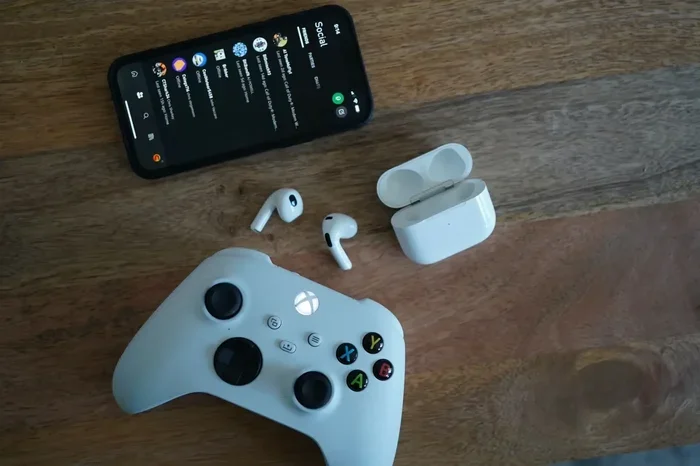
Bluetooth headphones are perhaps the most common wireless device people use today. Whether you are commuting, working out, or just relaxing, wireless headphones give you freedom of movement. The Bluetooth pairing process is the same across most brands, making it easy to switch between devices.
Gaming and Bluetooth Controllers
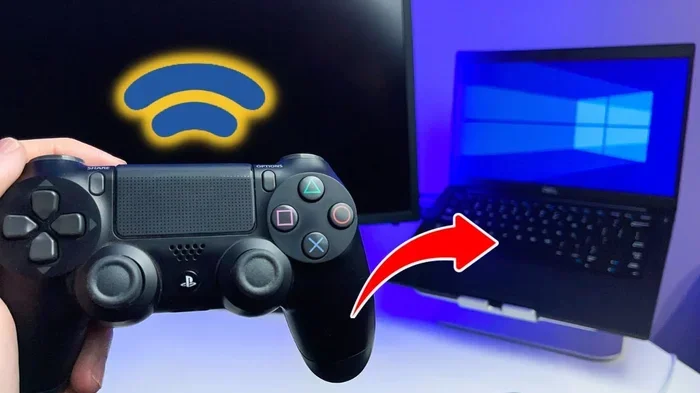
Many gamers use Bluetooth controllers for a wireless gaming experience. Consoles like the Nintendo Switch support Bluetooth connection for controllers, and even PC gamers can connect wireless controllers through Bluetooth settings. Just make sure your Bluetooth enabled setting is on and your controller is in pairing mode.
How Bluetooth Security Works
Security is an important part of Bluetooth technology. When you pair two devices, they exchange encryption keys to create a secure connection. This means your data stays private during Bluetooth syncing and file transfers.
Here are some tips to keep your Bluetooth connection safe:
- Turn off Bluetooth when you are not using it. This prevents unauthorized devices from trying to connect.
- Do not accept pairing requests from devices you do not recognize.
- Keep your Bluetooth visibility turned off when you are not actively pairing.
- Regularly review your paired devices list and remove devices you no longer use.
Following these simple steps keeps your wireless devices safe and your personal data secure. Most modern devices also include built-in security features that protect against common Bluetooth threats.
Future of Bluetooth Technology
Bluetooth technology continues to evolve with each new version. Bluetooth 5.3 and 5.4 offer even better range, faster speeds, and lower power consumption. The future of wireless connectivity looks incredibly promising.
Upcoming developments include improved Bluetooth mesh networking, which allows devices to communicate over much longer distances. We are also seeing better integration with smart home devices, making it easier than ever to control your entire home through wireless devices.
As Bluetooth technology advances, the process of opening Bluetooth settings and connecting devices will only become simpler. Staying informed about these changes helps you get the most out of your gadgets.
Conclusion
Opening Bluetooth settings on any device is a skill everyone should have. Whether you are on an iPhone, Android phone, Windows PC, or Mac, the process is quick and straightforward. We have covered every major platform, shared practical troubleshooting tips, and explored how Bluetooth technology works in everyday life.
Remember that Bluetooth pairing works best when both devices are close, updated, and in discovery mode. If you run into issues, the troubleshooting steps in this guide will help you get back on track in no time. Keep your wireless devices organized, manage your paired list regularly, and enjoy the freedom of wireless connectivity.
Now that you know exactly how to open Bluetooth settings on any device, go ahead and connect your favorite accessories. Whether it is Bluetooth headphones for your morning run or a Bluetooth speaker for a backyard party, you are all set. Happy connecting!
Frequently Asked Questions
Can you open Bluetooth settings on a smart TV?
Yes, most smart TVs have Bluetooth settings built into their main settings menu. Navigate to Settings, look for Bluetooth or Network & Accessories, and toggle Bluetooth on. From there, you can pair wireless headphones or speakers directly to your TV.
Why can’t I find Bluetooth settings on my device?
If you cannot find Bluetooth settings, make sure your device actually has Bluetooth hardware. Very old or budget devices may not support it. Also check if Airplane Mode is on, as it can hide wireless options. Restarting your device often brings the Bluetooth menu back.
How do I put a device in Bluetooth discovery mode?
Most devices enter discovery mode by holding down the Bluetooth or power button for a few seconds. Look for a flashing light or a message on screen that says “Pairing” or “Discoverable.” Once in discovery mode, your device will appear in other devices’ Bluetooth devices list.
Can I connect multiple devices to one Bluetooth speaker?
Some Bluetooth speakers support multi-point connection, which lets you connect two devices at the same time. Check your speaker’s manual for this feature. Otherwise, you will need to disconnect one device before connecting another to the same speaker.
Is Bluetooth safe to use for sensitive data?
Bluetooth technology uses encryption during Bluetooth pairing, which makes it reasonably secure for everyday use. However, avoid sending highly sensitive data over Bluetooth when in public places. Keep your Bluetooth visibility off when not actively pairing devices.
What is the difference between Bluetooth and Wi-Fi?
Bluetooth is designed for short-range, low-power connections between devices like headphones and phones. Wi-Fi is designed for high-speed internet access over longer distances. Both are forms of wireless connectivity, but they serve different purposes in your device settings.