Do All Xbox One Controllers Support Bluetooth Wireless
Do All Xbox One Controllers Support Bluetooth? The answer is no. Only newer models like the Xbox One S controller and Xbox One X controller have Bluetooth connectivity. Older models need a wireless adapter to connect to PCs and other devices. This guide breaks down everything you need to know about Xbox One controller Bluetooth compatibility, pairing, and troubleshooting.
If you own an Xbox One controller and want to use it with your PC, tablet, or smart TV, you have probably asked yourself one question. Do all Xbox One controllers support Bluetooth? The short answer is no. Not every Xbox One controller has Bluetooth connectivity built in. Some models rely on a proprietary wireless signal that only works with the Xbox Wireless Adapter. Other models are fully Bluetooth enabled and can connect to almost any device with a Bluetooth receiver.
This guide will walk you through everything you need to know. We will cover which models have Bluetooth, how to check your controller, how to pair it, and what to do when things go wrong. Whether you are a casual gamer or a hardcore enthusiast, this article has you covered.
The world of Xbox controller Bluetooth can be confusing. Microsoft has released several versions of the Xbox One wireless controller over the years. Each version has different features and connectivity options. Understanding these differences is the first step to getting the best experience with your controller.
Key Takeaways
- Not all Xbox One controllers support Bluetooth: Only the Xbox One S and Xbox One X models have built-in Bluetooth.
- Older controllers need a wireless adapter: The original Xbox One controller requires the Xbox Wireless Adapter for PC connectivity.
- Checking your model is easy: Look at the plastic around the Xbox button to identify your controller version.
- Pairing is simple: Press the pairing button and connect through your device’s Bluetooth settings.
- Bluetooth has limitations: Range and latency can be issues compared to the official wireless adapter.
- Common problems have easy fixes: Most Bluetooth issues can be resolved with simple troubleshooting steps.
📑 Table of Contents
- The Short Answer: Do All Xbox One Controllers Support Bluetooth?
- Which Xbox One Controllers Have Bluetooth?
- How to Check If Your Controller Supports Bluetooth
- How to Pair Your Xbox One Controller via Bluetooth
- Bluetooth vs. Xbox Wireless Adapter: Which Is Better?
- Troubleshooting Bluetooth Connection Issues
- Final Thoughts
The Short Answer: Do All Xbox One Controllers Support Bluetooth?
Let us get this out of the way first. Do All Xbox One Controllers Support Bluetooth? No, they do not. Only the newer versions of the Xbox One controller come with built-in Bluetooth. The older versions do not have this feature at all.
Here is the breakdown. The original Xbox One controller, which launched in 2013, does not support Bluetooth connectivity. It uses a proprietary 2.4 GHz wireless signal. This means you cannot pair it directly with your phone, PC, or smart TV without extra hardware. You need the Xbox Wireless Adapter to connect it wirelessly.
The Xbox One S controller, which came out in 2016, changed the game. This model added Bluetooth low energy support. It can connect to Windows 10 and 11 PCs, Android devices, and some smart TVs without any additional accessories. The Xbox One X controller, released in 2017, also has Bluetooth enabled and shares the same connectivity features.
More recently, Microsoft released the Xbox Series X controller. This controller also supports Bluetooth and is backward compatible with Xbox One consoles. If you have any of these newer models, you can enjoy wireless Bluetooth gaming on a variety of devices.
Why Does This Matter?
Knowing whether your controller has Bluetooth matters because it affects how you can use it. If you want to play PC games on your couch using a tablet or phone, you need a Bluetooth enabled Xbox controller. If your controller does not have Bluetooth, you are stuck with a wired USB connection or the wireless adapter. This can be a big deal for people who want a clean, clutter-free setup.
Which Xbox One Controllers Have Bluetooth?
Not all Xbox One controllers are created equal when it comes to Bluetooth connectivity. Microsoft has released several versions over the years, and each one has different wireless capabilities. Let us look at the models that support Bluetooth and those that do not.
Controllers With Bluetooth Support
The following Xbox One controller models have built-in Bluetooth:
- Xbox One S controller (released 2016) – This was the first Xbox One controller to include Bluetooth low energy. It has a sleeker design and a textured grip on the back.
- Xbox One X controller (released 2017) – This model shares the same Bluetooth features as the Xbox One S controller. It has a similar design but may have slightly different button mapping.
- Xbox Series X controller (released 2020) – This is the latest controller from Microsoft. It supports Bluetooth connectivity and is fully backward compatible with Xbox One consoles.
- Xbox Elite Controller Series 2 – This premium controller also has Bluetooth enabled and offers advanced customization options.
Controllers Without Bluetooth Support
The following models do not have Bluetooth and require the Xbox Wireless Adapter for wireless PC connectivity:
- Original Xbox One controller (released 2013) – This is the first-generation controller. It has a bulky design and lacks Bluetooth. It uses a proprietary 2.4 GHz wireless protocol.
- Xbox One controller (2014 refresh) – This updated version still does not include Bluetooth. It looks similar to the original but has minor internal improvements.
How to Spot the Difference
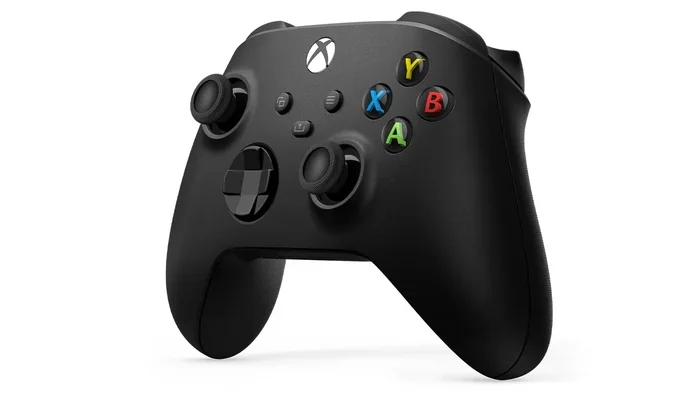
The easiest way to tell if your controller has Bluetooth is to look at the plastic around the Xbox button. On controllers with Bluetooth, the plastic around the Xbox button is flush with the surface. On controllers without Bluetooth, the plastic around the button protrudes slightly. This small difference is easy to miss, but it is a reliable way to identify your model.
How to Check If Your Controller Supports Bluetooth
If you are not sure whether your Xbox One controller has Bluetooth, there are a few ways to check. Let us walk through them step by step.
Method 1: Look at the Xbox Button Surround
As mentioned above, the plastic around the Xbox button is your first clue. On Bluetooth enabled Xbox controllers, this plastic is smooth and flush. On non-Bluetooth models, it sticks out a bit. Hold your controller up to the light and look closely at the area around the Xbox button.
Method 2: Check the Model Number
Every Xbox controller has a model number printed on it. You can find this on the back of the controller near the bumper buttons. Here is what to look for:
- Model 1708 – This is the original Xbox One controller. It does not support Bluetooth.
- Model 1914 – This is the Xbox One S controller. It supports Bluetooth low energy.
- Model 2019 – This is the Xbox One X controller. It also supports Bluetooth.
- Model 2156 – This is the Xbox Series X controller. It supports Bluetooth connectivity.
Method 3: Try Pairing via Bluetooth
The simplest way to check is to try pairing your controller with a Bluetooth enabled device. Put your controller in pairing mode by holding the Xbox button and the pairing button (located on the top edge near the USB port). Then go to your PC or phone’s Bluetooth settings and look for the controller. If it shows up, your controller supports Bluetooth. If it does not, you likely have an older model.
How to Pair Your Xbox One Controller via Bluetooth
If your controller does support Bluetooth, pairing it with your device is straightforward. Here is how to do it on different platforms.
Pairing with a Windows PC
Connecting your Xbox One controller to a Windows PC via Bluetooth is easy. Follow these steps:
- Make sure your PC has Bluetooth turned on. Go to Settings > Devices > Bluetooth & other devices and toggle Bluetooth on.
- Press and hold the Xbox button on your controller until it turns on.
- Press and hold the pairing button on the top edge of the controller (near the USB-C port) for about three seconds. The Xbox button will start flashing rapidly.
- On your PC, click the “Add Bluetooth or other device” button.
- Select “Bluetooth” from the list of options.
- Your PC should detect the controller. Click on it to pair.
- Once connected, the Xbox button will stay solid instead of flashing.
Pairing with an Android Device
Android phones and tablets make great Xbox controller Bluetooth partners. Here is how to connect:
- Go to Settings > Bluetooth on your Android device.
- Make sure Bluetooth is turned on.
- Press and hold the Xbox button on your controller, then press the pairing button.
- Your Android device should detect the controller. Tap on it to pair.
- Once paired, you can use the controller with games that support controller input.
Pairing with iOS Devices
iPhone and iPad users can also connect their Xbox One controller via Bluetooth. The process is similar to Android:
- Go to Settings > Bluetooth on your iOS device.
- Turn on Bluetooth and make sure your device is discoverable.
- Put your controller in pairing mode by holding the Xbox button and the pairing button.
- Select the controller from the list of available devices on your iPhone or iPad.
- Once connected, you can use the controller with supported games and apps.
Quick Tips for a Smooth Pairing Process
Here are some tips to make Xbox One controller Bluetooth pairing easier:
- Keep your controller charged. A low battery can cause pairing issues.
- Stay close to your device during pairing. Xbox Bluetooth range is typically about 30 feet.
- Make sure no other Bluetooth devices are interfering with the connection.
- Restart your device’s Bluetooth if the controller does not show up the first time.
- Update your controller firmware through the Xbox Accessories app on Windows.
Bluetooth vs. Xbox Wireless Adapter: Which Is Better?
Now that you know how to connect your controller via Bluetooth, you might be wondering if it is the best option. The truth is, Bluetooth connectivity and the Xbox Wireless Adapter each have their pros and cons. Let us compare them.
Comparison Table
| Feature | Bluetooth | Xbox Wireless Adapter |
|---|---|---|
| Compatibility | Works with PCs, Android, iOS, and some smart TVs | Works with Windows PCs only |
| Latency | Slightly higher latency | Lower latency, better for competitive gaming |
| Range | About 30 feet | Up to 40 feet |
| Setup | Simple, no extra hardware needed | Requires purchasing the adapter |
| Price | Free | Adapter costs around $25-$30 |
| Multiple Controllers | Limited by device Bluetooth bandwidth | Supports up to 8 controllers simultaneously |
| Controller Charging | Same as wireless adapter | Same as Bluetooth |
When to Use Bluetooth
Bluetooth connectivity is great for casual gaming, couch gaming, and using your controller with phones or tablets. If you just want to play Xbox Game Pass games on your PC or stream games from your Xbox console, Bluetooth works perfectly fine. The slight increase in latency is barely noticeable for most games.
When to Use the Xbox Wireless Adapter
If you are a competitive gamer who needs the lowest possible latency, the Xbox Wireless Adapter is the better choice. It provides a dedicated wireless connection that is more stable and responsive than Bluetooth. The adapter also supports connecting multiple controllers at once, which is great for local multiplayer sessions.
Expert Insight: What Do Pros Use?
Most professional Xbox players and streamers use the Xbox Wireless Adapter for PC gaming. The lower latency and more stable connection give them an edge in competitive titles. However, for casual gaming and single-player experiences, Bluetooth Xbox controller PC setups work just as well.
Troubleshooting Bluetooth Connection Issues
Even with a Bluetooth enabled Xbox controller, you might run into connection problems from time to time. Here are the most common issues and how to fix them.
Controller Not Showing Up in Bluetooth Settings
If your controller does not appear when you try to pair it, try these steps:
- Make sure your controller is fully charged or has fresh batteries.
- Restart your device’s Bluetooth and try again.
- Move closer to your device. Xbox Bluetooth range can be affected by walls and other obstacles.
- Remove the controller from your device’s Bluetooth memory and try pairing again.
- Check if your device supports Bluetooth low energy. Older Bluetooth versions may not work with newer Xbox controllers.
Controller Keeps Disconnecting
A controller that keeps dropping its Bluetooth connection can be frustrating. Here are some fixes:
- Update your controller firmware using the Xbox Accessories app on Windows.
- Check for Windows or device updates that might affect Bluetooth connectivity.
- Move away from other Bluetooth devices that might be causing interference.
- Try unpairing and re-pairing the controller.
- Restart your device and the controller, then try again.
Controller Connected but No Input in Games
Sometimes the controller connects via Bluetooth but does not register input in games. This is usually a driver or configuration issue:
- Open the Xbox Accessories app and check if the controller is recognized.
- Make sure the controller is set as the input device in your game’s settings.
- Try connecting the controller via USB cable first to install drivers, then switch to Bluetooth.
- On Windows, go to Device Manager and check for any driver issues with the controller.
Common Mistakes to Avoid
Here are some mistakes that can cause Xbox controller Bluetooth troubleshooting headaches:
- Trying to pair a non-Bluetooth controller without the wireless adapter.
- Not holding the pairing button long enough (hold for at least three seconds).
- Pairing the controller with the wrong Bluetooth profile. It should show up as an Xbox controller, not a generic gamepad.
- Ignoring firmware updates. Outdated firmware can cause all sorts of Bluetooth connectivity issues.
Final Thoughts
The question of whether do all Xbox One controllers support Bluetooth comes down to your specific model. The newer controllers from the Xbox One S era and beyond all have Bluetooth connectivity. The older original Xbox One controllers do not. Knowing which model you have saves you time, money, and frustration.
If your controller supports Bluetooth, you can enjoy wireless gaming on PCs, phones, tablets, and smart TVs without any extra accessories. The setup process is simple and straightforward. Just remember that Bluetooth has some limitations compared to the Xbox Wireless Adapter, especially when it comes to latency and range.
For most casual and mid-core gamers, Xbox One controller Bluetooth works great. For competitive players who need every millisecond advantage, the wireless adapter is still the way to go. Either way, Microsoft has made it easier than ever to use your Xbox controller with a wide range of devices.
Take a few minutes to check your controller model, try pairing it with your device, and enjoy the freedom of wireless gaming. Once you experience the convenience of Bluetooth Xbox controller PC or phone gaming, you will wonder how you ever managed without it.
Frequently Asked Questions
Can I use Bluetooth on any Xbox One controller?
No, only Xbox One S controllers, Xbox One X controllers, Xbox Series X controllers, and Xbox Elite Series 2 controllers support Bluetooth connectivity. The original Xbox One controller does not have Bluetooth and requires the Xbox Wireless Adapter for wireless PC use.
How do I know if my Xbox One controller has Bluetooth?
Check the plastic around the Xbox button. If it is flush with the surface, your controller likely has Bluetooth. You can also check the model number on the back of the controller. Model 1708 does not support Bluetooth, while models 1914, 2019, and 2156 do.
Can I connect my Xbox One controller to my phone via Bluetooth?
Yes, if your controller has Bluetooth enabled, you can pair it with Android and iOS devices. Simply put the controller in pairing mode and connect through your phone’s Bluetooth settings. The controller works with supported games and streaming apps on both platforms.
Is Bluetooth good enough for competitive Xbox gaming on PC?
For casual and mid-core gaming, Xbox controller Bluetooth works well. However, competitive players may notice slightly higher latency compared to using the Xbox Wireless Adapter. If you play fast-paced competitive titles, the wireless adapter provides a more responsive connection.
Why does my Xbox One controller keep disconnecting from Bluetooth?
Common causes include low battery, interference from other Bluetooth devices, outdated controller firmware, or being too far from the connected device. Try charging your controller, moving closer, updating firmware through the Xbox Accessories app, and reducing Bluetooth interference to fix the issue.
Do I need any special app to use Xbox One controller Bluetooth on PC?
No special app is needed for basic Bluetooth pairing. Windows 10 and 11 have built-in Bluetooth support. However, the Xbox Accessories app is useful for updating controller firmware, checking battery levels, and customizing controller settings after pairing.