How Do I Convert A Vcard To A Csv File In Mac Easily
Converting a vcard to a csv file on Mac is simpler than you think. Whether you use built-in tools or third-party apps, you can export your contact list in just a few clicks. This guide walks you through every method so you can convert vcard to csv mac quickly and safely.
Have you ever stared at a vcard file on your Mac and wondered how to turn it into something more useful? Maybe you need to move your contact list into a spreadsheet or share it with your team. The good news is that converting a vcard to a csv file on Mac is a straightforward process. You do not need to be a tech expert to get it done.
This guide covers every method you can use. From built-in macOS tools to third-party apps and even Terminal commands, you will find the approach that works best for you. By the end of this article, you will know exactly how to convert vcard to csv mac in just a few minutes. Let us dive right in.
Key Takeaways
- Multiple Methods Available: You can convert vcard files on Mac using built-in tools, third-party apps, or Terminal commands.
- No Technical Expertise Needed: Even beginners can follow the step-by-step instructions provided in this guide.
- CSV Format Is Universal: Once converted, your contact list works in Excel, Google Sheets, and most contact management tools.
- Backup Your Data First: Always save a copy of your original vcard file before starting any conversion process.
- Third-Party Apps Add Features: Apps like CardConver and Thunderbird offer extra options for bulk export and contact migration.
- Terminal Is Powerful: Advanced users can use command-line tools for quick and automated data conversion.
📑 Table of Contents
- What Is A Vcard And Why Convert It To Csv
- Built-In Methods To Convert Vcard To Csv On Mac
- Using Third-Party Apps For Vcard To Csv Conversion
- Step-By-Step Guide Using Terminal On Mac
- How To Import The Converted Csv File Into Other Apps
- Troubleshooting Common Conversion Issues
- Comparing Methods For Vcard To Csv Conversion On Mac
- Best Practices For Managing Your Converted Contact Data
- Conclusion
What Is A Vcard And Why Convert It To Csv
Understanding The Vcard Format
A vcard file is a standard format for storing contact information. It usually carries the extension .vcf, which stands for Virtual Contact File. When you save a contact from your mac contacts app, it often creates a vcard. This file holds names, phone numbers, email addresses, and more. The format is widely supported across phones, email clients, and contact management systems.
The beauty of a vcard is its simplicity. It uses plain text to store data in a structured way. Each contact gets its own block of text with labels like BEGIN:VCARD and END:VCARD. This makes the file easy to read and transfer between devices. However, vcards are not ideal for data analysis or bulk editing.
Why Csv Format Matters
A csv file stands for comma separated values. It is a plain text format where each line represents a row of data, and commas separate each field. This makes csv files perfect for spreadsheets like Excel or Google Sheets. When you export contacts to csv, you can sort, filter, and analyze your digital contacts with ease.
Here are some key reasons to convert your vcard to csv:
- Spreadsheet Compatibility: Open your contact data directly in Excel or Google Sheets.
- Bulk Editing: Update multiple contacts at once instead of one by one.
- Data Analysis: Search, sort, and filter your contact list efficiently.
- Team Sharing: Share your contact backup with colleagues in a familiar format.
- Import To New Platforms: Many CRM tools and email services prefer csv files for import contacts.
The data conversion from vcard to csv unlocks a whole new level of flexibility for managing your contacts. It is one of the most common contact migration tasks people perform on their Mac computers.
Built-In Methods To Convert Vcard To Csv On Mac
Using Mac Contacts App
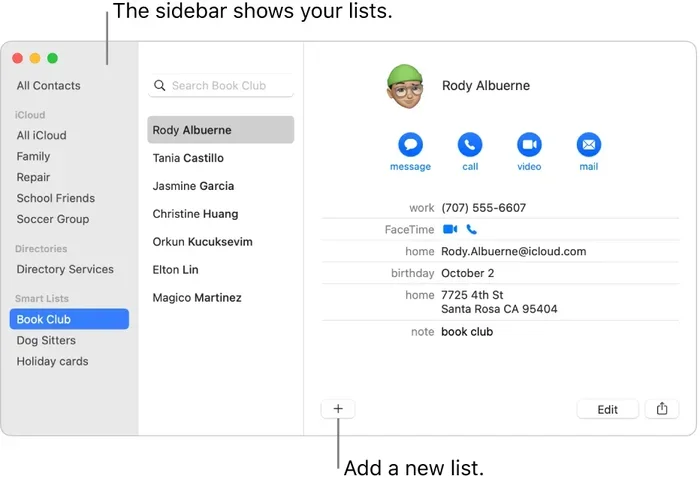
The easiest way to convert vcard to csv mac is through the built-in Contacts app. macOS makes this process simple and does not require any extra software. Here is how you can do it:
- Open the Contacts app on your Mac. You can find it in the Applications folder or use Spotlight search.
- Click on a contact to select it, or press Command + A to select all contacts in your list.
- Go to the menu bar and click File, then choose Export.
- Select Export Contacts from the dropdown menu.
- Choose a location to save the file and name it something descriptive.
- Make sure the format is set to csv before you click Save.
That is it! Your contact export is ready. You can now open the file in any spreadsheet application. This method works great for most users because it requires no technical skills and takes less than a minute.
Using Address Book Export Options
If you are running an older version of macOS, you might still have the Address Book app. The process is very similar to the Contacts app. Open Address Book, select your contacts, go to File, and choose Export. The address book export feature supports csv format directly. This is another reliable built-in option for contact backup and data conversion.
One thing to keep in mind: always check the exported file after saving it. Open it in a text editor or spreadsheet app to make sure all the data looks correct. Sometimes formatting can shift slightly during the export process.
Quick Tips For Built-In Methods
- Always export a small batch first to test the output before exporting your entire contact list.
- Save your original vcard files in a separate folder as a backup before any conversion.
- If the csv file opens with wrong delimiters, try opening it in Numbers instead of Excel on Mac.
- Use descriptive file names like “MyContacts_Export.csv” so you can find them easily later.
Using Third-Party Apps For Vcard To Csv Conversion
Best Vcard Converter Apps For Mac
While built-in methods work well, sometimes you need more control over your contact sync and export settings. Third-party vcard converter apps give you extra features like batch processing, custom field mapping, and better formatting options. Here are some popular choices for Mac users:
- CardConver: A dedicated tool that handles vcard file to csv conversion with a clean interface.
- Thunderbird: This free email client can import vcards and export them as csv files with detailed formatting.
- CSV Importer Pro: Offers advanced options for bulk export and custom delimiter settings.
- AnyConv: An online tool that works directly in your browser without installing anything.
How To Use CardConver For Vcard Conversion
CardConver is a popular choice among Mac users who need a reliable vcard converter. Here is a quick walkthrough:
- Download and install CardConver from the official website or the Mac App Store.
- Launch the app and drag your vcard files into the main window.
- Choose csv as the output format from the conversion options.
- Click the Convert button and wait for the process to finish.
- Open the output folder to find your converted csv file.
This app is especially useful when you have multiple vcard files to convert at once. The bulk export feature saves a lot of time compared to converting files one by one. It also preserves special characters and formatting better than some other tools.
Using Online Conversion Tools
If you do not want to install any software, online tools are a great alternative. Websites like AnyConv, CloudConvert, and Convertio let you upload your vcard file and download a csv version instantly. These tools work on any browser and do not require an internet connection after upload.
However, be cautious with online tools. Make sure you use reputable sites, especially if your contact list contains sensitive information. For personal use, most major conversion sites are safe. But for business contacts, consider using offline tools for better privacy.
Step-By-Step Guide Using Terminal On Mac
When To Use Terminal For Vcard Conversion
If you are comfortable with the command line, Terminal offers a powerful way to convert vcard to csv mac without any extra software. This method is ideal for users who need to process many files at once or automate the conversion process. It gives you full control over the data conversion output.
Setting Up Terminal For Vcard Processing
Before you start, make sure you have your vcard files organized in one folder. This makes the Terminal commands much easier to manage. Here is a simple approach using a Python script, which comes pre-installed on most Mac systems:
- Open Terminal from Applications > Utilities or use Spotlight search.
- Navigate to your vcard folder by typing cd and dragging the folder into the Terminal window.
- Create a simple Python script by typing nano convert_vcard.py and pressing Enter.
- Paste a basic vcard-to-csv parsing script into the editor.
- Save the file by pressing Ctrl + O, then Enter, and exit with Ctrl + X.
- Run the script by typing python3 convert_vcard.py in Terminal.
This method takes a bit more setup, but it is incredibly powerful once configured. You can process hundreds of vcard files in seconds. Many developers and power users prefer this approach because it is fully customizable and does not depend on third-party apps.
Using Built-In Command Line Tools
macOS also includes some command-line utilities that can help with vcard file parsing. Tools like awk and sed can extract data from vcards and format it as comma-separated values. These tools have a learning curve, but they are incredibly efficient once you get the hang of them.
For a simpler command-line option, you can also use the csvkit Python package. Install it with pip, then use it to parse and convert your vcard files. This approach gives you clean, well-formatted csv output every time.
How To Import The Converted Csv File Into Other Apps
Opening Csv Files In Spreadsheet Apps
Once you have your csv file, the real value begins. You can open it in several applications on your Mac. Numbers, Excel, and Google Sheets all support csv format natively. Simply double-click the file, and it should open in your default spreadsheet app. If it does not, right-click the file, choose Open With, and select your preferred app.
When opening a csv file in Numbers, you might see a preview dialog. This lets you choose your delimiter (comma, semicolon, or tab) and set text encoding. Make sure you select comma as the delimiter for standard csv format files.
Importing Csv Into Other Contact Managers
The converted file is not just for spreadsheets. Many contact management apps and CRM platforms accept csv imports. Here are some common platforms and how to import your file:
- Google Contacts: Go to contacts.google.com, click Import, and upload your csv file.
- Outlook: Open Outlook, go to File > Open > Import, and choose csv from the list.
- Apple Mail: Use the CardDAV sync feature to push your converted contacts back to your Mac.
- Salesforce: Use the Data Import Wizard to upload your csv file and map the fields correctly.
This contact migration process is essential for anyone switching between platforms or setting up a new system. The csv format acts as a universal bridge between different contact management tools.
Tips For Clean Imports
- Always clean up your data before importing. Remove duplicate entries and fix formatting issues.
- Check that phone numbers and email addresses follow the correct format for your destination app.
- Save a copy of your contact backup in csv format before making any changes to your address book.
- Use the preview option during import to verify that fields map correctly before finalizing.
Troubleshooting Common Conversion Issues
Missing Data After Conversion
Sometimes, after you convert vcard to csv mac, some fields might be missing or blank. This usually happens when the vcard uses non-standard field names or special characters. To fix this, open the csv file in a text editor first and check the raw data. You may need to adjust your conversion tool settings or use a different parser.
If you are using the built-in Contacts app export and notice missing fields, try exporting individual contacts instead of the entire list. This can help isolate which contacts have formatting issues and which ones export cleanly.
Encoding Problems With Special Characters
Another common issue is encoding problems. If your contact list contains special characters like accented letters or symbols, they might show up as garbled text in the csv file. To fix this, make sure your conversion tool uses UTF-8 encoding. Most modern tools handle this automatically, but older apps or online converters might default to a different encoding.
You can also fix encoding issues after conversion by opening the csv in a text editor like TextEdit, choosing Format > Make Plain Text, and saving it with UTF-8 encoding. This is a quick fix that solves most special character problems.
Wrong Delimiters Or Formatting
If your csv file opens with all the data in one column, the delimiter might be wrong. Some Mac tools use semicolons instead of commas by default. To fix this, open the file in Numbers or Excel and use the Text Import Wizard to specify the correct delimiter. This is a simple fix that takes just a few seconds.
For online conversion tools, look for settings that let you choose your delimiter before converting. Most reputable sites offer this option in their advanced settings panel.
Comparing Methods For Vcard To Csv Conversion On Mac
| Method | Ease of Use | Speed | Best For |
|---|---|---|---|
| Mac Contacts App Export | Very Easy | Fast | Single users with small contact lists |
| Third-Party Apps (CardConver) | Easy | Fast | Bulk conversion and advanced features |
| Online Tools (AnyConv, Convertio) | Very Easy | Medium | Quick one-time conversions |
| Terminal / Python Script | Advanced | Very Fast | Power users and automated workflows |
| Address Book Export | Easy | Fast | Older macOS versions |
Each method has its strengths. For most users, the built-in Contacts app export is the best starting point. It is free, fast, and requires no extra software. If you need more power, a vcard converter app like CardConver gives you the flexibility to handle large batches of files efficiently.
Online tools are perfect when you are in a hurry and do not want to install anything. Just be mindful of privacy when uploading personal contact data to web services. The Terminal method is best reserved for advanced users who want full control and automation over their data conversion workflow.
Regardless of which method you choose, the key is to always verify your output. Open the converted file, check a few entries, and make sure everything looks right before deleting your original vcard files. A good contact backup practice is to keep both the original and converted files until you are completely satisfied with the result.
Best Practices For Managing Your Converted Contact Data
Once you have successfully converted vcard to csv mac, you will want to keep your data organized and secure. Here are some best practices that will save you time and headaches down the road.
- Organize Your Files: Create a dedicated folder for your contact exports. Name it with the date so you can track different versions.
- Regular Backups: Set a monthly reminder to export your contacts. This ensures you always have a recent contact backup if something goes wrong.
- Use Cloud Storage: Save your csv files to iCloud Drive or Dropbox for easy access across all your devices.
- Clean Data Regularly: Remove duplicate entries and update outdated information to keep your contact list accurate.
- Test Imports: Before relying on a converted file for important work, test the import in your target app to confirm everything works.
Following these practices will make your contact management much smoother. You will always have a reliable contact export ready whenever you need it. And if you ever need to switch devices, apps, or platforms, the conversion process will be second nature to you.
Conclusion
Converting a vcard to a csv file on Mac is a simple process that opens up a world of possibilities for managing your contacts. Whether you use the built-in Contacts app, a dedicated vcard converter, or Terminal commands, you now have all the tools you need. Each method offers different benefits, so choose the one that fits your workflow and skill level best.
Remember to always back up your original files before converting. Verify your output after conversion, and keep your csv files organized for easy access. With these steps, you can export contacts from your Mac confidently and use them in any application or platform you choose.
The data conversion from vcard to csv is a small task that delivers big results. It gives you control over your digital contacts and makes contact migration a breeze. Start using these methods today, and you will never struggle with contact data again.
Frequently Asked Questions
Can I Convert Multiple Vcard Files At Once On Mac?
Yes, you can. Third-party apps like CardConver support batch processing, which lets you convert many vcard files simultaneously. The built-in Contacts app also allows you to select and export multiple contacts at once. For even faster results, use a Terminal script to automate the conversion of entire folders full of vcard files.
Is It Safe To Use Online Vcard Converters?
Most reputable online tools are safe for personal use. However, if your contact data contains sensitive or business information, it is better to use offline tools. Apps installed directly on your Mac give you more control over your data privacy. Always check the privacy policy of any online conversion service before uploading your files.
What Should I Do If My Csv File Opens With Wrong Formatting?
If your data appears in one column instead of separate fields, the delimiter is likely wrong. Open the file in Numbers or Excel and use the import wizard to specify a comma delimiter. You can also open the file in a text editor to check the raw data and adjust the delimiter settings accordingly.
Can I Convert Csv Back To Vcard On Mac?
Yes, you can reverse the process. Many apps that export contacts to csv also support importing csv files and converting them back to vcard format. The Contacts app on Mac can import csv files directly. Third-party tools like Thunderbird also offer this bidirectional conversion capability.
Do I Need Any Special Software To Convert Vcard To Csv On Mac?
No, you do not need any special software for basic conversions. The built-in Contacts app on macOS can export contacts to csv format without any additional downloads. However, if you need advanced features like bulk processing or custom field mapping, a dedicated vcard converter app can be very helpful.
Will Converting Vcard To Csv Delete My Original Contacts?
No, the conversion process creates a new file and does not modify or delete your original contacts. However, it is always a good practice to back up your data before any conversion. This ensures that even if something unexpected happens, your original contact list remains safe and untouched.