Can You Use Chromecast With Data On Mobile Hotspot
Yes, you can use Chromecast with data through a mobile hotspot. This guide walks you through everything you need to know about Chromecast mobile hotspot setup, data consumption, and troubleshooting. Whether you are traveling or have no Wi-Fi, you can still stream your favorite content using your phone’s cellular data.
Have you ever found yourself in a hotel room, on a road trip, or at a friend’s place with no Wi-Fi and thought, “I really want to watch something on my TV”? You are not alone. Many people wonder if they can use Chromecast with data instead of relying on a traditional wireless network. The good news is that yes, you absolutely can. Using your phone as a mobile hotspot opens up a world of streaming possibilities. Let us dive into exactly how this works and what you need to know.
Chromecast is a small device made by Google that plugs into your TV’s HDMI port. It lets you send content from your phone, tablet, or laptop straight to your screen. Normally, both your casting device and the Chromecast need to be on the same Wi-Fi network. But what happens when there is no Wi-Fi? That is where mobile hotspot tethering comes in. By turning your phone into a mini router, you can create a local network that both your phone and Chromecast connect to. This means you can stream Netflix, YouTube, Spotify, and more using nothing but your cellular data plan.
Before we go further, it is important to understand that using Chromecast with data does come with some caveats. Your data plan matters, your signal strength matters, and the way you set things up matters too. This guide will cover everything from the basics of how Google Cast technology works with a hotspot to practical tips that will save you from running out of data halfway through a movie night. Let us get started.
Key Takeaways
- Chromecast works with mobile hotspots: You can cast content using your phone’s cellular data connection.
- Setup is simple: Connecting Chromecast to a hotspot takes just a few minutes.
- Data usage varies: Streaming quality directly impacts how much data you consume per hour.
- Watch your data limits: HD and 4K streaming can eat through your plan quickly.
- Common issues have easy fixes: Most connection problems can be solved with basic troubleshooting.
- Offline casting is possible: You can pre-download content and cast it without using live data.
📑 Table of Contents
- What Is Chromecast and How Does It Work?
- Can You Use Chromecast With Data on a Mobile Hotspot?
- How to Set Up Chromecast on a Mobile Hotspot
- How Much Data Does Chromecast Use on a Hotspot?
- Tips to Stream Chromecast Smoothly on Mobile Data
- Common Problems When Using Chromecast With Data
- Expert Insights: Is Using Chromecast With Data Worth It?
- Key Takeaways
- Conclusion
- FAQs
What Is Chromecast and How Does It Work?
Chromecast is a streaming device that connects to your TV through an HDMI port. It receives content from your phone or computer and plays it on the big screen. The technology behind it is called Google Cast, and it uses a simple but clever method to deliver video and audio.
How Casting Works
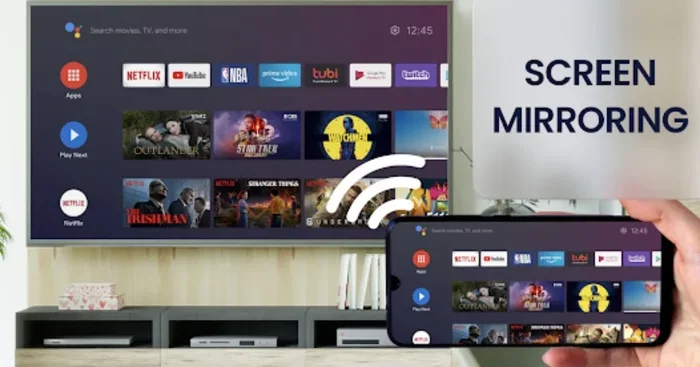
When you cast something, your phone acts as a remote control. It tells the Chromecast what to play, and the Chromecast pulls the content directly from the internet. This is different from screen mirroring, where your phone sends a live feed of your entire screen. With Chromecast streaming, your phone does not have to do the heavy lifting. This means you can leave the room, lock your phone, and the video keeps playing on your TV.
Why People Love Chromecast
- Affordable price: Chromecast devices are budget-friendly compared to other streaming sticks.
- Easy setup: You can have it running in under ten minutes.
- Wide app support: Most popular apps support casting, including Netflix, Hulu, Disney+, and YouTube.
- Works with voice assistants: You can use Google Assistant to control playback.
- Compact design: The device is small and portable, making it easy to travel with.
Now that you understand the basics, let us answer the big question: can you actually use Chromecast with data through a mobile hotspot?
Can You Use Chromecast With Data on a Mobile Hotspot?
The short answer is yes. You can absolutely use Chromecast with data by connecting both your phone and the Chromecast to a mobile hotspot. However, there are a few things you need to know to make this work smoothly. Let us break it down.
The Basic Setup
Here is how it works in simple terms. You turn on the hotspot feature on your phone. Your phone creates a small Wi-Fi network. Then you connect your Chromecast to that network, just like you would connect it to a home router. Once connected, you can cast content from your phone to the Chromecast, and the Chromecast streams it using your phone’s cellular data.
This setup means that your phone is doing double duty. It is both the remote control and the bridge to the internet. Your cellular data plan becomes the source of your streaming entertainment. This is incredibly useful when you are traveling, camping, or staying somewhere without reliable Wi-Fi.
What You Need for This to Work
- A compatible phone: Android or iOS devices both work with Chromecast.
- A Chromecast device: Any model supports hotspot connections.
- A working cellular data plan: Make sure your plan has enough data for streaming.
- Good signal strength: A weak cellular signal means poor streaming quality.
- The Google Home app: You need this to set up and manage your Chromecast.
Limitations to Keep in Mind
While Chromecast mobile hotspot streaming works well, there are some limitations. First, your phone needs to stay connected to the hotspot at all times. If your phone loses its cellular signal, the Chromecast will lose its internet connection too. Second, your phone’s battery will drain faster because it is acting as a router. Third, not all apps support casting through a hotspot connection perfectly. Some apps may refuse to cast if they detect you are not on a traditional Wi-Fi network.
How to Set Up Chromecast on a Mobile Hotspot
Setting up Chromecast with data on a mobile hotspot is straightforward. Follow these steps and you will be watching your favorite shows in no time.
Step-by-Step Setup Guide
- Turn on your mobile hotspot: Go to your phone’s settings and enable the hotspot or tethering feature. Set a password for security.
- Connect your phone to the hotspot: Make sure your phone is connected to its own hotspot network.
- Connect the Chromecast to the hotspot: Open the Google Home app on your phone. Select your Chromecast device and follow the prompts to connect it to the hotspot network.
- Verify the connection: Open a video app like YouTube or Netflix. Tap the cast icon and make sure your Chromecast shows up as a target device.
- Start streaming: Play any video and enjoy your content on the big screen.
Quick Tips for a Smooth Setup
- Keep your phone plugged into a charger during setup to prevent it from shutting down.
- Place your phone close to the Chromecast for a stronger signal.
- Use a strong hotspot password to prevent strangers from connecting and eating your data.
- Restart both your phone and Chromecast if you run into connection issues.
Troubleshooting Setup Problems
If the Chromecast does not show up in the Google Home app, try turning your phone’s hotspot off and on again. You can also try forgetting the hotspot network on the Chromecast and reconnecting. Sometimes simply restarting the Google Home app fixes the issue. If your phone and Chromecast keep disconnecting, check your cellular signal strength. A weak signal will cause frequent drops in the wireless streaming connection.
How Much Data Does Chromecast Use on a Hotspot?
This is one of the most important questions when using Chromecast with data. Streaming video uses a lot of data, and you do not want to hit your data cap halfway through a movie. Let us look at the numbers.
Data Usage by Streaming Quality
| Streaming Quality | Data Per Hour | Hours Per 10GB |
|---|---|---|
| Standard Definition (SD) | 1 GB | 10 hours |
| High Definition (HD) | 3 GB | 3.3 hours |
| 4K Ultra HD | 7 GB | 1.4 hours |
| Audio Only (Music) | 0.1 GB | 100 hours |
These numbers give you a rough idea of what to expect. Actual usage may vary depending on the app you are using and the type of content. For example, action movies with lots of fast motion use more data than a talking podcast.
How to Reduce Data Usage
- Lower the streaming quality: In Netflix or YouTube settings, switch from HD to SD. You will still get a good picture and save a lot of data.
- Download content first: Many apps let you download videos for offline viewing. You can then cast the downloaded content without using live data.
- Pause when not watching: Do not leave streams running in the background.
- Use audio-only mode: If you are listening to music or podcasts, switch to audio-only casting.
- Monitor your usage: Check your phone’s data usage in settings to track how much you are consuming.
Understanding Your Data Plan
Before you start streaming with Chromecast mobile hotspot, check your cellular data plan. Most plans include between 5 GB and 100 GB of data per month. If you plan to stream a lot, you need a plan with generous data allowances. Some carriers offer unlimited data plans, but these often slow down after a certain usage threshold. Keep this in mind when planning long streaming sessions.
Tips to Stream Chromecast Smoothly on Mobile Data
Streaming through a mobile hotspot is not the same as streaming on home Wi-Fi. The connection can be less stable, and data limits are a real concern. Here are some practical tips to make your Chromecast data streaming experience as smooth as possible.
Optimize Your Hotspot Signal
Place your phone in a central location near your TV. Walls and obstacles can weaken the Wi-Fi tethering signal. If possible, keep your phone on the same table or shelf as the Chromecast. The closer they are, the stronger the connection will be. You can also turn off other devices that might be connecting to your hotspot and using up bandwidth.
Use the Right Apps
Not all apps handle Chromecast with data equally well. Netflix, YouTube, and Spotify tend to work very smoothly through hotspots. Some smaller apps may have bugs or compatibility issues. If you find that an app keeps disconnecting, try switching to a more popular app that is known to work well with casting.
Keep Your Phone Cool and Charged
Running a hotspot and casting at the same time puts a lot of strain on your phone. It generates heat, which can slow down performance. Keep your phone in a cool, ventilated spot. Plug it into a power source so the battery does not die mid-stream. A portable battery pack is a great travel companion for Chromecast streaming on the go.
Update Your Apps and Firmware
Make sure your Google Home app, Chromecast firmware, and streaming apps are all up to date. Updates often include bug fixes that improve mobile hotspot performance. Outdated software is one of the most common causes of streaming issues.
Consider Using an External Hotspot Device
If you travel frequently, consider buying a dedicated mobile hotspot device instead of using your phone. These devices have better antennas and longer battery life. They also free up your phone for other tasks. Some carriers sell portable hotspots that work with any SIM card, giving you more flexibility with your cellular data plan.
Common Problems When Using Chromecast With Data
Even with a good setup, you might run into some issues when using Chromecast with data. Here are the most common problems and how to fix them.
Chromecast Keeps Disconnecting
This usually happens when your phone’s signal drops or the hotspot goes to sleep. To fix it, go to your phone’s hotspot settings and disable the “auto-turn off” feature. This keeps the hotspot running even when no devices are connected. You should also make sure your phone is not in battery-saver mode, as this can interrupt the hotspot connection.
Video Keeps Buffering
Buffering means your connection is too slow to keep up with the stream. Lower the streaming quality in your app settings. Check your cellular signal strength. If you are in a weak signal area, move closer to a window or go outside. You can also try restarting your phone’s hotspot to refresh the connection.
Chromecast Does Not Show Up in the App
This is often a simple connectivity issue. Make sure both your phone and Chromecast are on the same hotspot network. Restart the Google Home app. If that does not work, restart your phone and Chromecast. Sometimes the screen mirroring feature interferes with casting. Try turning off screen mirroring in your phone’s settings.
Audio and Video Are Out of Sync
This can happen when the hotspot connection is unstable. Lower the streaming quality to reduce the amount of data being transmitted in real time. If the problem persists, try casting from a different app to see if the issue is app-specific.
Your Data Runs Out Quickly
This is the most common complaint about Chromecast data streaming. The fix is to monitor your usage and adjust your streaming habits. Stick to SD quality for long viewing sessions. Download content over Wi-Fi before you need it. Use audio-only mode for music and podcasts. These small changes can dramatically extend your data usage time.
Expert Insights: Is Using Chromecast With Data Worth It?
From a practical standpoint, using Chromecast with data is a great solution for specific situations. It is perfect for travel, outdoor events, and places without Wi-Fi. However, it is not ideal as a permanent replacement for home internet. The data costs can add up quickly, and the connection is less stable than a home Wi-Fi network.
Experts recommend using Chromecast mobile hotspot streaming as a backup option rather than your primary method. If you find yourself doing it regularly, consider upgrading to a larger data plan or investing in a dedicated mobile hotspot device. This gives you better performance and more reliable connectivity.
The Google Cast ecosystem has improved a lot over the years. Newer Chromecast models handle hotspot connections better than older ones. If you are planning to use Chromecast wireless streaming through a hotspot frequently, consider getting the latest model for the best experience.
Key Takeaways
- Chromecast works with mobile hotspots: You can cast content using your phone’s cellular data connection with minimal setup.
- Setup is simple: Connecting Chromecast to a hotspot takes just a few minutes through the Google Home app.
- Data usage varies: SD streaming uses about 1 GB per hour, while 4K can use up to 7 GB per hour.
- Watch your data limits: HD and 4K streaming can eat through your cellular data plan quickly.
- Common issues have easy fixes: Most connection problems can be solved by restarting the hotspot or adjusting settings.
- Offline casting saves data: Downloading content first and then casting it avoids using live data entirely.
- Consider a dedicated hotspot: For frequent use, a standalone mobile hotspot device offers better performance than phone tethering.
Conclusion
Using Chromecast with data on a mobile hotspot is not only possible but also quite practical. Whether you are on a road trip, staying at a cabin in the woods, or simply dealing with a broken Wi-Fi connection, you can still enjoy your favorite shows and movies on the big screen. The setup process is quick and easy, and with the right data management habits, you can make the most of your cellular plan.
Remember to keep an eye on your data consumption, adjust your streaming quality based on your needs, and troubleshoot issues as they come up. The tips and tricks shared in this guide should help you avoid the most common pitfalls. Chromecast mobile hotspot streaming opens up a lot of flexibility, and it is a skill worth having in your back pocket.
So the next time you find yourself without Wi-Fi, do not panic. Turn on your hotspot, connect your Chromecast, and enjoy the show. With a little planning and the right approach, your Chromecast with data setup can deliver a great streaming experience anywhere you go.
FAQs
Can I use Chromecast with data without Wi-Fi?
Yes, you can use Chromecast with data by turning your phone into a mobile hotspot. The Chromecast connects to your phone’s hotspot network, and your phone uses its cellular data to stream content. Both devices need to be on the same hotspot network for casting to work.
How much data does Chromecast use per hour on a hotspot?
Standard definition streaming uses about 1 GB per hour. HD streaming uses around 3 GB per hour, and 4K streaming can use up to 7 GB per hour. Audio-only casting uses very little data, around 0.1 GB per hour. Your actual usage may vary based on the app and content type.
Why does my Chromecast disconnect from my mobile hotspot?
Disconnections usually happen due to weak cellular signals or your phone’s hotspot going to sleep. To fix this, keep your phone plugged in, disable the auto-turn-off setting on your hotspot, and make sure your phone has a strong signal. Restarting both devices often resolves the issue.
Can I cast downloaded content on Chromecast without using data?
Yes, many apps like Netflix, YouTube, and Spotify allow you to download content for offline viewing. You can then cast the downloaded content to your Chromecast through the hotspot without using additional live data. This is a great way to save your cellular data allowance.
Is it better to use a dedicated hotspot device instead of my phone?
For frequent use, a dedicated mobile hotspot device is better. It has a stronger antenna, longer battery life, and does not drain your phone’s battery. It also frees up your phone for other tasks. However, for occasional use, your phone’s hotspot feature works perfectly fine with Chromecast data streaming.
Does using Chromecast with data work on all phones?
Most Android and iOS phones support hotspot tethering and work with Chromecast mobile hotspot connections. You need to make sure your phone’s hotspot feature is enabled and that your cellular plan allows tethering. Some carrier plans may restrict or charge extra for hotspot usage, so check with your provider first.