Can You Make Phone Calls On Wi Fi Everything Explained
Yes, you can make phone calls on Wi-Fi using Wi-Fi calling technology. This feature lets your mobile phone route calls through a wireless internet connection instead of a cellular network. It works on both iPhone and Android devices with just a few simple settings changes. Wi-Fi calling provides clearer audio, better coverage in dead zones, and can even save you money on call charges. Keep reading to learn how to set it up and get the most out of wireless calling.
Have you ever been in a building where your phone signal drops to nothing? You stand in the middle of your living room, holding your phone up high, hoping for even one bar of service. We have all been there. The good news is that you can make phone calls on Wi-Fi, and it is easier than you might think.
Wi-Fi calling is a feature that lets your phone use a wireless internet connection to place and receive calls. Instead of relying on a nearby cell tower, your voice travels through your home router or office network. This technology has been around for several years now, and it keeps getting better with every phone update. Whether you have a weak signal at home or want to save money on international calls, Wi-Fi calling can change the way you communicate.
In this guide, we will walk you through everything you need to know. From understanding how wireless calling works to setting it up on your device, we have got you covered. You will learn about the benefits, common problems, and expert tips to get the best experience. Let us dive in and explore the world of VoIP calling on mobile devices.
Key Takeaways
- Wi-Fi calling works on most modern phones: Both iPhone and Android devices support making calls over Wi-Fi with built-in features or apps.
- Setup is simple and free: You only need a stable internet connection and a few minutes to enable the feature in your phone settings.
- Better coverage in weak signal areas: Wi-Fi calling helps you stay connected indoors where cellular signals struggle to reach.
- No extra charges from most carriers: Many providers include Wi-Fi calling at no additional cost, even for international calls.
- Call quality improves with a strong Wi-Fi signal: A fast, stable connection delivers clearer voice and fewer dropped calls.
- Emergency services may have limitations: Your location accuracy can vary when calling 911 over Wi-Fi, so always check your carrier’s policy.
- VPNs and network settings can affect performance: Adjusting a few settings can resolve most common Wi-Fi calling problems.
📑 Table of Contents
- What Is Wi-Fi Calling and How Does It Work?
- How to Make Phone Calls Over Wi-Fi on Your Device
- Benefits of Making Calls Over Wi-Fi
- Common Problems with Wi-Fi Calling and How to Fix Them
- Is Wi-Fi Calling Safe and Private?
- Comparing Built-In Wi-Fi Calling vs. Third-Party Apps
- Expert Tips to Get the Best Wi-Fi Calling Experience
- Frequently Asked Questions About Wi-Fi Calling
- Final Thoughts on Making Calls Over Wi-Fi
What Is Wi-Fi Calling and How Does It Work?
Wi-Fi calling is a service that lets your phone make and receive calls using a wireless internet connection. Think of it as a bridge between your mobile device and your home router. When you turn on this feature, your phone stops looking for a cell tower and starts using your Wi-Fi network to send and receive voice data.
How the Technology Works Behind the Scenes
When you make a regular call, your phone connects to the nearest cell tower. That tower routes your voice to the destination through the cellular network. But when you enable Wi-Fi calling, your phone sends your voice data as small packets over the internet. These packets travel to your carrier’s servers and then reach the person you are calling.
The whole process happens in seconds. You do not notice any delay in most cases. Your phone just treats the Wi-Fi network like a mini cell tower. As long as you have a good internet connection, the call quality can be even better than a standard cellular call.
Who Can Use Wi-Fi Calling?
Most modern smartphones support this feature. If you have an iPhone 5 or newer, you can likely use it. On the Android side, most phones from the last five years work with wireless calling. However, you need to check with your carrier first. Not all providers offer the service, and some may require a specific plan.
Here are the main requirements:
- A smartphone that supports Wi-Fi calling
- A wireless internet connection with decent speed
- A carrier that offers the service
- The feature turned on in your phone settings
You do not need any special apps in most cases. The feature comes built into your phone’s operating system. This makes it very convenient because you do not have to download anything extra. Just go to your settings, find the calling option, and turn it on.
How to Make Phone Calls Over Wi-Fi on Your Device
Setting up wireless calling on your phone is a straightforward process. It usually takes less than five minutes. The steps are slightly different depending on whether you use an iPhone or an Android device. Let us walk through both.
Setting Up Wi-Fi Calling on iPhone
Apple makes it very easy to get started. Follow these simple steps on your iPhone:
- Open the Settings app on your home screen
- Tap on the Phone option
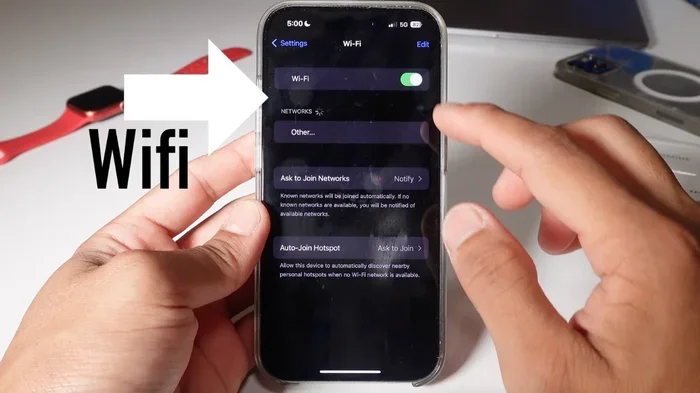
- Select Wi-Fi Calling from the list
- Toggle on Wi-Fi Calling on This iPhone
- Follow the on-screen prompts to register your address for emergency services
Once you complete these steps, your iPhone will automatically use Wi-Fi for calls when a cellular signal is weak. You will see a small Wi-Fi icon in the status bar at the top of your screen. That icon tells you the feature is active and working.
Setting Up Wi-Fi Calling on Android
Android phones also offer a built-in option, though the exact path may vary slightly depending on your brand. Here is a general guide:
- Open the Settings app on your phone
- Look for Network and Internet or Connections
- Tap on Wi-Fi Calling or Calls
- Toggle the Wi-Fi Calling switch to On
- Enter your address for emergency location services
Some Android brands like Samsung and Google Pixel have slightly different menu names. If you cannot find the option, try searching for “Wi-Fi calling” in the Settings search bar. Most carriers also offer the feature through their own phone apps, which can be a helpful alternative.
Third-Party Apps for Wi-Fi Calling
Not all carriers support built-in wireless calling. In that case, you can use third-party apps to make calls over Wi-Fi. Apps like Skype, WhatsApp, and Google Voice are popular choices. These apps use a technology called VoIP, which stands for Voice over Internet Protocol.
VoIP apps work by converting your voice into digital data and sending it over the internet. They are very reliable and offer extra features like video calls and messaging. The downside is that both you and the person you are calling need to have the same app installed. Built-in Wi-Fi calling works with any phone number, so it is more universal.
Benefits of Making Calls Over Wi-Fi
There are many reasons to use Wi-Fi calling in your daily life. This feature solves several common problems that mobile phone users face. Let us look at the biggest advantages.
Better Coverage in Dead Zones
The number one reason people use wireless calling is to get better signal in areas where the cellular network fails. Basements, concrete buildings, and rural areas often have weak or no cell service. But if you have a Wi-Fi router in those spaces, you can make clear calls without any problem.
Your home network covers a much smaller area than a cell tower, but it is right there in your pocket. This means you get reliable indoor coverage even when the cell signal is too weak to make a call. For many people, this single benefit makes Wi-Fi calling a must-have feature.
Improved Call Quality
A strong Wi-Fi connection can deliver better voice quality than a crowded cell tower. When many people in your area are using the same tower, calls can get choppy or muffled. Wi-Fi calling bypasses that congestion entirely. Your voice data travels through your private network, which is usually less crowded.
You will notice clearer audio, fewer pauses, and less background noise. This is especially helpful for business calls or when you are talking to someone far away and need every word to come through clearly.
Saving Money on Call Charges
Wi-Fi calling uses your data plan or your home internet connection. It does not count against your cellular minutes. For most carriers, Wi-Fi calls to domestic numbers are completely free. This can save you a lot of money, especially if you make frequent calls to people in other cities or countries.
International calls over Wi-Fi are often much cheaper than standard roaming rates. Some carriers even offer free Wi-Fi calling to certain countries. Check with your provider to see what international rates apply. You might be surprised at how much you can save.
Seamless Handoff Between Networks
One of the best features of modern wireless calling is the seamless handoff. When you walk out of your house with Wi-Fi calling enabled, your phone smoothly switches from Wi-Fi to the cellular network. You do not drop the call or notice any interruption.
This handoff happens in the background without you doing anything. It makes the whole experience feel natural and effortless. You can start a call at home and finish it in your car without any hassle.
Common Problems with Wi-Fi Calling and How to Fix Them
While Wi-Fi calling is generally reliable, you may run into some issues from time to time. Most problems are easy to fix with a few simple steps. Here are the most common issues and their solutions.
Poor Call Quality or Choppy Audio
If your calls sound fuzzy or keep cutting out, your Wi-Fi signal might be the culprit. A weak connection leads to poor call quality. Try moving closer to your router and see if things improve. You can also check your internet speed to make sure you have enough bandwidth.
Other devices on the same network can slow things down. If someone is streaming a video or downloading a large file, it can affect your call. Try pausing heavy data activities during your call for a smoother experience.
Wi-Fi Calling Not Turning On
Sometimes the option to turn on wireless calling is grayed out or missing. This usually means your carrier does not support the feature, or your phone is not compatible. Check your carrier’s website or call their support line to confirm.
Another common reason is an outdated phone software version. Make sure your device is running the latest operating system. Go to your settings, check for updates, and install any pending software patches. This often fixes compatibility issues.
Calls Dropping Frequently
If your calls keep dropping, your phone might be struggling to maintain a stable connection. Interference from other electronic devices can cause this problem. Microwaves, baby monitors, and even Bluetooth devices can interfere with your Wi-Fi signal.
Try switching your router to a less crowded channel. You can also change your phone’s Wi-Fi frequency band. Most modern routers support both 2.4 GHz and 5 GHz bands. The 5 GHz band is faster but has a shorter range. The 2.4 GHz band reaches farther but is slower. Experiment with both to find what works best for your calls.
Emergency Calling Limitations
One important thing to know is that calling emergency services over Wi-Fi can be tricky. Your phone needs to register your location for 911 calls. If your address is not set up correctly, emergency responders might not know where to find you.
Always make sure you register your home address in your phone’s Wi-Fi calling settings. If you are traveling, be aware that your phone might not accurately report your location when calling emergency services over Wi-Fi. Use your cellular network for emergency calls whenever possible.
Is Wi-Fi Calling Safe and Private?
Privacy is a big concern for many people when it comes to making calls over the internet. The good news is that most carriers encrypt Wi-Fi calls to protect your privacy. Encryption means your voice data is scrambled as it travels through the internet, making it very hard for anyone to intercept and listen in.
However, not all methods of wireless calling are equally secure. Built-in carrier Wi-Fi calling uses strong encryption standards. Third-party apps vary in their security practices. Some apps offer end-to-end encryption, which means only you and the person you are calling can hear the conversation.
Here are a few tips to keep your calls private:
- Use your carrier’s built-in Wi-Fi calling feature when possible
- Choose reputable apps with strong privacy policies
- Avoid using public Wi-Fi networks for sensitive calls
- Keep your phone and apps updated to patch security vulnerabilities
- Use a VPN on public networks for an extra layer of protection
Overall, wireless calling is safe for everyday use. Your personal conversations stay private when you use trusted networks and services. Just be mindful of where and how you connect, and you will be in good shape.
Comparing Built-In Wi-Fi Calling vs. Third-Party Apps
Not sure which option is right for you? Let us compare the two main ways to make calls over Wi-Fi. This table breaks down the key differences so you can choose the best option for your needs.
| Feature | Built-In Wi-Fi Calling | Third-Party VoIP Apps |
|---|---|---|
| Works with any phone number | Yes | No (both parties need the app) |
| Setup complexity | Very simple | Simple but requires app download |
| Call quality | Excellent on good Wi-Fi | Good, varies by app |
| Extra features | Basic calling only | Video calls, messaging, file sharing |
| Cost | Usually free from carrier | Free or low-cost subscriptions |
| Emergency calling | Supported with address registered | Limited or not supported |
| Carrier dependency | Yes, must be supported by your carrier | No, works with any internet connection |
Both options have their strengths. Built-in wireless calling is the simplest and most seamless choice for most people. Third-party apps are great if you need extra features or if your carrier does not support the feature. Many people use both methods depending on their situation.
Expert Tips to Get the Best Wi-Fi Calling Experience
Getting the most out of wireless calling is all about a few smart habits. Here are some expert tips that can make a big difference in your daily experience.
- Place your router centrally in your home. This gives you the strongest and most even signal throughout your space. A central location means fewer dead zones and better call quality in every room.
- Restart your router regularly. Like any electronic device, your router benefits from a fresh start. Restarting it once a week can improve speed and stability for your calls.
- Use a dual-band router. Routers that support both 2.4 GHz and 5 GHz bands give you flexibility. You can switch to the band that works best for your current location and needs.
- Keep your phone charged. Wi-Fi calling can use more battery than a regular cellular call. Make sure your phone has enough charge, especially on long calls.
- Update your phone and router firmware. Manufacturers release updates that improve performance and fix bugs. Keeping your devices up to date ensures the best possible call quality.
- Test your setup before an important call. Do a quick test call with a friend or family member before a meeting or important conversation. This helps you catch any issues early and fix them before it matters.
Frequently Asked Questions About Wi-Fi Calling
You might still have some questions about making calls over Wi-Fi. Here are answers to the most common ones that people ask.
Can You Make Phone Calls On Wi Fi Without a Cellular Plan?
In most cases, you still need a cellular plan to use built-in Wi-Fi calling, even though the calls go over your internet connection. The feature works through your carrier, so they need to support it on your account. However, third-party apps like WhatsApp and Skype let you make calls over Wi-Fi without any cellular plan at all. These apps only need an internet connection to work.
Does Wi-Fi Calling Use a Lot of Data?
Wi-Fi calling uses very little data. A typical voice call consumes about 1 MB of data per minute. That means a 30-minute call uses roughly 30 MB. This is a tiny amount compared to streaming video or downloading files. If you use Wi-Fi calling on your home network, it will not even touch your mobile data plan.
Will My Contacts Know I Am Calling From Wi-Fi?
No, your contacts will not see any difference. The call looks and feels exactly like a regular phone call to the person on the other end. They will see your phone number on their caller ID, and the conversation quality will be the same. There is no indicator that the call traveled over Wi-Fi instead of a cellular tower.
Can I Use Wi-Fi Calling Internationally?
Yes, Wi-Fi calling is very useful when you are traveling abroad. It lets you make calls to local numbers using your home plan, which can save you from expensive roaming charges. Many carriers offer free or discounted international Wi-Fi calling. Check with your provider before you travel to understand what rates apply and which countries are supported.
Why Does My Phone Switch Off Wi-Fi Calling Automatically?
Your phone might turn off wireless calling automatically if the Wi-Fi signal becomes too weak or unstable. It will switch back to the cellular network to keep your call connected. This is a built-in safety feature that prevents dropped calls. If this happens often, it might be a sign that your Wi-Fi signal needs improvement in certain areas of your home.
Is Wi-Fi Calling Free?
For most carriers, Wi-Fi calling to domestic numbers is completely free. It does not count against your monthly minute allowance. International rates vary by carrier, but they are often much lower than standard roaming charges. Some carriers offer unlimited free Wi-Fi calling to select countries. Always check your specific plan details to understand any costs involved.
Final Thoughts on Making Calls Over Wi-Fi
Making phone calls on Wi-Fi is no longer a novelty. It is a practical, reliable, and cost-effective way to stay connected. Whether you struggle with weak cellular signals at home or want to save money on international calls, wireless calling delivers real value. The setup is simple, the quality is excellent, and the benefits are hard to ignore.
Wi-Fi calling has become an essential tool for modern communication. It fills the gaps where cellular networks fall short and gives you peace of mind when you need to make an important call. With most new phones supporting the feature out of the box, there is no reason not to give it a try.
Take a few minutes today to check if your carrier supports this feature and turn it on. You might be surprised at how much better your phone calls become. Better coverage, clearer audio, and lower costs are all just a few settings away. Embrace the power of wireless calling and enjoy a smarter way to stay connected with the people who matter most.