Can You Send Text Over Wifi Without Service Iphone
Yes, you can send text over WiFi without service on iPhone using iMessage and other internet-based messaging apps. This guide walks you through every method, setup step, and troubleshooting tip so you can stay connected without cellular service. Whether your SIM card is missing or you have no signal, your iPhone can still send messages over WiFi.
Have you ever found yourself in a spot with no cellular signal and wondered if you could still send a text? Maybe your SIM card is missing, or you are traveling in an area with weak coverage. The good news is that you can send text over WiFi without service on iPhone. This is something many iPhone users do not fully understand, and it can save you a lot of stress in tricky situations.
Your iPhone is more capable than you might think when it comes to staying connected. Even without a cellular plan or active service, your device can send messages through WiFi. This works thanks to Apple’s iMessage system and a few other clever workarounds. In this article, we will explore every method, every setting, and every tip you need to know about iPhone WiFi messaging without cellular service. Let us dive right in.
Key Takeaways
- iMessage works over WiFi: You can send and receive texts without cellular service as long as you have an internet connection.
- Regular SMS needs a carrier: Standard green bubble texts require cellular service or a workaround like WiFi calling.
- Third-party apps fill the gap: Apps like WhatsApp, Signal, and Telegram let you message over WiFi with no service plan needed.
- Setup matters: Proper iMessage configuration is essential for WiFi-only texting to work smoothly.
- Troubleshooting is simple: Most WiFi texting issues can be fixed by restarting your device or checking your network settings.
- No SIM card needed for iMessage: You can set up iMessage using just your Apple ID and WiFi connection.
📑 Table of Contents
- How iMessage Works Over WiFi Without Cellular Service
- Setting Up iMessage for WiFi-Only Messaging
- Can You Send Regular SMS Without Cellular Service
- Third-Party Apps for WiFi Texting Without Service
- Troubleshooting WiFi Texting Issues on iPhone
- Tips for Staying Connected Without Cellular Service
- Common Mistakes to Avoid
- Expert Insights on iPhone WiFi Messaging
- Final Thoughts
How iMessage Works Over WiFi Without Cellular Service
iMessage is Apple’s built-in messaging platform. It replaces traditional SMS texts with internet-based messages. When you send an iMessage, it travels through the internet instead of the cellular network. This means you do not need a cell signal to send or receive texts. As long as your iPhone is connected to WiFi, iMessage can work perfectly.
Here is how it works in simple terms. When you type a message and hit send, your iPhone sends that message through your WiFi connection to Apple’s servers. The servers then route it to the recipient’s device. The whole process happens in seconds. The recipient sees a blue bubble instead of a green one. Blue bubbles mean iMessage. Green bubbles mean traditional SMS, which needs cellular service.
Why iMessage Is Different From Regular SMS
Regular SMS texts use your cellular network. They go through cell towers and require a working SIM card with an active plan. If you have no service, green bubble texts will fail. iMessage does not work this way. It uses your internet connection, whether that is WiFi or cellular data. So even if your cellular service is completely off, iMessage can still send as long as WiFi is on.
This is a huge advantage for people in areas with poor coverage. It also helps if you are traveling internationally and do not want to pay roaming charges. You can connect to a WiFi network and keep texting without spending a dime on cellular data.
What You Need for iMessage Over WiFi
Not much is required. Here is a simple list:
- An iPhone, iPad, or Mac with iMessage enabled
- A WiFi connection
- An Apple ID signed in
- The recipient must also have iMessage or an Apple device
If all four of those are in place, you can send text over WiFi without service on iPhone with no problems at all. The beauty of this system is that it is completely free as long as you have WiFi access.
Setting Up iMessage for WiFi-Only Messaging
Setting up iMessage for WiFi-only use is straightforward. You do not need a SIM card active or a cellular plan to get it working. The key is linking your Apple ID to the messaging system. Let us walk through the steps.
Step-by-Step iMessage Setup
Follow these steps to get iMessage ready on your iPhone:
- Open the Settings app on your iPhone.
- Tap on Messages.
- Toggle iMessage to ON.
- Tap Send & Receive.
- Select your Apple ID and check the email addresses and phone numbers you want to use.
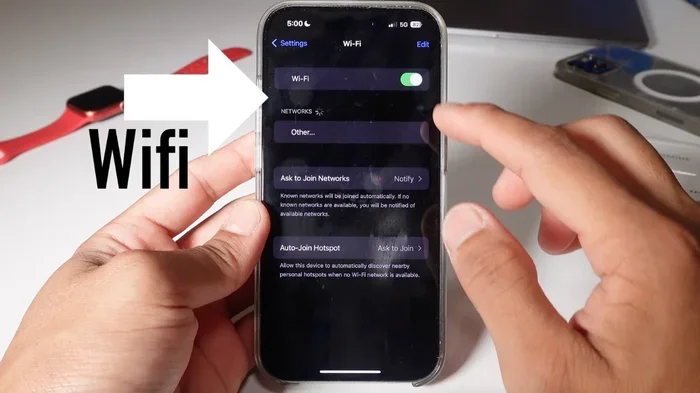
- Make sure WiFi is turned on in Settings.
Once you complete these steps, your iPhone is ready to send iMessages over WiFi. You can test it by turning off cellular data and connecting to a WiFi network. Try sending a message to another Apple user. If the bubble turns blue, you are all set.
Can You Use iMessage Without an Apple Phone Number
Yes, you can. Your Apple ID email address works just as well as your phone number for iMessage. You do not need to associate a phone number with the service. This is great news for people who do not have a SIM card or who are using a device without cellular capabilities. Simply use your email address as your iMessage handle, and you can send and receive messages over WiFi.
Can You Send Regular SMS Without Cellular Service
This is where things get a little tricky. Regular SMS texts, the green bubble ones, require cellular service. They cannot be sent over WiFi on their own. If you try to send an SMS without a signal or without a SIM card, your iPhone will show a “Not Delivered” error. But do not worry, there are workarounds.
Using WiFi Calling to Enable SMS Over WiFi
WiFi Calling is a feature that routes your calls and texts through WiFi instead of cell towers. If your carrier supports WiFi Calling, you can send SMS texts even without cellular service. Here is how to turn it on:
- Go to Settings on your iPhone
- Tap Phone
- Select WiFi Calling
- Toggle it ON
Once WiFi Calling is enabled, your iPhone can send and receive SMS texts over WiFi. This is especially useful when you are in a building with poor cell reception or in a rural area with weak signal. WiFi calling for iPhone text can be a lifesaver in those situations.
Limitations of WiFi Calling for SMS
WiFi Calling is not available on all carriers. Some carriers may not support it in certain countries. Also, the person you are texting must have a compatible setup on their end. If your carrier does not support this feature, you will need to rely on iMessage or third-party apps instead.
Third-Party Apps for WiFi Texting Without Service
If iMessage and WiFi Calling do not meet your needs, there are plenty of third-party apps that let you send messages over WiFi without any cellular service. These apps use the internet to route your messages, so they work anywhere there is a WiFi connection.
WhatsApp is one of the most popular messaging apps in the world. It works over WiFi and cellular data. You do not need a phone number to be active on a cellular plan. You just need a WiFi connection and the app installed. WhatsApp supports text messages, voice notes, photos, and video calls. It is a great alternative for iPhone WiFi messaging without service.
Signal
Signal is known for its strong privacy features. It is an open-source messaging app that encrypts all your messages. Signal works over WiFi and does not require cellular service. If privacy is important to you, Signal is an excellent choice for sending texts without a cellular connection.
Telegram
Telegram offers fast messaging over WiFi. It supports group chats, file sharing, and channels. You can create accounts using just a username, without linking a phone number. Telegram is another solid option for staying connected when you have WiFi but no cellular service.
Comparison Table: iMessage vs Third-Party Apps
| Feature | iMessage | Signal | Telegram | |
|---|---|---|---|---|
| Works Over WiFi | Yes | Yes | Yes | Yes |
| Needs Cellular Service | No | No | No | No |
| End-to-End Encryption | Yes | Yes | Yes | No (optional) |
| Cross-Platform | Apple only | Yes | Yes | Yes |
| Free to Use | Yes | Yes | Yes | Yes |
| Needs Phone Number | Optional | Yes | Yes | Optional |
Troubleshooting WiFi Texting Issues on iPhone
Sometimes things do not work as expected. If you are trying to send text over WiFi without service on iPhone and it is not working, do not panic. Most issues have simple fixes. Let us go through the common problems and their solutions.
iMessage Not Sending Over WiFi
If your iMessage is not sending, the first thing to check is your WiFi connection. Make sure you are actually connected to a working network. Try opening a web browser and visiting a website to confirm. If the internet works but iMessage does not, try these steps:
- Toggle WiFi off and back on
- Restart your iPhone
- Sign out of iMessage and sign back in
- Check that your Apple ID is active
- Make sure the recipient has iMessage enabled
Messages Stuck on “Sending”
If your message is stuck on sending, it could be a network issue. Try moving closer to your WiFi router. Weak WiFi signals can cause messages to fail. You can also try turning on Airplane Mode, waiting a few seconds, and turning it off again. This forces your iPhone to reconnect to the WiFi network fresh.
Blue Bubbles Not Appearing
If your messages are showing as green bubbles instead of blue, it means they are being sent as SMS instead of iMessage. This usually happens when WiFi is not connected or iMessage is turned off. Go to Settings, check that iMessage is enabled, and make sure you are connected to WiFi.
WiFi Network Not Recognized
Sometimes your iPhone will not connect to a WiFi network properly. Forget the network in Settings and reconnect. You can also reset your network settings by going to Settings, General, Transfer or Reset iPhone, and selecting Reset Network Settings. This clears all WiFi passwords and Bluetooth pairings, so use it as a last resort.
Tips for Staying Connected Without Cellular Service
Living or traveling without cellular service does not mean you have to be disconnected. With the right setup, your iPhone can handle all your messaging needs over WiFi. Here are some practical tips to keep you connected.
Use WiFi Whenever Possible
Always connect to WiFi when it is available. Home networks, office networks, coffee shops, and public WiFi hotspots all work for iMessage and other apps. The more WiFi you use, the less you rely on cellular service.
Enable WiFi Calling Before You Need It
Do not wait until you lose service to set up WiFi Calling. Turn it on in advance while you have a strong signal. This way, when you do lose coverage, your iPhone is already configured to route texts and calls through WiFi.
Keep Your Apple ID Secure
Your Apple ID is the key to iMessage. If you lose access to your Apple ID, you could lose your ability to send messages over WiFi. Make sure your Apple ID password is strong and that you have two-factor authentication enabled.
Download Messaging Apps in Advance
Before you travel to an area with no cellular service, download WhatsApp, Signal, or Telegram on your iPhone. This way, you have backup options if iMessage does not work for some reason.
Use Offline Messaging Features
Some apps offer offline messaging features that queue messages and send them once you reconnect to WiFi. This is not a standard iPhone feature, but certain third-party apps support it. Look for apps that offer store-and-forward messaging for the best results.
Common Mistakes to Avoid
There are a few mistakes that people make when trying to text over WiFi without service. Avoiding these can save you a lot of frustration.
- Assuming all texts work over WiFi: Only iMessage works over WiFi natively. Regular SMS requires cellular service unless WiFi Calling is enabled.
- Forgetting to turn on WiFi: It sounds obvious, but many people forget to enable WiFi before trying to send messages.
- Not checking iMessage settings: If iMessage is not properly configured, your messages will default to SMS and fail without service.
- Ignoring software updates: Outdated iOS versions can cause messaging bugs. Always keep your iPhone updated.
- Relying on one method only: Have backup apps ready. If iMessage fails, WhatsApp or Signal can pick up the slack.
Expert Insights on iPhone WiFi Messaging
According to networking experts, the ability to send text over WiFi without service is one of the most underrated features of the iPhone. Apple designed iMessage to be resilient and work in low-connectivity environments. The system automatically switches between WiFi and cellular data when both are available, ensuring your messages get through.
Network engineers also point out that WiFi-based messaging is the future of mobile communication. As more people move toward unlimited WiFi plans and VoIP services, the need for traditional cellular SMS is decreasing. Apple recognized this shift early and built iMessage to be the go-to solution for internet-based texting.
Security experts also highlight the encryption benefits of iMessage. When you send messages over WiFi using iMessage, they are protected by end-to-end encryption. This means no one, not even Apple, can read your messages in transit. This is a significant advantage over traditional SMS, which is not encrypted.
Final Thoughts
So, can you send text over WiFi without service on iPhone? The answer is a clear yes. Whether you use iMessage, WiFi Calling, or third-party apps, your iPhone gives you multiple ways to stay connected without cellular service. The key is to set everything up in advance and understand how each method works.
Sending text over WiFi without service on iPhone is not just possible, it is easy. With iMessage, you get a seamless experience that requires no extra apps. With third-party options, you get flexibility and privacy features that suit different needs. The important thing is to know your options and choose the method that works best for your situation.
Next time you find yourself without cellular service, do not panic. Connect to WiFi, open your messaging app, and keep texting. Your iPhone was built to handle this. Now you know exactly how it all works.
Frequently Asked Questions
Can I send iMessage without a SIM card?
Yes, you can send iMessage without a SIM card as long as you have WiFi and an Apple ID. iMessage uses internet connectivity, not cellular service, to deliver messages. This makes it perfect for WiFi-only communication on your iPhone.
Will the person I am texting know I have no service?
No, the recipient will not know your cellular status. As long as your iMessage sends successfully and shows a blue bubble, the conversation looks normal. They will not be able to tell whether you have cellular service or are using WiFi only.
Can I send group messages over WiFi without service?
Yes, you can send and receive group messages over WiFi using iMessage. As long as all participants are using iMessage, the group chat works entirely over the internet. No cellular service is required for any member of the group.
Does WiFi texting use data?
WiFi texting does not use your cellular data plan. It uses your WiFi connection instead. iMessages are sent and received over the internet through WiFi, so they do not count against your cellular data allowance.
What happens if my WiFi disconnects while I am sending a message?
If your WiFi disconnects mid-send, the message will fail and show a “Not Delivered” status. You can try resending once you reconnect to WiFi. If you have cellular data enabled, iMessage may automatically switch to that to complete the send.
Are there any costs for sending text over WiFi?
There are no costs for sending iMessages over WiFi. Apple does not charge for iMessage usage. Third-party apps like WhatsApp and Signal are also free to use over WiFi. You only pay for WiFi access itself, which is typically free in homes and public hotspots.
=== CONCLUSION ===
Can you send text over WiFi without service on iPhone? Absolutely. Your iPhone has built-in tools and third-party options that make this possible. From iMessage to WhatsApp, you have plenty of ways to stay connected without cellular service. The key is understanding how each method works and setting everything up before you need it. With the tips and tricks in this guide, you are now fully equipped to handle any situation where cellular service is unavailable. Stay connected, stay informed, and never let a dead signal stop you from sending a message again.