Can You Connect Two Monitors Together for Dual Screen
Yes, you can connect two monitors together for a dual screen setup, and it is easier than most people think. Whether you use a desktop, laptop, or USB-C docking station, this guide walks you through every step. You will learn about cables, display settings, common problems, and how to boost your productivity with an external display.
Have you ever looked at your single screen and thought, “I need more space”? You are not alone. Millions of workers, gamers, and creatives connect two monitors together every day. The good news is that connecting two monitors together for dual screen is straightforward. Whether you are a student, a programmer, or a designer, a multi-monitor setup can change the way you work. This guide covers everything from cables and ports to settings and troubleshooting. Let us get started.
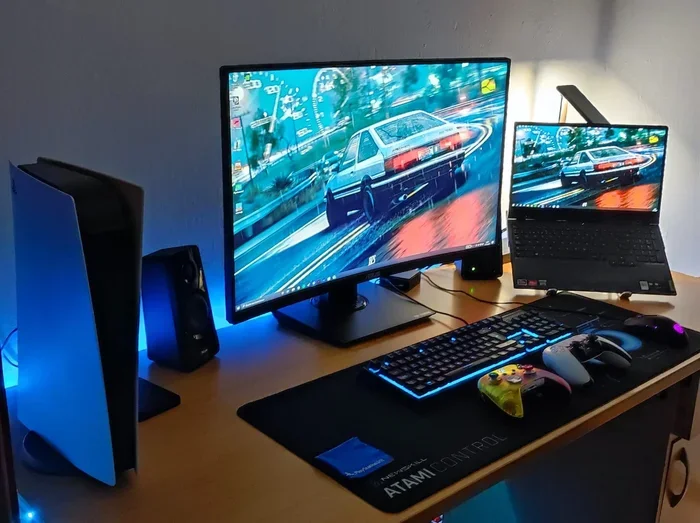
A dual monitor setup means using two screens at the same time. One screen shows one thing, and the other shows something else. You can drag windows between them, spread your tools across both, and work without constantly switching tabs. It is like getting a bigger desk without buying a bigger computer. In this article, we will walk you through how to set it up, what cables you need, and how to fix common problems.
Key Takeaways
- Dual monitors boost productivity: Having two screens lets you multitask, compare documents, and work faster.
- Multiple connection options exist: You can use HDMI, DisplayPort, USB-C, VGA, or a docking station to link two monitors.
- Setup is simple on most systems: Windows and Mac both have built-in tools to detect and arrange your external display quickly.
- Match your ports and cables: Choosing the right cable and adapter ensures the best screen resolution and refresh rate.
- Common issues are fixable: Most problems like no signal or flickering can be solved with a cable swap, driver update, or setting adjustment.
- Ergonomics matter: A proper monitor arm or stand improves comfort and keeps your workspace tidy.
📑 Table of Contents
Why Connect Two Monitors Together?
There are many reasons people add a second screen to their workspace. The biggest reason is productivity. When you have two screens, you can keep your email open on one and your main work on the other. No more alt-tabbing back and forth.
Boost Your Productivity
Studies show that dual screen resolution setups help people work faster. You can reference a document on one screen while writing on the other. Video editors can preview footage on one screen while editing on the other. Programmers can write code on one screen and test it on the other.
Better Multitasking
A single screen forces you to shrink windows and swap between them. With two monitors, you keep multiple apps visible at once. You can have your browser, spreadsheet, and notes all open side by side. This reduces the time you waste switching between tasks.
Enhanced Gaming and Entertainment
Gamers love a wide view across two screens. Some games support spanning across a dual monitor setup for a more immersive feel. You can also watch a video on one screen while chatting on the other.
How to Connect Two Monitors Together
Now let us get into the practical part. Connecting two monitors together for dual screen depends on your computer, your monitors, and the cables you have. The process is simple, but you need to know the right steps.
Check Your Ports
First, look at the back of your computer and the back of your monitors. What ports do you see? Common ports include HDMI, DisplayPort, USB-C, VGA, and DVI. Your goal is to find matching ports on both your computer and your monitors.
- HDMI – The most common and widely available port.
- DisplayPort – Offers high bandwidth and great for high refresh rates.
- USB-C – Found on modern laptops and supports video output.
- VGA – An older analog port, still found on some monitors.
- DVI – Another older digital port, less common today.
Choose the Right Cable
Once you know your ports, pick the right cable. If both your computer and monitor have HDMI ports, use an HDMI cable. If your laptop has USB-C but your monitor has DisplayPort, you need a USB-C to DisplayPort adapter or cable. Here are some common cable scenarios:
- HDMI to HDMI – The simplest and most reliable connection.
- DisplayPort to DisplayPort – Great for high-quality video and high refresh rates.
- USB-C to HDMI – Perfect for modern laptops with limited ports.
- USB-C to DisplayPort – Another solid option for USB-C laptops.
- VGA or DVI adapters – Use these only if you have no other option. They offer lower quality.
Connect the Monitors
Plug one end of the cable into your computer and the other end into the first monitor. Then plug in the second monitor using another cable. Make sure both monitors are powered on. Your computer should detect them automatically in most cases.
Adjust Display Settings
After connecting, you need to tell your computer how to use the two screens. Here is how to do it on Windows and Mac.
On Windows:
- Right-click on your desktop and select Display Settings.
- You should see two rectangles representing your monitors. If you do not, click Detect.
- Choose Extend these displays to use both screens as one big workspace.
- Drag the rectangles to match the physical layout of your monitors.
- Click Apply and then Keep Changes.
On Mac:
- Open System Settings and go to Displays.
- Your Mac should detect the second monitor automatically.
- Choose Extend Display instead of Mirror Display.
- Drag the menu bar to arrange which screen is primary.
- Adjust the resolution for each screen if needed.
Types of Connections for Dual Monitors
Not all connections are the same. The type of cable and port you use affects your screen resolution, refresh rate, and overall quality. Let us break down the most common options.
HDMI Connection
HDMI is the most popular connection for monitors. It carries both video and audio through a single cable. Most modern monitors and computers have at least one HDMI port. HDMI cables are affordable and easy to find. They support up to 4K resolution at 60Hz with HDMI 2.0 and higher.
DisplayPort Connection
DisplayPort offers excellent video quality and high bandwidth. It is especially popular among gamers and professionals who need high refresh rates. DisplayPort 1.4 supports 4K at 144Hz and even 8K at lower refresh rates. If your graphics card and monitors support it, DisplayPort is a top choice.
USB-C and Thunderbolt
Many modern laptops come with USB-C or Thunderbolt ports. These small ports can carry video signals, data, and power all at once. A single USB-C docking station can connect two monitors, charge your laptop, and connect peripherals. Thunderbolt 3 and 4 offer even more bandwidth, making them ideal for professional setups.
Using a Docking Station
If your laptop has limited ports, a USB-C docking station is a great solution. You plug one cable from your laptop to the dock, and then connect both monitors to the dock. Docks also add extra USB ports, Ethernet, and sometimes even an SD card reader. They keep your desk clean and your connections secure.
| Connection Type | Max Resolution | Audio Support | Best For |
|---|---|---|---|
| HDMI | 4K at 60Hz | Yes | General use, budget setups |
| DisplayPort | 4K at 144Hz | No (use separate audio) | Gaming, high refresh rate |
| USB-C | 4K at 60Hz | Yes (via Alt Mode) | Laptops, clean desk setup |
| VGA | 1080p max | No | Older monitors only |
Common Problems and How to Fix Them
Even with a simple setup, things can go wrong sometimes. Here are the most common issues people face when connecting two monitors together, and how to solve them.
Second Monitor Not Detected
If your computer does not recognize the second screen, do not panic. First, check that the cable is firmly plugged in on both ends. Try a different cable if possible. On Windows, right-click the desktop and select Detect in the Display Settings. On Mac, go to Displays and click the Detect Displays button.
Black Screen on One Monitor
A black screen usually means the monitor is not receiving a signal. Check the input source on the monitor. Most monitors let you select between HDMI, DisplayPort, and VGA. Make sure the monitor is set to the correct input that matches your cable.
Flickering or Blurry Display
Flickering often happens when the cable is loose or damaged. Try unplugging and replugging the cable. If the image looks blurry, check your screen resolution settings. Make sure both monitors are set to their native resolution for the sharpest image.
Different Resolutions on Each Screen
It is normal for monitors of different sizes to have different resolutions. You can set each monitor to its own resolution in Display Settings. Just click on the monitor rectangle and adjust the resolution slider. The system will remember the settings for each screen separately.
Audio Not Working Through Monitor
If you are using HDMI and sound is not coming through your monitor, check your default audio output device. On Windows, right-click the speaker icon and select your monitor as the audio output. On Mac, go to Sound Preferences and choose the HDMI output.
Best Practices for a Dual Monitor Setup
Once you have both screens connected and working, a few best practices can make your experience even better. These tips help with comfort, cable management, and overall workflow.
Position Your Monitors Correctly
The top of both screens should be at or slightly below eye level. This reduces neck strain during long work sessions. If both monitors are the same size, center them in front of you so the seam is right at your nose. If one is larger, put it in the center and the smaller one to the side.
Use a Monitor Arm or Stand
A monitor arm or stand frees up desk space and lets you adjust the height and angle of each screen. You can tilt, swivel, and rotate your monitors for the perfect viewing position. A good stand also helps with cable management, keeping cords neat and out of the way.
Match Your Monitors When Possible
For the best visual experience, try to use two monitors with the same size, resolution, and panel type. Matching monitors reduce eye strain because both screens look and feel the same. If you must use different monitors, at least try to match the resolution as closely as possible.
Keep Cables Organized
With two monitors, you have twice the cables. Use cable ties, cable trays, or a cable management box to keep things tidy. Label your cables if you have multiple of the same type. A clean workspace looks better and makes troubleshooting easier.
Adjust Display Settings for Comfort
Set the brightness and contrast of both monitors to comfortable levels. If possible, match the color temperature between the two screens. Many modern monitors have blue light filters that reduce eye strain during long hours of work. Turn these on in the evening for a more comfortable experience.
Expert Tips for Getting the Most Out of Your Dual Screen
Here are some insider tips that experienced users swear by when running a multi-monitor setup.
- Use keyboard shortcuts – On Windows, press Windows Key + Left or Right Arrow to snap windows to half the screen. This makes organizing windows on two monitors super fast.
- Set one monitor as primary – Your taskbar and notifications appear on the primary monitor. Choose the one you look at most often.
- Match refresh rates – If both monitors support 144Hz or higher, set them to the same refresh rate for a smooth experience across both screens.
- Use software to manage windows – Tools like DisplayFusion or PowerToys on Windows give you more control over how windows behave across two screens.
- Consider a ultrawide alternative – If your desk space is limited, an ultrawide monitor can give you a similar experience to two standard monitors without the bezel in the middle.
Who Benefits Most from a Dual Monitor Setup?
Almost anyone can benefit from connecting two monitors together, but some groups see especially big gains. Here are a few examples.
- Office workers – Keep email, calendar, and documents visible at the same time.
- Programmers and developers – Write code on one screen and view the output on the other.
- Graphic designers – Use one screen for tools and the other for the canvas.
- Traders and analysts – Monitor multiple charts and data feeds simultaneously.
- Students – Research on one screen and take notes on the other.
- Gamers – Use one screen for the game and the other for chat or walkthrough guides.
No matter who you are, a dual screen setup can make your daily workflow smoother and more efficient. The investment in a second monitor pays for itself quickly in saved time and reduced frustration.
Conclusion
So, can you connect two monitors together? Absolutely. With the right cables, ports, and a few minutes of setup, you can have a fully functional dual screen in no time. Whether you use a desktop, a laptop, or a USB-C docking station, the process is the same at its core. Check your ports, pick the right cable, connect the monitors, and adjust your display settings.
Remember to match your cables to your ports, troubleshoot common issues when they arise, and follow best practices for positioning and cable management. A well-set-up multi-monitor setup can transform your workspace and take your productivity to the next level. Start today and see the difference a second screen makes.
Frequently Asked Questions
Do I need a special graphics card to connect two monitors?
Most modern computers and laptops can support at least two monitors without any special hardware. Check the back of your computer for multiple video output ports. If your graphics card only has one port, a USB-C docking station or a DisplayLink adapter can add a second monitor without replacing your graphics card.
Can I connect two different monitors together?
Yes, you can connect two different monitors together. They do not need to be the same brand, size, or model. However, matching the resolution and panel type as closely as possible will give you a more consistent and comfortable viewing experience across both screens.
What is the difference between extending and mirroring displays?
Extending displays means each screen shows different content, giving you more workspace. Mirroring displays means both screens show the exact same image, which is useful for presentations. To extend, go to Display Settings and select Extend these displays. To mirror, select Duplicate these displays.
Can I connect two monitors to a laptop?
Yes, you can connect two monitors to a laptop. Most modern laptops have at least one video output port like HDMI or USB-C. If your laptop does not have enough ports, use a USB-C docking station or a DisplayLink adapter to add the second monitor. This is one of the most popular ways to create a laptop monitor setup at home or in the office.
Does connecting two monitors slow down my computer?
Connecting two monitors uses a small amount of your graphics card’s resources, but it does not significantly slow down most computers. If you are running demanding tasks like video editing or gaming on both screens at once, make sure your graphics card is powerful enough to handle the workload. For everyday tasks like browsing, writing, and video calls, two monitors will not cause any noticeable slowdown.
What cable is best for connecting two monitors?
The best cable depends on your ports. HDMI is the most common and versatile choice for most setups. DisplayPort offers the highest quality for gaming and professional use. USB-C is ideal for modern laptops. Choose the cable that matches the ports on both your computer and your monitors for the best results.