Can You Connect Laptop HDMI To A Monitor Displayport
Yes, you can connect a laptop HDMI to a monitor DisplayPort, but it requires the right adapter or cable. The key is understanding signal conversion, since HDMI and DisplayPort use different digital protocols. This guide walks you through every option, from passive adapters to active conversion boxes, so you get a reliable and high-quality connection every time.
Key Takeaways
- Direct connection is not possible: HDMI and DisplayPort use different signal protocols, so you need a converter.
- Active adapters handle the conversion: They use an internal chip to translate the HDMI signal into DisplayPort.
- Passive cables only work one way: They convert DisplayPort output to HDMI input, not the other way around.
- Check your resolution and refresh rate needs: Not all adapters support 4K or high refresh rates.
- Audio may need separate setup: Some adapters do not pass through audio, so check before buying.
- USB-C alternatives exist: Many modern laptops support DisplayPort over USB-C, offering a simpler path.
📑 Table of Contents
- Understanding HDMI and DisplayPort Basics
- Can You Connect Laptop HDMI To A Monitor Displayport Directly?
- Active vs Passive Adapters: What You Need to Know
- Step-by-Step Guide to Connecting Your Laptop HDMI to DisplayPort
- Troubleshooting Common Connection Issues
- Best Adapters and Cables for the Best Experience
- Expert Tips for Optimal Display Quality
- Key Takeaways
- Conclusion
Understanding HDMI and DisplayPort Basics
If you have ever looked at the back of your laptop and your monitor and felt confused, you are not alone. Two of the most common video ports are HDMI and DisplayPort. They look similar. They both carry video and audio. But they are not the same thing.
HDMI stands for High-Definition Multimedia Interface. It has been around since the early 2000s. You find it on TVs, laptops, gaming consoles, and Blu-ray players. DisplayPort was developed by VESA, a group of monitor and chip makers. It is more common on computer monitors, especially those built for gaming or creative work.
Here is the core difference. HDMI sends a video signal using a specific format. DisplayPort uses a completely different format. Think of them like two different languages. A laptop speaking HDMI cannot directly understand a monitor speaking DisplayPort without a translator. That translator is what we call an adapter or converter.
Both ports can support high resolutions like 4K and even 8K. Both can carry high refresh rates, which matters a lot for gaming monitors. The version of the port matters more than the type. A newer HDMI 2.1 port can do things an older HDMI 1.4 port cannot. The same goes for DisplayPort 2.1 versus DisplayPort 1.4.
What Does HDMI Output Look Like?
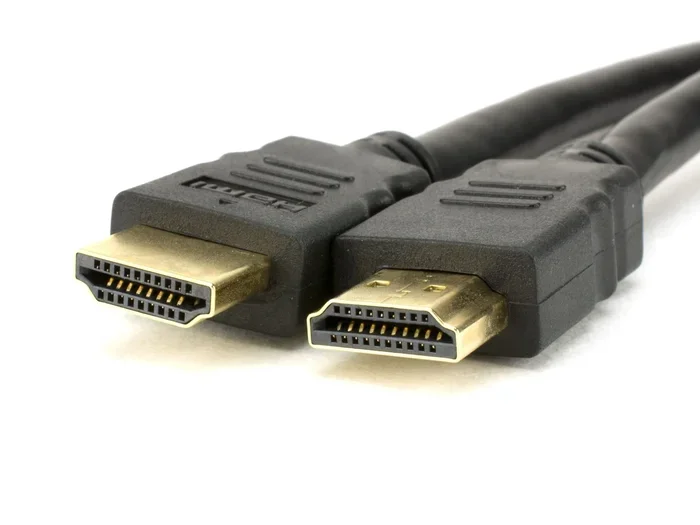
On most laptops, the HDMI port is a small, flat, trapezoidal shape. It has 19 pins inside. You plug an HDMI cable straight in. It carries both uncompressed video and compressed or uncompressed audio through a single cable. This is one reason HDMI is so popular for home entertainment setups.
Most laptops output an HDMI signal. When you plug an HDMI cable into your laptop, it sends a digital video and audio signal out through that port. The monitor or TV on the other end receives that signal and displays it. Simple, right? Well, it gets tricky when the receiving end is not HDMI.
What Does DisplayPort Input Look Like?
A DisplayPort input on a monitor looks like a slightly thicker rectangle with a small notch on one side. It has 20 pins. DisplayPort comes in two sizes: the full-size DisplayPort and the smaller Mini DisplayPort. Some modern monitors also support USB-C with DisplayPort Alt Mode, which adds even more flexibility.
When a monitor has a DisplayPort input, it is designed to receive a DisplayPort signal. It expects a specific type of data packet. If you send an HDMI signal into a DisplayPort input, the monitor will not know what to do with it. That is exactly why you need a conversion tool.
Can You Connect Laptop HDMI To A Monitor Displayport Directly?
The short answer is no. You cannot plug an HDMI cable from your laptop directly into a DisplayPort input on your monitor and expect it to work. The signal formats are incompatible at a hardware level. The monitor will not recognize the HDMI signal.
Some people try this and assume the monitor is broken. It is not. The monitor simply does not speak HDMI. The laptop monitor connection requires a middleman to translate the signal. This middleman is an adapter or a converter box.
There is one rare exception. Some very old monitors had HDMI inputs alongside DisplayPort inputs. In that case, you could use the HDMI port directly. But if your monitor only has DisplayPort, you need a converter. Period.
Let us talk about what happens when you try to force the connection without a converter. Nothing. The screen stays black. You might hear a faint click when you plug in the cable, but no image will appear. This is normal behavior and not a sign of a broken device.
The good news is that solutions exist. You have several options to make this work. The rest of this article covers each one in detail. Whether you want a simple plug-and-play solution or a high-performance setup for gaming, there is a path forward.
Active vs Passive Adapters: What You Need to Know
This is where most people get confused. Not all adapters are created equal. There are two main types: active adapters and passive adapters. They do very different things. Choosing the wrong one will waste your money and your time.
What Is an Active Adapter?
An active adapter has a built-in chip that actually converts the signal. It takes the HDMI signal from your laptop and translates it into a DisplayPort signal that your monitor can understand. This is what you need when you want to go from HDMI output to DisplayPort input.
Active adapters need power to work. Many draw power from the USB port on your laptop. Some use the HDMI port itself for power. They tend to be a bit more expensive than passive options, but they are the only reliable way to convert HDMI to DisplayPort.
Good active adapters support high resolutions and refresh rates. Many can handle 4K at 60Hz or even higher. They also often support audio passthrough, which means sound travels through the adapter to your monitor or speakers. Look for adapters that explicitly state HDMI-to-DisplayPort conversion on the packaging.
What Is a Passive Adapter?
A passive adapter does not convert signals. It simply changes the physical shape of the connector. It remaps pins from one format to another. Passive adapters work when the source device supports the target format natively.
Here is the critical point. Passive adapters work for DisplayPort output to HDMI input. They do not work for HDMI output to DisplayPort input. If you buy a passive HDMI-to-DisplayPort cable, it will not solve your problem. It will leave you with a black screen and a confused face.
Why does this matter? Because passive cables and adapters are cheaper and more widely available. Many shoppers grab one without realizing it only goes one direction. Always double-check the label. If it says “DisplayPort to HDMI,” that is the wrong product for your use case.
Comparison Table: Active vs Passive
| Feature | Active Adapter | Passive Adapter |
|---|---|---|
| HDMI to DisplayPort | Yes | No |
| DisplayPort to HDMI | Yes | Yes |
| Needs External Power | Usually yes | No |
| Signal Conversion | Yes, chip-based | No, pin remapping only |
| Price Range | Higher | Lower |
| 4K Support | Typically yes | Varies |
| Audio Passthrough | Often supported | Rarely supported |
Step-by-Step Guide to Connecting Your Laptop HDMI to DisplayPort
Now that you know what you need, let us walk through the actual setup. Following these steps will help you avoid common mistakes and get your display running quickly.
Step 1: Check Your Laptop HDMI Output
First, locate the HDMI port on your laptop. Most Windows laptops have one. Some MacBooks do not have HDMI at all, but you can use a USB-C to HDMI adapter first. Confirm that your laptop can output video through HDMI. Go to your display settings and make sure the HDMI output is recognized.
Step 2: Choose the Right Active Adapter
Buy an active HDMI to DisplayPort adapter. Look for one that supports your desired resolution. If you have a 4K monitor, make sure the adapter supports 4K. Check the refresh rate too. If you are a gamer, you want at least 60Hz at your target resolution.
Some popular brands include Cable Matters, UGREEN, and StarTech. Read reviews before you buy. Cheap adapters from unknown brands sometimes fail to support higher resolutions or cause flickering.
Step 3: Connect the Adapter
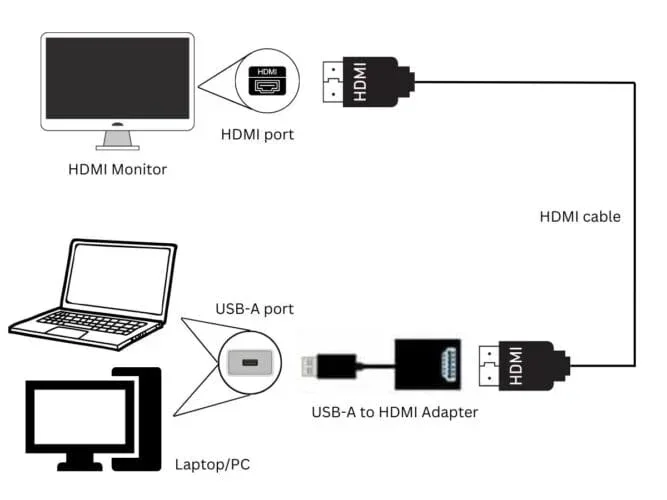
Plug the HDMI end of the adapter into your laptop. Then plug a DisplayPort cable into the other end of the adapter. Connect the DisplayPort cable to your monitor. If the adapter needs external power, plug in the USB cable now.
Your monitor should light up. If it does not, do not panic. Move to the next steps before assuming something is broken.
Step 4: Configure Display Settings
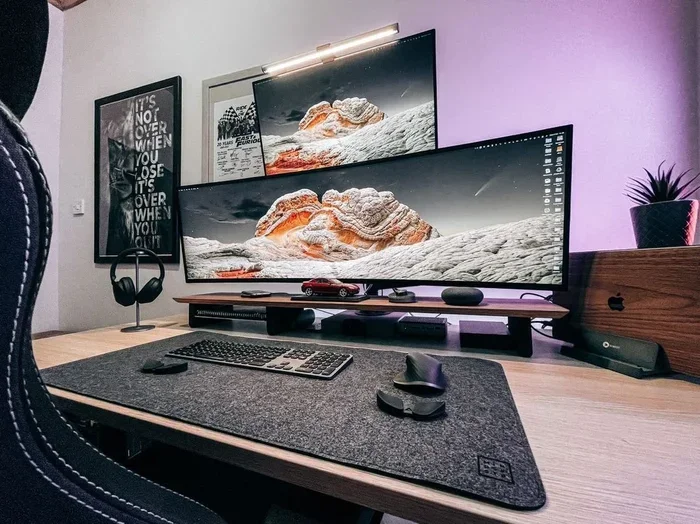
On Windows, right-click your desktop and select Display Settings. You should see a second display detected. Choose whether to duplicate, extend, or show only on the second screen. On macOS, go to System Settings and then Displays. Your monitor should appear in the display arrangement.
Adjust the resolution and scaling to match your monitor’s native resolution. This ensures the sharpest image possible. You may also need to adjust the refresh rate in your graphics card control panel.
Step 5: Test Audio
If your adapter supports audio passthrough, sound should come through your monitor’s speakers or its audio output. If you do not hear sound, check your default audio output device in your operating system. Sometimes the system defaults to the laptop speakers even when an external display is connected.
Quick Tips for a Smooth Setup
- Always use a high-quality DisplayPort cable rated for your resolution.
- Update your laptop graphics drivers before connecting.
- If the screen flickers, try a different USB port for adapter power.
- Restart both devices after making the connection.
- Keep your adapter drivers up to date if the adapter came with software.
Troubleshooting Common Connection Issues
Even with the right adapter, things can go wrong. Here are the most common problems and how to fix them.
No Signal on the Monitor
This is the most common issue. First, check all cable connections. A loose cable is the simplest fix. If connections are tight, try a different DisplayPort cable. Some cables only support certain bandwidths. A cable rated for 4K may not work properly if it is damaged or low quality.
Next, check if your adapter is receiving power. If it has a USB power cable, make sure it is plugged in and connected to a powered USB port. Some laptop USB ports do not supply enough power for active adapters.
Flickering or Distorted Image
Flickering often points to a bandwidth problem. Your adapter or cable may not support the resolution or refresh rate you have set. Try lowering the resolution temporarily to see if the issue goes away. If it does, upgrade your adapter or cable.
Another cause is a loose connection. Unplug and replug all cables firmly. Dust in the ports can also cause intermittent issues. Blow gently into the ports or use compressed air to clean them.
No Audio Through the Monitor
Not all HDMI to DisplayPort adapters support audio. Check the product specifications before purchasing. If your adapter does support audio but you still have no sound, go to your sound settings. Right-click the speaker icon in your taskbar and select the correct output device. Choose your monitor or the DisplayPort output.
Adapter Not Recognized by the Laptop
Sometimes the laptop does not detect the adapter at all. Try plugging it into a different USB port if it requires power. Update your graphics drivers from the manufacturer website. Restart both the laptop and the monitor. In rare cases, the adapter itself may be defective. Contact the manufacturer for a replacement.
Resolution Does Not Match the Monitor’s Native Resolution
If your monitor supports 4K but you only get 1080p, your adapter may be the bottleneck. Lower-quality adapters limit the maximum resolution. Invest in a well-reviewed adapter that explicitly supports your monitor’s resolution. Check the adapter’s specifications for the maximum supported resolution and refresh rate.
Best Adapters and Cables for the Best Experience
Not all adapters are equal. Some deliver excellent performance. Others cause headaches. Here are some guidelines for choosing the best HDMI to DisplayPort converter for your setup.
For general use, look for an adapter that supports the resolution of your monitor. A 1080p monitor needs a basic active adapter. A 4K monitor needs one rated for 4K at 60Hz. For gaming monitors, check the refresh rate specification. High-refresh-rate displays at 144Hz or 240Hz demand adapters with higher bandwidth support.
Build quality matters more than you might think. Metal-shelled adapters tend to perform better than plastic ones. They dissipate heat better, which helps with signal stability. Look for adapters with good reviews and reliable brand names.
If your laptop has USB-C or Thunderbolt ports, consider a USB-C to DisplayPort adapter instead. Many modern laptops support DisplayPort Alt Mode over USB-C. This bypasses the HDMI-to-DisplayPort conversion entirely. It is often simpler, cheaper, and more reliable.
For users with a laptop that has only HDMI output, the active HDMI-to-DisplayPort adapter remains the best and most direct solution. Pair it with a quality DisplayPort cable, and you will have a dependable setup for work, play, or creative projects.
Expert Tips for Optimal Display Quality
Getting a connection to work is only half the battle. You want the best possible picture quality. These tips help you squeeze every bit of performance from your setup.
First, always set your monitor to its native resolution. This is the resolution the monitor was designed for. Setting a lower resolution makes the image look blurry. Setting a higher resolution does not add detail and can cause scaling issues.
Second, update your graphics drivers regularly. Both NVIDIA and AMD release driver updates that improve display compatibility. These updates often fix issues with external monitor connections and resolution detection.
Third, use the shortest cables possible. Longer cables lose signal quality, especially at higher resolutions. If you need a long run, invest in a high-quality, shielded cable with good bandwidth ratings.
Fourth, manage your display settings carefully. If you are extending your desktop, make sure both displays are set to the correct scaling percentage. Mismatched scaling causes text and icons to look different sizes on each screen.
Fifth, keep your adapter cool. Active adapters generate heat during signal conversion. Place them in a well-ventilated area. Do not bury them under papers or stack other electronics on top of them. Overheating can cause intermittent signal drops.
Key Takeaways
- You cannot connect HDMI directly to DisplayPort: The signal formats are different and require conversion.
- Active adapters are essential for HDMI-to-DisplayPort: They contain a chip that translates the signal properly.
- Passive adapters only work DisplayPort-to-HDMI: Buying the wrong type is the most common mistake.
- Check resolution and refresh rate support: Not all adapters handle 4K or high refresh rates.
- USB-C with DisplayPort Alt Mode is an alternative: Many modern laptops support this simpler connection path.
- Troubleshooting starts with cable connections and power: Most issues have simple fixes.
- Quality matters: A well-reviewed adapter from a reputable brand saves time and frustration.
Conclusion
So, can you connect laptop HDMI to a monitor DisplayPort? Absolutely yes. But it takes the right tool for the job. An active HDMI to DisplayPort adapter is your best friend here. It takes the HDMI signal your laptop sends and converts it into a language your monitor understands.
Remember the difference between active and passive adapters. This alone saves many people from buying the wrong product. Passive adapters work in the opposite direction. Active adapters handle the conversion you need. Check your resolution needs, your refresh rate requirements, and whether you need audio support. These details guide you to the right adapter.
Follow the step-by-step setup guide. Check your cables. Update your drivers. Adjust your display settings. Most connection problems have straightforward solutions. You do not need to be a tech expert to get this right.
With the right adapter and a little patience, your laptop and DisplayPort monitor will work together beautifully. You will enjoy a sharp, high-quality display for work, gaming, or anything else you need. The laptop monitor connection process is simple once you know what to look for. Go ahead and set it up. You will be glad you did.
Frequently Asked Questions
Can I use a passive HDMI to DisplayPort cable?
No, passive cables only convert DisplayPort output to HDMI input. They cannot convert HDMI to DisplayPort. You need an active adapter for that direction of conversion. Always check the label before purchasing.
Do HDMI to DisplayPort adapters support audio?
Many active adapters do support audio passthrough. However, not all of them do. Check the product specifications carefully before buying. If audio support is important to you, look for adapters that explicitly mention audio transmission.
Can I use this setup for gaming on a high refresh rate monitor?
Yes, but you need an adapter that supports your monitor’s refresh rate. Look for adapters rated for 144Hz or higher if you have a high-refresh-rate gaming monitor. Cheaper adapters may limit you to 60Hz, which is not ideal for competitive gaming.
What resolution can HDMI to DisplayPort adapters support?
Most modern active adapters support 4K at 60Hz. Some older or cheaper models may only support 1080p or 4K at 30Hz. Always check the adapter’s maximum resolution and refresh rate specifications before purchasing.
Do I need any special software for the adapter to work?
Most active adapters work plug and play without any software. However, some adapters come with driver software that can improve performance or add features. Check the manufacturer website for the latest drivers after setup.
Is USB-C to DisplayPort a better option than HDMI to DisplayPort?
If your laptop has a USB-C port with DisplayPort Alt Mode, it is often a better and simpler option. It avoids the need for signal conversion and tends to be more reliable. However, if your laptop only has HDMI output, an active HDMI-to-DisplayPort adapter is your best choice.