Can I Use A Tv As A Computer Monitor And Is It Worth It
Yes, you can use a TV as a computer monitor, and many people do it every day. A large TV screen can make your desktop setup feel more immersive and give you plenty of room for multitasking. However, there are trade-offs like input lag, lower pixel density, and text sharpness that you need to consider before making the switch.
Key Takeaways
- Using a TV as a monitor is possible: Most modern TVs can connect to a PC via HDMI and work as a display.
- Bigger is better for movies and gaming: A large screen enhances your viewing experience for media and casual gaming.
- Text can look fuzzy: TVs have lower pixel density than monitors, so small text may appear less sharp up close.
- Input lag matters for gaming: Some TVs have high input lag that can make fast-paced games feel sluggish.
- Check your ports and cables: Make sure your PC and TV both support HDMI or DisplayPort for the best connection.
- Consider viewing distance: Sitting too close to a large TV can cause eye strain and make pixels visible.
📑 Table of Contents
- Can I Use A Tv As A Computer Monitor And Is It Worth It?
- How Does a TV Work as a Computer Monitor?
- Pros of Using a TV as a Computer Monitor
- Cons of Using a TV as a Computer Monitor
- What to Consider Before Making the Switch
- Best TVs for Use as Computer Monitors
- How to Connect Your TV to Your PC
- Common Mistakes People Make When Using a TV as a Monitor
- Is It Worth It? Final Verdict
- Conclusion
Can I Use A Tv As A Computer Monitor And Is It Worth It?
The short answer is yes. You can absolutely use a TV as a computer monitor. Many people do it right now, and they are happy with the results. A TV can give you a big, bright screen that makes working, streaming, and gaming feel much more enjoyable. But is it the right choice for you? That is what this guide is all about.
We will walk through every important detail. You will learn about the pros and cons, what to look for, and how to set it up the right way. By the end, you will know exactly whether Can I Use A Tv As A Computer Monitor is a good idea for your specific needs. Let us dive in.
Why People Are Turning Their TVs Into Monitors
There is a big reason more people are asking this question. Monitors can be expensive, especially if you want a large screen. A 27-inch monitor with great features can cost a lot of money. But a 55-inch or even a 65-inch TV? Those are often priced similarly or even cheaper. So the idea of getting a huge screen for your desktop setup is very appealing.
Also, TVs today are incredibly good. They have 4K resolution, HDR support, and smart features built in. You can use the same TV for your PC work, your movie nights, and your gaming sessions. It is a two-for-one deal that is hard to ignore.
How Does a TV Work as a Computer Monitor?
Understanding the Basics
At its core, a TV and a computer monitor do the same job. They both display images from a source device. Your PC sends a video signal through a cable, and the screen shows it to you. The main differences come down to how each device is designed and optimized.
Monitors are built for close-up viewing. They focus on sharpness, fast response times, and low input lag. TVs are built for sitting farther away. They focus on color, brightness, and a big picture. So when you use a TV as a monitor, you are using a device in a way it was not fully designed for. That does not mean it will not work. It just means you need to understand the trade-offs.
Key Differences Between TVs and Monitors
Let us look at the main differences that matter when you are deciding between a TV and a monitor for your PC. These factors will shape your experience every time you sit down at your desk.
- Screen Size: TVs are much bigger. A monitor is usually 24 to 32 inches. A TV can be 43 inches or more. This is the biggest advantage of using a TV as a monitor.
- Pixel Density: Monitors pack more pixels into a smaller space. This makes text look very sharp. TVs spread the same number of pixels over a larger area, so text can look a bit softer.
- Input Lag: Monitors have very low input lag, which is great for gaming. TVs often have higher input lag, though many modern models have a game mode that reduces it.
- Refresh Rate: Monitors often have 144Hz or higher refresh rates. Most TVs are 60Hz, though some high-end models offer 120Hz.
- Color Accuracy: TVs tend to have more vivid and saturated colors. Monitors are often more accurate for color-sensitive work like photo editing.
Pros of Using a TV as a Computer Monitor
Bigger Screen Real Estate
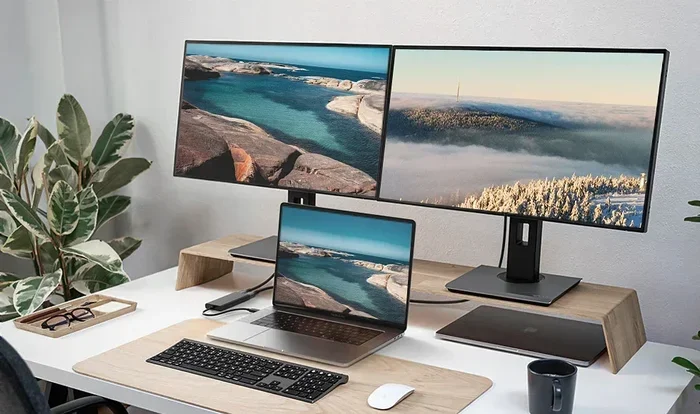
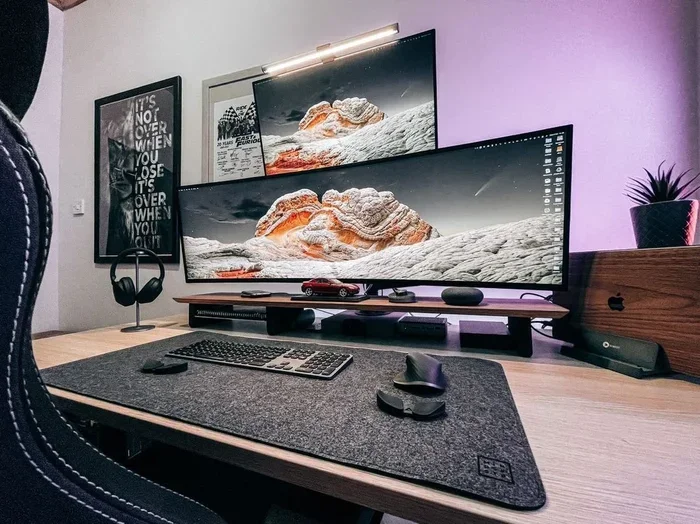
This is the number one reason people want to use a TV as a monitor. Imagine having a 55-inch screen for your work. You can fit multiple windows side by side without feeling cramped. You can have your email open on one side and your main work document on the other. It makes multitasking much easier and more natural.
If you watch a lot of videos or do any kind of media work, a big screen is a huge upgrade. Streaming movies, editing video, or just browsing the web all feel better on a large display. The immersive experience is hard to beat with a small monitor.
Better for Media and Casual Use
Even if you are not a power user, a TV makes a great display for everyday use. You can use it as a second screen for your laptop. You can use it as your main display if you mostly do light work, browse the web, and watch content. The picture quality on modern TVs is stunning, and it makes everything look vibrant and alive.
Cost Savings
As mentioned earlier, TVs can be more affordable than monitors of a similar size. If you want a big screen and you are on a budget, buying a TV can save you money. You get a large display with great features like HDR and smart apps without paying the premium price tag that comes with large monitors.
Cons of Using a TV as a Computer Monitor
Input Lag and Response Time Issues
Input lag is the delay between your mouse click or keyboard press and what shows up on screen. For office work, this is usually not a problem. But if you play fast-paced games, input lag can be very frustrating. A TV that has high input lag will make games feel slow and unresponsive.
Many modern TVs have a “game mode” that turns off extra processing and reduces input lag significantly. If you plan to game on your TV, make sure you turn this mode on. Even with game mode, a TV will usually have more input lag than a dedicated gaming monitor.
Pixel Density and Text Sharpness
This is one of the biggest downsides of using a TV as a monitor. Pixel density refers to how many pixels are packed into each inch of the screen. Monitors have high pixel density because they are smaller screens with high resolution. TVs have lower pixel density because they spread the same resolution over a much larger area.
What does this mean for you? Text on a TV can look a bit fuzzy or soft, especially if you sit close to the screen. Small fonts in web browsers, documents, and spreadsheets may be harder to read. If you do a lot of text-heavy work, this can be tiring on your eyes over long periods.
Weight and Mounting Challenges
TVs are heavy and bulky compared to monitors. Mounting a TV on your desk or wall requires different hardware and more effort. You also need to think about where you will place it. A large TV on a small desk can look awkward and take up a lot of space. Make sure your desk and room can handle the size before you commit.
What to Consider Before Making the Switch
Screen Size and Viewing Distance
This is the most important factor to think about. If your TV is too big and you sit too close, you will see individual pixels and the image will not look smooth. A good rule of thumb is to sit about 1.5 to 2.5 times the diagonal screen size away from the TV. For a 55-inch TV, that means sitting about 6 to 9 feet away.
If you sit at a desk that is only 2 feet from a 55-inch TV, the experience will not be great for text work. But if you have a deep desk or a couch setup, a large TV can work wonderfully. Measure your space before you buy and make sure the viewing distance matches the screen size.
Resolution Matters a Lot
The resolution of your TV directly affects how sharp everything looks. A 4K TV has four times the pixels of a 1080p TV. This means 4K TVs look much sharper, even at larger sizes. If you are going to use a TV as a monitor, a 4K resolution is highly recommended. A 1080p TV on a large screen will look blurry up close, and that is not ideal for daily computer work.
Here is a simple comparison to help you understand:
- 1080p (Full HD): Good for TVs 43 inches and smaller. May look soft on larger screens when used as a monitor.
- 4K (Ultra HD): Great for TVs of all sizes. Text and images stay sharp even on a 55-inch or 65-inch screen.
- 8K: Excellent but expensive. Overkill for most PC use, but future-proof if you want the best.
HDMI and Connection Options
You need the right cable to connect your PC to your TV. Most modern TVs and PCs use HDMI, and this is the easiest and most common connection. Make sure both your PC and TV have HDMI ports. If your PC only has DisplayPort output and your TV only has HDMI, you will need a DisplayPort to HDMI adapter.
For the best image quality, use an HDMI 2.0 or HDMI 2.1 cable. These support 4K resolution at higher refresh rates. A cheap or older HDMI cable may limit your picture quality or not support 4K at all. Always check the cable specifications before you buy.
Best TVs for Use as Computer Monitors
Budget-Friendly Options
If you do not want to spend a lot, there are great TVs that work well as monitors. Look for a 4K TV in the 43 to 55-inch range. These are affordable and still give you a sharp picture. Brands like TCL, Hisense, and Samsung offer budget-friendly models that are perfect for this use case.
When shopping on a budget, focus on these features:
- 4K resolution for sharp text and images
- HDMI 2.0 or higher for the best connection
- A game mode to reduce input lag
- Good brightness so the screen is easy on your eyes
Premium Picks for the Best Experience
If you have more to spend, premium TVs offer a much better experience as a computer monitor. Look for TVs with low input lag, high refresh rates, and excellent color accuracy. OLED TVs from LG and Samsung are fantastic because they have perfect blacks, vibrant colors, and very fast response times.
Some high-end models also support HDMI 2.1, which allows for 4K at 120Hz. This is great if you want to use the TV for both PC gaming and general work. The extra cost is worth it if you plan to use the TV as your primary monitor every day.
How to Connect Your TV to Your PC
HDMI and Cable Options
Connecting your TV to your PC is usually very simple. Here is what you need to do step by step:
- Check the ports on the back of your TV and PC. Look for HDMI ports.
- Get a good quality HDMI cable. For 4K, make sure it is an HDMI 2.0 or HDMI 2.1 cable.
- Plug one end of the cable into your PC and the other end into the TV.
- Turn on the TV and use the remote to switch to the correct HDMI input.
- On your PC, go to display settings and make sure the TV is detected. You can choose to mirror the display or extend it.
Once connected, you may need to adjust the resolution in your PC settings. Set it to 4K if your TV supports it. You can also adjust the scaling so that text and icons are a comfortable size to read.
Wireless Display Options
Not everyone wants to run a cable across the room. If your TV and PC support it, you can use wireless display technology. Windows has a built-in feature called Miracast that lets you cast your PC screen to a compatible TV. You can also use devices like Chromecast or Amazon Fire TV Stick to stream your PC display wirelessly.
However, wireless connections have more latency and lower image quality than a wired HDMI connection. If you are doing work that requires precision or you are gaming, a wired connection is always better. Wireless is great for casual browsing and streaming.
Adjusting Settings for the Best Experience
Once your TV is connected, take a few minutes to fine-tune the settings. Turn on the game mode if you want lower input lag. Adjust the brightness and contrast to match your room lighting. Set the resolution to the TV native resolution. And adjust the scaling on your PC so that everything is easy to read without squinting.
These small steps make a big difference. A properly configured TV will feel much more like a real computer monitor, and you will enjoy using it every day.
Common Mistakes People Make When Using a TV as a Monitor
There are a few mistakes that people make when they switch from a monitor to a TV. Avoiding these will save you a lot of frustration.
- Buying a 1080p TV that is too large: A 55-inch 1080p TV will look blurry up close. Always go with 4K if you can.
- Forgetting to turn on game mode: If you game on your TV, game mode is essential. It cuts down on input lag and makes the experience much smoother.
- Sitting too close: TVs are designed to be viewed from a distance. If you sit too close, you will see pixels and the image will not look clean.
- Using a cheap HDMI cable: A low-quality cable can limit your resolution and refresh rate. Invest in a good cable for the best results.
- Not adjusting PC scaling: If the text and icons are too small or too large, adjust the scaling settings in Windows to make everything comfortable.
Is It Worth It? Final Verdict
So, is it worth using a TV as a computer monitor? The answer depends on what you need. If you want a big screen for media, casual gaming, and light work, a TV is a great choice. The larger display, vibrant colors, and lower cost make it a compelling option.
If you are a professional who does detailed work like graphic design, video editing, or programming, a dedicated monitor might be a better fit. The higher pixel density and color accuracy of a monitor will serve you better for those tasks.
For most people, using a TV as a computer monitor works very well and is absolutely worth it. Just make sure you pick the right size, resolution, and settings, and you will enjoy a great experience. Can I Use A Tv As A Computer Monitor? Yes, and now you know exactly how to do it the right way.
Take what you have learned from this guide, think about your own setup, and make a decision that fits your needs. Whether you choose a TV or a monitor, the most important thing is that your setup makes you happy and helps you get your work done comfortably.
Conclusion
Using a TV as a computer monitor is a smart and practical choice for many people. It gives you a big, beautiful screen that enhances your work and entertainment. The key is to understand the trade-offs and make informed decisions about your setup. From choosing the right resolution to adjusting your settings, every step matters.
We have covered everything you need to know about Can I Use A Tv As A Computer Monitor. The pros are clear, the cons are manageable, and the setup process is simple. You are now equipped with the knowledge to make the best choice for your home or office. Go ahead, give it a try, and enjoy your new big-screen desktop experience.
Frequently Asked Questions
Can I Use A Tv As A Computer Monitor For Gaming?
Yes, you can use a TV for gaming, but there are a few things to keep in mind. Turn on the game mode on your TV to reduce input lag. A 4K TV with HDMI 2.1 and a high refresh rate will give you the best gaming experience. For competitive fast-paced games, a dedicated gaming monitor is still better due to lower input lag and faster response times.
Does Using A TV As A Monitor Hurt Your Eyes?
It can if you sit too close or the screen is too large for your viewing distance. TVs are designed to be viewed from farther away than monitors. If you sit at a desk close to a large TV, your eyes may get tired faster. To avoid eye strain, make sure your viewing distance is at least 5 to 6 feet from a 55-inch TV, and adjust the brightness to match your room lighting.
What Cable Do I Need To Connect My PC To A TV?
An HDMI cable is the most common and easiest way to connect a PC to a TV. For 4K resolution, make sure you use an HDMI 2.0 or HDMI 2.1 cable. If your PC only has DisplayPort, you will need a DisplayPort to HDMI adapter. Always check the cable specifications to ensure it supports the resolution and refresh rate you need.
Can I Use A Smart TV As A Computer Monitor?
Yes, you can use any smart TV as a computer monitor. The smart features do not affect the TV ability to function as a display. You simply connect your PC via HDMI and switch to the correct input. Smart TVs are great because they let you easily switch between your PC and streaming apps like Netflix or YouTube.
Is A 4K TV Better Than A Monitor For Work?
A 4K TV can be great for work, especially if you need a large screen for multitasking and media. However, monitors generally have higher pixel density, which makes text sharper and easier to read up close. For office work, a 27-inch 4K monitor is often a better choice than a large TV. But for casual work, creative projects, and media consumption, a 4K TV works wonderfully.
How Do I Make Text Look Sharp On A TV Used As A Monitor?
To make text look sharper on a TV, make sure you are using 4K resolution. Adjust the PC scaling settings to a comfortable size, usually 125% or 150% on a large TV. Sit at an appropriate viewing distance, and make sure the TV sharpness setting is not set too high, as this can make text look artificial. Using a high-quality HDMI cable also helps maintain a clear image.