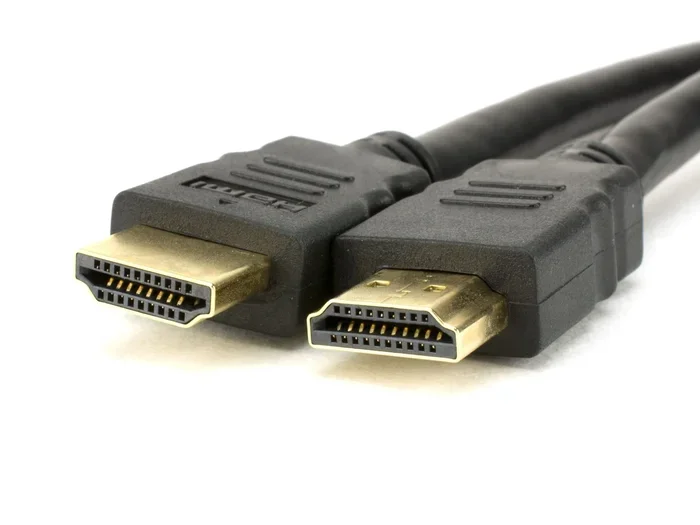
Can I Connect My PC to My Monitor With HDMI Only Cable
Yes, you can absolutely connect your PC to your monitor with an HDMI only cable. HDMI is one of the most common and reliable ways to link your computer to a display. This guide covers everything you need to know about HDMI connections, from cable types to troubleshooting tips. You will learn how to set up your PC monitor connection quickly and easily.
So you want to know if you can connect your PC to your monitor with HDMI only. The short answer is yes. HDMI is the most widely used connection type for computers and displays today. Whether you are setting up a new home office or upgrading your gaming rig, HDMI makes the process simple and straightforward.
You do not need special adapters or fancy equipment in most cases. A standard HDMI cable does the job. It carries both high-quality video and audio through a single wire. This makes it one of the easiest ways to get your PC screen onto a larger display.
In this guide, we will walk through everything you need to know. From choosing the right cable to fixing common problems, we have you covered. Let us dive in and get your PC monitor connection up and running.
Key Takeaways
- HDMI is the standard connection: Most modern PCs and monitors come with HDMI ports built right in.
- You only need one cable: A single HDMI cable handles both audio and video signals.
- Cable version matters: Different HDMI versions support different resolutions and refresh rates.
- Setup is simple: Plug one end into your PC and the other into your monitor, then adjust display settings.
- Troubleshooting is straightforward: Most HDMI issues can be fixed with basic steps like checking cable seating or updating drivers.
- Adapters exist for older setups: If your PC lacks HDMI, adapters can bridge the gap to VGA, DVI, or DisplayPort.
📑 Table of Contents
What Is HDMI and Why Does It Matter?
HDMI stands for High-Definition Multimedia Interface. It is a digital connection standard used to transmit audio and video signals from one device to another. Think of it as a single cable that replaces the need for separate audio and video cords.
HDMI has been around since the early 2000s, and it has become the go-to connection for TVs, monitors, laptops, and desktop PCs. Almost every modern device you buy today includes at least one HDMI port.
How HDMI Transmits Data
HDMI sends digital signals from your PC display output to your monitor. Unlike older analog connections like VGA, HDMI does not convert signals along the way. This means you get a cleaner, sharper image every time.
The cable carries uncompressed video and compressed or uncompressed audio. This all happens through one single connector. You do not need to fiddle with multiple cables or worry about matching colors and ports.
Why HDMI Is the Best Choice for PC-to-Monitor Connections
There are several reasons why HDMI is the top choice for connecting a PC to a monitor:
- One cable does it all: Video and audio travel through the same wire.
- Wide compatibility: Most PCs and monitors have HDMI ports.
- High resolution support: HDMI supports 4K, 8K, and beyond depending on the version.
- Easy plug-and-play: No software installation is needed in most cases.
- Affordable: HDMI cables are cheap and widely available.
When you are setting up a PC setup, HDMI saves you time and hassle. You plug it in, and your screen appears. That is all there is to it in most situations.
How to Connect Your PC to Your Monitor With HDMI Only
Setting up an HDMI only connection is one of the simplest things you can do. You do not need to be a tech expert. Follow these steps, and you will be up and running in minutes.
Step 1: Check Your Ports
First, look at the back of your PC and the back of your monitor. Do you see an HDMI port on both? Most desktop PCs have at least one HDMI port on the graphics card or motherboard. Most modern monitors have multiple HDMI inputs.
If both devices have HDMI ports, you are good to go. If your PC does not have HDMI, we will cover adapters later in this guide.
Step 2: Get the Right HDMI Cable
You need a standard HDMI cable. These come in different versions, but a basic High Speed HDMI cable works for most setups. You can pick one up at any electronics store or online for just a few dollars.
Make sure the cable is not damaged. Check both ends for bent pins or frayed wires. A good cable ensures a strong and stable signal transmission between your PC and monitor.
Step 3: Plug It In
Now for the fun part. Plug one end of the HDMI cable into your PC. Plug the other end into your monitor. The connectors are designed to fit only one way, so do not force it.
Once both ends are secure, turn on your monitor. You should see your PC desktop appear on the screen right away.
Step 4: Adjust Display Settings
Sometimes your PC might not automatically detect the monitor. If that happens, do not worry. Here is how to fix it:
- Windows: Right-click on your desktop and select Display Settings. Scroll down to the Multiple Displays section and choose Duplicate or Extend.
- Mac: Go to System Preferences, then Displays. Your monitor should appear automatically.
You can also adjust the screen resolution and refresh rate from these settings. Pick the resolution that matches your monitor’s native capability for the best picture quality.
Quick Tips for a Smooth Setup
- Always use the HDMI port on your graphics card, not the one on your motherboard, for the best performance.
- If your monitor does not turn on, check that it is set to the correct HDMI input channel.
- Keep your HDMI cable away from power cords to avoid interference.
HDMI Cable Types and Compatibility
Not all HDMI cables are the same. Different versions support different features. Understanding these differences helps you choose the right cable for your PC monitor setup.
HDMI Version Breakdown
Here are the main HDMI versions you will encounter:
- Standard HDMI (1.4): Supports up to 4K at 30Hz. Great for basic office work and media watching.
- High Speed HDMI (2.0): Supports 4K at 60Hz. Ideal for gaming and creative work.
- Premium High Speed HDMI (2.0a/2.0b): Supports HDR content and higher bandwidth.
- Ultra High Speed HDMI (2.1): Supports 4K at 120Hz, 8K at 60Hz, and even 10K. Perfect for serious gamers and professionals.
Which HDMI Cable Do You Need?
For most people, a High Speed HDMI cable is more than enough. It handles 4K resolution at 60Hz, which covers the needs of everyday users and casual gamers alike.
If you are a hardcore gamer or a video editor, consider an Ultra High Speed HDMI 2.1 cable. It future-proofs your setup and gives you access to the highest refresh rate and resolution options available today.
Common HDMI Cable Lengths
HDMI cables come in various lengths. Here is a quick guide:
- 1-3 feet: Great for desk setups where your PC and monitor are close together.
- 6 feet: The most popular length for typical home office setups.
- 10-15 feet: Good for living room setups or when your PC is farther from the monitor.
- 25+ feet: Use an active HDMI cable or signal booster to avoid signal loss.
Longer cables can sometimes cause signal degradation. If you need a cable over 15 feet, invest in a quality active HDMI cable that boosts the signal along the way.
Audio and Video Quality Over HDMI
One of the biggest advantages of using HDMI is that it delivers both audio and video through a single cable. This is a huge upgrade from older connection methods that required separate audio and video cables.
Video Quality You Can Expect
Your display output quality depends on your HDMI cable version and your devices. Here is what you can expect from a standard setup:
- 1080p at 60Hz: Standard HD. Perfect for everyday computing and office work.
- 1440p at 60Hz: Quad HD. Great for productivity and casual gaming.
- 4K at 30Hz: Ultra HD. Best with HDMI 1.4 or higher.
- 4K at 60Hz: Ultra HD smooth motion. Requires HDMI 2.0 or higher.
Higher resolutions and refresh rates give you a sharper and smoother image. This matters a lot for gaming, video editing, and watching movies on your PC monitor.
Audio Support Through HDMI
HDMI carries digital audio alongside video. This means your monitor speakers or connected speakers receive audio directly through the same cable. You do not need a separate audio cable at all.
HDMI supports surround sound formats like Dolby Atmos and DTS. If you have a soundbar or home theater system connected through HDMI ARC, the audio quality is excellent.
HDMI and HDR
If your monitor supports HDR (High Dynamic Range), HDMI can transmit HDR content. HDR provides brighter highlights, deeper blacks, and more vivid colors. You need at least an HDMI 2.0a cable to enjoy HDR content on your PC display.
Troubleshooting Common HDMI Connection Issues
Even though HDMI connections are simple, sometimes things go wrong. Here are the most common issues and how to fix them.
No Signal on the Monitor
This is the most common problem. If your monitor says “No Signal” or “Check Cable,” try these steps:
- Unplug the HDMI cable from both ends and plug them back in firmly.
- Try a different HDMI port on your monitor.
- Test with a different HDMI cable to rule out a faulty cable.
- Make sure your monitor is set to the correct HDMI input source.
Flickering or Intermittent Display
A flickering screen can be annoying. Here is what to do:
- Check that the HDMI cable is fully inserted at both ends.
- Replace the cable if it is old or damaged.
- Reduce the resolution or refresh rate in your display settings.
- Move the cable away from power cables and other sources of electromagnetic interference.
No Audio Through HDMI
If you get video but no sound, your PC might still be sending audio through a different output. Here is how to fix it:
- Right-click the speaker icon in your Windows taskbar and select Open Sound Settings.
- Change the output device to your HDMI monitor.
- On Mac, go to Sound Preferences and select HDMI as the output.
Black Screen After Waking From Sleep
Sometimes your monitor goes black after your PC wakes from sleep mode. This is usually a driver issue. Try these fixes:
- Update your graphics card drivers.
- Change your power settings to prevent the display from turning off.
- Try a different HDMI port on your monitor.
Expert Insight: When to Replace Your HDMI Cable
HDMI cables wear out over time. If you notice frequent disconnections, color distortion, or intermittent signal loss, it is time for a new cable. A quality HDMI cable costs very little and can solve many frustrating issues.
When HDMI Alone Is Not Enough
While HDMI works great in most cases, there are situations where you might need more than just an HDMI cable. Let us look at when this happens and what you can do about it.
Your PC Does Not Have an HDMI Port
Some older PCs or certain compact desktops only have DisplayPort, DVI, or VGA outputs. You have a few options:
- DisplayPort to HDMI adapter: This is the most common and reliable option. It lets you connect a DisplayPort output to an HDMI monitor.
- DVI to HDMI adapter: DVI and HDMI share the same digital signal format, so a simple adapter works well for video.
- VGA to HDMI converter: VGA is an older analog connection. You will need an active converter box to turn VGA into HDMI.
Keep in mind that VGA and DVI do not carry audio. You would need a separate audio cable in those cases.
You Need Higher Bandwidth Than HDMI Provides
For most users, HDMI is more than enough. But if you are running multiple high-resolution monitors or need very high refresh rates, you might hit the limits of HDMI.
In these cases, DisplayPort is often the better choice. DisplayPort 1.4 and 2.0 offer higher bandwidth than HDMI 2.0 and 2.1 in some configurations.
Comparison: HDMI vs. Other Connection Types
Here is a quick comparison of the most common PC-to-monitor connection types:
- HDMI: Most versatile. Carries audio and video. Widely compatible. Best for most setups.
- DisplayPort: Higher bandwidth. Best for multi-monitor setups and high refresh rates. No audio in older versions.
- DVI: Older digital connection. Video only. Still works but lacks modern features.
- VGA: Old analog standard. Lowest quality. Avoid if possible.
- USB-C/Thunderbolt: Modern and versatile. Can carry video, audio, and data through one cable.
For an HDMI only setup, you are choosing the simplest and most universally compatible option. It works with the vast majority of PCs and monitors on the market today.
Common Mistakes to Avoid
Here are some mistakes that people make when setting up an HDMI connection:
- Using a cheap, uncertified cable: This can lead to signal issues and poor image quality.
- Plugging into the motherboard HDMI instead of the GPU HDMI: This can cause poor performance and no signal on dedicated graphics cards.
- Ignoring cable length limits: Long cables without signal boosters can cause quality loss.
- Not checking the HDMI port version: An older HDMI port limits your resolution and refresh rate.
- Forgetting to select the right input on the monitor: Monitors often have multiple HDMI ports. Make sure you select the correct one.
Avoiding these simple mistakes saves you a lot of frustration and ensures a great PC monitor connection every time.
Final Thoughts
Connecting your PC to your monitor with an HDMI only cable is simple, reliable, and effective. HDMI handles both video and audio through one cable, making it the easiest choice for most setups. Whether you are building a new PC setup or troubleshooting an existing one, HDMI gets the job done.
Choose the right cable version for your needs, make sure both ports are compatible, and adjust your display settings if needed. Most problems have quick and easy solutions. With the tips in this guide, you can set up your PC display output with confidence.
So go ahead. Plug in that HDMI cable. Enjoy your bigger, better screen. Your PC monitor connection is just one cable away from working perfectly.
Frequently Asked Questions
Can I use any HDMI cable to connect my PC to a monitor?
Yes, you can use most HDMI cables for a basic connection. However, if you want 4K resolution or high refresh rates, you need a High Speed or Ultra High Speed HDMI cable. Check your monitor and PC specs to choose the right version.
Why is there no sound when I connect my PC to a monitor with HDMI?
This usually happens when your PC is still set to output audio through a different device. Go to your sound settings and change the default output to your HDMI monitor. This should route the audio through the HDMI cable.
Can I connect two monitors to my PC using only HDMI?
Yes, if your PC has multiple HDMI ports or you use an HDMI splitter. However, for the best performance with dual monitors, consider using a mix of HDMI and DisplayPort connections.
Does HDMI cable length affect display quality?
Short HDMI cables (under 6 feet) rarely cause quality issues. Longer cables can experience signal loss, especially without a built-in signal booster. For runs over 15 feet, use an active HDMI cable.
What is the difference between HDMI and DisplayPort for PC connections?
HDMI carries both audio and video and is more widely compatible. DisplayPort offers higher bandwidth for multi-monitor setups and very high refresh rates. For most users, HDMI is the simpler and more practical choice.
Do I need to install drivers for HDMI to work?
No. HDMI is a plug-and-play standard. Your PC and monitor should communicate automatically. You may need to update your graphics card drivers for the best performance and resolution options.
=== CONCLUSION ===
Connecting your PC to your monitor with an HDMI only cable is one of the easiest and most reliable ways to get a great display setup. HDMI has been the standard for years, and for good reason. It is simple, affordable, and works with almost everything.
From choosing the right cable version to troubleshooting common issues, this guide has covered all the essentials. You now know how to set up your PC monitor connection, what to look for in an HDMI cable, and how to handle problems if they come up.
Take what you have learned here and apply it to your own setup. Whether you are a gamer, a remote worker, or a casual user, a solid HDMI connection makes your computing experience better. Plug in, turn on, and enjoy your screen.