Can You Connect A Monitor Without HDMI On Your Setup
Can you connect a monitor without HDMI? Yes, you can use VGA, DVI, DisplayPort, or USB-C ports with the right adapter. This guide explains every alternative connection method, common mistakes, and how to get video and audio working on any setup.
So you want to hook up a second screen, but your laptop or PC has no HDMI port. Maybe your monitor only has VGA or DVI, or your brand-new laptop relies on USB-C. Can you connect a monitor without HDMI and still get a crisp picture? The short answer is yes. You have several options, and most cost under twenty dollars.
People run into this problem more often than you think. Modern ultrabooks dropped HDMI to save space. Budget monitors still ship with VGA or DVI to keep prices low. And many office setups use DisplayPort or USB-C because they carry both video and data. Whatever the reason, you do not need to buy a new monitor or a new computer. You just need the right cable or adapter.
In this guide, I will walk you through every way to connect a monitor without HDMI. I will cover the most common alternative ports, explain how adapters work, and share quick tips to avoid headaches. By the end, you will know exactly which cable or adapter to grab for your setup.
Key Takeaways
- Multiple port options exist: VGA, DVI, DisplayPort, and USB-C can all carry video without HDMI.
- Adapters are your best friend: A simple converter can bridge almost any connection gap.
- Modern devices often lack HDMI: Many laptops and tablets now rely on USB-C or Thunderbolt.
- Audio may need a separate cable: Older ports like VGA do not carry sound.
- Check your monitor’s inputs first: Knowing what ports are available saves time and money.
- Active adapters matter for signal conversion: Passive adapters only work between similar digital signals.
- You can still enjoy high resolutions: DisplayPort and USB-C support 4K and even 8K without HDMI.
📑 Table of Contents
Why You Might Need to Connect a Monitor Without HDMI
The HDMI port has been the standard for a long time. But times are changing. Many devices now use other video outputs, and that is not a bad thing. Understanding why you might need an alternative helps you pick the right solution.
The Rise of Laptops Without HDMI Ports
Thin and light laptops almost always skip HDMI. Manufacturers prefer USB-C because it handles video, data, and power through a single cable. If you own a MacBook, a Chromebook, or a modern Windows ultrabook, you probably do not have an HDMI port. You still need to connect to a bigger screen for work or gaming, though.
Older Monitors Still Have Value
Do you have a trusty old monitor with only VGA or DVI? Do not throw it away. That monitor can still deliver great picture quality for office work or casual gaming. You just need a converter to match your device’s output. A VGA-to-HDMI adapter or a DVI-to-HDMI cable solves this instantly.
Office and Home Theater Setups
In some office environments, IT departments standardize on DisplayPort or USB-C. Home theater receivers might have HDMI, but your PC might not. Knowing your options means you can mix and match devices without buying new hardware.
The Most Common Alternative Ports on Monitors
Before you buy any adapter, check the back of your monitor. Most monitors made in the last fifteen years have at least one of these ports. Each one has its strengths and quirks.
| Port Type | Video Quality | Carries Audio? | Common On |
|---|---|---|---|
| VGA | Up to 1080p (limited) | No | Old monitors, projectors |
| DVI | Up to 1080p or 2560×1600 | No | Mid-2000s monitors |
| DisplayPort | Up to 8K and beyond | Yes (via auxiliary) | Modern PCs, high-end monitors |
| USB-C (Alt Mode) | Up to 4K or 8K | Yes | Laptops, tablets, phones |
| Thunderbolt 3/4 | Up to 8K | Yes | MacBooks, high-end laptops |
VGA: The Old Reliable
VGA stands for Video Graphics Array. It uses an analog signal and a blue, chunky connector. You will find VGA on older monitors, projectors, and some cheap displays. VGA can handle up to 1080p, but the image may look slightly soft compared to digital options. Because it is analog, you might see slight color bleed or ghosting. Still, for basic office work, VGA works fine. You just need a VGA-to-HDMI converter if your source has HDMI only.
DVI: A Step Up from VGA
DVI stands for Digital Visual Interface. It came out in the late 1990s and became very common in the 2000s. DVI can carry a digital signal, which means sharper text than VGA. There are three types of DVI: DVI-A (analog only), DVI-D (digital only), and DVI-I (both). Most monitors use DVI-D. A DVI-to-HDMI adapter is cheap and easy to find. Just remember that DVI does not carry audio, so you will need a separate cable for sound if your source requires it.
DisplayPort and Mini DisplayPort
DisplayPort is the favorite of PC enthusiasts. It supports high resolutions and refresh rates, including 4K at 144Hz and beyond. Mini DisplayPort is the smaller version used on older Macs and some graphics cards. Both are excellent alternatives to HDMI. A DisplayPort-to-HDMI adapter lets you connect a DisplayPort source to an HDMI monitor with ease. Many modern monitors even have both DisplayPort and HDMI inputs, giving you flexibility.
USB-C and Thunderbolt
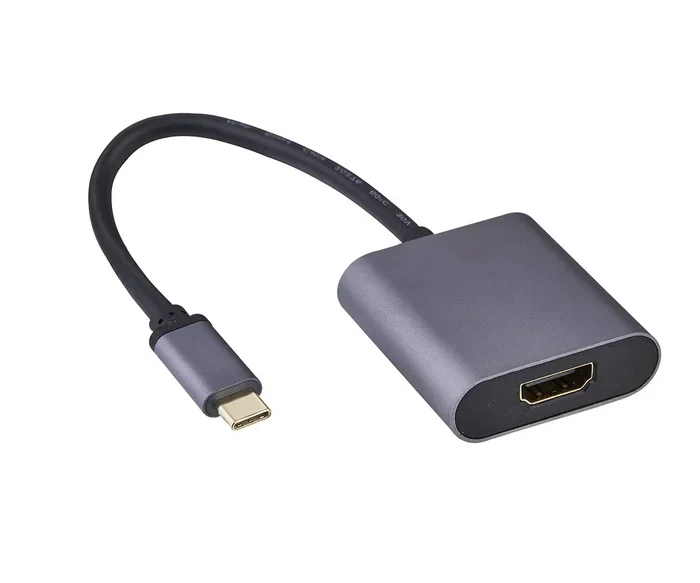
USB-C is the newest standard, and it is everywhere. A USB-C port can carry video through something called Alt Mode. Thunderbolt 3 and Thunderbolt 4 use the same connector but offer even faster data speeds and video bandwidth. If your laptop has USB-C, you can connect it directly to a USB-C monitor or use a USB-C-to-HDMI adapter. Thunderbolt docks are also a great choice because they add multiple ports and charging in one hub.
How to Use Adapters and Converters
Adapters and converters are the bridge between your device and your monitor. They come in all shapes and sizes. Understanding the difference between active and passive adapters will save you from buying the wrong one.
Active vs. Passive Adapters
A passive adapter simply changes the physical connector shape. It works when both the source and the display use the same type of signal. For example, a passive DisplayPort-to-HDMI adapter works if your laptop has DisplayPort Alt Mode over USB-C and your monitor has HDMI. A passive DVI-to-HDMI adapter also works because both carry digital video signals.
An active adapter contains a chip that converts one signal type to another. You need an active adapter when the signals are different. For instance, VGA is analog, and HDMI is digital. A VGA-to-HDMI converter must actively convert the analog signal to digital. Active adapters often need their own power source, usually through a USB port.
Choosing the Right Adapter for Your Setup
First, identify the output port on your device. Then check the input port on your monitor. Next, decide if you need audio. If your monitor has speakers and you need sound, avoid adapters that only carry video. A USB-C to HDMI adapter with audio will pass both video and sound. If you only need video, a simpler adapter works fine. Always check the maximum resolution supported by the adapter. A cheap adapter might only handle 1080p, even if your monitor supports 4K.
Quick Tips for Buying Adapters
- Buy from reputable brands: Cheap no-name adapters often cause flickering or no signal.
- Check the resolution: Look for adapters that support at least 1080p or 4K if you need it.
- Consider a docking station: A USB-C docking station gives you HDMI, USB ports, and charging all at once.
- Read reviews: A quick look at user feedback can save you from a bad purchase.
Connecting Modern Devices to Older Monitors
You have a shiny new laptop with only USB-C, and an old monitor with VGA. Can you connect them? Yes. This is a very common scenario, and the solution is straightforward. You just need the right adapter.
Laptops with Only USB-C
If your laptop has USB-C with DisplayPort Alt Mode or Thunderbolt, you can connect to almost any monitor. For a VGA monitor, use a USB-C to VGA adapter. For a DVI monitor, use a USB-C to DVI adapter. For an HDMI monitor, a USB-C to HDMI adapter is the simplest option. These adapters are small and portable, making them perfect for travel.
Gaming Consoles and Media Players
Some older gaming consoles or media players only have HDMI output, but your monitor has DisplayPort. In that case, you need an HDMI-to-DisplayPort converter. This is an active adapter because HDMI and DisplayPort use different digital signaling. Make sure the converter supports the resolution and refresh rate you want. A 4K converter will cost more but delivers the best picture.
Using a USB-C Hub or Dock
A USB-C hub is a great investment if you connect multiple devices. You plug the hub into your laptop, and then you can connect your monitor, keyboard, mouse, and external drive all at once. Many hubs include an HDMI port, but some also have DisplayPort or USB-C video output. This gives you the freedom to choose the best monitor connection available.
DisplayPort, USB-C, and Thunderbolt: The Modern Alternatives
DisplayPort and USB-C are the modern successors to HDMI for PC monitors. They offer higher bandwidth and better support for high refresh rates. If you are building a new setup, these are the ports to look for.
Why DisplayPort Beats HDMI for PC Monitors
DisplayPort was designed specifically for computer displays. It supports higher resolutions and refresh rates than HDMI at the same price point. DisplayPort also supports daisy-chaining, which means you can connect multiple monitors to a single port. For gamers, DisplayPort 1.4 and 2.1 offer amazing features like Adaptive Sync and high frame rates at 4K. Many professional monitors use DisplayPort because of its superior bandwidth.
USB-C Alt Mode and Thunderbolt 3/4
USB-C Alt Mode allows a USB-C port to carry a DisplayPort or HDMI signal. Thunderbolt 3 and 4 take this further by combining video, data, and power into one cable. A Thunderbolt dock can connect to a monitor via DisplayPort or HDMI, and it can also charge your laptop and connect to the internet. Thunderbolt is the gold standard for modern laptop connectivity. If you have a Thunderbolt port, you can use a Thunderbolt-to-HDMI adapter or a Thunderbolt cable directly to a Thunderbolt monitor.
Audio Considerations with Non-HDMI Ports
HDMI carries both video and audio in one cable. Other ports often need a separate audio connection. DisplayPort can carry audio through an auxiliary channel, but not all monitors support it. VGA never carries audio. If you use VGA or DVI, you must connect a 3.5mm audio cable from your device to your monitor or speakers. A USB-C connection usually handles audio automatically if the monitor has built-in speakers or a headphone jack.
Troubleshooting Common Connection Issues
Even with the right adapter, you might run into problems. Do not worry. Most issues have simple fixes.
No Signal or Black Screen
If your monitor shows no signal, first check the cable connections. Make sure the adapter is fully seated in both ports. Try a different cable or adapter to rule out a faulty component. On Windows, press Windows + P to cycle through display modes. On macOS, go to System Settings and check Displays. Sometimes the monitor is set to the wrong input source. Use the monitor’s menu button to select the correct port.
No Audio or Wrong Audio Source
If you have no sound, check your operating system’s audio output settings. On Windows, right-click the speaker icon and select the correct playback device. On macOS, go to Sound Settings. If you use a VGA or DVI connection, you need a separate 3.5mm audio cable. Make sure the cable is plugged into the correct jack on your laptop and your monitor or external speakers.
Resolution and Refresh Rate Problems
If the image looks blurry or the refresh rate is low, your adapter might not support the full resolution. Update your graphics drivers. In Windows, go to Display Settings and check the resolution and refresh rate dropdowns. If the options are limited, the adapter or cable may be the bottleneck. Replace with a higher-quality adapter that supports your desired resolution.
Flickering or Intermittent Signal
Flickering often points to a loose connection or a cheap adapter. Try a different adapter or a shorter cable. Make sure the USB-C port or Thunderbolt port is fully inserted. If you use an active adapter, check if it needs external power. Some active adapters draw power from the USB-C port, and a weak port can cause flickering.
Conclusion
Can you connect a monitor without HDMI? Absolutely. You have VGA, DVI, DisplayPort, USB-C, and Thunderbolt at your disposal. Each option works well with the right adapter. The key is to know your ports, choose the correct adapter type, and check for audio support. With a simple converter, you can breathe new life into an old monitor or connect a modern laptop to any display. You do not need to spend a fortune or settle for a poor picture. Take a moment to identify your setup, grab the right adapter, and enjoy your expanded screen real estate today.
Frequently Asked Questions
Do I need a special adapter to connect a monitor without HDMI?
Yes, you need an adapter that matches your device’s output and the monitor’s input. For example, a USB-C to HDMI adapter works for modern laptops, while a VGA-to-HDMI converter helps with older monitors. Always check if the adapter supports the resolution you need.
Can I get audio through a non-HDMI connection?
It depends on the port. DisplayPort and USB-C can carry audio, but VGA and DVI cannot. If you use VGA or DVI, you must run a separate 3.5mm audio cable from your device to your speakers or monitor.
Will a cheap adapter damage my monitor or laptop?
A cheap adapter is unlikely to cause damage, but it may cause flickering, no signal, or limited resolution. Buying a reputable brand ensures stable performance and protects your hardware from power issues.
Can I connect a gaming console to a monitor without HDMI?
Yes, if your console has HDMI and your monitor has DisplayPort or DVI, you can use an HDMI-to-DisplayPort or HDMI-to-DVI converter. Make sure the converter supports the resolution and refresh rate your console outputs.
What is the difference between a passive and active adapter?
A passive adapter changes the physical connector shape without converting the signal. An active adapter contains a chip to convert one signal type to another, like VGA to HDMI. Active adapters often need power from a USB port.
Can I use a USB-C hub instead of a single adapter?
Yes, a USB-C hub or docking station provides multiple ports, including HDMI, USB, and charging. This is ideal if you connect several devices and want a tidy workspace with one cable to your laptop.