How Do I Recover My WiFi Password On My iPhone Steps
Recovering your WiFi password on an iPhone is easy when you know where to look. You can find saved WiFi passwords directly in your iPhone settings, use iCloud Keychain on any Apple device, or check your wireless router for the default credentials. This guide walks you through every method so you can reconnect to your WiFi network in minutes.
Ever stood in front of a friend’s house, a hotel lobby, or even your own living room, trying to type in a WiFi password you forgot? It happens to everyone. Your iPhone remembers the password, but finding it on the screen is not always obvious. Apple keeps this information tucked away for security reasons, which is great for protection but frustrating when you need it fast.
The good news is that recovering your WiFi password on an iPhone is simpler than most people think. You have multiple options, from checking your own device settings to using another Apple gadget you already own. This guide covers every reliable method step by step. By the end, you will know exactly how to get back online without stress.
Key Takeaways
- iPhone Settings Method: You can view your saved WiFi password right from your iPhone by accessing your router settings through the network details screen.
- iCloud Keychain Sync: If iCloud Keychain is enabled, your WiFi password syncs across all Apple devices, making recovery effortless.
- Router Admin Access: Logging into your wireless router directly lets you view or reset the WiFi password for all connected devices.
- QR Code Sharing: iOS 16 and later let you share your WiFi password using a QR code with other Apple devices.
- Reset Router as Last Resort: If nothing else works, a factory reset on your wireless router restores the default password printed on the device.
📑 Table of Contents
- Why Do You Forget WiFi Passwords?
- Method 1: Check Your WiFi Password Directly on iPhone
- Method 2: Use iCloud Keychain on Another Apple Device
- Method 3: Use the WiFi Password Sharing Feature
- Method 4: Check the Router Itself
- Method 5: Reset Your Router to Factory Defaults
- Tips to Avoid Forgetting Your WiFi Password Again
- Common Mistakes People Make When Recovering WiFi Passwords
- Expert Insights on WiFi Password Recovery
- Key Takeaways
- Frequently Asked Questions
- Conclusion
Why Do You Forget WiFi Passwords?
Before we dive into the steps, let us talk about why this happens so often. We connect to dozens of wireless networks throughout our lives. Home networks, office networks, guest networks, coffee shop hotspots — the list goes on. Your brain simply cannot remember every single one.
Your iPhone does the remembering for you. It stores every WiFi password you have ever entered in its network settings. The problem is Apple hides this data behind layers of menus. You need to know the right path to pull it up. That is exactly what this article will show you.
Method 1: Check Your WiFi Password Directly on iPhone
This is the most direct approach. If you are already connected to the network, your iPhone can show you the password. You will need to access your router settings through the device itself. Here is how it works.
Step-by-Step Guide
- Open the Settings app on your iPhone.
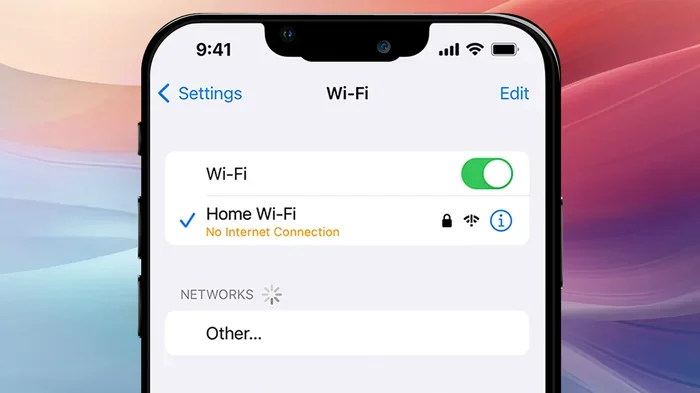
- Tap on WiFi to see your list of saved networks.
- Find the network you want the password for and tap the blue (i) icon next to it.
- Tap on Router — this shows you your router’s IP address, usually something like 192.168.1.1.
- Open any web browser and type that IP address into the address bar.
- Log in to your wireless router admin panel using your admin credentials.
- Navigate to the wireless or WiFi settings section.
- Your WiFi password will be displayed there, often under Security or Wireless Security.
What If You Do Not Know Your Router Login?
Every router comes with a default username and password. You can usually find this on a sticker on the back or bottom of the router. Common defaults are admin/admin or admin/password. If you have changed it and forgotten the new one, you may need to reset the router entirely. More on that later.
Method 2: Use iCloud Keychain on Another Apple Device
If you have another Apple device — like an iPad, Mac, or even a family member’s iPhone — you can pull up your saved WiFi password through iCloud Keychain. This method works beautifully when iCloud sync is turned on across your devices.
How iCloud Keychain Stores WiFi Passwords
When you connect to a WiFi network on any Apple device, the password gets saved to your iCloud Keychain. As long as all your devices share the same Apple ID and have Keychain enabled, that password is available everywhere. This is one of the most seamless features of the Apple ecosystem.
Steps to Find the Password on a Mac
- Open Keychain Access on your Mac. You can find it by searching in Spotlight.
- In the search bar, type the name of your wireless network.
- Double-click on the network entry.
- Check the box that says Show Password.
- Enter your Mac login password when prompted.
- The WiFi password will now be visible in plain text.
Steps to Find the Password on an iPad
On an iPad running iPadOS 16 or later, you can view saved WiFi passwords directly in settings. Go to Settings, then WiFi, tap the (i) icon next to your network, and select Password. You will need Face ID or Touch ID to reveal it.
Method 3: Use the WiFi Password Sharing Feature
Apple introduced a clever WiFi password sharing feature that lets you share your network credentials with another Apple device using a QR code. This is incredibly handy when a friend or guest needs to connect.
How WiFi Sharing Works
When someone tries to connect to your network on their iPhone or iPad, and they are near your device, your phone will prompt you to share the password. You simply confirm, and the other device scans a QR code generated by your phone. The connection happens automatically.
How to Generate a QR Code for Your WiFi
- Go to Settings on your iPhone.
- Tap WiFi and make sure you are connected to the network.
- Tap the (i) icon next to the network name.
- Tap Share Password or Share.
- Select the contact or device you want to share with.
- The other person scans the QR code that appears on your screen.
This method does not show you the actual password text, but it does solve the problem of getting a new device connected. It works best when both devices run iOS 11 or later.
Method 4: Check the Router Itself
Your wireless router is the physical box that broadcasts your WiFi signal. Most routers have a sticker on the bottom or back that lists the default network name (also called SSID) and the default WiFi password. If you or your internet provider never changed it, this is the fastest way to recover the password.
What to Look For on the Router
- Network Name (SSID): This is the name of your wireless network as it appears on your iPhone.
- WiFi Password: Sometimes labeled as “Wireless Key,” “Security Key,” or “Passphrase.”
- Router Admin Login: The default username and password for accessing the router settings page.
- Model Number: Useful if you need to look up manual instructions online.
When the Sticker Password Does Not Work
If you or someone in your household changed the WiFi password at some point, the sticker will show the old default. In that case, you will need to use one of the other methods described in this article. You can also log into the router admin panel using the IP address and default credentials to check the current settings.
Method 5: Reset Your Router to Factory Defaults
This should be your last resort. Resetting your wireless router wipes all custom settings, including your custom WiFi password, and restores everything to factory defaults. You will lose any personalized configurations like port forwarding or parental controls.
How to Reset Your Router
- Locate the small reset button on the back or bottom of your router.
- Use a paperclip or a pin to press and hold the button for 10 to 15 seconds.
- Release the button and wait for the router to restart.
- Once it boots back up, use the default credentials from the sticker to log in.
- Set up a new WiFi password and network name.
Important Warnings Before Resetting
Make sure you know your internet service provider’s login details before resetting. You may also need to reconfigure any devices that use static IP addresses. Only reset the router if you have tried every other option and still cannot access your network.
Tips to Avoid Forgetting Your WiFi Password Again
Once you recover your password, you do not want to lose it again. Here are some simple habits that keep your wireless network credentials safe and accessible.
Save the Password in a Password Manager
Apps like 1Password, LastPass, or Bitwarden store all your passwords securely. You can save your WiFi password there and access it from any device. This is far more reliable than relying on memory alone.
Write It Down and Keep It Safe
Old school but effective. Write your network name and password on a small piece of paper and tape it behind your router. This way, anyone in the household can find it without digging through settings.
Enable iCloud Keychain
If you use multiple Apple devices, turning on iCloud Keychain ensures your WiFi passwords sync automatically. Go to Settings, tap your name at the top, select iCloud, and toggle on Keychain. This single setting saves you from future password headaches.
Common Mistakes People Make When Recovering WiFi Passwords
Recovering a forgotten WiFi password can be tricky, and people often make avoidable mistakes along the way. Here are some common errors to watch out for.
- Trying to find the password in the iPhone WiFi list: The standard WiFi settings screen does not show saved passwords for security reasons. You need to go deeper into router settings or use iCloud Keychain.
- Using the wrong router IP address: Not all routers use 192.168.1.1. Some use 192.168.0.1 or 10.0.0.1. Always check the router label or look up the IP shown in your iPhone settings.
- Forgetting the router admin password: If you changed the router admin login and forgot it, a factory reset is the only way back in. Write down this password somewhere safe.
- Assuming the router sticker password is current: Many people change their WiFi password after setup and forget the sticker becomes outdated.
- Not checking if iCloud Keychain is enabled: If Keychain is off, your WiFi passwords do not sync to other devices, making this recovery method useless.
Avoiding these mistakes saves you time and frustration. Take a moment to note your current router settings and keep them in a safe place.
Expert Insights on WiFi Password Recovery
Network security experts recommend keeping your wireless network password stored in at least two separate places. This ensures you always have a backup if you forget it. A password manager combined with a physical note near your router covers all bases.
Experts also suggest using a strong, unique password for your WiFi network. Avoid common words or personal information like birthdays and pet names. A mix of uppercase letters, lowercase letters, numbers, and symbols creates a password that is hard to guess but easy to store in a manager. If you ever need to change your password, do it from the router admin panel for the most control over your network.
One often overlooked tip is to update your router firmware regularly. Manufacturers release updates that improve both security and performance. An outdated router can have vulnerabilities that expose your network settings to potential threats. Most modern routers have an auto-update feature you can enable in the admin panel.
Key Takeaways
- Direct iPhone Access: You can view your WiFi password by accessing your router settings through the iPhone network details screen.
- iCloud Keychain Is a Game Changer: If enabled, your password syncs across all Apple devices, making recovery instant.
- Router Sticker Provides Defaults: The physical router often has the original network name and password printed on it.
- WiFi Sharing Feature Saves Time: iOS 16 and later let you share credentials via QR code with other Apple users nearby.
- Factory Reset Is a Last Resort: Resetting your wireless router restores default settings but erases all custom configurations.
- Prevention Beats Recovery: Using a password manager and enabling iCloud Keychain helps you avoid forgetting your password again.
Frequently Asked Questions
Can I find my WiFi password on iPhone without resetting anything?
Yes, absolutely. You can find your saved WiFi password by accessing your router settings through your iPhone or by using iCloud Keychain on another Apple device. Neither method requires any reset. Simply follow the steps in Method 1 or Method 2, and you will have your password displayed on screen.
What should I do if my iPhone does not show the router option in WiFi settings?
This usually means you are not currently connected to the network. Make sure you connect to the WiFi network first, then go back to Settings and tap the (i) icon. The router option only appears when you are actively connected to that specific wireless network. If you still do not see it, try toggling WiFi off and back on.
Is it safe to share my WiFi password using the QR code feature?
Yes, it is completely safe. Apple designed the WiFi password sharing feature with built-in encryption. The QR code only works for the specific network and cannot be reused by someone else. Additionally, the sharing only works between Apple devices that are near each other, adding a layer of physical security.
How do I change my WiFi password after recovering it?
Once you have recovered your password, log into your wireless router admin panel using the IP address from your iPhone settings. Navigate to the wireless or WiFi settings section, enter a new password, and save. All connected devices will need to reconnect using the new credentials. This is also a great time to update your password in iCloud Keychain or your password manager.
Will resetting my router delete all my connected devices?
No, resetting your router does not delete devices. However, it does erase all custom settings including your WiFi password, so every device will need to reconnect using the new default password. You will need to reconfigure features like port forwarding or parental controls if you had them set up.
Can I recover my WiFi password on iPhone if I switched to Android?
If you switched from iPhone to Android, you will not have direct access to your previously saved WiFi passwords stored in iCloud Keychain. However, if you used a cross-platform password manager like 1Password or Bitwarden, your passwords are still accessible. You can also check your wireless router sticker or log into the router admin panel to find or reset the password directly.
Conclusion
Recovering your WiFi password on an iPhone does not have to be a headache. Whether you use the direct router settings method, rely on iCloud Keychain, or check your physical router, you have multiple paths to get back online. Each method is straightforward once you know the steps, and most take less than five minutes.
The best approach is to combine recovery with prevention. Enable iCloud Keychain, use a password manager, and keep a note of your router credentials in a safe place. These small habits save you from the frustration of a forgotten wireless network password in the future.
Now that you know all the methods, pick the one that fits your situation and get back to browsing, streaming, and connecting. Your WiFi password is closer than you think, and you have all the tools to find it right now.