Can Usb C Be Used For Storage And All You Need To Know
Can USB C Be Used For Storage? Absolutely! USB-C is one of the most versatile connectors for external storage today. Whether you need a flash drive, portable SSD, or a hub with card slots, USB-C delivers fast transfer speeds and broad compatibility. This guide covers everything you need to know about using USB-C for storage.
Can USB C Be Used For Storage? The short answer is yes, and it has completely changed how we move, back up, and carry our files. USB-C is now the go-to connector for laptops, phones, tablets, and even desktops. It is small, reversible, and incredibly fast. If you have been wondering whether your USB-C port can handle storage tasks, this guide has all the answers.
In this article, we will walk through everything you need to know about using USB-C for storage. We will cover how it works, what devices you can use, the speeds you can expect, and practical tips to get the best experience. Whether you are a student, a professional, or just someone who wants to keep files handy, this guide will help you make smart choices.
Key Takeaways
- Universal Compatibility: USB-C works with laptops, phones, tablets, and desktops for seamless storage.
- Blazing Fast Speeds: USB 3.2 and Thunderbolt 3 USB-C drives offer speeds up to 10 Gbps or more.
- Multiple Device Options: You can choose from flash drives, portable SSDs, and USB-C hubs with storage features.
- Reversible Connector: The USB-C design is easy to plug in with no wrong orientation.
- Cross-Platform Use: USB-C storage works across Windows, Mac, Android, and Chrome OS.
- Future-Proof Investment: USB-C is becoming the standard port on modern devices.
📑 Table of Contents
- What Is USB-C and Why Does It Matter for Storage?
- How Does USB-C Work for Storage Devices?
- Types of USB-C Storage Devices You Can Use
- Benefits of Using USB-C for Storage
- Quick Tips for Choosing the Right USB-C Storage
- Common Mistakes to Avoid with USB-C Storage
- Expert Insights: How Professionals Use USB-C Storage
- Is USB-C Storage Worth It in 2024?
- Conclusion
What Is USB-C and Why Does It Matter for Storage?
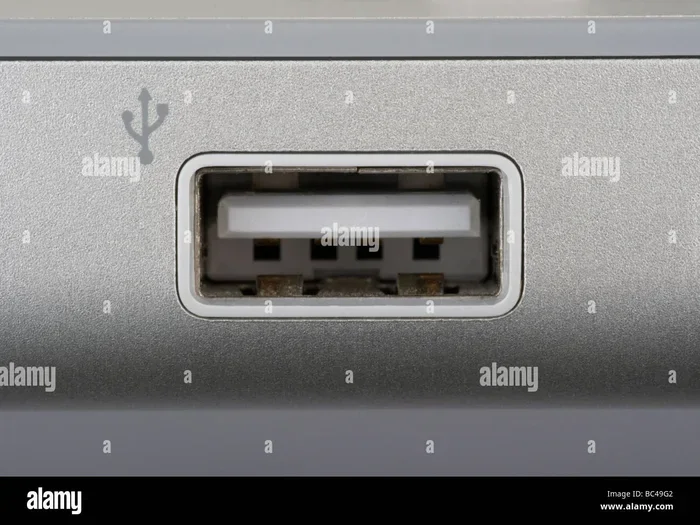
USB-C is a type of connector that has become the standard on most modern devices. Unlike older USB-A ports, USB-C is small, oval-shaped, and reversible. This means you never have to flip the cable to find the right side. That alone is a huge win for everyday use.
But USB-C is not just about the shape. It is also about what it can do. USB-C supports multiple protocols, including USB 3.0, USB 3.1, USB 3.2, and Thunderbolt 3 or 4. Each of these protocols brings faster data transfer rates. For storage, this means you can move large files in seconds instead of minutes.
Here is why USB-C matters for storage:
- Smaller size: It fits on thin laptops and phones where older ports cannot.
- Faster speeds: USB-C protocols support speeds from 5 Gbps to 40 Gbps.
- Power delivery: The same port can charge your device and transfer data at the same time.
- Universal use: One cable type works across many brands and devices.
When you pair USB-C with a good storage device, you get a powerful combo. It is no wonder that USB-C storage devices are flying off the shelves.
How Does USB-C Work for Storage Devices?
USB-C is just a connector shape. It does not define the speed or capability on its own. The protocol inside the cable and port determines performance. Let us break this down simply.
Understanding USB-C Protocols and Speeds
Different USB-C protocols offer different speeds. Here is a quick look at what each one brings to the table for storage:
- USB 3.2 Gen 1 (formerly USB 3.0): Up to 5 Gbps. Great for everyday file transfers.
- USB 3.2 Gen 2: Up to 10 Gbps. Good for large files and media work.
- USB 3.2 Gen 2×2: Up to 20 Gbps. Excellent for heavy storage tasks.
- Thunderbolt 3: Up to 40 Gbps. Best for professionals who need top-tier speed.
- Thunderbolt 4: Up to 40 Gbps with added security and display support.
When you are shopping for a USB-C flash drive or USB-C portable SSD, check which protocol it supports. The protocol is what determines your transfer speeds. A USB 3.2 Gen 1 drive will not reach Thunderbolt speeds, no matter how good the cable is.
How File Transfer Works Over USB-C
File transfer over USB-C is straightforward. You plug the USB-C storage device into your computer or phone. The device shows up as a removable drive. You can then drag and drop files just like you would with any other storage. Some devices also support USB-C direct file transfer between phones and computers without a computer in the middle.
For example, if you have a phone with a USB-C port, you can plug in a USB-C flash drive and copy photos directly. No computer needed. This makes data backup on the go much easier.
Types of USB-C Storage Devices You Can Use
Not all USB-C storage looks the same. There are several types to choose from, and each one fits different needs. Let us explore the most popular options.
USB-C Flash Drives
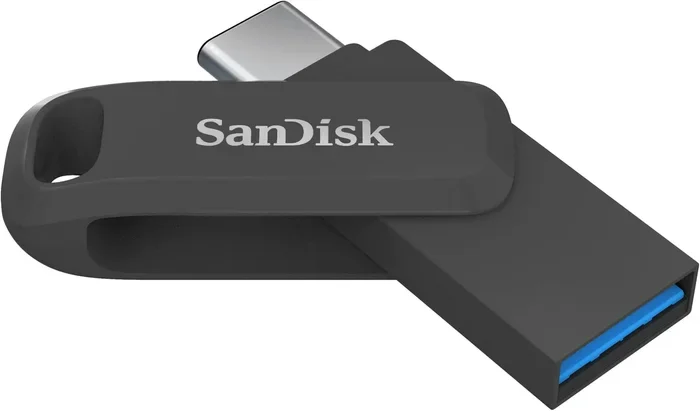
These are the smallest and most affordable option. A USB-C flash drive looks like a tiny stick with a USB-C connector on one end. You can carry it on a keychain or in your wallet. They are perfect for moving documents, presentations, and photos between devices.
Most USB-C flash drives offer speeds between 10 and 100 MB/s. They are not the fastest, but they are super convenient for everyday tasks.
USB-C Portable SSDs
If you need serious speed and capacity, a USB-C portable SSD is the way to go. These drives are small, rugged, and blazingly fast. Many can hit read speeds of 500 MB/s or more. Some even reach 1000 MB/s with Thunderbolt 3 support.
Portable SSDs are ideal for video editors, photographers, and anyone who works with large files. They are also great for data backup because they are more reliable than traditional hard drives.
USB-C Hubs with Storage Features
A USB-C hub can add storage to your setup in creative ways. Many hubs include an SD card reader, a USB-A port for older drives, or even a built-in hard drive slot. This is a great option if you want one device that does many things.
For example, a USB-C docking station with an SD card reader lets you pull photos from your camera and save them to an external drive in one step.
USB-C Memory Cards and Adapters
You can also use a USB-C memory card reader with microSD or full-size SD cards. This is a budget-friendly way to add portable storage. Just pop in a card, plug it into your laptop, and transfer files. Many USB-C SD card readers are tiny and inexpensive.
| Storage Type | Typical Speed | Best For | Price Range |
|---|---|---|---|
| USB-C Flash Drive | 10 – 100 MB/s | Quick file transfers | $8 – $30 |
| USB-C Portable SSD | 500 – 2000 MB/s | Large files, backups | $50 – $200 |
| USB-C Hub with Storage | Varies | Multi-device setups | $25 – $100 |
| USB-C Card Reader | Up to 100 MB/s | Camera photo transfers | $10 – $25 |
As you can see, there is a USB-C storage option for every budget and need. The key is matching the device to your use case.
Benefits of Using USB-C for Storage
Why should you choose USB-C over older ports like USB-A or micro-USB? There are several strong reasons.
Speed and Performance
USB-C offers some of the fastest transfer speeds available on consumer devices. With USB 3.2 Gen 2, you can move a 1 GB file in under a second. Thunderbolt 3 drives push that even further. This speed makes a real difference when you are working with video files, huge photo libraries, or backups.
Compared to USB-A, USB-C is simply faster. Even a basic USB-C flash drive will often outperform an older USB-A drive thanks to better protocol support.
Reversible and User-Friendly
We have all struggled with plugging in a USB-A cable the wrong way. USB-C solves that problem. The connector is symmetrical, so it works no matter which way you insert it. This small design change makes a big difference in daily use.
Compact and Portable
USB-C devices are tiny. A portable SSD the size of a credit card can hold terabytes of data. A flash drive can fit on your keychain. This portability makes USB-C storage perfect for travel, commuting, or just keeping your workspace clean.
Cross-Platform Compatibility
One of the best things about USB-C storage is that it works across platforms. You can use the same drive on a Windows laptop, a Mac, a Chromebook, or an Android phone. As long as the device has a USB-C port, your storage device will work. This cross-platform compatibility saves you from carrying multiple drives for different devices.
Future-Proof Investment
USB-A ports are slowly disappearing from new laptops and phones. USB-C is here to stay. By investing in USB-C storage now, you are future-proofing your setup. Your drives will work with every new device you buy for years to come.
Quick Tips for Choosing the Right USB-C Storage
Not all USB-C storage devices are created equal. Here are some quick tips to help you pick the right one:
- Check your port: Make sure your device has a USB-C port that supports data transfer. Some USB-C ports on laptops only support charging.
- Match the speed: If you work with large files, buy a drive that supports at least USB 3.2 Gen 2 speeds.
- Look for durability: Choose a portable SSD with a metal or rubber build if you travel often.
- Consider capacity: Flash drives are great for 32 GB to 128 GB. For bigger needs, go with a portable SSD starting at 500 GB.
- Read reviews: Check real-world speed tests before buying. Some drives advertise speeds they cannot actually reach.
Common Mistakes to Avoid with USB-C Storage
Even though USB-C storage is simple, there are a few mistakes people make. Avoiding these will save you time and money.
Assuming All USB-C Ports Are the Same
This is the biggest mistake. Not all USB-C ports support data transfer. Some on certain laptops and monitors only provide power. Always check your device specs to confirm the port supports USB-C storage.
Buying the Wrong Cable
A USB-C cable does not always mean a fast cable. Some cables only support USB 2.0 speeds, which max out at 480 Mbps. If you buy a fast SSD but pair it with a slow cable, you will not see the speed benefits. Always use a high-quality USB-C cable that matches your drive’s capabilities.
Ignoring Compatibility
Some USB-C drives work better with certain operating systems. For example, drives formatted as exFAT work on both Windows and Mac. If you buy a drive formatted for Windows only, you may struggle to use it on a Mac. Always check cross-platform compatibility before purchasing.
Ejecting Improperly
It is tempting to just yank out a USB-C drive when you are done. But this can corrupt files. Always safely eject the device before unplugging it. It takes two seconds and saves you from potential data loss.
Overlooking Heat
Fast USB-C SSDs can get warm during heavy use. This is normal. But if a drive becomes too hot to touch, give it a break. Sustained high temperatures can reduce the lifespan of your storage device.
Expert Insights: How Professionals Use USB-C Storage
Many professionals rely on USB-C storage every day. Here is what some of them have to say.
Video editors love Thunderbolt 3 drives because the speed makes editing 4K footage smooth. Photographers use USB-C card readers to offload hundreds of RAW photos in minutes. Business professionals carry compact USB-C flash drives for quick presentations and file sharing.
If you are unsure which type of drive fits your workflow, ask yourself what you will be doing most often. Moving documents? A flash drive works. Editing video? Invest in a Thunderbolt SSD. Backing up your entire computer? A high-capacity portable SSD is your best bet.
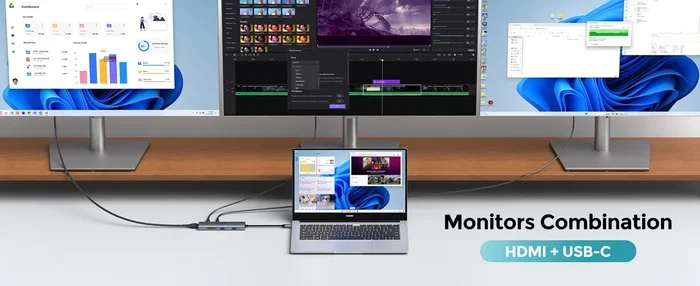
One expert tip: keep a small USB-C hub in your bag. It lets you connect multiple storage devices, charge your laptop, and even hook up an external monitor. It is one of the most useful accessories you can own.
Is USB-C Storage Worth It in 2024?
The short answer is yes. USB-C has become the universal standard for data transfer and charging. Almost every new laptop, phone, and tablet uses USB-C. By choosing USB-C storage, you are investing in a format that will be supported for years.
The speeds are impressive. The convenience is unmatched. And the range of devices means there is something for every budget. Whether you spend $10 on a flash drive or $200 on a portable SSD, USB-C storage delivers real value.
If you have not yet made the switch, now is the perfect time. Your next USB-C drive will make file management faster, easier, and more reliable than ever before.
Conclusion
Can USB C Be Used For Storage? Without a doubt. USB-C has revolutionized the way we store and move data. From tiny flash drives to blazing-fast portable SSDs, the options are vast and affordable. The reversible connector, cross-platform compatibility, and incredible speeds make USB-C the best choice for storage today.
Remember to check your device’s USB-C capabilities, choose the right drive for your needs, and use quality cables. Avoid common pitfalls like assuming all ports support data or skipping the safe eject step. With these tips, you will get the most out of your USB-C storage setup.
Start exploring USB-C storage devices today. You will wonder how you ever managed without them.
Frequently Asked Questions
Can I use a USB-C flash drive on my phone?
Yes, most Android phones with USB-C ports can use a USB-C flash drive directly. Just plug it in and your phone will recognize it as a storage device. iPhones with USB-C ports (like the iPhone 15 models) also support USB-C flash drives with the right app or settings.
What is the difference between USB-C and Thunderbolt 3 for storage?
USB-C is a connector shape, while Thunderbolt 3 is a protocol that uses the USB-C connector. Thunderbolt 3 drives are much faster, reaching speeds up to 40 Gbps. A regular USB-C drive typically maxes out at 10 Gbps. Thunderbolt 3 is ideal for professionals who need top-tier performance.
Do I need a special cable for USB-C storage?
Most USB-C storage devices come with a cable included. However, if you need a replacement or a longer cable, make sure it supports data transfer. Some USB-C cables are charge-only and will not work with storage devices. Look for cables rated for USB 3.2 or higher for best results.
Can I use USB-C storage on a Mac?
Absolutely. MacBooks with USB-C or Thunderbolt ports work perfectly with USB-C storage drives. Most modern USB-C drives are formatted as exFAT, which works natively on both Mac and Windows. Just plug it in and start transferring files.
How fast is USB-C storage compared to USB-A storage?
USB-C storage is generally much faster than USB-A storage. USB-C supports protocols like USB 3.2 and Thunderbolt that offer speeds from 5 Gbps to 40 Gbps. USB-A is limited to older protocols and typically maxes out at 5 Gbps at best. The difference is most noticeable with large files.
Can I use a USB-C hub for storage expansion?
Yes, many USB-C hubs include SD card readers, USB-A ports, and even built-in storage slots. A USB-C hub with storage features is a great way to expand your storage options without buying multiple devices. It is especially handy for travelers and professionals who work on the go.