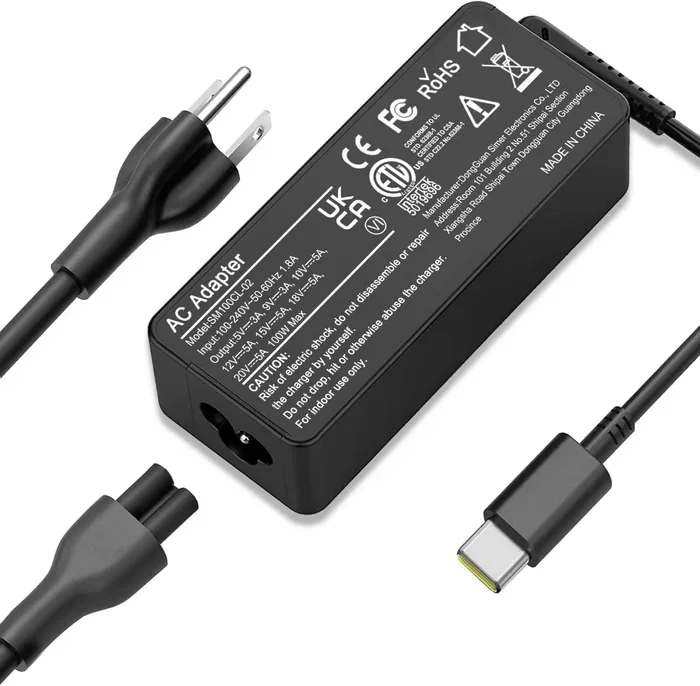
Can I Charge My Computer Through The Usb Port Right Now
Yes, you can charge your computer through the USB port, but it depends on your USB port type, the power output, and your device’s charging needs. USB-C with Power Delivery is the most common way people charge modern laptops and tablets through a USB connection. Older USB-A ports generally cannot charge a computer, but newer USB-C charging standards have changed the game entirely.
Have you ever been in a situation where your laptop charger is nowhere to be found and you wonder if you can just plug in a USB cable instead? It is a common question, especially as more devices start using USB-C connectors. The short answer is yes, you can charge your computer through the USB port in many cases. But the full story is a bit more nuanced. Whether you have a modern laptop, a desktop tower, or a tablet, the type of USB port matters a lot.
This guide breaks down everything you need to know about USB charging for computers. We will look at how different USB ports work, what power delivery means, and whether your specific device can handle USB port charging. By the end, you will know exactly what to do the next time your laptop charger goes missing.
Key Takeaways
- USB-C with Power Delivery can charge most modern laptops: Newer computers support USB-C charging that delivers up to 100 watts of power.
- USB-A ports are not designed for computer charging: Standard USB-A ports lack the wattage needed to charge a laptop or desktop.
- Charging speed varies by port and cable: The right cable and power source make a big difference in how fast your computer charges.
- Not all USB-C ports support charging: Some USB-C ports only handle data transfer, so check your device specs before relying on USB charging.
- Power banks and wall adapters work: You can use a USB-C power bank or a wall charger to charge your computer on the go.
- Always use compatible USB cables: Using the wrong cable can slow down charging or damage your device.
📑 Table of Contents
- Understanding USB Ports and Their Charging Capabilities
- How USB Power Delivery Works
- Can You Charge Different Types of Computers Through USB?
- What You Need to Charge Your Computer Through USB
- Common Mistakes People Make When Charging Through USB
- Benefits of Charging Your Computer Through USB
- Expert Tips for Safe and Fast USB Charging
- Quick Tips
- Conclusion
Understanding USB Ports and Their Charging Capabilities
Not all USB ports are created equal. Over the years, USB technology has evolved significantly. The port on your computer determines whether it can receive a charge through USB or not. Let us break this down by port type so you can quickly figure out where you stand.
USB Type-A Ports
The classic rectangular USB port is the USB-A type. You have probably seen this port on desktops, older laptops, and tons of accessories. These ports were designed primarily for data transfer and powering smaller devices like flash drives, mice, and keyboards.
Here is the key takeaway: USB-A ports generally cannot charge a computer. The maximum power output from a standard USB-A port is about 2.5 watts. A laptop typically needs 45 to 100 watts to charge properly. That is a massive gap. So if you see a USB-A port on your computer, do not expect it to charge your machine. It simply does not have enough juice.
However, USB-A ports can still charge phones, tablets, and other small devices without any issues. They just are not built for the power demands of a full-sized computer.
USB Type-C Ports
The USB-C port is the game changer. This small, reversible connector has become the standard for most modern laptops, tablets, and even some desktops. Unlike USB-A, USB-C supports much higher power delivery, which makes it capable of charging computers.
USB-C ports can deliver up to 100 watts of power when using the USB Power Delivery standard, also known as USB PD. This is enough to charge most laptops comfortably. Some high-performance laptops even support up to 240 watts through specialized USB-C charging protocols.
If your computer has a USB-C port, there is a good chance it supports charging through that port. But you need to check a few things first, which we will cover in the next section.
Thunderbolt and USB4 Ports
Thunderbolt 3 and Thunderbolt 4 ports use the USB-C connector but offer even more capabilities. These ports support data transfer speeds up to 40 Gbps and can deliver up to 100 watts of power. USB4 is a newer standard that follows a similar design and offers comparable performance.
If your computer has a Thunderbolt or USB4 port, you can absolutely charge it through USB. In fact, many manufacturers now ship laptops with only USB-C ports and expect users to charge through them. This trend is making USB port charging the new normal for portable computers.
How USB Power Delivery Works
Understanding USB Power Delivery helps you make sense of why some USB ports can charge computers and others cannot. USB PD is a standardized protocol that allows devices to negotiate the right amount of power through the USB connection.
The Role of Wattage
Wattage is the measure of electrical power. The higher the wattage, the faster a device can charge. Most laptops need between 45 and 100 watts to charge efficiently. A standard USB-A port delivers around 2.5 watts. That is nowhere near enough. A USB-C port with Power Delivery can deliver 60, 87, or even 100 watts, which is in the laptop-friendly range.
Here is a simple comparison to make this clear:
- USB-A (standard): Delivers up to 2.5 watts. Not suitable for laptop charging.
- USB-C (basic): Delivers up to 15 watts. Can slowly charge some laptops but not ideal.
- USB-C with USB PD (60W): Delivers up to 60 watts. Sufficient for most standard laptops.
- USB-C with USB PD (100W): Delivers up to 100 watts. Can charge most laptops, including gaming models.
Negotiation Between Devices
One of the coolest features of USB Power Delivery is the negotiation process. When you plug in a USB-C charger, your computer and the charger communicate with each other. They agree on the right amount of power to deliver. This prevents damage and ensures your computer gets exactly what it needs.
This negotiation is automatic. You do not need to do anything special. Just plug in a compatible USB-C charger, and your computer should start charging. If the charger cannot provide enough power, your computer may charge very slowly or not at all.
Can You Charge Different Types of Computers Through USB?
The answer to this question depends on the type of computer you own. Let us go through the most common categories and see what is possible with USB port charging for each.
Charging Laptops Through USB
Most modern laptops made after 2018 come with at least one USB-C port that supports charging. Brands like Dell, HP, Lenovo, Apple, and Microsoft have all embraced USB-C as a primary charging method for their laptops.
Apple MacBooks, for example, use USB-C as their sole charging port. This means you can only charge a MacBook through USB-C. Similarly, many Windows laptops now offer USB-C charging alongside or instead of the traditional barrel charger.
However, older laptops that only have USB-A ports or proprietary charging jacks cannot be charged through USB. If you are not sure whether your laptop supports USB charging, check the manufacturer’s specifications or look for a USB-C symbol with a lightning bolt next to the port.
Charging Desktops Through USB
Desktop computers are a different story. Most desktops do not charge through USB because they are plugged into a wall outlet at all times. The internal battery (if present) is usually a CMOS battery that lasts for years and does not need USB charging.
However, some all-in-one PCs and mini desktops may have USB-C ports that support charging external devices. These ports can charge phones and tablets but are generally not meant to charge the desktop itself.
Charging Tablets and Chromebooks Through USB
Tablets and Chromebooks are more likely to support USB charging. Many tablets use USB-C for both data and charging. Chromebooks, especially the newer models, often rely on USB-C for charging as well.
If you have a tablet or Chromebook, there is a strong chance you can charge it through USB without any issues. Just make sure you use a USB-C charger that provides enough wattage for the device.
What You Need to Charge Your Computer Through USB
If you want to start using USB port charging for your computer, you need the right equipment. Here is what matters most.
A Compatible USB-C Charger
Not all USB chargers are the same. To charge a computer through USB, you need a charger that supports USB Power Delivery and provides enough wattage. Look for a charger rated at 60 watts or higher for most laptops. For gaming laptops or high-performance machines, aim for 100 watts or more.
Brands like Anker, Belkin, and Apple make reliable USB-C chargers that work well with most laptops. Always check the charger specifications before buying.
The Right USB-C Cable
The cable matters just as much as the charger. A cheap or damaged USB-C cable may not support the power levels needed for computer charging. Look for cables rated for USB PD and at least 60 watts of power delivery.
Some cables are designed only for data transfer and cannot handle high wattage. Check the cable specifications to be sure. A good quality USB-C charging cable will clearly state its power rating on the packaging.
A Power Source
You need a power source that can plug into a wall outlet or a portable battery. Wall adapters are the most common option. But you can also use a USB-C power bank for on-the-go charging. Just make sure the power bank supports USB PD and has enough capacity to charge your computer.
Common Mistakes People Make When Charging Through USB
Charging your computer through USB is convenient, but there are some pitfalls to watch out for. Avoiding these mistakes will help you charge safely and efficiently.
Using the Wrong Cable
Not all USB-C cables are created equal. Some cables only support data transfer at lower speeds and cannot handle the power needed for computer charging. Using the wrong cable can result in very slow charging or no charging at all.
Always use a cable that is rated for the wattage your computer needs. If you are unsure, check the cable specifications or buy from a reputable brand.
Ignoring Wattage Requirements
Plugging in a low-wattage charger and expecting it to charge your laptop quickly is a recipe for frustration. A 15-watt USB-C charger will charge a laptop that needs 60 watts at a very slow rate. In some cases, the laptop may not charge at all while it is in use because the power draw exceeds what the charger can provide.
Always match your charger wattage to your laptop’s requirements. This ensures fast and safe charging.
Assuming All USB-C Ports Support Charging
This is one of the most common misconceptions. Not every USB-C port on a computer supports charging or even power delivery. Some ports are data-only. Others are designed for display output. Check your computer’s manual or specs to confirm which ports support charging.
Look for the USB-C symbol with a lightning bolt or a power icon next to the port. This indicates that the port supports charging.
Overlooking Heat Issues
Charging through USB can sometimes generate more heat than a traditional charger. This is usually not a problem, but if your computer gets unusually hot while charging through USB, unplug it and check the charger and cable. Using low-quality accessories can cause overheating.
Benefits of Charging Your Computer Through USB
Once you set up USB port charging correctly, there are several benefits worth considering.
- Convenience: You can charge your laptop with the same cable you use for your phone and other devices.
- Fewer cables to carry: A single USB-C charger can power your laptop, phone, and tablet simultaneously.
- Travel-friendly: USB-C chargers are smaller and lighter than traditional laptop chargers, making them ideal for travel.
- Universal compatibility: USB-C is becoming the universal standard, so you can use the same charger across multiple devices.
- Faster charging with the right equipment: A high-quality USB PD charger can charge your laptop just as fast as the original charger.
Expert Tips for Safe and Fast USB Charging
Want to get the most out of USB-C charging for your computer? Follow these expert tips to ensure safety and optimal performance.
Buy Certified Chargers and Cables
Look for chargers and cables that are certified by USB-IF (USB Implementers Forum). Certified products meet strict safety and performance standards. They are less likely to damage your computer or underperform.
Check Your Laptop’s Charging Requirements
Every laptop has a specific charging requirement measured in watts. Check the label on your original charger or the laptop manual. Match this wattage when choosing a USB-C charger to ensure reliable charging.
Avoid Charging Through USB Hubs Without Power
Passive USB hubs that do not have their own power supply cannot deliver enough power to charge a laptop. If you need to charge through a hub, use a powered USB hub or connect directly to the wall charger.
Keep Your Software Updated
Sometimes charging issues are caused by outdated firmware or drivers. Keep your computer’s operating system and firmware up to date to ensure smooth USB port charging.
Quick Tips
- Always check if your USB-C port supports Power Delivery before relying on it for charging.
- Use a wall adapter with at least 60 watts for most laptops.
- Carry a high-quality USB-C power bank when traveling for backup charging.
- Never use a damaged cable to charge your computer.
- If your computer does not charge through USB, the port may be data-only. Check your specs.
Conclusion
So, can you charge your computer through the USB port? The answer is a clear yes, as long as you have the right equipment and a compatible port. USB-C with Power Delivery has made it possible to charge most modern laptops, tablets, and Chromebooks through a simple USB connection. You just need a USB-C charger, a quality cable, and a power source that provides enough wattage.
Older computers with only USB-A ports cannot charge through USB, but this is becoming less common as manufacturers move toward the universal USB-C standard. The future of computer charging is USB, and the transition is already well underway.
Now that you understand how USB port charging works, you can confidently ditch the bulky charger when you do not need it. Just grab a compatible USB-C charger or power bank, and you are good to go. The convenience of USB-C charging is real, and it is here to stay.
Frequently Asked Questions
Can I charge my laptop with a phone charger through USB?
It depends on the wattage. Most phone chargers deliver 5 to 18 watts, which is not enough to charge a laptop efficiently. Your laptop may charge very slowly or not at all. You need a charger that supports USB Power Delivery and provides at least 45 watts for most laptops.
Why is my computer not charging through the USB-C port?
There are several possible reasons. Your USB-C port may be data-only and not support charging. The cable or charger may not support USB Power Delivery. Or the charger may not provide enough wattage for your computer. Check your device specifications to confirm USB charging support.
Is it safe to charge my computer through USB?
Yes, it is safe as long as you use certified chargers and cables that meet USB Power Delivery standards. The negotiation protocol between the charger and your computer ensures the right amount of power is delivered. Avoid cheap, uncertified accessories to minimize risks.
Can I use a USB-C power bank to charge my laptop?
Yes, you can, provided the power bank supports USB Power Delivery and has enough capacity. Look for a power bank rated at 60 watts or higher with a USB-C output. A 20,000mAh power bank can typically charge most laptops one to two times.
Does USB charging damage my computer battery?
No, USB charging does not damage your battery when done correctly. In fact, USB Power Delivery is designed to manage power delivery safely. The only risk comes from using low-quality or incompatible chargers and cables that may deliver unstable power.
Can I charge my computer through a USB hub?
Only if the USB hub is powered and supports USB Power Delivery. A passive USB hub without its own power supply cannot deliver enough wattage to charge a laptop. Always connect directly to a wall charger or use a powered hub for reliable USB charging.