Can I Use A USB C Hub For Multiple Monitors With Ease
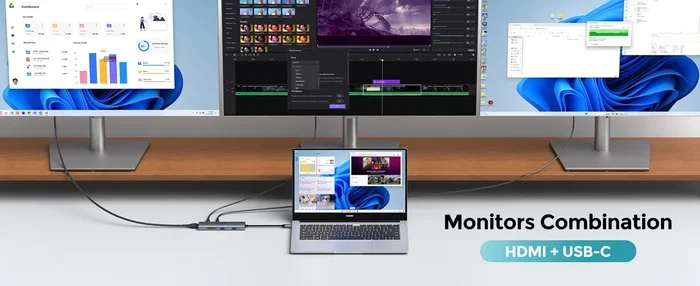
Yes, you can use a USB C hub for multiple monitors, and it is easier than you think. A USB C hub for multiple monitors lets you connect two or more external monitors to your laptop or desktop through a single port. Whether you use Thunderbolt 3, Thunderbolt 4, or a standard USB-C connection, the right hub unlocks a powerful multi-monitor workstation without the hassle of extra cables or expensive hardware.
Have you ever sat at your desk and thought, “I wish I had more screen space”? You are not alone. Many laptop users and desktop workers dream of adding a second or even third monitor to their setup. The problem is that most modern laptops only have a few ports, and sometimes just one USB-C port. That is where a USB C hub for multiple monitors comes in handy.
A USB C hub for multiple monitors is a small device that plugs into your laptop or computer’s USB-C port and gives you the ability to connect several external monitors at once. It sounds almost too good to be true, right? But it is real, and it works. Whether you are a freelancer managing multiple projects, a programmer who needs extra screen room, or a creative professional editing video, a USB C hub for multiple monitors can transform your workspace.
The idea of laptop docking has been around for years. But older docking stations were bulky, expensive, and often required special slots on your laptop. Today, a USB-C docking station or a simple USB hub with video output makes multi-monitor setups accessible to almost everyone. You do not need a fancy graphics card or a desktop computer anymore. All you need is the right USB C hub for multiple monitors and a basic understanding of how it connects.
In this guide, we will explain exactly how a USB C hub for multiple monitors works, what to look for when buying one, and how to set everything up without any headaches. We will also share common mistakes to avoid and answer the most frequently asked questions. By the time you finish reading, you will know everything you need to make an informed choice.
Key Takeaways
- A USB C hub for multiple monitors works with most laptops and desktops: You can connect dual or even triple monitors using a single USB-C port.
- Thunderbolt 3 and Thunderbolt 4 hubs deliver the best performance: They offer higher bandwidth for smoother multi-monitor setups with better resolution.
- DisplayPort Alt Mode and DisplayLink technology are key features to look for: These determine how your hub handles video output to external monitors.
- Powered hubs are essential for running multiple monitors: They provide stable power delivery and prevent display drops or lag.
- Compatibility matters across Windows and Mac: Always check your device’s USB-C capabilities before buying a hub.
- Common mistakes include using unpowered hubs for demanding setups: This leads to flickering screens, low refresh rates, or no signal at all.
- The right USB C hub for multiple monitors boosts productivity significantly: More screen space means better multitasking and workflow efficiency.
📑 Table of Contents
- How a USB C Hub for Multiple Monitors Actually Works
- Types of USB C Hubs for Multiple Monitors
- Setting Up Your Dual or Triple Monitor Configuration
- Common Problems and How to Fix Them
- Expert Tips for Getting the Best Performance
- Comparison: Popular USB C Hubs for Multiple Monitors
- Is a USB C Hub for Multiple Monitors Right for Your Workflow?
How a USB C Hub for Multiple Monitors Actually Works
Understanding how a USB C hub for multiple monitors works starts with knowing what the USB-C port on your device can do. A USB-C port is not just for charging your laptop or transferring files. It can also carry video signals to external monitors. This capability depends on a few key technologies that we will break down below.
Understanding USB-C and Thunderbolt Connections
Not all USB-C ports are the same. There is a big difference between a standard USB-C port and a Thunderbolt 3 or Thunderbolt 4 port. A standard USB-C port can handle data transfer and power delivery, but its video output capabilities are more limited. Thunderbolt 3 and Thunderbolt 4 ports, on the other hand, offer much higher bandwidth. This means they can support higher resolutions and refresh rates on multiple external monitors at the same time.
Here is a simple way to think about it. A standard USB-C port is like a small road. It can handle a certain amount of traffic. A Thunderbolt port is like a highway. It can handle much more data at once, making it ideal for running a dual monitor setup or even a triple monitor setup without any lag. If your laptop has Thunderbolt 3 or Thunderbolt 4, you will get the best results from a USB C hub for multiple monitors.
DisplayPort Alt Mode and DisplayLink Technology
Two important technologies make video output through USB-C possible. The first is DisplayPort Alt Mode. This allows a USB-C port to send a direct video signal to a monitor. It is fast and reliable, and it does not need extra software. Most quality USB C hubs for multiple monitors support DisplayPort Alt Mode.
The second technology is DisplayLink. This uses software and your computer’s processor to compress video data and send it through a USB connection. DisplayLink is useful when your laptop does not support DisplayPort Alt Mode. However, it can sometimes cause slight delays or require driver updates. If you plan to use a USB C hub for multiple monitors for gaming or video editing, DisplayPort Alt Mode or Thunderbolt is the better choice.
The Role of the USB-C Cable and Power Delivery
The USB-C cable you use matters more than you might think. A cheap or damaged cable can limit your monitor’s resolution or cause connection drops. Always use a high-quality USB-C cable that supports the data speeds your hub requires. For Thunderbolt hubs, make sure your cable is rated for Thunderbolt speeds.
Power delivery is another important factor. Many USB-C hubs for multiple monitors also charge your laptop while you work. This is called USB-C power delivery, or PD. A good hub will charge your laptop at the same time it sends video to your external monitors. This keeps your desk tidy and your devices powered up.
Types of USB C Hubs for Multiple Monitors
Not all hubs are built the same. When shopping for a USB C hub for multiple monitors, you will come across different types. Understanding these differences will help you pick the right one for your needs.
Powered Hubs vs Unpowered Hubs
A powered USB C hub has its own power supply, usually through a wall adapter. This extra power ensures that all connected devices, including multiple monitors, get the energy they need. If you plan to connect two or more external monitors, a powered hub is almost always the better choice. It prevents flickering, display drops, and low performance.
An unpowered hub draws power from your laptop’s USB-C port. This works fine for simple tasks like connecting a mouse, keyboard, or a single monitor. But when you push an unpowered hub with multiple high-resolution displays, it may struggle. The result can be a dim screen, a low refresh rate, or a connection that keeps dropping.
Docking Stations vs Simple USB C Hubs
A laptop docking station is a more advanced version of a USB-C hub. It usually sits on your desk and connects to your laptop with a single cable. Docking stations often include extra ports like Ethernet, SD card readers, and audio jacks. They are designed for permanent workstation setups and offer the most stable connections for a multi-monitor workstation.
A simple USB hub with video output is more portable and affordable. It is great for people who travel or who want a quick and easy way to add monitors when they get to the office. If you want a balance of portability and performance, a compact USB C hub for multiple monitors is a smart pick.
What to Look for When Buying a USB C Hub for Multiple Monitors
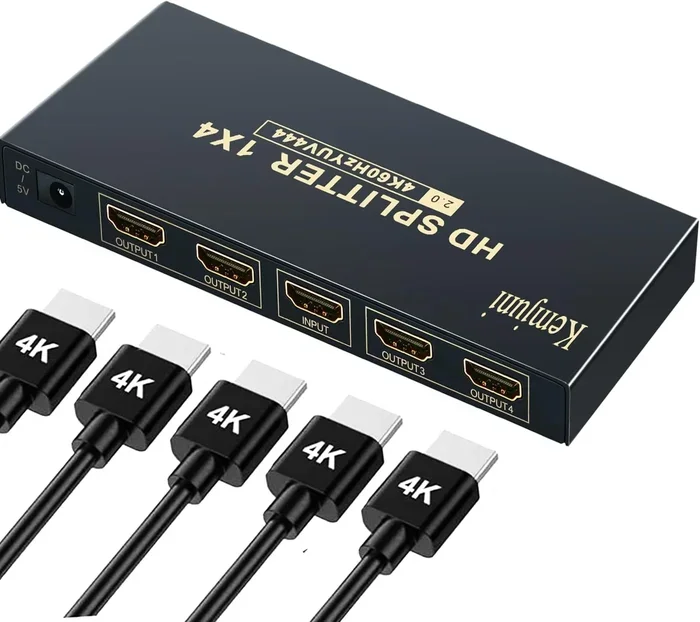
Before you buy a USB C hub for multiple monitors, check a few key specs. First, confirm how many video outputs the hub has. If you want a dual monitor setup, look for at least two HDMI or DisplayPort outputs. For a triple monitor setup, you need three or more.
Next, check the maximum resolution each output supports. If you use 4K monitors, make sure the hub can handle 4K at 60Hz per display. Also, check whether the hub supports your operating system. Most USB C hubs work with Windows and Mac, but some features like power delivery may differ between platforms.
Setting Up Your Dual or Triple Monitor Configuration
Setting up a USB C hub for multiple monitors is simpler than you might expect. Follow these steps to get everything running smoothly.
Step-by-Step Connection Guide
- Plug the hub into your laptop: Connect the USB C hub to your laptop’s USB-C port. If the hub is powered, plug in the power adapter too.
- Connect your monitors: Use HDMI or DisplayPort cables to connect each external monitor to the hub’s video outputs.
- Power on the monitors: Turn on each monitor and set them to the correct input source.
- Configure display settings: On Windows, go to Settings > System > Display. On Mac, go to System Settings > Displays. Arrange your monitors to match their physical positions on your desk.
- Adjust resolution and refresh rate: Make sure each monitor runs at its native resolution and the highest refresh rate supported by your hub.
That is it. In just a few minutes, you can go from a single screen to a full multi-monitor workstation. The beauty of a USB C hub for multiple monitors is that you can disconnect and reconnect it anytime. It is perfect for people who switch between a laptop setup at home and a desk setup at the office.
Common Setup Mistakes to Avoid
Even with a great USB C hub for multiple monitors, mistakes can happen. Here are the most common ones and how to avoid them.
- Using an unpowered hub for multiple 4K monitors: This is the number one mistake. Unpowered hubs simply do not have enough power to run several high-resolution displays at once.
- Using a low-quality USB-C cable: A cheap cable can limit bandwidth and cause display issues. Always use a certified cable that matches your hub’s specifications.
- Ignoring driver updates: If your hub uses DisplayLink technology, keep your drivers up to date. Outdated drivers can cause flickering or no signal on one of your monitors.
- Not checking monitor compatibility: Some older monitors may not work well with certain hubs. Check the hub’s specifications against your monitor’s input options before buying.
- Overlooking the refresh rate: If you want smooth visuals, make sure your hub supports the refresh rate your monitor needs. A hub that only supports 30Hz will feel sluggish compared to one that supports 60Hz or 144Hz.
Common Problems and How to Fix Them
Even the best USB C hub for multiple monitors can sometimes cause issues. Most problems are easy to fix with a few simple steps.
No Signal on One or More Monitors
If one of your external monitors shows no signal, start by checking the cable connections. Unplug the cable from both the hub and the monitor, then plug them back in firmly. If that does not work, try a different cable or a different port on the hub. Sometimes simply switching ports solves the problem.
Another common cause is that your laptop’s display settings are not configured correctly. On Windows, press the Windows key plus P to open the display projection menu. Make sure it is set to “Extend” so your laptop can send a signal to all connected monitors.
Flickering or Low Refresh Rate
Flickering screens usually mean the hub is not getting enough power. If you are using an unpowered hub, try switching to a powered model. Also check that your USB-C cable supports the data speed you need. A cable rated only for USB 2.0 will not handle high-resolution video well.
Low refresh rates can also be a problem. Go to your display settings and manually set the refresh rate to the highest option available. If the option is greyed out, your hub or cable may not support that refresh rate.
Hub Not Recognized by Your Computer
If your computer does not recognize the hub at all, try a different USB-C port. Some ports on laptops are charging-only and cannot send video signals. Also, restart your computer and check if the hub is listed in your device manager on Windows or system information on Mac.
Expert Tips for Getting the Best Performance
Want to squeeze every bit of performance from your USB C hub for multiple monitors? Here are some tips from people who work with multi-monitor setups every day.
- Use a Thunderbolt hub when possible: Thunderbolt 3 and Thunderbolt 4 hubs offer the best bandwidth and the most stable connections for a dual monitor setup or triple monitor setup.
- Keep your hub’s firmware updated: Many manufacturers release firmware updates that improve compatibility and fix bugs. Check the manufacturer’s website regularly.
- Match your cable quality to your hub: A high-quality USB-C cable with proper shielding reduces interference and keeps your signal strong.
- Close unnecessary apps on your primary monitor: When running multiple external monitors, your computer’s graphics processor works harder. Closing unused apps frees up resources and keeps everything running smoothly.
- Use a docking station for permanent setups: If your USB C hub for multiple monitors will stay on your desk all day, a laptop docking station provides a more stable and secure connection.
Comparison: Popular USB C Hubs for Multiple Monitors
Choosing the right hub can feel overwhelming with so many options on the market. Here is a quick comparison of popular choices.
| Hub Name | Max Monitors | Thunderbolt Support | Power Delivery | Price Range |
|---|---|---|---|---|
| CalDigit TS4 | 2-3 monitors | Yes (Thunderbolt 3/4) | 98W | Premium |
| Anker 777 Thunderbolt Dock | 2 monitors | Yes (Thunderbolt 3/4) | 100W | Mid-Range |
| UGREEN USB-C Hub | 1-2 monitors | No | 65W | Budget |
| Satechi Aluminium Multiport Adapter | 1-2 monitors | No | 60W | Mid-Range |
| HyperDrive Next Hub | 2 monitors | Yes (Thunderbolt 3/4) | 96W | Premium |
As you can see, the right USB C hub for multiple monitors depends on your budget and your needs. If you want the best performance and do not mind spending more, a Thunderbolt hub is the way to go. If you are on a tighter budget, a solid USB hub with video output can still get the job done for everyday tasks.
Is a USB C Hub for Multiple Monitors Right for Your Workflow?
The answer depends on what you do every day. If you are a writer, accountant, or student, a USB C hub for multiple monitors can boost your productivity by letting you reference documents on one screen while working on another. If you are a video editor, graphic designer, or programmer, multiple monitors are practically essential. A USB C hub for multiple monitors gives you the flexibility to build a powerful multi-monitor workstation without breaking the bank.
For people who travel frequently, a portable USB hub with video output is a game-changer. You can plug into any workstation at a hotel, coffee shop, or co-working space and instantly have your dual monitor setup ready to go. This kind of flexibility is one of the biggest advantages of using a USB C hub for multiple monitors.
One thing to keep in mind is that a USB C hub for multiple monitors is not a replacement for a dedicated graphics card in a desktop computer. If you need ultra-high resolutions or are running graphics-intensive applications like 3D rendering or AAA gaming, a dedicated GPU will still perform better. However, for most office work, content creation, and everyday computing, a quality USB C hub for multiple monitors handles the task with ease.
The bottom line is this: a USB C hub for multiple monitors is one of the most practical and affordable upgrades you can make to your workspace. It solves the problem of limited ports, eliminates cable clutter, and gives you the screen space you need to work more efficiently. With the right hub, a solid USB-C cable, and a few simple setup steps, you can enjoy a fully functional multi-monitor setup in minutes.
Frequently Asked Questions
Can any USB C hub support multiple monitors?
Not every USB C hub can support multiple monitors. You need a hub specifically designed with video outputs like HDMI or DisplayPort. Check the product specifications to confirm the number of monitors it can support and the maximum resolution each output handles.
Do I need a Thunderbolt hub for multiple monitors?
You do not always need a Thunderbolt hub, but it is recommended for the best performance. Thunderbolt 3 and Thunderbolt 4 hubs offer higher bandwidth, which means smoother video output and support for higher resolutions. A standard USB-C hub can work for basic dual monitor setups, but Thunderbolt is ideal for demanding tasks.
Will a USB C hub slow down my laptop’s performance?
A good USB C hub should not slow down your laptop. In fact, it can improve your workflow by giving you more screen space. However, a low-quality hub or an unpowered hub handling multiple high-resolution monitors might cause minor performance drops. Always choose a reputable brand with proper power delivery.
Can I use a USB C hub for multiple monitors with a Mac?
Yes, most USB C hubs work with Mac laptops that have Thunderbolt or USB-C ports. However, some features like power delivery and display compatibility may vary. Always check the hub’s specifications to ensure it is compatible with macOS and supports the monitor resolutions you need.
How many monitors can a USB C hub support?
Most USB C hubs support two or three external monitors. Some advanced Thunderbolt docking stations can support even more. The exact number depends on the hub’s hardware, the bandwidth of your USB-C port, and the resolution and refresh rate of your monitors.
Do I need special cables to connect multiple monitors to a USB C hub?
You need HDMI or DisplayPort cables to connect your monitors to the hub’s video outputs. The hub usually does not include these cables, so you will need to provide your own. Always use high-quality cables rated for the resolution and refresh rate you want to achieve.
=== CONCLUSION ===
Using a USB C hub for multiple monitors is one of the simplest and most effective ways to upgrade your workspace. Whether you need a dual monitor setup for everyday tasks or a triple monitor setup for demanding creative work, the right hub makes it all possible. You do not need expensive hardware or technical expertise. Just pick a quality USB C hub for multiple monitors, follow the setup steps, and enjoy the extra screen space.
Remember to choose a powered hub for the best stability, use a high-quality USB-C cable, and check your laptop’s compatibility before buying. Avoid the common mistakes we covered, and you will have a smooth, reliable multi-monitor experience. A USB C hub for multiple monitors is a small investment that pays off big in productivity and convenience. Start exploring your options today and take your workspace to the next level.