Can HDMI Be Split Here Is Everything You Need To Know
Can HDMI be split? Yes, you can use an HDMI splitter to share one source across multiple displays. This guide covers how splitters work, the different types available, setup steps, common problems, and expert tips to get the best results every time.
Have you ever wanted to watch the same movie on two TVs at the same time? Or maybe you need to connect one laptop to a projector and a monitor in a conference room. The question can HDMI be split comes up a lot, and the answer is a clear yes.
An HDMI splitter takes a single HDMI signal and duplicates it so you can send the same audio and video to multiple screens. Whether you are setting up a home theater, running multiple monitors for work, or sharing a gaming console with family, an HDMI splitter can make it all happen. But not all splitters are the same, and there are a few things you should know before you buy one.
In this guide, we will cover everything you need to know about splitting HDMI signals. We will explain how splitters work, the different types available, how to set one up, and what common problems to watch out for. By the end, you will feel confident choosing and using the right HDMI splitter for your needs.
Key Takeaways
- HDMI splitters duplicate a single signal to multiple screens, making them useful for home theaters, offices, and gaming setups.
- Passive splitters are affordable but may lose quality over long distances, while active splitters include a built-in signal booster.
- HDCP copy protection can block split signals, so always check compatibility before buying a splitter.
- Setup is simple and usually requires just plugging in cables, but a few tips can prevent common issues.
- An HDMI splitter is not the same as an HDMI switch, and choosing the right one depends on your needs.
- Signal degradation is possible but can be minimized with the right equipment and cable quality.
📑 Table of Contents
What Is an HDMI Splitter and How Does It Work
An HDMI splitter is a small device that takes one HDMI input and copies the signal to two or more outputs. Think of it like a faucet splitter for water. One pipe goes in, and two or more pipes come out, all carrying the same flow.
How HDMI Signal Splitting Works
When you plug an HDMI source into a splitter, the device reads the digital signal and creates an exact copy of it. Each output port sends the same audio video signal to a separate display. The source device does not know it is connected to multiple screens. It just sends one signal, and the splitter handles the duplication.
The quality of the copy depends on the type of splitter you use. A good splitter will deliver the same resolution and audio quality to every connected display. A cheap splitter might reduce the quality or drop certain features like 4K resolution support.
Passive vs Active HDMI Splitters
There are two main types of splitters. A passive splitter simply divides the signal without adding any power. It is small, affordable, and works well for short cable runs. An active splitter uses an external power source to boost the signal. This makes it better for longer cable distances or when you are splitting the signal to many displays.
Here is a quick comparison of the two types:
- Passive Splitter: No external power needed, affordable, best for short distances, may lose signal quality over long runs.
- Active Splitter: Requires power, includes a built-in signal booster, supports longer cable runs, maintains better signal quality.
If you are just connecting two TVs in the same room, a passive splitter will likely work fine. If you need to run cables across a large space, go with an active model.
Can HDMI Be Split Without Losing Quality
This is one of the most common questions people ask. The honest answer is that it depends. Splitting an HDMI signal can cause some quality loss, but with the right equipment, the loss is minimal or even unnoticeable.
Understanding Resolution and Signal Loss
When you split an HDMI signal, the splitter must send the full data stream to each output. If the splitter is low quality, it might not be able to handle high-bandwidth signals like 4K resolution at 60Hz. In those cases, the splitter may downscale the signal to 1080p or even lower.
To avoid this, look for a splitter that explicitly supports the resolution you need. If you want 4K output, buy a splitter rated for 4K. Cheap splitters that claim to support 4K but do not mention the bandwidth speed are often misleading.
What Is HDCP and Why Does It Matter
HDCP stands for High-bandwidth Digital Content Protection. It is a copy protection system built into HDMI devices. When you play copyrighted content like a Blu-ray movie or a streaming service, the source device checks that every connected display supports HDCP.
If your splitter does not support HDCP, the source device may block the output entirely. You will see a black screen or an error message. This is a common frustration with HDMI splitting. Always make sure your splitter is HDCP compliant if you plan to watch protected content.
Some splitters strip HDCP, which allows you to copy content. However, this is illegal in many countries and can also cause compatibility issues with legitimate devices. Stick with HDCP-compliant splitters for a hassle-free experience.
Types of HDMI Splitters You Can Buy
The market offers many different HDMI splitters, and it can feel overwhelming. Let us break down the most common types so you can find the right one.
2-Way and 4-Way HDMI Splitters
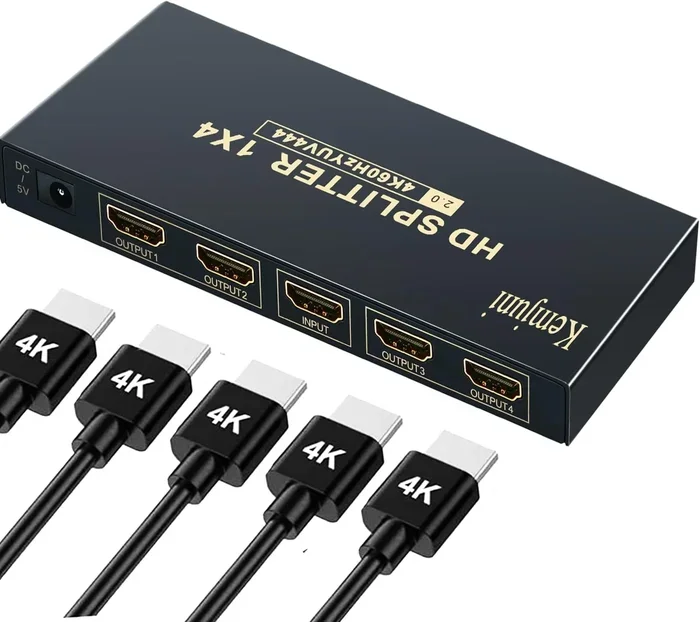
The most popular splitters are 2-way and 4-way models. A 2-way splitter divides one input into two outputs. A 4-way splitter creates four identical outputs. Some splitters go up to 8 or even 16 outputs, but these are usually active models designed for commercial use.
For most home setups, a 2-way or 4-way splitter is all you need. Think about how many screens you want to connect and buy accordingly. You can always chain splitters together, but that can introduce more signal loss.
Powered vs Unpowered Splitters
As we mentioned earlier, powered splitters use an external power adapter to boost the signal. Unpowered splitters draw their power from the HDMI cable itself. Unpowered models work well for basic setups, but powered models are more reliable for longer cable runs or when splitting to many displays.
If you notice flickering, black screens, or audio dropouts, switching to a powered splitter often solves the problem. The extra power ensures the signal stays strong across all outputs.
HDMI Splitters with Audio Extraction
Some splitters come with a special feature called audio extraction. This allows you to send the video to your displays while also outputting the audio through a separate cable. You can use this to connect to a soundbar, speakers, or a home audio system that does not have HDMI input.
These models are great for setups where you want different audio and video paths. They are a bit more expensive than basic splitters, but they offer much more flexibility.
How to Set Up an HDMI Splitter
Setting up an HDMI splitter is surprisingly easy. Most people can do it in just a few minutes. Here is how to do it step by step.
Step-by-Step Setup Guide
- Choose your location. Place the splitter near your source device, whether that is a cable box, streaming stick, or gaming console.
- Connect the input cable. Plug one end of an HDMI cable into the source device and the other end into the splitter’s input port.
- Connect the output cables. Plug HDMI cables from each output port on the splitter to your displays.
- Power on the splitter. If you have an active splitter, plug in the power adapter. Passive splitters do not need external power.
- Turn on your displays. Switch each TV or monitor to the correct HDMI input and check for a signal.
- Test the audio and video. Play content on the source device and make sure both screens show the same picture and sound.
That is it. No software, no drivers, no complicated configuration. HDMI splitters are plug-and-play devices.
Quick Tips for Best Results
- Use high-quality HDMI cables. Cheap cables can cause signal loss, especially at higher resolutions.
- Keep cable runs short. If possible, stay under 15 feet for each cable to maintain signal strength.
- Check HDCP compatibility. Make sure your splitter supports HDCP if you watch protected content.
- Label your cables. It is easy to get confused with multiple cables. Use colored labels or tape to keep track.
- Update your source device firmware. Sometimes, a simple firmware update fixes HDMI compatibility issues.
Common HDMI Splitter Problems and How to Fix Them
Even with the right splitter, you might run into issues. Here are the most common problems and how to solve them.
No Signal or Black Screen Issues
If one or more displays show a black screen, the first thing to check is your cable connections. A loose HDMI cable is the most common cause. Unplug and replug each cable firmly. If that does not work, try a different cable.
Another cause is an underpowered splitter. If you are using a passive splitter with long cables, the signal may be too weak. Switch to an active splitter with a power adapter to fix this.
Sometimes the source device simply does not support splitting. Some streaming devices and gaming consoles have HDCP restrictions that prevent them from working with certain splitters. Try a different source device to rule out compatibility issues.
Audio and Video Sync Problems
If the picture and sound are out of sync, the splitter might be introducing a delay. This is more common with active splitters that process the signal at a high level.
To fix this, try a different splitter model. Look for one that specifically mentions “audio video sync” or “lip sync” support. Using shorter cables can also reduce delay because the signal travels faster over shorter distances.
When to Use a Signal Booster
If you are running HDMI cables over long distances, a signal booster can help. Some active splitters have built-in boosters, but you can also buy standalone signal boosters that sit between the source and the splitter.
A signal booster amplifies the HDMI signal so it can travel farther without degrading. This is especially useful in large homes, offices, or event venues where the source device is far from the displays.
HDMI Splitter vs HDMI Switch
People often confuse HDMI splitters with HDMI switches, but they do very different things. Understanding the difference will save you money and frustration.
Key Differences Explained
An HDMI splitter takes one input and sends it to multiple outputs. It duplicates the signal. An HDMI switch takes multiple inputs and sends them to one output. It lets you choose which source to display.
Think of it this way. A splitter is like a garden hose with multiple sprinklers. A switch is like a hose with multiple nozzles and a valve to pick which one you want.
If you have one cable box and two TVs, you need a splitter. If you have two game consoles and one TV, you need a switch. Using the wrong device will not give you the result you want.
Comparison Table
- HDMI Splitter: One input, multiple outputs, duplicates signal, used to show the same content on multiple screens.
- HDMI Switch: Multiple inputs, one output, selects a source, used to connect multiple devices to one screen.
Some devices combine both functions into one unit. These combo models let you switch between sources and split the signal to multiple displays. They are more expensive but very versatile for complex setups.
Final Thoughts on HDMI Splitting
So, can HDMI be split? Absolutely. With the right splitter, you can share one source across multiple screens with ease. The key is choosing the right type of splitter for your setup, ensuring HDCP compatibility, and using quality cables.
Whether you are a home theater enthusiast, a business user setting up a conference room, or a gamer sharing a console with family, an HDMI splitter solves a real problem. The technology is simple, reliable, and affordable. You do not need to be a tech expert to get it working.
Start by identifying your needs. How many screens do you want? What resolution do you need? Do you need audio extraction or long cable support? Once you know the answers, picking the right splitter becomes easy. Follow the setup steps in this guide, troubleshoot any issues using the tips above, and you will be enjoying your content on multiple screens in no time.
HDMI splitting is a practical and accessible solution for anyone who needs to share content across displays. With the right equipment and a little patience, you can set up a seamless multi-screen experience that works perfectly every time.
Frequently Asked Questions
Can I split HDMI to two TVs and watch different content on each?
No, a standard HDMI splitter sends the same signal to all connected displays. If you want to show different content on each TV, you need a different solution like an HDMI matrix or separate source devices for each screen.
Does splitting HDMI reduce the picture quality?
A good quality splitter will not noticeably reduce picture quality. However, cheap or overloaded splitters can downgrade the resolution, especially for 4K content. Always buy a splitter rated for the resolution you need.
Do I need a powered HDMI splitter for my setup?
It depends on your setup. For short cable runs and one or two displays, a passive splitter works fine. For longer cables or more than two outputs, an active powered splitter will give you a more reliable signal.
Can I use an HDMI splitter for gaming?
Yes, you can split HDMI for gaming. Make sure your splitter supports the resolution and refresh rate of your console. Also check that it is HDCP compliant if you play games that use copy protection.
What is HDCP and why does my splitter block the signal?
HDCP is copy protection built into HDMI devices. If your splitter does not support HDCP, the source device will block the output to prevent unauthorized copying. Always use an HDCP-compliant splitter to avoid this issue.
Can I chain HDMI splitters together to get more outputs?
Yes, you can chain splitters, but each connection adds potential signal loss. It is better to buy a single splitter with enough outputs for your needs rather than chaining multiple units together.