Can a Micro USB Cable Transfer Data Quickly and Easily
Yes, a Micro USB cable can transfer data quickly and easily. Most Micro USB cables support data transfer speeds up to 480 Mbps with USB 2.0, making them reliable for syncing phones, tablets, and other devices. In this guide, you will learn everything you need to know about using your Micro USB cable for data transfer, including speed limits, compatibility, and pro tips.
A Micro USB cable can absolutely transfer data. Whether you want to sync your phone, move photos to a computer, or share files between devices, this small cable gets the job done. But not all Micro USB cables are created equal, and understanding how they work can save you time and frustration.
In this article, we will walk you through everything you need to know about using a Micro USB cable for data transfer. You will learn about transfer speeds, cable types, common problems, and expert tips to get the best performance every time.
Let us dive in and answer the question once and for all: can a Micro USB cable transfer data quickly and easily?
Key Takeaways
- Micro USB cables can transfer data: They are not just for charging. Most support file sharing between devices.
- USB 2.0 is the standard: Transfer speeds reach up to 480 Mbps, which is fast enough for most everyday tasks.
- Cable quality matters: Cheap or damaged cables can slow down or block data transfer entirely.
- Not all Micro USB cables are equal: Some are charge-only cables with no data pins inside.
- Compatibility is key: Make sure your device supports Micro USB data transfer before you expect it to work.
- OTG adapters expand options: You can connect flash drives and other peripherals using the right adapter.
📑 Table of Contents
- What Is a Micro USB Cable and How Does It Work?
- Can a Micro USB Cable Transfer Data?
- How Fast Is Data Transfer on a Micro USB Cable?
- Micro USB vs Other Cable Types for Data Transfer
- Common Problems When Transferring Data with Micro USB
- Tips to Get the Best Data Transfer Speed
- Can You Use a Micro USB Cable with OTG for Data Transfer?
- Is Micro USB Still Worth Using in 2024?
- Conclusion
What Is a Micro USB Cable and How Does It Work?
A Micro USB cable is a small connector cable used to power and link electronic devices. You will find it on older smartphones, Bluetooth speakers, cameras, and many other gadgets. The connector is tiny and trapezoid-shaped, which makes it easy to plug in the right way every time.
The cable has five pins inside. Two pins handle power, two handle data, and one is the ground pin. This design allows the same cable to charge your device and move files back and forth. When you connect your device to a computer or a wall charger, the pins determine whether the cable is just charging or also transferring data.
Types of Micro USB Cables
Not all Micro USB cables are the same. Here are the main types you will encounter:
- Micro USB 2.0 cables: These are the most common. They support data transfer speeds up to 480 Mbps. Most devices from the 2010s use this type.
- Micro USB 3.0 cables: These have extra pins for faster speeds up to 5 Gbps. They have a larger connector body with an extra row of pins.
- Charge-only Micro USB cables: These cables only have power pins. They cannot transfer data at all. This is a common reason people think their cable does not work for file sharing.
Can a Micro USB Cable Transfer Data?
The short answer is yes. A Micro USB cable can transfer data between devices. But the speed and reliability depend on several factors. Let us break down what you need to know.
When you plug your device into a computer using a Micro USB cable, the computer should recognize it as a peripheral device. You will then see options to access files, sync your device, or transfer photos and documents. If your device does not show up, the cable might be a charge-only cable, or there could be a driver issue.
Most Android phones from 2010 to 2017 used Micro USB cables for data transfer. Even today, many budget phones, fitness trackers, and smart home devices still rely on this connector. So knowing how to use a Micro USB cable for file sharing is still very useful.
How to Check if Your Cable Supports Data Transfer
Not sure if your cable can move files? Try these simple steps:
- Plug the cable into your device and a computer.
- Check if your device shows up as a storage drive on the computer.
- On your phone, look for a USB notification. Tap it and select “File Transfer” or “MTP” mode.
- If you see your files on the computer, the cable supports data transfer.
If your device does not show up, try a different cable. A charge-only cable will not allow file sharing, no matter what you do.
Quick Tip
Always use the cable that came with your device. If you need a replacement, buy from a reputable brand. Cheap cables often skip the data pins to save money.
How Fast Is Data Transfer on a Micro USB Cable?
Transfer speed is one of the most common questions people ask. The answer depends on the USB standard your cable supports.
USB 2.0 Speeds
Most Micro USB cables follow the USB 2.0 standard. This means they can transfer data at a maximum rate of 480 Mbps. In real-world use, you can expect speeds between 30 and 40 Mbps. That is fast enough to transfer a 1 GB file in about 30 seconds.
For everyday tasks like moving photos, syncing contacts, or backing up documents, USB 2.0 speeds are more than enough. You will not notice any lag or delay during normal file sharing.
USB 3.0 Speeds
Micro USB 3.0 cables are much faster. They support transfer speeds up to 5 Gbps. That is roughly ten times faster than USB 2.0. You can move a 1 GB file in just a few seconds.
However, USB 3.0 Micro USB cables are less common. They are usually found on devices that need fast data transfer, like external hard drives or high-end cameras. Most regular smartphones and accessories still use USB 2.0.
Real-World Transfer Speed Comparison
| Cable Type | Max Theoretical Speed | Real-World Speed | 1 GB File Transfer Time |
|---|---|---|---|
| Micro USB 2.0 | 480 Mbps | 30-40 Mbps | 20-35 seconds |
| Micro USB 3.0 | 5 Gbps | 400-500 Mbps | 2-5 seconds |
| Charge-Only Cable | 0 Mbps | 0 Mbps | N/A |
As you can see, the type of cable makes a big difference. Always check what USB standard your cable supports before expecting fast speeds.
Micro USB vs Other Cable Types for Data Transfer
Micro USB cables are not the only option for data transfer. Let us compare them with other common cable types to help you understand where they stand.
Micro USB vs USB-C
USB-C is the newer standard that is replacing Micro USB on most modern devices. USB-C supports faster transfer speeds, reversible plug design, and higher power delivery. If you have a choice, USB-C is the better option for data transfer.
However, Micro USB cables are still widely used and work perfectly fine for most everyday tasks. The main advantage of USB-C is future-proofing and speed.
Micro USB vs Mini USB
Mini USB cables were popular before Micro USB came along. They are larger and less common today. Micro USB cables are smaller, more durable, and more widely supported. For data transfer, Micro USB is the better choice in almost every case.
Quick Comparison Table
| Feature | Micro USB | USB-C | Mini USB |
|---|---|---|---|
| Max Data Speed | 480 Mbps (USB 2.0) / 5 Gbps (USB 3.0) | 10 Gbps (USB 3.1) / 20 Gbps (USB 3.2) | 480 Mbps (USB 2.0) |
| Reversible Plug | No | Yes | No |
| Common Devices | Older phones, cameras, trackers | Modern phones, laptops, tablets | Older cameras, GPS devices |
| Availability | Very common | Very common | Rare |
| Price | Low | Low to medium | Low |
Expert Insight
According to USB-IF standards, USB 2.0 Micro USB cables remain perfectly capable for everyday data synchronization. The bottleneck is rarely the cable itself but rather the device’s hardware and the USB port version on your computer.
Common Problems When Transferring Data with Micro USB
Even with the right cable, you might run into issues. Here are the most common problems and how to fix them.
Device Not Recognized by Computer
This is the number one complaint. If your computer does not see your device when you plug in the Micro USB cable, try these steps:
- Try a different USB port on your computer.
- Unplug and replug the cable firmly.
- Check if your device is in “charging only” mode and switch it to “file transfer” mode.
- Update your USB drivers on the computer.
- Try the cable on a different computer to rule out a hardware issue.
Slow Transfer Speeds
If your file transfers take forever, the cable might be to blame. Charge-only cables, damaged cables, or low-quality cables can all cause slow speeds. Always use a certified data cable for file sharing.
Another reason for slow speeds could be your USB port. Older USB 2.0 ports on computers will limit your transfer speed regardless of the cable quality.
Interrupted Transfers
Sometimes files stop transferring midway. This usually happens because of a loose connection. Make sure the cable is firmly plugged into both devices. If the connector is worn out, it is time to replace the cable.
Common Mistakes to Avoid
- Using a charge-only cable for data transfer: This is the most common mistake. Always verify your cable supports data before you start a file transfer.
- Ignoring cable quality: Cheap, uncertified cables often have thin wires and missing pins. They may charge your device but fail at data transfer.
- Forcing a loose connector: A worn-out Micro USB connector will cause intermittent connection issues. Replace the cable instead of forcing it.
- Not switching USB mode on your device: Many phones default to charging mode. You must manually select file transfer mode each time.
Tips to Get the Best Data Transfer Speed
Want to get the most out of your Micro USB cable? Follow these practical tips for faster and more reliable file sharing.
Use a High-Quality Cable
The cable you use matters a lot. Look for cables that are certified by USB-IF or made by reputable brands. A good quality Micro USB data cable will have thicker wires, proper shielding, and all five pins intact.
Avoid no-name cables from unknown sellers. They might seem like a great deal, but they often fail at data transfer or worse, damage your device.
Keep Your Cable in Good Condition
A damaged cable will slow down or stop data transfer entirely. Check your cable regularly for fraying, bent pins, or loose connectors. If you notice any damage, replace the cable right away.
Store your cables properly. Avoid wrapping them too tightly or leaving them in hot places. Heat and friction are the biggest enemies of cable longevity.
Use the Right USB Port
Plug your cable into a USB 2.0 or USB 3.0 port on your computer. USB 3.0 ports are usually blue inside. If you plug a USB 2.0 cable into a USB 3.0 port, it will still work at USB 2.0 speeds. But plugging a USB 3.0 cable into a USB 2.0 port will also limit your speed to USB 2.0.
Close Unnecessary Apps During Transfer
When transferring large files, close apps on both your device and computer. This frees up processing power and helps maintain a steady transfer rate. You will notice faster and more stable file sharing.
Quick Tip
For the fastest file transfers, connect your device directly to your computer. Avoid using USB hubs or extension cables. A direct connection gives you the best transfer rate and the most stable connection.
Can You Use a Micro USB Cable with OTG for Data Transfer?
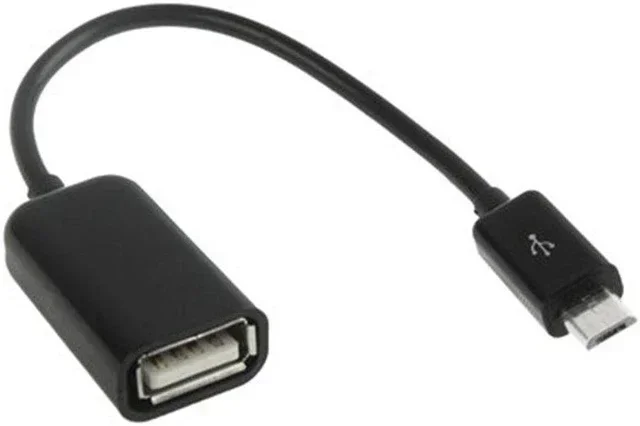
Yes! One of the best ways to expand your data transfer options is by using an OTG (On-The-Go) adapter. An OTG adapter lets you connect USB flash drives, keyboards, and other peripheral devices to your phone or tablet using a Micro USB cable.
With an OTG adapter, you can plug a flash drive directly into your phone and move files back and forth without a computer. This is incredibly handy for sharing large files on the go.
Make sure your device supports OTG before you buy an adapter. Most modern Android phones support it, but some budget or older models might not. You can check your phone’s specifications or use a free OTG checker app from the app store.
How to Set Up OTG Data Transfer
- Plug the OTG adapter into your phone’s Micro USB port.
- Connect your USB flash drive or peripheral device to the adapter.
- Your phone should recognize the device within seconds.
- Use a file manager app to browse, copy, and move files.
This setup works great for backing up photos, sharing documents, or moving large video files without needing a computer. It is one of the most practical uses of a Micro USB cable for data transfer.
Is Micro USB Still Worth Using in 2024?
USB-C is taking over, but Micro USB is far from dead. Millions of devices still use this connector, and replacement cables are cheap and easy to find. If you have older gadgets or budget devices, a Micro USB cable is still your best bet for data transfer.
The key is to use a good quality cable and understand the limitations. For most everyday tasks like syncing contacts, backing up photos, or moving documents, a Micro USB cable handles the job with ease.
If you are buying a new cable, consider getting a USB-C cable instead for future compatibility. But if you already have Micro USB devices, there is no rush to replace them. They work great for data transfer as long as you use the right cable.
Conclusion
A Micro USB cable can transfer data quickly and easily, as long as you use the right cable and follow a few simple steps. Whether you are syncing your smartphone, backing up photos, or sharing files between devices, this humble cable gets the job done.
Remember to check that your cable supports data transfer, use high-quality cables from trusted brands, and always select the correct USB mode on your device. With these tips, you will enjoy fast and reliable file sharing every time.
So the next time someone asks you, “Can a Micro USB cable transfer data?” you can confidently say yes. Now you know exactly how it works, what speeds to expect, and how to avoid common pitfalls. Happy transferring!
Frequently Asked Questions
Can all Micro USB cables transfer data?
No, not all Micro USB cables can transfer data. Some cables are charge-only and lack the data pins needed for file sharing. Always check that your cable supports data transfer before relying on it for file synchronization.
How fast can a Micro USB cable transfer data?
A standard Micro USB 2.0 cable can transfer data at speeds up to 480 Mbps. In real-world use, you can expect around 30 to 40 Mbps. Micro USB 3.0 cables are much faster at up to 5 Gbps, but they are less common.
Why is my Micro USB cable not transferring data?
The most common reason is using a charge-only cable. Other causes include a damaged cable, wrong USB mode on your device, or outdated drivers. Try a different cable and make sure your device is set to file transfer mode.
Can I use a Micro USB cable to connect a flash drive to my phone?
Yes, you can! You will need an OTG adapter to connect a USB flash drive to your phone using a Micro USB cable. This lets you transfer files directly without a computer.
Is Micro USB or USB-C better for data transfer?
USB-C is better for data transfer because it supports faster speeds and newer USB standards. However, Micro USB cables still work well for everyday tasks and are widely available at a low cost.
Does cable length affect Micro USB data transfer speed?
Cable length can have a minor effect on transfer speed. Longer cables may experience slight signal loss, but for most everyday uses under 6 feet, the difference is negligible. Stick to quality cables from reputable brands for the best results.