Are Usb C And A Compatible With Most Modern Devices
Are USB-C and USB-A compatible? The short answer is yes, with the right adapter or cable. USB-C and USB-A are different connector types, but they can work together using simple adapters, dongles, or hybrid cables. This guide covers everything you need to know about making these two connector types work seamlessly with your devices.
You have a shiny new laptop with a USB-C port. But your favorite flash drive, printer, or controller only has a USB-A connector. Can you plug them together? The answer might surprise you.
In today’s tech world, USB-C and USB-A connectors sit side by side. Many of us own devices with both types of ports. And the question of whether they work together comes up constantly. Are USB-C and USB-A compatible? Yes, but there is a catch. You usually need an adapter, a hybrid cable, or a hub to make the connection happen.
This guide breaks down everything you need to know. We will cover how these two connector types differ, what adapters you need, and whether your devices will work together seamlessly. By the end, you will feel confident connecting any USB-C device to any USB-A accessory.
Key Takeaways
- USB-C and USB-A are not plug-and-play together: You need an adapter or a hybrid cable to connect them directly.
- Most modern devices use USB-C: Laptops, phones, and tablets increasingly rely on USB-C for charging and data transfer.
- Adapters are affordable and widely available: USB-C to USB-A adapters cost just a few dollars and work reliably.
- Data transfer speeds vary: The speed depends on the USB standard supported by both the cable and the port.
- USB-C offers more power delivery: USB-C can handle higher wattage charging compared to standard USB-A ports.
- Backward compatibility is built in: USB standards support older devices through adapters and cables.
- Choosing the right cable matters: Not all USB-C to USB-A cables support the same speeds or power levels.
📑 Table of Contents
- Understanding USB-C and USB-A Connectors
- Are USB-C and USB-A Compatible? The Short Answer
- How to Make USB-C and USB-A Devices Work Together
- Data Transfer Speeds: What to Expect
- Power Delivery and Charging Compatibility
- Common Mistakes People Make with USB-C and USB-A
- Expert Tips for Getting the Most Out of USB-C and USB-A Connections
- Quick Tips for USB-C and USB-A Compatibility
- The Future of USB Connectivity
- Final Thoughts
Understanding USB-C and USB-A Connectors
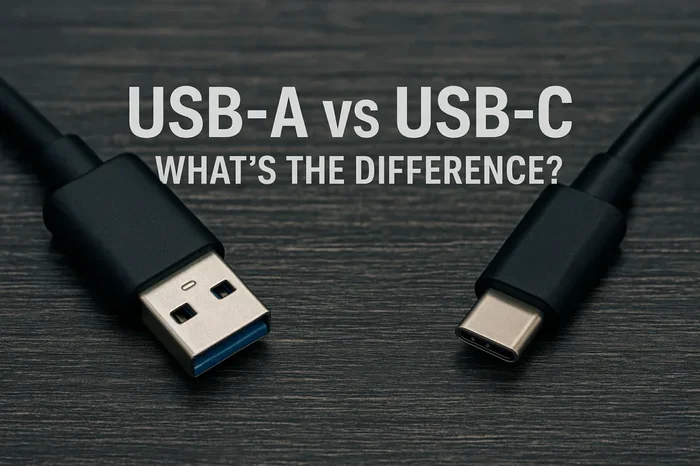
Before we dive into compatibility, let us understand what makes these two connectors different. They look nothing alike, and they serve slightly different purposes.
What Is USB-A?
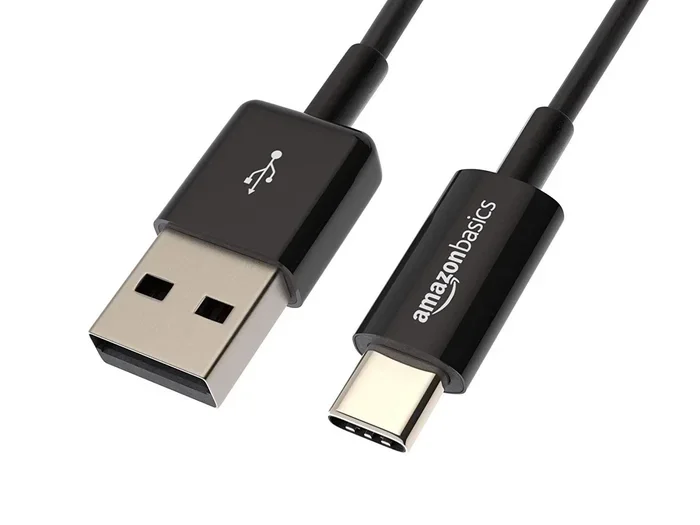
USB-A is the classic rectangular connector that has been around for decades. You have probably used it hundreds of times. It is the flat, wide plug on the end of most flash drives, printers, and older charging cables. USB-A ports are still found on desktop computers, TVs, and many peripherals. They are reliable and universal, but they are bulky and only insert one way.
The USB-A connector has been the standard since the late 1990s. It comes in several versions, including USB 2.0, USB 3.0, and USB 3.1. Each version supports different data transfer speeds and power levels. USB 3.0 USB-A ports, for example, can transfer data at up to 5 gigabits per second. That is still pretty fast for everyday tasks.
What Is USB-C?
USB-C is the newer, smaller, and reversible connector. It is oval-shaped and about half the size of a USB-A plug. You can flip it either way, and it always fits. USB-C ports have become the standard on modern laptops, smartphones, tablets, and even gaming consoles.
USB-C supports faster data transfer speeds and higher power delivery than USB-A. The latest USB standards, like USB4 and USB 3.2, can push data rates up to 40 gigabits per second through a USB-C connection. USB-C also supports USB Power Delivery, which can charge devices at up to 100 watts or more.
Key Differences Between USB-C and USB-A
Here are the main differences at a glance:
- Shape and size: USB-C is small and oval. USB-A is large and rectangular.
- Reversibility: USB-C plugs in either way. USB-A only fits one direction.
- Speed: USB-C supports much faster data transfer than USB-A.
- Power delivery: USB-C handles higher wattage than standard USB-A.
- Modern adoption: Most new devices ship with USB-C. USB-A is slowly fading out.
- Durability: USB-C connectors are designed to last longer than USB-A.
Are USB-C and USB-A Compatible? The Short Answer
So, are USB-C and USB-A compatible? Yes and no. They are not directly compatible without an adapter. You cannot plug a USB-C plug into a USB-A port or vice versa. The shapes are completely different. But with the right accessory, they work together perfectly.
The compatibility question really comes down to three things:
- The adapter or cable you use.
- The USB standard supported by each device.
- The type of data or power you want to transfer.
When you use a proper USB-C to USB-A adapter or cable, the connection works just fine. Your USB-A flash drive will work on a USB-C laptop. Your USB-A keyboard will work on a USB-C tablet. The adapter bridges the physical gap between the two connector types.
How to Make USB-C and USB-A Devices Work Together
Making these two connector types work together is straightforward. There are several simple solutions you can use right now.
USB-C to USB-A Adapters
The most common solution is a small USB-C to USB-A adapter. These tiny dongles plug into your USB-C port and give you a full-size USB-A port. They cost between $5 and $15 and work with almost any device. You can plug in your USB-A flash drive, mouse, or printer without any hassle.
Look for adapters that support the USB standard you need. A basic adapter will work for USB 2.0 speeds. If you need faster data transfer, make sure the adapter supports USB 3.0 or higher. The packaging usually states the supported speed clearly.
USB-C to USB-A Cables
If you prefer a cable solution, USB-C to USB-A cables are widely available. These cables have a USB-C plug on one end and a USB-A plug on the other. They are great for connecting USB-A devices directly to USB-C ports without needing an extra adapter.
Not all USB-C to USB-A cables are the same, though. Some support only USB 2.0 speeds, which max out at 480 megabits per second. Others support USB 3.0 or USB 3.1, which offer much faster speeds. Check the cable specifications before you buy if speed matters for your use case.
USB-C Hubs and Docks
For a more complete solution, consider a USB-C hub or dock. These devices expand a single USB-C port into multiple ports, including USB-A ports, HDMI, SD card slots, and more. Hubs are perfect for laptop users who need to connect several USB-A devices at once.
Popular brands like Anker, Satechi, and CalDigit make excellent USB-C hubs. They range from simple two-port models to feature-rich docks with multiple display outputs. A good hub solves the compatibility problem permanently.
Hybrid Cables and Adapters
Some manufacturers make hybrid cables that combine USB-C and USB-A connectors in a single unit. These are less common but can be useful in specific setups. They are especially handy for desktop computers that have both USB-C and USB-A ports on the same device.
Data Transfer Speeds: What to Expect
One of the most common questions people ask is about data transfer speeds. When you connect a USB-A device to a USB-C port through an adapter, how fast does data move?
The answer depends on the slowest device in the chain. Here is how it works:
- USB 2.0: Up to 480 Mbps. This is the standard for most older USB-A devices.
- USB 3.0 (USB 3.2 Gen 1): Up to 5 Gbps. Common on modern USB-A flash drives.
- USB 3.1 (USB 3.2 Gen 2): Up to 10 Gbps. Found on premium USB-A and USB-C devices.
- USB 3.2 Gen 2×2: Up to 20 Gbps. Requires both devices to support it.
- USB4: Up to 40 Gbps. The newest standard, found on high-end USB-C devices.
When you use a USB-C to USB-A adapter, the connection will run at the speed of the slower device. If your USB-A flash drive supports USB 3.0 and your laptop supports USB 3.2, the transfer speed will cap at USB 3.0 levels. This is called the backward compatibility feature of USB standards.
For most everyday tasks like transferring photos or documents, even USB 2.0 speeds are perfectly fine. But if you work with large video files, investing in a USB 3.0 or higher adapter and cable will save you significant time.
Power Delivery and Charging Compatibility
Charging compatibility is another important factor. Can you charge a USB-C device using a USB-A charger? Yes, you can. But the charging speed will be limited.
Standard USB-A ports deliver up to 7.5 watts of power at 5 volts. This is enough to slowly charge your phone or power a small accessory. However, if your device supports USB Power Delivery (PD), you will not get the full fast-charging speed through a USB-A connection.
USB-C Power Delivery can supply up to 100 watts or more. This is why modern laptops charge so quickly with USB-C chargers. If you plug a USB-C laptop into a USB-A port using an adapter, it will charge, but much more slowly.
Here is a quick comparison of charging speeds:
- USB-A (standard): Up to 7.5W at 5V. Suitable for phones, earbuds, and small devices.
- USB-C without PD: Up to 15W at 5V or 3A at 5V.
- USB-C with PD: Up to 100W or more at variable voltages. Supports fast charging for laptops and tablets.
If fast charging matters to you, always use a native USB-C charger and cable. Adapters and hybrid cables will limit the power delivery to USB-A levels.
Common Mistakes People Make with USB-C and USB-A
Even though connecting these two connector types is simple, people still make mistakes. Here are some common pitfalls to avoid.
Buying the Wrong Adapter
Not all adapters are created equal. Some cheap adapters only support USB 2.0 speeds, even if they claim to support USB 3.0. Always check the product description for the supported USB standard. Look for adapters that explicitly state USB 3.0 or USB 3.1 support if you need fast data transfer.
Assuming All USB-C Cables Are the Same
This is a big one. USB-C cables vary widely in quality and capability. Some only support USB 2.0 data and 3A power. Others support USB 3.2 or USB4 with 5A power and 40 Gbps data. When buying a USB-C to USB-A cable, check the specifications carefully.
Forcing Connectors
USB-C is reversible, but that does not mean you should force it. If a connector does not fit, check the orientation or make sure you are using the right adapter. Forcing a plug can damage the port or the cable. USB-A connectors are especially sensitive because they only fit one way.
Ignoring Power Limitations
As we discussed, USB-A ports cannot deliver the same power as USB-C PD. If your device needs high wattage to charge, a USB-A connection will not cut it. This is especially important for laptops and tablets that require 30W or more to charge efficiently.
Expert Tips for Getting the Most Out of USB-C and USB-A Connections
Here are some practical tips from tech experts to help you get the best experience when connecting USB-C and USB-A devices.
Invest in a Quality USB-C Hub
A good USB-C hub is worth every penny. It gives you multiple USB-A ports, plus extra connectivity options, all from a single USB-C port. Look for hubs with individual power switches on each port. This lets you power down devices you are not using and saves battery.
Label Your Adapters and Cables
It is easy to lose track of which adapter supports what speed. Take a few minutes to label your cables and adapters. Use a small piece of tape or a tag to note the USB standard each one supports. This saves confusion later when you need a specific connection.
Keep Firmware Updated
Some devices need firmware updates to work properly with USB-C adapters and hubs. Check the manufacturer’s website for updates if you experience connection issues. This applies especially to docking stations and multi-port adapters.
Test Your Setup Before You Rely on It
Before an important presentation or meeting, test your USB-C to USB-A connection with all your devices. Make sure the adapter works, the data transfers correctly, and any peripherals are recognized. A quick test can save you from an embarrassing tech failure.
Buy from Reputable Brands
Cheap, unbranded adapters and cables can cause connectivity issues, slow speeds, and even damage your devices. Stick with reputable brands like Anker, Belkin, Cable Matters, and Ugreen. They offer reliable products with clear specifications and warranties.
Quick Tips for USB-C and USB-A Compatibility
- Always check the USB standard of both your device and the adapter or cable you are using.
- Use a USB-C hub if you need to connect multiple USB-A devices at once.
- Buy USB 3.0 or higher adapters if you need fast data transfer speeds.
- Do not force connectors into ports. If they do not fit, stop and check the orientation.
- Keep your cables untangled and clean to maintain good connectivity.
- Use the right cable for the right job. A USB-C to USB-A cable is different from a USB-C to USB-C cable.
- When in doubt, check the manufacturer’s website for compatibility information and recommended accessories.
The Future of USB Connectivity
The tech world is clearly moving toward USB-C as the universal connector. Apple, Google, Samsung, and most other major manufacturers now use USB-C as the standard port on their devices. The European Union has even mandated USB-C as the common charging standard for all smartphones and tablets sold in the region.
USB-A ports are not disappearing overnight. Many desktop computers, monitors, printers, and peripherals still rely on USB-A. But over time, USB-A will become less common, and USB-C will take over completely.
Until that transition is complete, USB-C to USB-A adapters will remain essential tools for anyone who owns a mix of old and new devices. The good news is that adapters are cheap, reliable, and easy to find.
The next major step in USB technology is USB4, which is built entirely on the USB-C connector. USB4 offers blazing fast speeds, incredible power delivery, and support for multiple display protocols. As USB4 becomes more widespread, the need for USB-A will continue to shrink.
Final Thoughts
So, are USB-C and USB-A compatible? Absolutely, with the right adapter or cable. These two connector types may look different, but they work together beautifully when you use the right accessory. Whether you need a simple dongle for a quick connection or a full-featured hub for your daily workflow, there is a solution for every situation.
The key is to understand what your devices support and choose the right adapter or cable for the job. Check the USB standard, consider your power needs, and invest in quality accessories from reputable brands. With the right setup, connecting your USB-C device to a USB-A peripheral is quick, easy, and reliable.
USB-C and USB-A compatibility is not complicated once you know the basics. Now you do. Go ahead and connect your devices with confidence. The right adapter makes all the difference.
Frequently Asked Questions
Can I plug a USB-A device directly into a USB-C port?
No, you cannot plug a USB-A connector directly into a USB-C port. The shapes are completely different. You need a USB-C to USB-A adapter or a hybrid cable to make the connection work. These adapters are inexpensive and widely available online and in electronics stores.
Does a USB-C to USB-A adapter slow down data transfer?
It depends on the adapter. If the adapter only supports USB 2.0, your data transfer speed will be limited to 480 Mbps. But if you buy an adapter that supports USB 3.0 or higher, you can maintain fast transfer speeds. Always check the adapter specifications before purchasing to make sure it supports the speed you need.
Can I charge my laptop using a USB-A port with an adapter?
Yes, you can charge your laptop through a USB-A port using an adapter, but it will charge slowly. Standard USB-A ports deliver around 7.5 watts, which is not enough for fast laptop charging. If you need quick charging, use a native USB-C charger with Power Delivery support.
Are all USB-C to USB-A cables the same?
No, not all cables are the same. Some support only USB 2.0 data speeds and basic power delivery. Others support USB 3.0, USB 3.1, or even USB4 with much faster speeds and higher power output. Always check the cable specifications to ensure it meets your needs for speed and power.
Do USB-C hubs work with USB-A devices?
Yes, most USB-C hubs include USB-A ports and work perfectly with USB-A devices. You can connect flash drives, keyboards, mice, printers, and other USB-A accessories through a USB-C hub. Just make sure the hub supports the USB standard you need for the best performance.
Will USB-A become obsolete?
USB-A is gradually being phased out in favor of USB-C, but it is not disappearing yet. Many desktop computers, printers, and peripherals still use USB-A ports. Experts predict that USB-A will become rare in consumer devices within the next 5 to 10 years, but it will likely remain in use for specialized equipment for longer.
=== CONCLUSION ===
Are USB-C and USB-A compatible? Yes, they are compatible with the right adapter, cable, or hub. These two connector types serve different purposes, but they work together seamlessly when you bridge the gap with the right accessory. Whether you need to connect a USB-A flash drive to a USB-C laptop or charge a USB-C device from a USB-A power bank, the solutions are simple and affordable.
Understanding the differences between USB-C and USB-A helps you make better buying decisions. You will know which adapter to choose, which cable to trust, and what speeds and power levels to expect. This knowledge saves you time, money, and frustration in the long run.
The world of connectivity is moving fast, but for now, USB-C and USB-A compatibility is a solved problem. Grab the right adapter, plug in your devices, and enjoy a seamless connection every time.