Can I Connect Usb To Usb C Everything You Need To Know
Yes, you can connect USB to USB C using the right adapter or cable. USB to USB C connections are simpler than most people think. This guide covers everything from adapters to data transfer speeds and charging capabilities. You will learn how to make legacy USB devices work with modern USB Type C ports.
So you have a USB to USB C situation. Maybe your new laptop only has USB Type C ports. Or your favorite flash drive has a standard USB A connector. Whatever the reason, you want to know if these two different shapes can work together.
The short answer is yes. You absolutely can connect USB to USB C. But there are some important details you need to understand. Not all adapters are the same. Not all cables deliver the same speed. And not every connection will work the way you expect.
In this guide, we will walk through everything you need to know about connecting USB to USB C. We will cover adapters, cables, data transfer speeds, charging, and common pitfalls. By the end, you will feel confident making any USB to USB C connection work perfectly.
Key Takeaways
- USB to USB C connections work easily with the correct adapter or cable.
- USB 2.0 and USB 3.0 devices can connect to USB C ports using adapters.
- Data transfer speed depends on the USB standard your device supports.
- USB C power delivery can charge older USB devices, but speeds vary.
- Thunderbolt 3 and 4 USB C ports offer the fastest connectivity options.
- Common mistakes include using cheap adapters that slow down performance.
- Plug and play compatibility means most USB to USB C setups need no extra software.
📑 Table of Contents
- Understanding USB and USB C Basics
- Can You Connect USB to USB C Directly?
- How Data Transfer Works Between USB and USB C
- Charging Through USB to USB C Connections
- Common Devices and Their USB to USB C Compatibility
- Choosing the Right USB to USB C Adapter or Cable
- Common Mistakes People Make with USB to USB C Connections
- Expert Insights on USB to USB C Connectivity
- Key Takeaways
- Conclusion
Understanding USB and USB C Basics
Before you buy anything, it helps to understand what these two connector types actually are. The more you know, the easier it is to make the right choice.
What Is a Standard USB Connector?
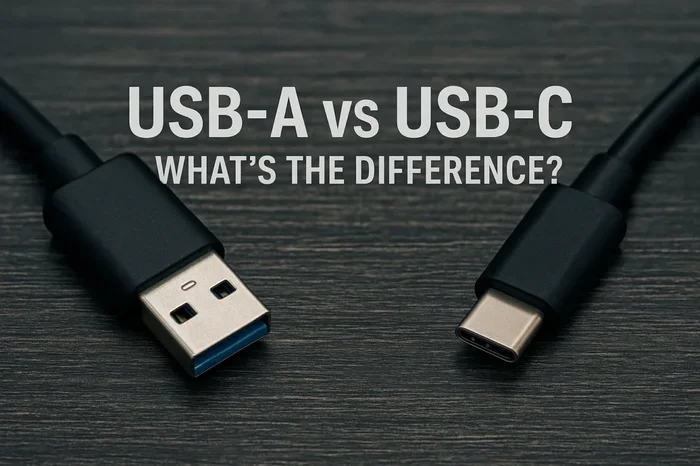
When most people say “USB,” they mean the flat, rectangular connector. This is USB Type A. You have seen it on computers, TVs, and chargers for years. It comes in different versions like USB 2.0 and USB 3.0. Each version offers different data transfer speeds.
USB 2.0 transfers data at up to 480 Mbps. USB 3.0 jumps to 5 Gbps. And USB 3.1 Gen 2 reaches 10 Gbps. These speeds matter when you are moving large files. They also affect how quickly your devices charge.
What Is USB Type C?
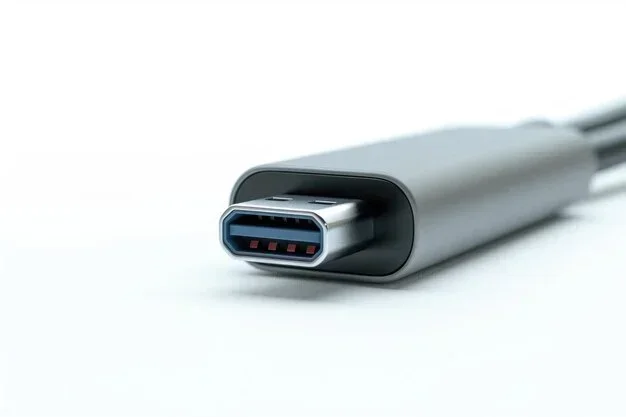
USB Type C is the newer, smaller, oval-shaped connector. It has become the standard on modern laptops, phones, and tablets. One of its best features is the reversible connector. You can plug it in either way. No more flipping the cable three times before it fits.
USB C supports faster data transfer, higher power delivery, and even video output. But not all USB C ports are created equal. Some only support USB 2.0 speeds. Others support USB 3.1 or even Thunderbolt 3 and Thunderbolt 4. This is a key detail we will come back to.
Can You Connect USB to USB C Directly?
The most common question is whether you can plug a USB A device straight into a USB C port. The answer depends on your setup.
When It Works Without Any Adapter
If your device has a USB C port and your cable has a USB C connector on both ends, you can connect directly. But what if your flash drive or external hard drive has a USB A connector? Then you need something extra.
You cannot plug a USB A cable directly into a USB C port. The shapes do not match. This is where adapters and cables with different connector types come in.
The Role of Adapters and Cables
An USB A to USB C adapter or cable bridges the gap. One end has the standard USB A shape. The other end has the USB C shape. You plug the USB A end into your device. Then you plug the USB C end into your laptop or phone.
These adapters are small, affordable, and widely available. You can find them online or at any electronics store. They are often called USB C adapters or USB C cables with USB A ends.
How Data Transfer Works Between USB and USB C
One of the biggest concerns people have is speed. Will connecting an older USB device to a USB C port slow things down? Let us break this down.
Speed Depends on the USB Standard
The speed of your connection depends on the USB standard your device supports. If you plug a USB 2.0 flash drive into a USB C port using an adapter, it will still run at USB 2.0 speeds. The port cannot make the device faster than it was designed to be.
Here is a simple comparison:
- USB 2.0: Up to 480 Mbps data transfer
- USB 3.0: Up to 5 Gbps data transfer
- USB 3.1 Gen 2: Up to 10 Gbps data transfer
- USB 3.2 Gen 2×2: Up to 20 Gbps data transfer
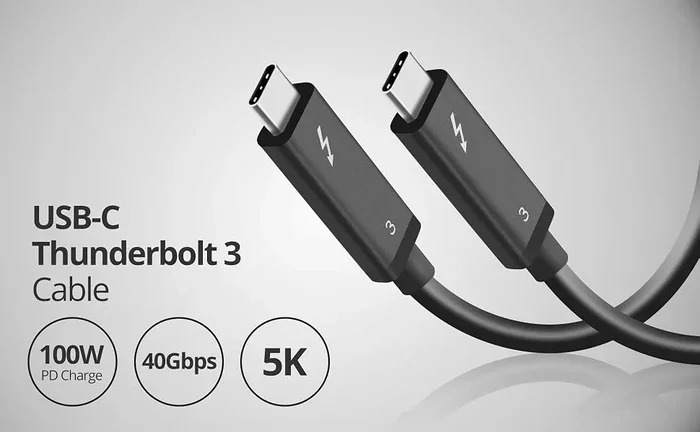
- Thunderbolt 3: Up to 40 Gbps data transfer
- Thunderbolt 4: Up to 40 Gbps data transfer
As you can see, the USB C port on your laptop might be very fast. But if your USB device is older, the speed will match the slower device. This is important to understand before you expect lightning-fast transfers.
What About USB C to USB C Connections?
If both your device and your cable support USB 3.1 or higher, you get the full speed benefit. A USB C to USB C cable with USB 3.1 support can transfer files incredibly fast. This is great for large video files, backups, and external drives.
For best results, look for cables labeled with the USB standard they support. Not all USB C cables are the same. Some are only USB 2.0 cables, which limits your speed.
Charging Through USB to USB C Connections
Charging is another big reason people want to connect USB devices to USB C ports. The good news is that this works in many cases.
USB C Power Delivery
USB Power Delivery (or USB PD) is a charging standard built into many USB C ports. It can deliver up to 100 watts of power. This is enough to charge laptops, tablets, and even some monitors.
When you use a USB C charger with a USB A to USB C cable, your older device still charges. The USB C end connects to the charger. The USB A end connects to your device. Charging works just fine.
Will Your Device Charge at Full Speed?
Not always. The charging speed depends on several factors:
- The USB standard your cable supports
- The power delivery capability of your charger
- The battery and charging circuit of your device
- Whether your device supports USB PD
A cheap USB A to USB C cable might charge your phone slowly. A high-quality cable with proper power delivery support will charge much faster. Always try to use cables from reputable brands.
Common Devices and Their USB to USB C Compatibility
Let us look at some real-world examples. This will help you understand how USB to USB C connections work in everyday life.
Connecting USB Flash Drives to USB C Laptops
This is one of the most common scenarios. You have a USB flash drive with a standard USB A connector. Your new laptop only has USB C ports. You need an USB A to USB C adapter or cable.
Plug the adapter into the laptop. Then plug your flash drive into the adapter. It works like magic. Your files are accessible right away. Most USB flash drives are plug and play. You do not need to install any drivers.
Connecting Printers and Scanners
Many printers still use USB A connectors. If your new computer has only USB C ports, you will need an adapter. USB A to USB C cables or adapters make this easy.
Some printers also support wireless printing. But if you prefer a wired connection, the adapter route works perfectly. Just make sure your printer drivers are installed on your computer first.
Connecting Smartphones and External Hard Drives
Many Android phones use USB C charging. If you want to transfer files from your phone to a computer, a USB C cable works directly. For iPhones with Lightning connectors, you will need a Lightning to USB C cable.
External hard drives are another common use case. Most portable hard drives come with USB A connectors. An adapter or USB C cable with a USB A end solves this easily.
Choosing the Right USB to USB C Adapter or Cable
Not all adapters are created equal. Choosing the right one can make a huge difference in performance and reliability.
What to Look For
Here are the key factors to consider when buying a USB to USB C adapter:
- USB Standard Support: Make sure the adapter supports USB 3.0 or higher if you need fast data transfer.
- Build Quality: Choose adapters with metal housings and sturdy connectors. Cheap plastic adapters break quickly.
- Power Delivery Rating: If you plan to charge devices, check the wattage rating of the adapter or cable.
- Brand Reputation: Stick with well-known brands like Anker, Belkin, Cable Matters, or Amazon Basics.
- Length: Choose a cable length that fits your setup. Longer cables can sometimes reduce charging speed.
Quick Tips for Buying Adapters
Keep these tips in mind when shopping:
- Always check if the adapter supports data transfer or just charging.
- Look for USB 3.0 or USB 3.1 labels for faster speeds.
- Avoid the cheapest options on the market. They often use thin wiring that limits performance.
- If you need multiple ports, consider a USB C hub instead of individual adapters.
- Read reviews before buying. Real user experiences help you avoid bad products.
Common Mistakes People Make with USB to USB C Connections
Even though connecting USB to USB C is simple, people still make mistakes. Here are the most common ones to avoid.
Using the Wrong Cable for the Job
Not every USB C cable supports data transfer. Some cables are charge-only. They can power your device but cannot transfer files. Always check the cable specifications before buying.
If you need both charging and data transfer, look for cables labeled as USB 3.0 or higher. These cables handle both tasks with ease.
Ignoring USB Standard Limitations
Your USB C port might support 10 Gbps speeds. But if your USB A device only supports USB 2.0, you will get 480 Mbps. The connection speed is limited by the slowest device in the chain.
This is not a problem with your adapter or cable. It is simply how USB standards work. The slowest device sets the speed for the entire connection.
Buying Cheap, Low-Quality Adapters
We get it. A $3 adapter on a marketplace website is tempting. But these cheap adapters often have poor wiring and weak connectors. They might overheat, break quickly, or fail to deliver full speed.
Spend a little more on a quality adapter. It will last longer and perform better. Think of it as an investment in your USB connectivity.
Assuming All USB C Ports Are the Same
This is a big one. Not all USB C ports support the same features. Some only support charging. Others support data transfer, video output, and power delivery. Check your device specs to know what your USB C port can actually do.
Expert Insights on USB to USB C Connectivity
We asked tech experts about the most common questions they hear about USB to USB C connections. Here is what they had to say.
Is USB C the Future?
Absolutely. USB Type C is becoming the universal standard. Most new laptops, phones, and tablets use it. Even some desktop computers are switching to USB C ports exclusively. If you invest in good USB C cables and adapters now, you will be ready for the future.
Do You Need a USB C Hub?
If you use a laptop with only USB C ports, a USB C hub is a great investment. It gives you multiple ports, including USB A, HDMI, SD card slots, and more. This solves the problem of connecting all your older devices to a modern laptop.
Can You Use a USB C Adapter with a USB 3.0 Device?
Yes. A USB A to USB C adapter works perfectly with USB 3.0 devices. Just make sure the adapter supports USB 3.0 speeds. Many adapters are labeled with their supported standard. Look for “SuperSpeed USB” or “USB 3.0” on the packaging.
Key Takeaways
- USB to USB C connections work easily with the correct adapter or cable.
- USB 2.0 and USB 3.0 devices can connect to USB C ports using adapters.
- Data transfer speed depends on the USB standard your device supports.
- USB C power delivery can charge older USB devices, but speeds vary.
- Thunderbolt 3 and 4 USB C ports offer the fastest connectivity options.
- Common mistakes include using cheap adapters that slow down performance.
- Plug and play compatibility means most USB to USB C setups need no extra software.
Conclusion
So can you connect USB to USB C? Yes, you absolutely can. Whether you use an adapter, a cable with different connector types, or a USB C hub, the connection is straightforward and reliable.
The key is understanding your devices and choosing the right accessories. Check the USB standard your devices support. Buy quality adapters and cables. And always match your needs to the right product.
With the right USB to USB C setup, you can connect all your legacy devices to modern computers. Flash drives, external hard drives, printers, and more all work seamlessly. USB C connectivity opens up a world of possibilities for your tech setup.
Start with one good adapter or cable today. You will wonder how you ever managed without it. Connecting USB to USB C is easier than you think, and now you have all the information you need to do it right.
Frequently Asked Questions
Can I plug a USB 2.0 device into a USB C port?
Yes, you can. You just need a USB A to USB C adapter or cable. The connection will work, but it will run at USB 2.0 speeds. Your device will not get faster just because the port is newer.
Do I need drivers to connect USB to USB C?
Most of the time, no. USB connections are plug and play. Your operating system should recognize the device automatically. If it does not, try a different cable or adapter first.
Why is my USB to USB C connection slow?
Speed depends on the USB standard your devices support. If either the cable, adapter, or device only supports USB 2.0, the connection will be limited to those speeds. Use USB 3.0 or higher cables and adapters for faster transfers.
Can I charge my phone with a USB to USB C adapter?
Yes. A USB A to USB C cable can charge your phone from a standard USB A charger. For fastest charging, make sure your cable supports adequate power delivery and your charger is compatible.
Are all USB C cables the same?
No, they are not. Some USB C cables only support charging. Others support data transfer and video output. Always check the cable specifications to make sure it supports what you need.
What is the difference between USB C and Thunderbolt USB C?
USB C refers to the connector shape. Thunderbolt 3 and Thunderbolt 4 are protocols that use the USB C connector. Thunderbolt ports offer much faster speeds and more features than standard USB C ports.