Can I Connect Usb C To Thunderbolt And Why It Matters
Can I Connect Usb C To Thunderbolt is an essential topic that provides valuable insights.
Key Takeaways
- Understanding Can I Connect Usb C To Thunderbolt: Provides essential knowledge
📑 Table of Contents
- What Is Thunderbolt and How Does It Relate to USB-C?
- Can You Connect USB-C to Thunderbolt? The Short Answer
- Thunderbolt 3 vs Thunderbolt 4: What Is the Difference?
- What Happens When You Connect USB-C to Thunderbolt?
- Common Mistakes to Avoid When Connecting USB-C and Thunderbolt
- How to Choose the Right Cable for Your Setup
- Expert Tips for Getting the Best Performance
- Key Takeaways
What Is Thunderbolt and How Does It Relate to USB-C?
Thunderbolt is a high-speed connection technology developed by Intel in partnership with Apple. It uses the same physical connector as USB-C, which is the small, oval-shaped port you see on modern laptops, tablets, and phones. This shared design is why so many people ask, Can I Connect Usb C To Thunderbolt? The short answer is yes, but there are important details to understand.
Thunderbolt combines several protocols into one cable. It supports data transfer, video output, and power delivery all at the same time. USB-C, on the other hand, is just a connector shape. It can carry different protocols depending on what the device supports. Think of USB-C as a highway and Thunderbolt as a superhighway that uses the same road but goes much faster.
Why the Confusion Exists
The confusion comes from the fact that both USB-C and Thunderbolt look identical. The connector is the same small oval shape. You cannot tell them apart just by looking at the plug or the port. This is by design. Intel wanted Thunderbolt to be universally compatible with the USB-C ecosystem so users would not need different cables for every device.
The real difference lies inside the cable and the port. Thunderbolt cables have special chips and wiring that allow them to handle much higher bandwidth. A standard USB-C cable has simpler wiring inside. So while they fit into the same port, they do not always perform the same way.
Key Differences at a Glance
- USB-C is a connector type that supports various protocols like USB 3.0, USB 3.1, USB 3.2, and USB4.
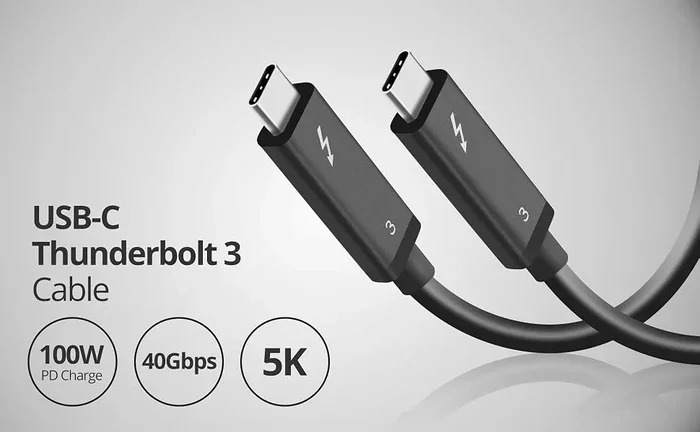
- Thunderbolt 3 uses the USB-C connector and offers up to 40 Gbps bandwidth.
- Thunderbolt 4 also uses USB-C and guarantees 40 Gbps with stricter performance requirements.
- USB-C alone may only support 5 Gbps, 10 Gbps, or 20 Gbps depending on the version.
Can You Connect USB-C to Thunderbolt? The Short Answer
Yes, you can connect USB-C to Thunderbolt in almost all situations. The connector is physically the same, so a USB-C cable will fit into a Thunderbolt port. Similarly, a Thunderbolt cable will fit into a USB-C port. This backward compatibility is one of the best things about the USB-C design.
But here is where it gets important. When you plug a USB-C cable into a Thunderbolt port, you get the speed of the slower device. If your cable only supports USB 3.2 speeds, then your Thunderbolt port will run at USB 3.2 speeds, not Thunderbolt speeds. You will still get data transfer, video output, and charging, just not at the full Thunderbolt potential.
When Does It Work Perfectly?
There are several scenarios where connecting USB-C to Thunderbolt works flawlessly. If you just want to charge your laptop, any USB-C cable will do the job. If you need to transfer files to an external hard drive, a standard USB-C cable works fine for most needs. And if you are connecting a basic mouse or keyboard, the connection will work without any issues.
The connection also works perfectly when you are using a Thunderbolt cable with a Thunderbolt port. This gives you the full 40 Gbps speed, support for two 4K displays, and the fastest charging possible. This is the ideal setup for professionals who need maximum performance.
When Does It Fall Short?
You will notice limitations when you try to push the connection to its limits. For example, if you connect a USB-C cable to a Thunderbolt dock and try to run two 4K monitors, the connection might fail if the cable does not support Thunderbolt bandwidth. Similarly, if you are transferring huge video files and need the fastest speeds, a standard USB-C cable will bottleneck your Thunderbolt device.
Another scenario where it falls short is with eGPUs (external graphics processing units). These require the full Thunderbolt bandwidth to work properly. A basic USB-C cable will not deliver the performance needed for external graphics cards.
Thunderbolt 3 vs Thunderbolt 4: What Is the Difference?
If you are shopping for cables or docks, you will see both Thunderbolt 3 and Thunderbolt 4 mentioned. Both use the USB-C connector, and both work with standard USB-C cables and devices. But there are meaningful differences between the two versions that affect your experience.
Thunderbolt 3 Overview
Thunderbolt 3 launched in 2015 and was a game-changer. It offered 40 Gbps data transfer speeds, support for dual 4K displays, and up to 100 watts of power delivery. It was the first version to use the USB-C connector, which made it much more user-friendly than the previous Mini DisplayPort-style Thunderbolt connectors.
Thunderbolt 3 devices are still widely used today. Many docking stations, external drives, and eGPUs still rely on Thunderbolt 3. The main limitation is that Thunderbolt 3 does not have the same minimum performance guarantees as Thunderbolt 4.
Thunderbolt 4 Overview
Thunderbolt 4 launched in 2020 and built on the foundation of Thunderbolt 3. It still offers 40 Gbps speeds, but it adds stricter requirements. Every Thunderbolt 4 device must support wake-from-sleep for connected peripherals, support two 4K displays or one 8K display, and guarantee 32 Gbps minimum data transfer for PCIe devices.
Thunderbolt 4 also improves security with Intel VT-d-based direct memory access protection. For most users, the real-world difference between Thunderbolt 3 and Thunderbolt 4 is subtle. But for professionals and enterprise users, the reliability and guarantees of Thunderbolt 4 make a big difference.
Quick Comparison Table
| Feature | Thunderbolt 3 | Thunderbolt 4 |
|---|---|---|
| Max Data Speed | 40 Gbps | 40 Gbps |
| Min PCIe Bandwidth | Not guaranteed | 32 Gbps |
| Display Support | Dual 4K or single 5K | Dual 4K or single 8K |
| Power Delivery | Up to 100W | Up to 100W |
| Wake-from-Sleep | Not required | Required |
| Security Features | Basic | Intel VT-d DMA protection |
What Happens When You Connect USB-C to Thunderbolt?
When you connect a USB-C device to a Thunderbolt port, several things happen automatically. The devices negotiate the best possible connection based on what both sides support. This process is called handshake, and it happens in milliseconds.
If both the cable and the device support Thunderbolt speeds, you will get the full 40 Gbps bandwidth. If the cable or device only supports USB speeds, the connection will fall back to the highest USB speed available. This negotiation happens seamlessly, so you do not need to do anything manually.
Data Transfer Speeds You Can Expect
The data transfer speed depends on three things: the cable, the port, and the device. Here is what you can realistically expect in different scenarios:
- USB-C cable to Thunderbolt port: Speeds match the cable’s capability, usually 5 Gbps to 20 Gbps.
- Thunderbolt cable to Thunderbolt port: Full 40 Gbps speeds on both Thunderbolt 3 and Thunderbolt 4.
- USB 3.2 cable to Thunderbolt port: Speeds capped at 10 Gbps or 20 Gbps depending on the USB version.
- Thunderbolt cable to USB-C port: Speeds limited to the USB-C port’s maximum capability.
Charging and Power Delivery
One of the best things about the USB-C and Thunderbolt connection is power delivery. Both support USB Power Delivery, which means you can charge your laptop through the same cable you use for data. Thunderbolt ports support up to 100 watts of charging, which is enough for most laptops.
When you connect a USB-C charger to a Thunderbolt port, charging works perfectly. The port will draw only the power it needs. Similarly, when you use a Thunderbolt cable to charge a device, you get the same fast charging speeds as a standard USB-C cable. Power delivery is handled independently from data transfer, so they do not interfere with each other.
Video Output Capabilities
Thunderbolt ports can output video to external displays. When you connect a Thunderbolt dock or cable, you can run multiple monitors from a single port. Thunderbolt 3 supports dual 4K displays at 60Hz, and Thunderbolt 4 supports dual 4K or a single 8K display.
A standard USB-C cable connected to a Thunderbolt port can also output video, but it depends on the device. Some laptops support DisplayPort over USB-C, which means a simple USB-C to HDMI adapter will work. Others may require a Thunderbolt-certified cable or dock to push video to external displays.
Common Mistakes to Avoid When Connecting USB-C and Thunderbolt
Even though the connection is straightforward, many people make mistakes that cost them speed and performance. Here are the most common errors and how to avoid them.
Assuming All USB-C Cables Are Thunderbolt Cables
This is the biggest mistake people make. Not every USB-C cable supports Thunderbolt speeds. A basic USB-C cable that came with your phone or charger will not give you 40 Gbps speeds. You need a cable that is specifically labeled as Thunderbolt certified to get the full performance.
Ignoring Cable Length
Cable length matters more than most people realize. Thunderbolt cables longer than 0.5 meters (about 1.6 feet) need active electronics to maintain full 40 Gbps speeds. Passive Thunderbolt cables work well at shorter lengths but lose speed over longer distances. USB-C cables have different length rules, so always check the specifications before buying.
Using the Wrong Adapter
Adapters can be a source of frustration. A cheap USB-C adapter may not pass through Thunderbolt signals properly. If you are connecting a Thunderbolt dock, make sure the adapter or dock itself is Thunderbolt certified. Using a non-certified adapter can result in dropped connections, slow speeds, or no video output at all.
Not Checking Device Compatibility
Not every device with a USB-C port supports Thunderbolt. Many budget laptops and tablets have USB-C ports that only support USB 3.2 or USB4. Before you buy a Thunderbolt cable or dock, check your device specifications to confirm it has Thunderbolt support.
How to Choose the Right Cable for Your Setup
Choosing the right cable makes all the difference in your daily workflow. A good cable gives you fast data transfer, reliable video output, and consistent charging. A bad cable gives you frustration and wasted time.
Look for Thunderbolt Certification
The easiest way to identify a Thunderbolt cable is the lightning bolt icon. Thunderbolt-certified cables have a small lightning bolt symbol next to the USB-C connector. This symbol tells you the cable has been tested to meet Thunderbolt standards for speed and reliability.
When shopping, look for cables that explicitly say Thunderbolt 3 or Thunderbolt 4 on the packaging. These cables will work with any Thunderbolt port and any USB-C port. They also support the full 40 Gbps bandwidth and 100W power delivery.
Consider Your Use Case
Think about what you need the cable for. If you just need to charge your phone or transfer photos, a basic USB-C cable is perfectly fine. If you work with large video files or connect to external monitors, invest in a Thunderbolt-certified cable. If you use a docking station with multiple peripherals, a Thunderbolt cable ensures everything runs smoothly.
For most people, a 1-meter Thunderbolt 4 cable is the sweet spot. It is long enough to reach your desk setup but short enough to maintain full speeds. If you need a longer run, look for an active Thunderbolt cable that is certified for the distance you need.
Quick Tips for Cable Selection
- Always check for the lightning bolt icon on the connector.
- Buy from reputable brands like Apple, Belkin, or CalDigit.
- Match the cable version to your device version for best results.
- Keep cables under 0.5 meters for passive Thunderbolt connections.
- Test your setup after purchasing to confirm speeds and compatibility.
Expert Tips for Getting the Best Performance
Getting the most out of your USB-C to Thunderbolt connection is easier than you think. A few small adjustments can make a huge difference in speed and reliability.
First, always update your device firmware and drivers. Thunderbolt performance can improve with software updates. Intel and Apple regularly release Thunderbolt firmware updates that fix bugs and improve compatibility. Check your device manufacturer’s support page for the latest updates.
Second, use Thunderbolt-certified hubs and docks. These devices are tested to work reliably with Thunderbolt connections. They handle the bandwidth demands of high-speed data and video without dropping performance. A cheap non-certified dock might work for basic tasks but will struggle with demanding workloads.
Third, keep your cables in good condition. USB-C and Thunderbolt cables have delicate internal wiring. Bending them sharply, stepping on them, or pulling them by the cable can damage the internal conductors. This leads to intermittent connections or permanent failure over time.
Finally, if you are experiencing slow speeds, try a different cable first. In many cases, the cable is the bottleneck. A Thunderbolt cable that is damaged or not fully certified will limit your speeds regardless of how good your port or device is.
Key Takeaways
- USB-C and Thunderbolt share the same connector: They fit into each other’s ports, making them compatible in most cases.
- Thunderbolt cables are backward compatible: A Thunderbolt cable works in USB-C ports, and a USB-C cable works in Thunderbolt ports.
- Speeds depend on the cable and device: You only get Thunderbolt speeds when both the cable and port support it.
- Thunderbolt 4 offers better guarantees: It requires minimum performance standards that Thunderbolt 3 does not.
- Look for the lightning bolt icon: This is the easiest way to identify a Thunderbolt-certified cable or device.
- Cable quality matters: Cheap or damaged cables can bottleneck your entire Thunderbolt setup.
- Power delivery works seamlessly: Both USB-C and Thunderbolt support up to 100W charging through the same connection.
Frequently Asked Questions
Can I use a regular USB-C cable with a Thunderbolt port?
Yes, you can use a regular USB-C cable with a Thunderbolt port. The connection will work for charging, data transfer, and video output. However, you will not get the full Thunderbolt speeds unless the cable is Thunderbolt-certified. The port will automatically negotiate the best speed the cable can support.
What is the difference between USB-C and Thunderbolt?
USB-C is a connector shape, while Thunderbolt is a technology that uses the USB-C connector. Thunderbolt adds faster data speeds, better video support, and stricter performance requirements. Think of USB-C as the physical plug and Thunderbolt as the advanced technology running through it.
Do I need a Thunderbolt cable to get 40 Gbps speeds?
Yes, you need a Thunderbolt-certified cable to achieve 40 Gbps speeds. Standard USB-C cables typically max out at 10 Gbps or 20 Gbps depending on the version. The Thunderbolt cable has special wiring and chips that enable the higher bandwidth.
Can I connect a Thunderbolt device to a USB-C-only laptop?
Yes, you can connect a Thunderbolt device to a USB-C-only laptop, but the connection will run at USB speeds, not Thunderbolt speeds. Your laptop must have Thunderbolt support to take advantage of Thunderbolt features like 40 Gbps data transfer and dual 4K display output.
How can I tell if my cable is Thunderbolt certified?
Look for the lightning bolt icon next to the USB-C connector on the cable. Thunderbolt-certified cables also have “Thunderbolt” text printed on them or on the packaging. If you do not see the lightning bolt symbol, the cable is likely a standard USB-C cable and will not support Thunderbolt speeds.
Is Thunderbolt the same as USB4?
Thunderbolt and USB4 are closely related but not the same. USB4 is an open standard based on the Thunderbolt 3 protocol. Thunderbolt 3 and Thunderbolt 4 are Intel-certified versions of USB4 with additional requirements and guarantees. All Thunderbolt 3 and Thunderbolt 4 devices are compatible with USB4, but not all USB4 devices support Thunderbolt features.
=== CONCLUSION ===
Can I Connect Usb C To Thunderbolt? Absolutely, and now you know exactly how it works. The shared connector design makes these two technologies compatible in nearly every scenario. Whether you are charging your laptop, transferring files, or connecting to external displays, the USB-C to Thunderbolt connection gives you flexibility and power.
The key is understanding that compatibility does not always mean peak performance. A standard USB-C cable will work in a Thunderbolt port, but you will only get Thunderbolt speeds when you use a Thunderbolt-certified cable with a Thunderbolt port. This small detail can make a huge difference in your daily workflow, especially if you work with large files or multiple displays.
Take a moment to check your cables and devices today. Look for the lightning bolt icon, verify your device specifications, and invest in quality Thunderbolt-certified accessories. These small steps will ensure you get the best performance possible from your USB-C and Thunderbolt setup. Your future self will thank you when your files transfer in seconds and your displays run smoothly without a single glitch.