Can I Use External Video Card On Laptop Successfully
Yes, you can use an external video card on a laptop to significantly boost graphics performance. This guide covers eGPU setups, Thunderbolt compatibility, enclosure options, and step-by-step instructions so you can upgrade your laptop without replacing it. Whether you are a gamer or a creative professional, an external GPU can transform your portable computer into a power machine.
You bought a sleek laptop and loved it at first. But then reality hit. Your favorite games stutter. Your video edits lag. Your creative projects feel slow. You start wondering, can I use external video card on laptop and actually make it work? The short answer is yes. A lot has changed in recent years, and connecting a dedicated graphics card to your portable computer is now more doable than ever before.
This guide walks you through everything you need to know. We cover how external GPUs work, what equipment you need, and whether your specific laptop can handle one. By the end, you will know exactly whether an external graphics card setup makes sense for you. Let us dive in.
Key Takeaways
- External video cards work on laptops: Using an eGPU enclosure with a Thunderbolt connection lets you add a dedicated GPU to any compatible laptop.
- Thunderbolt 3 or 4 is essential: Your laptop must have a Thunderbolt port for reliable eGPU performance and bandwidth.
- Performance gains are real: An external GPU can boost gaming frame rates and speed up video editing and 3D rendering tasks.
- Setup is straightforward: Most eGPU enclosures plug in with a single cable and install drivers automatically on Windows and macOS.
- Limitations exist: Bandwidth throttling and enclosure size are factors to consider before purchasing an external graphics solution.
- Not all laptops qualify: Check your laptop model for Thunderbolt support and available PCIe lanes before buying an eGPU setup.
📑 Table of Contents
- What Is an External Video Card and How Does It Work?
- Can You Actually Use an External Video Card on a Laptop?
- Benefits of Using an External Video Card on a Laptop
- How to Set Up an External GPU on Your Laptop
- Limitations and Things to Watch Out For
- Who Benefits Most from an External Video Card?
- Comparison: Internal vs External Graphics Cards
- Quick Tips for Getting the Best eGPU Performance
- Common Mistakes to Avoid When Setting Up an eGPU
- Expert Insights on External Laptop Graphics
- Key Takeaways
- Conclusion
What Is an External Video Card and How Does It Work?
An external video card is a graphics processing unit housed inside a separate enclosure. You connect this enclosure to your laptop using a special cable. The external GPU then handles all the heavy lifting for graphics tasks. Think of it as giving your laptop a graphics upgrade without opening the case.
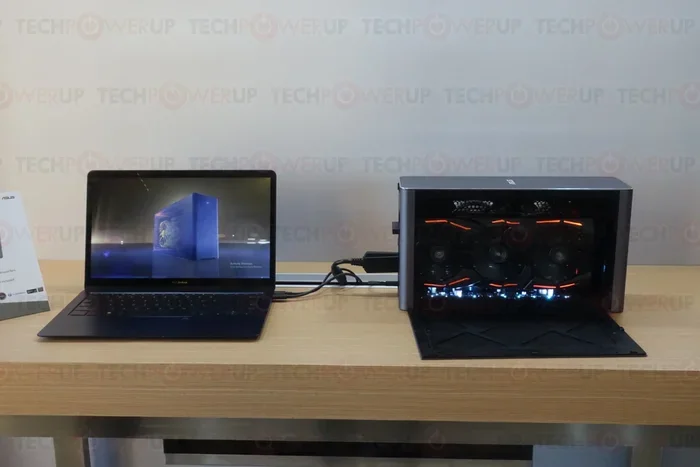
The technology behind this is called an eGPU, short for external graphics processing unit. An eGPU setup typically includes three parts. The graphics card itself, which is the same type you would install inside a desktop computer. The enclosure, which houses the card and provides cooling and power. And the connection interface, which links the enclosure to your laptop.
Understanding eGPU Technology
An eGPU enclosure does more than just hold a video card. It contains its own power supply, cooling fans, and expansion slots. This means the external GPU gets the power and airflow it needs to perform at full capacity. Without a proper enclosure, a graphics card would overheat and underperform.
The enclosure connects to your laptop through a high-speed cable. This connection is what determines how well the external graphics card will perform. The faster the connection, the less data gets bottlenecked between the GPU and your laptop. This is why the type of port on your laptop matters so much.
How External GPUs Connect to Laptops
Most modern eGPU setups use Thunderbolt 3 or Thunderbolt 4 connections. These ports look identical to standard USB-C ports but offer much higher bandwidth. Thunderbolt 3 provides up to 40 gigabits per second of data transfer. Thunderbolt 4 maintains this speed while adding improved security and display support features.
The connection uses PCIe lanes to communicate between the laptop and the external GPU. PCIe stands for Peripheral Component Interconnect Express. It is the same protocol used inside desktop computers to connect graphics cards to the motherboard. When you use a Thunderbolt connection, your laptop essentially creates a bridge to the external card using these lanes.
Can You Actually Use an External Video Card on a Laptop?
The answer depends on your laptop. Not every laptop supports an external GPU setup. But most laptops made after 2018 that include a Thunderbolt port can work with an eGPU. The key question is whether your specific model has the right hardware.
Before you invest in an external video card, check your laptop for Thunderbolt ports. Look for the small lightning bolt icon next to the port. If you see it, you likely have what you need. If your laptop only has regular USB-C ports without Thunderbolt support, an eGPU will not work properly.
The Role of Thunderbolt Ports
Thunderbolt technology is the backbone of any successful eGPU setup. It provides the bandwidth necessary for a graphics card to function without severe performance loss. Without Thunderbolt, the connection simply cannot deliver enough data speed for smooth graphics output.
Thunderbolt 3 and Thunderbolt 4 are the two versions you will encounter most often. Both support eGPU connections. Thunderbolt 4 is newer and offers some improvements, but Thunderbolt 3 remains fully capable for external graphics use. If your laptop has either one, you are in good shape.
USB-C vs Thunderbolt: What You Need to Know
Do not confuse a standard USB-C port with a Thunderbolt port. They look the same physically, but they are very different. A regular USB-C port lacks the bandwidth needed for eGPU performance. You might be able to connect an enclosure, but the graphics performance will be severely limited or not work at all.
Always verify that your port supports Thunderbolt. Check your laptop manufacturer specifications or look for the lightning bolt symbol. Using a USB-C port for an external graphics card is a common mistake that leads to frustration. Spend a few minutes confirming your port type before buying anything.
Benefits of Using an External Video Card on a Laptop
Adding an external graphics card to your laptop brings several real advantages. Whether you game, create content, or work with demanding software, the benefits can be significant.
Boost Gaming Performance
If you love gaming but need portability, an eGPU is a game-changer. Your laptop’s built-in graphics chip handles light tasks fine. But when you want to play modern titles at high settings, a dedicated external GPU makes all the difference. You can connect your eGPU at home, enjoy smooth frame rates, and then disconnect when you need to travel.
Many gamers report frame rate improvements of 50 to 100 percent or more after adding an external card. Games that previously ran at 30 frames per second can suddenly hit 60 or higher. This transforms the gaming experience on a laptop that was not originally built for heavy graphics work.
Power Up Creative Workloads
Video editors, 3D modelers, and graphic designers benefit enormously from external graphics card setups. Rendering timelines in Premiere Pro or DaVinci Resolve becomes much faster. 3D modeling in Blender or Maya responds more quickly. Exporting large files takes a fraction of the time.
For professionals who travel, an eGPU offers the best of both worlds. You get a lightweight laptop for travel and a powerful graphics workstation when you sit down at your desk. This flexibility is hard to beat with any single device.
Future-Proof Your Investment
Laptop graphics chips become outdated quickly. But with an eGPU setup, you can swap out the graphics card as new models release. This means your laptop stays relevant longer. Instead of buying an entirely new computer every few years, you simply upgrade the external card.
This approach saves money over time. A single graphics card upgrade costs far less than replacing an entire laptop. It also reduces electronic waste, which is better for the environment.
How to Set Up an External GPU on Your Laptop
Setting up an external video card on laptop is easier than most people expect. The process involves a few straightforward steps. Let us walk through them so you feel confident getting started.
Choosing the Right eGPU Enclosure
The enclosure is the housing for your external graphics card. Not all enclosures are the same, and choosing the right one matters. Look for enclosures that support Thunderbolt 3 or Thunderbolt 4 connections. These will give you the best performance.
Consider the size of the enclosure as well. Some are compact and portable. Others are larger and support full-size graphics cards with triple-fan cooling. If you travel frequently, a smaller enclosure might suit you better. If you keep your setup stationary, a larger enclosure with better cooling will deliver stronger performance.
Also check which graphics cards the enclosure supports. Some enclosures fit only certain card sizes. Make sure the enclosure you choose can physically hold the GPU you want to install.
Step-by-Step Setup Process
Follow these steps to get your eGPU running with your laptop:
- Install the graphics card inside the eGPU enclosure according to the manufacturer instructions. Make sure it clicks firmly into the PCIe slot.
- Connect the enclosure to your laptop using the Thunderbolt cable that came with the enclosure or your laptop.
- Power on the enclosure and wait for your laptop to recognize the new hardware.
- Install the latest GPU drivers from the manufacturer website. For NVIDIA cards, download the Game Ready or Studio drivers. For AMD cards, get the latest Adrenalin edition.
- Restart your laptop after installing the drivers to ensure everything initializes properly.
- Test your setup by running a game or graphics-intensive application. Check the GPU usage in your task manager or system monitor to confirm the external card is being used.
Once the drivers are installed, your laptop should automatically route graphics tasks to the external GPU. Some applications let you choose which GPU to use in their settings. For games, you can often configure this through the NVIDIA Control Panel or AMD Radeon Software.
Limitations and Things to Watch Out For
While external graphics cards offer great benefits, they come with some limitations you should understand before buying.
Bandwidth Bottlenecks
Even with Thunderbolt 3 or 4, the connection between your laptop and the eGPU has less bandwidth than a direct PCIe slot inside a desktop. This means the external GPU cannot always reach its full potential. You might see a performance loss of 10 to 20 percent compared to the same card installed in a desktop.
This gap has been shrinking with each new Thunderbolt generation. Thunderbolt 4 and the upcoming Thunderbolt 5 standards continue to improve bandwidth. For most users, the performance difference is small enough that it does not impact the experience noticeably.
Compatibility Issues
Not every laptop and every graphics card combination works perfectly. Some older laptops have Thunderbolt ports but lack the internal PCIe lanes needed to support an eGPU efficiently. macOS and Windows handle eGPU setups differently, and some applications may not recognize the external GPU correctly.
Before purchasing, research your specific laptop model and the enclosure you plan to buy. User forums and reviews often reveal compatibility quirks that the manufacturer might not mention in the product description.
Cost Considerations
An eGPU setup costs more than just the graphics card alone. You need the enclosure, which adds several hundred dollars to the total. A complete setup with a mid-range GPU and a quality enclosure can cost anywhere from 500 to 1500 dollars. Weigh this cost against the price of a new laptop with a built-in high-end GPU.
Who Benefits Most from an External Video Card?
An external GPU is not for everyone. But certain users see tremendous value from adding one to their setup.
Gamers on the Go
If you want to play demanding games but also need a portable computer for school or work, an eGPU is ideal. You get a powerful gaming setup at home and a light laptop when you head out. This dual-purpose approach gives you the best of both worlds.
Professionals and Content Creators
Video editors, architects, and engineers who use GPU-accelerated software benefit from the raw power an external card provides. Rendering times drop significantly, and complex projects become much more manageable. The ability to disconnect and travel with a lightweight laptop adds serious appeal.
Users with Older Laptops
If you have a perfectly good laptop that is a few years old, an eGPU can breathe new life into it. Instead of replacing the entire machine, you simply add an external graphics card. This upgrade path is much more affordable and environmentally friendly than buying a new laptop.
Comparison: Internal vs External Graphics Cards
Understanding the differences between a built-in GPU and an external video card helps you make the right choice.
| Feature | Internal GPU | External GPU (eGPU) |
|---|---|---|
| Performance | Full PCIe bandwidth, no loss | Slight bandwidth loss (10-20%) |
| Portability | Built into the laptop | Requires carrying an enclosure |
| Upgradeability | Cannot upgrade easily | Swap GPU anytime |
| Cost | Included with laptop | Enclosure + GPU = extra cost |
| Setup Complexity | None, ready to use | Simple plug-and-play setup |
| Cooling | Limited by laptop design | Dedicated cooling in enclosure |
| Compatibility | Works with all laptops | Requires Thunderbolt port |
As the table shows, each option has trade-offs. An internal graphics card offers better raw performance and zero extra cost. But it cannot be upgraded and ties you to your laptop’s graphics capabilities forever. An external GPU sacrifices a small amount of performance for flexibility, upgradeability, and the ability to transform any compatible laptop into a graphics powerhouse.
Quick Tips for Getting the Best eGPU Performance
- Always use the Thunderbolt cable that came with your enclosure. Third-party cables may not support the full bandwidth needed.
- Keep your GPU drivers updated. New driver releases often improve eGPU compatibility and performance.
- Place your eGPU enclosure on a flat surface with good airflow. Avoid enclosing it in a cabinet or closet where heat can build up.
- Close unnecessary applications when gaming or rendering to free up system resources for the GPU.
- Check your laptop’s power settings. Set your laptop to high performance mode when using the eGPU for the best results.
- Use a dedicated display connected to the eGPU rather than relying on the laptop screen when possible. This reduces latency and improves frame delivery.
Common Mistakes to Avoid When Setting Up an eGPU
Many people run into problems with their external graphics card setup because of preventable errors. Here are the most common mistakes.
Using a non-Thunderbolt USB-C cable or hub. This is the number one reason eGPU setups fail. Standard USB-C does not carry enough data for a graphics card. Always confirm your connection uses Thunderbolt.
Skipping driver installation. Some users plug in the enclosure and expect everything to work immediately. Without the correct GPU drivers installed, your laptop will not recognize the external card as a graphics device.
Buying an enclosure that is too small. Some compact enclosures cannot fit full-size graphics cards or may not provide adequate cooling. Check the enclosure dimensions and supported card sizes before purchasing.
Ignoring power supply requirements. High-end graphics cards need significant power. Make sure your eGPU enclosure has a power supply that can handle the GPU you plan to install.
Expert Insights on External Laptop Graphics
Tech experts generally agree that eGPU technology has matured significantly. What was once a finicky and unreliable setup is now a practical solution for many users. Industry professionals recommend Thunderbolt 4 enclosures for the best balance of performance and future-proofing.
According to hardware reviewers, the performance gap between a desktop GPU and the same GPU in an eGPU enclosure has narrowed to around 10 to 15 percent. For most users, this small loss is well worth the convenience and flexibility of an external setup. As Thunderbolt technology continues to evolve, this gap will likely shrink even further.
Experts also emphasize the importance of matching your GPU to your needs. A mid-range card like the NVIDIA RTX 4060 or AMD RX 7600 offers excellent value for most users. Only invest in a high-end card if you consistently work with the most demanding applications and games.
Key Takeaways
- External video cards work on laptops: Using an eGPU enclosure with a Thunderbolt connection lets you add a dedicated GPU to any compatible laptop.
- Thunderbolt 3 or 4 is essential: Your laptop must have a Thunderbolt port for reliable eGPU performance and bandwidth.
- Performance gains are real: An external GPU can boost gaming frame rates and speed up video editing and 3D rendering tasks.
- Setup is straightforward: Most eGPU enclosures plug in with a single cable and install drivers automatically on Windows and macOS.
- Limitations exist: Bandwidth throttling and enclosure size are factors to consider before purchasing an external graphics solution.
- Not all laptops qualify: Check your laptop model for Thunderbolt support and available PCIe lanes before buying an eGPU setup.
- Cost vs. benefit matters: An eGPU is a smart investment if you want to extend your laptop’s life and avoid buying a new computer.
Conclusion
The answer to the question can I use external video card on laptop is a resounding yes. With the right equipment and a compatible Thunderbolt port, you can transform your portable computer into a graphics powerhouse. An eGPU setup gives you the flexibility to game, create, and work at a level your laptop was never originally capable of.
The process is simpler than most people think. Choose the right enclosure, install your graphics card, connect via Thunderbolt, and install the drivers. Within minutes, you are up and running with a boosted laptop graphics setup that delivers real results.
Whether you are a gamer who needs portability, a creative professional who demands rendering speed, or someone who wants to extend the life of a trusted laptop, an external graphics card is a smart investment. The technology has matured, the options are plentiful, and the performance gains speak for themselves.
Take the time to check your laptop compatibility, choose a quality enclosure, and enjoy the benefits of a powerful external GPU on your terms. Your laptop is about to get a serious upgrade without you ever needing to replace it.
Frequently Asked Questions
Can any laptop use an external video card?
No, not every laptop can use an external graphics card. Your laptop must have a Thunderbolt 3 or Thunderbolt 4 port for an eGPU setup to work. Check your laptop specifications or look for the lightning bolt icon next to the port to confirm compatibility.
Does using an external GPU slow down my laptop?
No, an eGPU does not slow down your laptop. In fact, it takes the graphics workload off your laptop’s internal components. Your laptop’s processor, RAM, and storage can focus on other tasks while the external GPU handles all graphics processing.
Can I use an external video card with a Mac laptop?
Yes, many Mac laptops with Thunderbolt ports support external GPU setups. macOS has built-in eGPU support, and Apple Silicon Macs with Thunderbolt 4 work well with compatible enclosures. However, always check your specific Mac model for eGPU compatibility before purchasing.
How much performance loss can I expect with an eGPU?
Most users experience a 10 to 20 percent performance loss compared to the same graphics card installed in a desktop. This is due to the bandwidth limitations of the Thunderbolt connection. Despite this, the performance boost over a laptop’s integrated graphics is substantial and well worth the trade-off.
Can I use an external GPU and the laptop’s built-in GPU at the same time?
Yes, in most cases you can use both GPUs simultaneously. Your laptop can use the internal GPU for display output and basic tasks while the external GPU handles heavy graphics workloads. Some applications allow you to choose which GPU to use, giving you full control over performance and power usage.
Is it worth buying an eGPU enclosure if I already have a gaming laptop?
It depends on your needs. If your gaming laptop already has a strong internal GPU, an eGPU enclosure may not add much value. But if your laptop has a weaker graphics card or only integrated graphics, an eGPU can dramatically improve performance. Consider whether you need the extra portability or if a desktop setup would serve you better.