Can I Use Both Windows And Linux On The Same Laptop
Yes, you can absolutely use both Windows and Linux on the same laptop. You can set up a dual boot system, run Linux in a virtual machine, or even use both operating systems on separate drives. This guide walks you through every method, step by step, so you can pick the best option for your needs and start using Windows and Linux together without any headaches.
Have you ever wondered if you can run Windows and Linux on the same laptop? Maybe you need Windows for your work apps but love Linux for its speed and open source flexibility. Or perhaps you want to explore a new operating system without giving up your familiar desktop.
The good news is you absolutely can. You have several great options to make this work. Whether you want to dual boot, use a virtual machine, or set up separate drives, this guide has you covered. Let us walk through everything you need to know about running two operating systems on one laptop.
Before we dive in, let us talk about why someone would want both systems. Windows is great for gaming, office work, and software that only runs on Windows. Linux offers a lightweight, secure, and customizable experience. By combining them, you get the best of both worlds. You can work in Windows when you need to and switch to Linux for development, learning, or just a change of pace.
Key Takeaways
- Dual Booting: Install both operating systems on the same laptop and choose which one to use at startup.
- Virtual Machines: Run Linux inside Windows (or vice versa) without restarting your computer.
- Separate Drives: Use two physical drives to keep each operating system completely isolated.
- Data Safety: Always back up your files before making any changes to your system.
- GRUB Boot Loader: This tool lets you switch between operating systems easily each time you start your laptop.
- Live USB: You can try Linux without installing it, making it a safe way to explore before committing.
📑 Table of Contents
- What Does It Mean to Use Both Windows and Linux?
- Method 1: Dual Booting Windows and Linux
- Method 2: Using a Virtual Machine
- Method 3: Using Separate Physical Drives
- Comparing the Three Methods
- Preparing Your Laptop for Dual Operating Systems
- Quick Tips for Running Both Systems Smoothly
- Expert Insights on Dual Operating Systems
- Key Takeaways
- Conclusion
What Does It Mean to Use Both Windows and Linux?
Using both operating systems on one laptop means you have access to two complete environments. Each one has its own files, programs, and settings. You decide which one to use each time you turn on your computer.
There are three main ways to set this up. You can dual boot, which means installing both systems on the same hard drive. You can use a virtual machine, which runs one system inside the other. Or you can install each system on a separate physical drive. Each method has its pros and cons, and we will explore them all below.
Why People Choose to Run Two Operating Systems
People have many reasons for wanting both systems on one laptop. Some developers need Linux for coding but require Windows for certain tools. Others want to try Linux without losing their Windows setup. Gamers sometimes use Linux for general tasks but keep Windows for their game library. Whatever your reason, running two systems gives you flexibility and choice.
Here are some common reasons people choose this setup:
- Software compatibility: Some programs only work on Windows, while others prefer Linux.
- Learning and exploration: You can learn Linux without leaving your Windows environment behind.
- Resource management: Linux can breathe new life into older laptops that feel slow under Windows.
- Security: Using Linux for sensitive tasks adds an extra layer of protection.
- Cost: Many Linux distributions are free and open source, saving you money on software.
Method 1: Dual Booting Windows and Linux
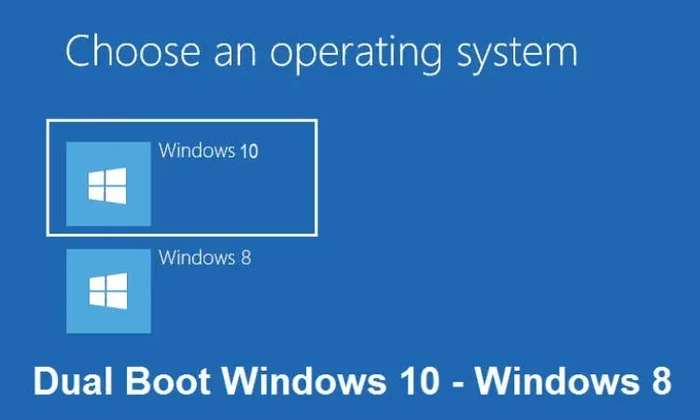
Dual booting is the most popular way to run both operating systems on the same laptop. With this method, you install Windows and Linux on the same hard drive but keep them in separate partitions. When you start your laptop, a menu called the boot loader lets you pick which system to use.
How Dual Booting Works
When you dual boot, your hard drive gets divided into sections. Each section holds one operating system. The boot loader manages which system starts up. The most common boot loader for Linux is called GRUB, which stands for Grand Unified Bootloader.
Here is a simple way to think about it. Imagine your hard drive is a big apartment building. Windows lives in one apartment and Linux lives in another. The boot loader is the front desk receptionist who asks which apartment you want to visit each time you arrive home.
Steps to Set Up a Dual Boot System
Setting up a dual boot takes a few steps, but it is very doable if you follow them carefully. Here is a clear walkthrough:
- Back up your data. Before anything else, save all your important files to an external drive or cloud storage. This protects you if anything goes wrong during the process.
- Check your system requirements. Make sure your laptop has enough storage space and RAM for both operating systems. You need at least 50 GB free for each system, though more is better.
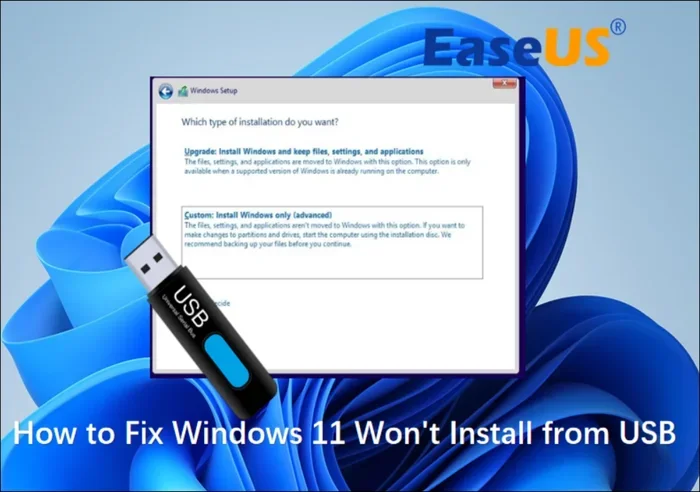
- Create a live USB for Linux. Download a Linux distribution like Ubuntu or Linux Mint. Use a tool like Rufus or Etcher to burn the ISO file onto a USB drive.
- Shrink your Windows partition. In Windows, go to Disk Management and shrink your main partition. This frees up space for Linux to use.
- Boot from the live USB. Restart your laptop and enter the boot menu. Select the USB drive to start the Linux installer.
- Install Linux alongside Windows. During installation, choose the option to install Linux alongside Windows. The installer will handle partitioning for you.
- Set up the boot loader. GRUB will be installed automatically. It will detect Windows and add it to the boot menu.
- Restart and choose your system. Each time you boot up, GRUB will show you a menu to pick between Windows and Linux.
Tips for a Smooth Dual Boot Experience
A few tips can make your dual boot setup much better. First, always install Windows before Linux. Windows tends to overwrite the boot loader, but Linux can detect and add Windows to its menu. Second, keep your time zone settings consistent. Windows uses local time for the hardware clock, while Linux uses UTC. This mismatch can cause clock issues, but you can fix it in Linux by editing the rc.local file.
Another important tip is to keep both systems updated. Regular updates improve security and performance on both sides. Also, avoid using the same partition for files in both systems. Each operating system has its own file system format, and mixing them can lead to data loss.
Common Dual Boot Mistakes to Avoid
Many people make mistakes when setting up a dual boot. Here are some to watch out for:
- Skipping the backup step. This is the number one mistake. Always back up before partitioning your drive.
- Not disabling Secure Boot. Some Linux distributions need Secure Boot turned off in the BIOS. Check your Linux distro requirements first.
- Allocating too little space. Give each system enough room. Running out of space on either partition causes big problems.
- Forgetting to create a recovery drive. If Windows needs repair, you will need a Windows installation USB handy.
- Installing Linux first. Always install Windows first to avoid boot loader conflicts.
Method 2: Using a Virtual Machine
A virtual machine lets you run one operating system inside another without restarting. If you use Windows as your main system, you can run Linux in a window on your desktop. It feels like you have two systems at once, but they share the same hardware.
How Virtual Machines Work
A virtual machine uses software to simulate a computer within your computer. This software is called a hypervisor. It allocates a portion of your RAM, CPU, and storage to the virtual system. Linux runs inside this simulated environment, completely unaware that it is not on real hardware.
Popular virtual machine software includes VirtualBox, VMware Workstation, and Hyper-V. All of these are free or have free versions. VirtualBox is especially beginner friendly and works on most Windows laptops.
Setting Up Linux in a Virtual Machine
Getting Linux running in a virtual machine is straightforward. Here is how to do it:
- Download VirtualBox. Go to the official VirtualBox website and download the installer for Windows.
- Download a Linux ISO file. Choose a distribution like Ubuntu, Fedora, or Linux Mint and download the ISO.
- Create a new virtual machine. Open VirtualBox and click “New.” Give it a name and select Linux as the type.
- Allocate resources. Assign RAM and CPU cores to the virtual machine. Give it at least 4 GB of RAM and 2 CPU cores for smooth performance.
- Create a virtual hard disk. Allocate at least 20 GB of storage for the Linux system.
- Mount the ISO file. In the virtual machine settings, point to the Linux ISO you downloaded.
- Install Linux. Start the virtual machine and follow the Linux installer as if you were installing on real hardware.
Pros and Cons of Virtual Machines
Virtual machines are great for testing and light use, but they have limitations. Here is a quick comparison:
- Pros: No need to restart your computer. You can run Linux and Windows side by side on screen. It is safe and reversible. You can snapshot your virtual machine and revert to it anytime.
- Cons: Performance is slower than a native install. Games and graphics heavy apps do not work well. You are sharing resources, so your laptop may feel sluggish.
Virtual machines work best for learning Linux, testing software, or doing light development work. If you need full performance, a dual boot or separate drive setup is better.
Method 3: Using Separate Physical Drives
If your laptop has two hard drives or SSDs, you can install Windows on one and Linux on the other. This method gives you complete isolation between the two systems. Each operating system has its own dedicated storage, which means no sharing and no conflicts.
Benefits of Separate Drives
Using two physical drives has some clear advantages. First, each operating system runs at full speed without sharing resources. Second, there is no risk of one system affecting the other. Third, you can easily remove or replace one drive without touching the other. This method is also the easiest to troubleshoot if something goes wrong.
Here are the main benefits:
- Full performance: Each system uses its own drive, so there is no slowdown.
- Complete isolation: A problem in one system cannot damage the other.
- Easy maintenance: You can format or reinstall one system without affecting the other.
- Flexible hardware: You can use different types of drives for each system.
How to Set Up Separate Drives
Setting up separate drives is similar to dual booting, but simpler. Install Windows on one drive and Linux on the other. Each drive has its own boot loader, so you will need to change the boot order in your BIOS to choose which drive to start from. Some laptops have a boot menu key (usually F12 or F8) that lets you pick the drive at startup without entering BIOS settings.
This method works best on laptops that came with two storage slots or on systems where you have added a second drive. Many modern laptops have room for an extra SSD, so check your laptop specifications before assuming you cannot do this.
Comparing the Three Methods
Each method for running Windows and Linux together has its own strengths. Here is a side by side comparison to help you decide which one fits your needs best.
| Feature | Dual Boot | Virtual Machine | Separate Drives |
|---|---|---|---|
| Performance | Full native speed | Slower due to sharing | Full native speed |
| Setup Complexity | Medium | Easy | Medium |
| Storage Needed | Shared drive | Shared drive | Two separate drives |
| Switching Between Systems | Requires restart | No restart needed | Requires restart |
| Isolation | Moderate | High | Very high |
| Best For | Daily use of both systems | Testing and learning | Maximum performance |
As you can see, each method serves a different purpose. If you want the full experience of both systems, go with dual booting or separate drives. If you just want to try Linux or use it for light tasks, a virtual machine is the way to go.
Preparing Your Laptop for Dual Operating Systems
Before you install a second operating system, a little preparation goes a long way. Taking the right steps upfront saves you time and trouble later.
Check Your Hardware Compatibility
Most modern laptops work great with both Windows and Linux. However, some hardware components may need special drivers on Linux. Check if your Wi-Fi card, graphics card, and touchpad are supported by your chosen Linux distribution. Websites like the Linux Hardware database can help you verify compatibility before you start.
Back Up Everything
This cannot be stressed enough. Before you make any changes to your hard drive, back up all your important files. Use an external hard drive, a USB flash drive, or a cloud service. Even if everything goes smoothly, accidents can happen. A good backup saves you from disaster.
Create Recovery Media
Make sure you have a Windows recovery USB or installation disc. If something goes wrong with your Windows installation, you will need this to fix it. You can create a recovery drive from within Windows by searching for “Create a recovery drive” in the Start menu.
Quick Tips for Running Both Systems Smoothly
Once you have both operating systems set up, a few habits will keep everything running well. Here are some quick tips to remember:
- Keep both systems updated. Regular updates patch security holes and improve performance on both Windows and Linux.
- Use cloud storage for shared files. If you need the same files in both systems, use a service like Google Drive or Dropbox.
- Label your partitions. Give each partition a clear name so you do not accidentally format the wrong one.
- Monitor disk space. Both systems need free space to operate properly. Keep at least 15% of each partition free.
- Use strong passwords. Since you have two separate systems, use different passwords for each one to improve security.
- Test your backups regularly. A backup you have never tested is not a real backup. Make sure your recovery process works before you need it.
Expert Insights on Dual Operating Systems
Many IT professionals and developers use both Windows and Linux daily. They recommend starting with a virtual machine if you are new to Linux. This lets you explore the Linux environment without any risk to your main Windows system. Once you feel comfortable, you can move to a full dual boot setup.
Experts also suggest choosing a beginner friendly Linux distribution. Ubuntu, Linux Mint, and Fedora are excellent starting points. They have large communities, plenty of documentation, and user friendly interfaces. You do not need to be a programmer to enjoy Linux. Modern distributions are designed to be just as easy to use as Windows.
One expert tip is to use the live USB method before installing anything. Most Linux distributions let you run from a USB drive without touching your hard drive. This gives you a feel for the system, its performance, and its features. If you like what you see, then you are ready to commit to a full installation.
Key Takeaways
- Dual Booting: Install both operating systems on the same laptop and choose which one to use at startup.
- Virtual Machines: Run Linux inside Windows (or vice versa) without restarting your computer.
- Separate Drives: Use two physical drives to keep each operating system completely isolated.
- Data Safety: Always back up your files before making any changes to your system.
- GRUB Boot Loader: This tool lets you switch between operating systems easily each time you start your laptop.
- Live USB: You can try Linux without installing it, making it a safe way to explore before committing.
Conclusion
Running both Windows and Linux on the same laptop is not only possible, it is easier than most people think. You have three solid methods to choose from: dual booting, virtual machines, and separate physical drives. Each one has its own advantages, so pick the method that fits your needs and comfort level.
Start by backing up your data and preparing your laptop. Try a live USB to explore Linux before you commit. Once you are ready, follow the setup steps carefully and you will be running two operating systems in no time. The flexibility of having both Windows and Linux at your fingertips opens up a world of possibilities for work, learning, and entertainment.
Whether you are a developer, a student, a gamer, or just someone who wants to explore new technology, using both operating systems on one laptop gives you unmatched versatility. Take the first step today and discover how powerful a dual operating system setup can be.
Frequently Asked Questions
Can I run Windows and Linux at the same time without restarting?
Yes, you can use a virtual machine to run Linux inside Windows without restarting. VirtualBox and VMware are popular free options that let you run Linux in a window while using Windows. However, for the best performance, a dual boot setup requires a restart to switch between systems.
Is it safe to install Linux alongside Windows?
It is very safe as long as you follow the steps correctly. Always back up your data first, shrink your Windows partition carefully, and choose the right installation options. Millions of users run both operating systems on the same laptop without any issues.
Do I need a powerful laptop to run both Windows and Linux?
Not necessarily. Most modern laptops can handle both systems easily. For a dual boot setup, you need enough storage space (at least 50 GB per system) and sufficient RAM (8 GB or more is ideal). For virtual machines, you will need more RAM and a stronger processor since both systems share resources.
Which Linux distribution is best for beginners?
Ubuntu and Linux Mint are the most popular choices for beginners. They are user friendly, have large communities, and come with most software pre-installed. Both are free and open source, making them perfect for anyone exploring Linux for the first time.
Will installing Linux erase my Windows files?
No, as long as you install Linux on a separate partition or drive. During the Linux installation, you choose where to install it. If you select the option to install alongside Windows, the installer will not touch your existing Windows files. Always double check your partition choices before confirming the installation.
Can I switch between Windows and Linux whenever I want?
Yes, with dual boot or separate drives, you choose which system to use each time you start your laptop. The boot menu lets you pick between them. With a virtual machine, you can switch instantly without restarting, though performance may be slightly reduced.