Can I Plug A USB C Cable Into A Thunderbolt 2 Port
The short answer is no, you cannot plug a USB C cable directly into a Thunderbolt 2 port. Thunderbolt 2 uses a Mini DisplayPort connector, while USB-C has a completely different shape and pin layout. However, you can use a Thunderbolt 2 adapter or active converter to bridge the gap. This guide covers everything you need to know about cable compatibility, speed limits, and the best ways to connect your USB-C devices to older Thunderbolt 2 hardware.
Have you ever stared at your Thunderbolt 2 port and a USB-C cable in your hand, wondering if they will work together? You are not alone. This is a common question that comes up all the time, especially as USB-C becomes the standard on new laptops and devices. The good news is that this guide will walk you through everything you need to know. By the end, you will understand exactly why a direct plug does not work, what adapters you can use, and how to get the best results from your setup.
The world of cables and ports can feel confusing. There are so many shapes, sizes, and standards flying around. Thunderbolt 2, USB-C, USB 3.0, DisplayPort, Mini DisplayPort. The list goes on. But once you understand the basics of each connector type, the whole thing becomes much clearer. Let us break it down together in a way that actually makes sense.
Key Takeaways
- No Direct Plug: USB-C and Thunderbolt 2 use different connectors, so a direct cable connection is not possible.
- Adapters Exist: You can use a Thunderbolt 2 adapter or active converter to connect USB-C devices to a Thunderbolt 2 port.
- Speed Limits Apply: Thunderbolt 2 maxes out at 20 Gbps, which is much slower than Thunderbolt 3 or USB 3.1 Gen 2.
- Check Your Gear: Not all adapters support video output, so verify what your Thunderbolt 2 adapter can handle.
- Consider Upgrading: If you frequently need USB-C connectivity, upgrading to a Thunderbolt 3 or USB-C dock may save you headaches.
📑 Table of Contents
- Understanding Thunderbolt 2 Ports
- Understanding USB-C Connectors
- Can You Plug USB-C Directly Into a Thunderbolt 2 Port?
- Adapters and Workarounds That Actually Work
- Speed and Compatibility Considerations
- Best Practices for Connecting Your Devices
- Common Mistakes People Make
- Expert Insights
- Final Thoughts
Understanding Thunderbolt 2 Ports
Before we answer the big question, let us talk about what a Thunderbolt 2 port actually is. Thunderbolt 2 was introduced by Intel back in 2013. It was a big deal at the time because it combined data transfer and video output into a single cable connection. This meant you could connect one cable to your laptop and hook up both an external drive and a monitor at the same time.
What Makes Thunderbolt 2 Special
Thunderbolt 2 offered a data transfer speed of 20 Gbps. That was twice as fast as the original Thunderbolt. It also supported DisplayPort, which meant you could send video signals through the same port. This made it a favorite among creative professionals who needed to connect high-speed storage and displays without a mess of cables.
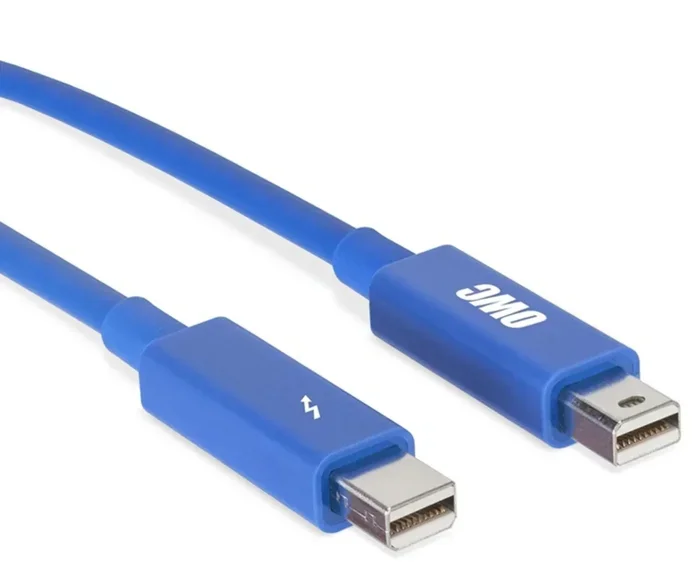
But here is the thing that trips a lot of people up. Thunderbolt 2 uses the same physical connector as Mini DisplayPort. It looks like a small rectangular port with a slightly rounded top. It is not the same as a USB-C port. Not even close. The shapes are completely different, and the pins inside are arranged differently too.
The Connector Type You Need to Know
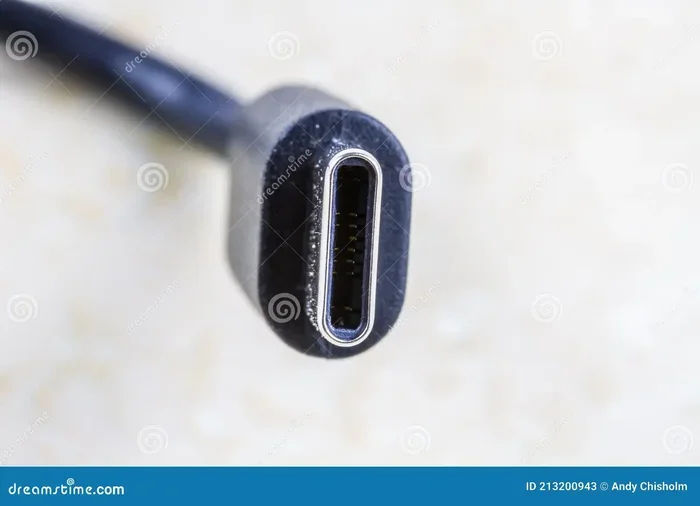
The Thunderbolt 2 connector has 20 pins packed into a Mini DisplayPort shape. USB-C, on the other hand, has 24 pins in a small oval-shaped connector. Because the physical shapes do not match, you simply cannot insert a USB-C cable into a Thunderbolt 2 port. It will not fit. No matter how hard you try. The connector on a USB-C cable is smaller and more rounded, while the Thunderbolt 2 port is longer and flatter.
This is an important point to remember. Even though both Thunderbolt 2 and USB-C are capable of high-speed data transfer, they are not interchangeable at the physical level. The port compatibility is strictly limited by the connector design.
Understanding USB-C Connectors
USB-C has taken the tech world by storm. It is the small, oval-shaped connector that you find on almost every modern laptop, tablet, and smartphone. One of the biggest reasons USB-C became so popular is its reversible design. You can flip it either way, and it will plug in correctly every time. No more flipping the cable three times to find the right orientation.
What Is USB-C?
USB-C is a connector standard, not a protocol. This means it defines the physical shape of the plug and port, but it does not dictate what can travel through it. A USB-C port can support USB 2.0, USB 3.0, USB 3.1 Gen 2, Thunderbolt 3, or even Thunderbolt 4, depending on what the device manufacturer chooses to implement.
This is where a lot of confusion comes from. People see a USB-C port and assume it supports Thunderbolt. But that is not always true. You need to check the device specifications or look for the Thunderbolt symbol next to the port. Without that symbol, a USB-C port typically only supports standard USB data transfer speeds.
Why USB-C Became So Popular
USB-C won the connector war for a few key reasons. First, it is small enough to fit in thin laptops and phones. Second, it supports a huge range of protocols, including USB 3.1, DisplayPort Alt Mode, and Power Delivery up to 100 watts. Third, it is reversible, which makes it incredibly user-friendly. The USB-C connector is now the go-to choice for charging, data transfer, and video output across multiple device categories.
However, popularity does not mean universal compatibility with older ports. And this brings us right back to the Thunderbolt 2 question.
Can You Plug USB-C Directly Into a Thunderbolt 2 Port?
Let us get straight to the point. Can you plug a USB C cable into a Thunderbolt 2 port? The answer is no. Not directly. Not without an adapter. The physical shapes of the connectors are different, and the pin layouts are different. A USB-C cable simply will not fit into a Thunderbolt 2 port.
The Short Answer
You cannot make a direct USB-C to Thunderbolt 2 cable connection. The two connectors are physically incompatible. If you try to force a USB-C plug into a Thunderbolt 2 port, it will not go in. You could damage the port or the cable if you try to wedge it in. So please do not attempt it.
Think of it like trying to plug a USB-A cable into a USB-C port. The shapes just do not match. Thunderbolt 2 and USB-C are different generations of connector design, and they do not share a physical interface.
Why They Do Not Match
The reason comes down to the history of these technologies. Thunderbolt 2 was designed around the Mini DisplayPort connector standard, which has been around since 2006. USB-C was introduced much later, in 2014, as part of the USB 3.1 specification. Intel and the USB Implementers Forum (USB-IF) developed these standards independently, and they chose different physical form factors for different reasons.
Thunderbolt 2 was built on the existing DisplayPort connector ecosystem. This made sense at the time because DisplayPort was already widely adopted in the monitor and display industry. USB-C was designed from scratch to be small, reversible, and versatile. The two designs serve similar goals high-speed data and video but take completely different physical paths to get there.
So even though Thunderbolt 2 and USB-C both support high-speed data and video, they are not cable-compatible at the physical level. You need a bridge between them, and that bridge comes in the form of an adapter.
Adapters and Workarounds That Actually Work
The good news is that you are not completely out of luck. There are adapters and workarounds that let you connect USB-C devices to a Thunderbolt 2 port. These solutions are not always perfect, but they get the job done in most situations. Let us look at the options that are available.
USB-C to Thunderbolt 2 Adapters
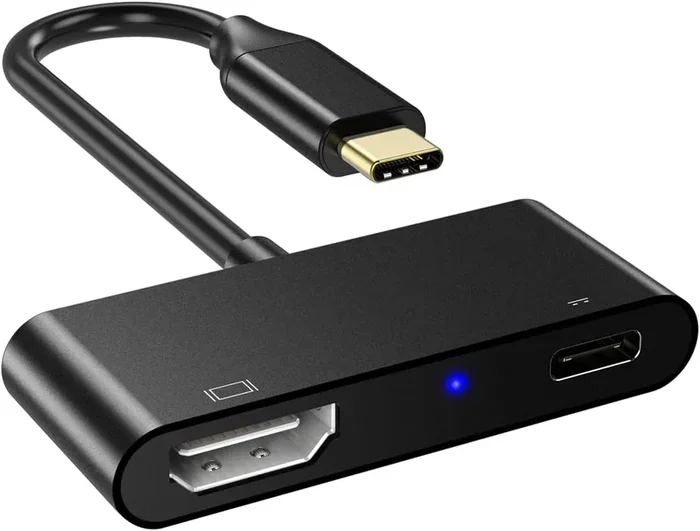
The most direct solution is a Thunderbolt 2 adapter that has a USB-C input on one end and a Thunderbolt 2 output on the other. These adapters act as a bridge between the two connector types. They translate the signals so that your USB-C device can communicate with the Thunderbolt 2 port.
You can find these adapters from brands like Apple, CalDigit, and Belkin. They are typically small dongle-style devices that plug into the Thunderbolt 2 port, and then you connect your USB-C cable to the adapter. Some models also include additional ports, like USB-A or an SD card reader, which adds extra functionality.
When shopping for a Thunderbolt 2 adapter, make sure you check the specifications carefully. Not all adapters support the same features. Some may only support data transfer, while others also handle video output. If you need to connect a display, look for an adapter that explicitly supports DisplayPort or HDMI through the Thunderbolt 2 connection.
Using a Docking Station
Another popular option is a docking station. A USB-C docking station can connect to your Thunderbolt 2 port through an adapter, and then provide you with multiple ports for peripherals. This is a great solution if you need to connect several devices at once, like an external monitor, a keyboard, a mouse, and a storage drive.
Docking stations are especially useful for people who work at a desk and want a clean, organized setup. Instead of plugging and unplugging multiple cables every day, you can connect your docking station once and then just dock your laptop when you sit down. Just make sure the docking station you choose is compatible with Thunderbolt 2 speeds.
Active vs Passive Adapters
Here is something important to know. Not all adapters are created equal. There are two main types: active adapters and passive adapters.
An active adapter has built-in electronics that actively convert the signal from one protocol to another. These adapters usually require external power or draw power from the port itself. Active adapters are more expensive, but they tend to offer better performance and more reliable compatibility.
A passive adapter, on the other hand, simply reroutes the physical pins without any signal conversion. Passive adapters work well when the underlying protocols are similar, but they may not work for all Thunderbolt 2 to USB-C connections. For best results, go with an active Thunderbolt 2 adapter that is specifically designed for this purpose.
Quick Tip: Always buy adapters from reputable brands. Cheap no-name adapters may not work reliably and could even damage your devices. Stick with trusted names like Apple, CalDigit, OWC, or Belkin for your cable connection needs.
Speed and Compatibility Considerations
Even if you find the right adapter, you need to understand that your speeds and capabilities may be limited. Thunderbolt 2 and USB-C support different maximum speeds, and the slower of the two will dictate your overall performance. Let us break down what you can expect.
Data Transfer Speeds Compared
Thunderbolt 2 supports a maximum data transfer speed of 20 Gbps. USB 3.1 Gen 2, which is the speed tier most commonly associated with USB-C, also supports 10 Gbps. USB 3.1 Gen 1 supports 5 Gbps. So when you connect a USB-C device through a Thunderbolt 2 adapter, your speed will be capped at whatever the Thunderbolt 2 port supports, which is 20 Gbps at best.
But here is the catch. Many USB-C devices support faster speeds, like 10 Gbps or even 20 Gbps with USB 3.2 Gen 2. If your Thunderbolt 2 port can only handle 20 Gbps, you will not get the full speed of a newer USB-C device. The cable compatibility is only as good as the slowest link in the chain.
For most everyday tasks, 20 Gbps is still plenty fast. You can transfer large files, back up drives, and connect external monitors without any noticeable lag. But if you are working with huge video files or need the absolute fastest speeds possible, Thunderbolt 2 will feel limiting compared to Thunderbolt 3 or Thunderbolt 4.
Display and Video Support
Thunderbolt 2 supports DisplayPort output, which means you can connect a display through the port. However, the adapter you choose needs to support video output as well. Not all Thunderbolt 2 adapters pass through video signals, so check the product specifications before you buy.
If you need to connect an external monitor to your Thunderbolt 2 setup, look for an adapter that supports DisplayPort Alt Mode or includes a video output like HDMI or DisplayPort. This way, you can run your display and your data devices through the same Thunderbolt 2 connection.
Backward Compatibility with Older Devices
One advantage of Thunderbolt 2 is its backward compatibility with Mini DisplayPort devices. You can plug a Mini DisplayPort monitor directly into a Thunderbolt 2 port and it will work fine. But when it comes to USB-C devices, backward compatibility depends entirely on the adapter you use. There is no native backward compatibility between USB-C and Thunderbolt 2 without an adapter.
This is why having the right Thunderbolt 2 adapter in your toolkit is so important. It opens up the backward compatibility you need to connect modern USB-C devices to older Thunderbolt 2 hardware.
Best Practices for Connecting Your Devices
Now that you understand the adapter options and the speed limitations, let us talk about how to get the best results from your setup. These practical tips will help you avoid common pitfalls and get the most out of your Thunderbolt 2 port and USB-C devices.
Tips to Avoid Common Issues
- Check your adapter specifications before buying. Make sure it supports the features you need, whether that is data transfer, video output, or both.
- Use high-quality cables. A cheap USB-C cable can bottleneck your speeds and cause connection drops. Invest in cables that are rated for the speeds you need.
- Keep your firmware and drivers up to date. Thunderbolt firmware updates can improve compatibility and fix bugs. Check your device manufacturer’s website for the latest updates.
- Do not daisy-chain too many devices. Thunderbolt 2 supports daisy-chaining, but adding too many devices can slow down your connection and cause instability.
- Test your setup before relying on it. Run a speed test and check your display output before you trust your setup for important work.
When to Upgrade Your Setup
If you find yourself constantly fighting with adapters and hitting speed bottlenecks, it might be time to consider an upgrade. Thunderbolt 3 and Thunderbolt 4 both use the USB-C connector, which means you get native cable compatibility without needing any adapters. A Thunderbolt 3 or Thunderbolt 4 dock can give you all the ports you need in a single connection.
Upgrading your setup is especially worthwhile if you work with large files, edit video, or connect multiple high-resolution displays. The jump from Thunderbolt 2 to Thunderbolt 3 doubles your bandwidth from 20 Gbps to 40 Gbps, and Thunderbolt 4 offers the same 40 Gbps with additional features like PCIe data support and mandatory 4K display support.
But if upgrading is not in the budget right now, a good Thunderbolt 2 adapter will serve you well. Just be aware of the limitations, and plan your workflow accordingly.
Common Mistakes People Make
There are a few common mistakes that people make when trying to connect USB-C devices to Thunderbolt 2 ports. Avoiding these pitfalls can save you a lot of frustration.
- Assuming all USB-C cables work with Thunderbolt 2. Not all USB-C cables are created equal. Some only support USB 2.0 speeds, which is 480 Mbps. That is painfully slow compared to Thunderbolt 2’s 20 Gbps.
- Using a passive adapter for video output. Passive adapters may not support the signal conversion needed for video. Always check if the adapter supports DisplayPort or HDMI output.
- Ignoring power delivery limitations. Thunderbolt 2 ports provide limited power compared to USB-C Power Delivery. Your USB-C device may charge more slowly through a Thunderbolt 2 adapter.
- Buying the wrong adapter type. There are adapters that go from Thunderbolt 2 to USB-C and adapters that go from USB-C to Thunderbolt 2. Make sure you get the right direction for your setup.
Expert Insights
Industry experts generally agree that Thunderbolt 2 is still a capable port for many use cases. The key is to match the right adapter to your needs. According to technical reviewers, active Thunderbolt 2 adapters from reputable brands tend to be the most reliable option for connecting USB-C devices to older Thunderbolt 2 hardware.
Experts also recommend checking the Thunderbolt protocol support on your adapter. Some adapters only support Thunderbolt 1 or Thunderbolt 2 speeds, while others can handle the full Thunderbolt 2 bandwidth of 20 Gbps. If you need the fastest possible data transfer, make sure your adapter supports the full Thunderbolt 2 spec.
For creative professionals who rely on Thunderbolt 2 for video editing and external storage, the consensus is to invest in a quality active adapter and a high-quality USB-C cable. This combination will give you the most reliable performance and the fewest headaches.
Final Thoughts
So, can you plug a USB C cable into a Thunderbolt 2 port? The direct answer is no. The connector types are physically different, and there is no way to make them fit without an adapter. But the real-world answer is yes, you can make it work with the right Thunderbolt 2 adapter and a quality USB-C cable.
The key is to understand your setup, choose the right adapter, and manage your expectations around speed and compatibility. Thunderbolt 2 is an older technology, but it is still perfectly capable for many tasks. With the right adapter, you can connect your modern USB-C devices and get things done.
If you find yourself needing faster speeds or more features, consider upgrading to a Thunderbolt 3 or Thunderbolt 4 setup. The USB-C connector makes life so much simpler when everything is native and direct. But for now, a good adapter will bridge the gap just fine.
Take a look at your current setup, figure out what you need, and pick the right adapter. You will be up and running in no time. And the next time someone asks you, can I plug a USB C into a Thunderbolt 2 port, you will know the answer inside and out.
Frequently Asked Questions
Can I use a USB-C to Thunderbolt 2 adapter for video output?
Yes, but only if the adapter specifically supports video output. Not all Thunderbolt 2 adapters pass through DisplayPort or HDMI signals. Check the product specifications carefully to confirm that the adapter supports video before you buy it.
Will a USB-C device run at full speed through a Thunderbolt 2 adapter?
It depends on the device and the adapter. Thunderbolt 2 maxes out at 20 Gbps, which is fast enough for most tasks. However, if your USB-C device supports faster speeds like 40 Gbps with Thunderbolt 3, it will be limited to Thunderbolt 2 speeds when connected through an adapter.
Can I charge my laptop through a Thunderbolt 2 adapter?
Thunderbolt 2 ports provide limited power compared to USB-C Power Delivery. You may be able to charge your laptop slowly through a Thunderbolt 2 adapter, but it will not charge as fast as a native USB-C Power Delivery connection. Check the power output of your Thunderbolt 2 port before relying on it for charging.
What is the difference between Thunderbolt 2 and Thunderbolt 3?
The main differences are speed and connector type. Thunderbolt 2 uses a Mini DisplayPort connector and supports 20 Gbps speeds. Thunderbolt 3 uses a USB-C connector and supports 40 Gbps speeds. Thunderbolt 3 also supports PCIe data and USB 3.1 Gen 2 natively, making it much more versatile.
Do I need a special cable for Thunderbolt 2 connections?
Thunderbolt 2 uses a Mini DisplayPort cable for direct connections. If you are using a USB-C device with a Thunderbolt 2 adapter, you will need a standard USB-C cable for the device side and a Mini DisplayPort or Thunderbolt 2 cable for the adapter side.
Are Thunderbolt 2 adapters expensive?
Prices vary depending on the brand and features. Basic Thunderbolt 2 adapters can cost around $30 to $50, while more advanced models with multiple ports or video support can range from $80 to $150. Investing in a quality adapter from a reputable brand is worth it for reliability and performance.
=== CONCLUSION ===
Connecting USB-C devices to a Thunderbolt 2 port is not as straightforward as plugging in a cable, but it is absolutely doable with the right adapter. You now know that a direct USB-C to Thunderbolt 2 connection is not possible due to the different connector types. You also know that a Thunderbolt 2 adapter can bridge the gap and get your devices talking to each other.
Remember to check your adapter specifications, use high-quality cables, and keep your expectations realistic about speeds. Thunderbolt 2 is an older standard, but it still has plenty of life in it. With the right setup, you can connect your USB-C devices, transfer files, and even hook up external displays without any hassle.
If you are still running into issues or need faster speeds, it might be time to consider upgrading to Thunderbolt 3 or Thunderbolt 4 hardware. The USB-C connector makes everything simpler, and the speed improvements are significant. But for now, you have all the tools and knowledge you need to make your Thunderbolt 2 setup work with modern USB-C devices. Happy connecting.