Can I Print Labels On A Brother Printer For Beginners
Yes, you can print labels on a Brother printer. Whether you need address labels, shipping labels, or product stickers, a Brother printer handles them all with the right setup. This guide walks beginners through every step, from choosing label paper to fixing common printing issues. You will learn which Brother models work best for labels, what software to use, and how to get crisp, professional results at home.
Have you ever stared at a stack of blank envelopes and thought, “There has to be an easier way”? You are not alone. Many people want to print labels at home but are not sure if their printer can handle the job. The good news is that printing labels on a Brother printer is not only possible but also straightforward once you know the basics.
This guide is written for beginners who want to learn how to print labels on a Brother printer without any hassle. We will cover everything from the types of labels you can create to the step-by-step setup process. By the end, you will feel confident enough to print your own adhesive labels, shipping labels, and product stickers right from your home office. Let us get started.
Key Takeaways
- Brother printers support label printing: Most inkjet and laser Brother models can print on adhesive label sheets and rolls with the correct settings.
- Label paper matters: Using the right type of label paper, such as inkjet or laser-specific sheets, ensures clean prints and prevents smudging.
- Free software makes it easy: Brother comes with built-in tools, and free options like Avery Design & Print let you create custom labels quickly.
- Common issues are fixable: Misalignment, smudging, and paper jams have simple solutions that beginners can handle at home.
- Dedicated label makers have pros and cons: For high-volume labeling, a Brother P-Touch or QL series may be better than a standard printer.
- Practice makes perfect: Testing your settings on scrap paper before printing a full sheet saves time, ink, and frustration.
📑 Table of Contents
- Understanding Your Brother Printer’s Label Capabilities
- Types of Labels You Can Print on a Brother Printer
- How to Set Up Label Printing on Your Brother Printer
- Best Label Templates and Software for Brother Printers
- Common Problems and How to Fix Them
- Tips for Professional-Quality Label Printing
- When to Consider a Dedicated Label Maker Instead
- Conclusion
Understanding Your Brother Printer’s Label Capabilities
Before you jump into printing, it helps to understand what your Brother printer can actually do. Most Brother printers, whether inkjet or laser models, are fully capable of printing on label paper. The key is knowing which settings to use and what kind of label material works best with your specific machine.
Brother has built a strong reputation for reliable home and office printers. Their inkjet models like the Brother MFC-J series and laser models like the Brother HL series both support label printing. However, not every printer handles labels the same way. Some do better with full-sheet label paper, while others excel with label rolls. Checking your printer manual or visiting the Brother support website will confirm your model’s compatibility.
Inkjet vs. Laser for Label Printing
The type of printer you own affects how your labels look and feel. Inkjet printers use liquid ink that soaks into paper. This works great on standard label sheets but can smudge if the ink does not dry quickly. Laser printers use toner that fuses onto the paper with heat. This creates a sharper, more water-resistant finish. If you print labels often, a laser Brother printer may give you better long-term results.
Here are some quick points to keep in mind:
- Inkjet printers are great for occasional label printing and color labels.
- Laser printers produce smudge-free labels that resist water and fading.
- Both types work well with standard adhesive label sheets.
- Brother-specific label makers like the P-Touch and QL series are separate devices designed only for labels.
Types of Labels You Can Print on a Brother Printer
One of the best things about using a Brother printer for labels is the variety. You are not limited to one type of label. Whether you are organizing your home, shipping packages, or branding a small business, there is a label option that fits your needs.
Address and Postage Labels
Address labels are the most common reason people start printing labels at home. Avery and DYMO make popular label sheets that fit perfectly in Brother printers. These sheets come with templates already built in, so you just type in the address and hit print. They work for both personal mail and business correspondence. You can also print return address labels to match.
Shipping and Fulfillment Labels
If you sell products online, shipping labels are essential. Brother printers handle shipping label paper well, especially when you use the correct weight and size. Many e-commerce sellers print labels directly from their Brother inkjet or laser printer. Just make sure your label paper matches your shipping carrier’s requirements for size and adhesive strength.
Product and Barcode Labels
Small business owners often need product labels with barcodes, ingredient lists, or pricing. A Brother printer can produce these labels using specialty label stock. You will need to design the label using software, then print it on a sheet or roll designed for your printer type. Barcode labels require precise alignment, so always do a test print first.
Name Tags and Event Labels
Planning a party or organizing an event? Name tag labels are a breeze to print on a Brother printer. You can find free templates online for circular name badges, tent cards, and table number labels. These are perfect for weddings, conferences, and classroom settings.
How to Set Up Label Printing on Your Brother Printer
Setting up your Brother printer for label printing is easier than most people think. The process involves choosing the right paper, installing the correct software, and adjusting a few printer settings. Follow these steps, and you will be printing labels in no time.
Step 1: Choose the Right Label Paper
Not all label paper is the same. The first thing you need to do is buy label paper that matches your printer type. If you have a Brother inkjet printer, buy inkjet label sheets. If you have a Brother laser printer, buy laser label sheets. Using the wrong type can cause smudging, poor adhesion, or even damage to your printer.
Here are some popular label paper brands that work well with Brother printers:
- Avery – Offers a wide range of sizes and adhesive strengths.
- DYMO – Great for shipping and address labels.
- Online Labels – Affordable bulk options for frequent printers.
- Brother Genuine – Made specifically for Brother printers.
Step 2: Install Label Software
You need software to design and print your labels. Brother printers come with built-in software like Brother iPrint&Label and P-Touch Editor. These tools let you create labels directly from your computer. You can also use free online tools like Avery Design & Print, which works with most Brother models.
To get started with Brother’s own software:
- Visit the Brother support website.
- Enter your printer model number.
- Download the recommended label software.
- Install the software and follow the on-screen setup.
Step 3: Load the Label Paper Correctly
How you load the label paper into your Brother printer matters a lot. Incorrect loading is one of the top reasons labels print crooked or jam. Most Brother printers have a rear feed slot or a single-sheet feeder for label paper. Check your printer manual for the exact loading instructions.
Here are some quick tips for loading label paper:
- Remove all other paper from the tray first.
- Slide the paper guides snugly against the label sheet.
- Make sure the label sheet is flat and not curled.
- Use the manual feed slot for single sheets or rolls.
Step 4: Adjust Printer Settings
Once the paper is loaded, you need to adjust your print settings. Go to your printer preferences and select the correct paper type. Choose “Labels” or “Sticker Paper” from the media type dropdown. This tells the printer to use the right amount of ink and the correct print speed for label stock.
You should also set the print quality to “High” or “Best” for the sharpest results. If you are printing a lot of labels, you can switch to “Normal” or “Draft” mode to save ink. Always print a test page first to check alignment before printing your final labels.
Best Label Templates and Software for Brother Printers
Designing labels from scratch can be time-consuming. That is why templates and dedicated software make the process so much faster. There are many options available that work seamlessly with Brother printers.
Built-In Brother Software Options
Brother offers several free tools that come with your printer or are available for download. The P-Touch Editor is perfect for creating labels using Brother label makers and printers. It includes hundreds of templates for address labels, shipping labels, and organization labels. Brother iPrint&Label lets you print directly from your phone or tablet, which is great for quick jobs.
Free Online Template Tools
Avery Design & Print is one of the most popular free tools for creating labels. It has thousands of templates for every imaginable label size and purpose. You can type your text, add logos, and print directly from the website. The tool automatically detects your Brother printer and adjusts settings for the best results.
Other great free options include:
- Canva – Offers customizable label designs with drag-and-drop editing.
- Microsoft Word – Has built-in label templates accessible through the Mailings tab.
- Google Docs – Works with add-ons like Labelmaker for simple label creation.
Premium Label Design Software
If you need more advanced features, premium software like BarTender and NiceLabel offers powerful design tools for commercial labeling. These programs support barcode generation, variable data printing, and database integration. They are ideal for small businesses that need to print product labels or shipping labels in bulk.
Common Problems and How to Fix Them
Even with the best setup, you might run into issues when printing labels. The good news is that most common problems have simple fixes. Here are the issues you are most likely to encounter and how to solve them.
Labels Are Printing Crooked or Misaligned
Misaligned labels are the number one frustration for beginners. This usually happens when the label paper is not loaded correctly or the printer settings do not match the template size. To fix this, go back to your software and double-check the template dimensions. Also, try adjusting the print position settings in your printer preferences. Most Brother printers let you shift the print area up, down, left, or right by a few millimeters.
Ink Is Smudging or Not Drying
Smudging is a common problem with inkjet printers on label paper. The adhesive on the label sheet can trap moisture and prevent the ink from drying. To fix this, let the printed labels sit for a few minutes before peeling them off the sheet. You can also reduce the ink coverage in your design or switch to a laser printer for water-resistant results.
Paper Jams When Feeding Labels
Label paper jams often occur when the sheets are not feeding straight. Make sure the paper guides are tight against the label stack. Also, check that the label sheets are not curled or wrinkled. If you are using a label roll, make sure it is loaded on the correct spindle and that the paper is feeding from the bottom of the roll.
Labels Are Not Sticking Properly
Some label papers have weak adhesive that peels off easily. This is usually a paper quality issue, not a printer issue. Invest in higher-quality label sheets from trusted brands like Avery or Brother Genuine. Also, make sure the surface you are applying the label to is clean and dry for the best adhesion.
Tips for Professional-Quality Label Printing
Want your homemade labels to look like they came from a professional printing company? A few simple tips can make a huge difference in the final result.
Always Do a Test Print
Before you print a full sheet of labels, print just one or two on regular paper first. This lets you check the alignment, colors, and sizing without wasting label stock. Once you are happy with the test print, swap in the label paper and print your final batch.
Use High-Quality Images and Fonts
The quality of your label design depends on the images and fonts you use. Stick to high-resolution images (at least 300 DPI) and clean, readable fonts. Avoid using overly decorative fonts that are hard to read at small sizes. Sans-serif fonts like Arial or Helvetica work great for labels.
Store Label Paper Properly
Label paper can dry out or curl if stored improperly. Keep your label sheets in a cool, dry place away from direct sunlight. Store them in their original packaging or a sealed plastic bag to maintain the adhesive quality. Proper storage extends the life of your label paper and prevents printing issues.
Clean Your Printer Regularly
Label paper can leave residue inside your printer over time. Run the printer’s built-in cleaning cycle every few weeks if you print labels frequently. This keeps the print heads clear and prevents streaks or blank spots on your labels. For inkjet printers, using the Brother cleaning utility is quick and easy.
When to Consider a Dedicated Label Maker Instead
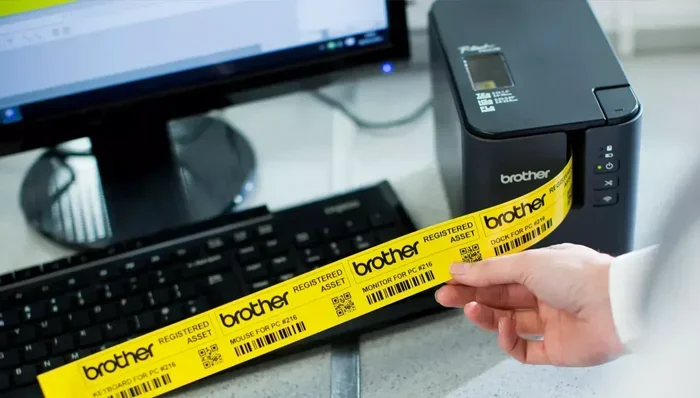
While a Brother printer works great for many labeling tasks, there are times when a dedicated label maker is a better choice. If you print labels every single day or need labels on tape, rolls, or specialty materials, a Brother P-Touch or QL series label maker might be the smarter investment.
Dedicated label makers like the Brother P-Touch Cube and Brother QL-800 are designed specifically for label printing. They use thermal printing technology, which means no ink or toner is needed. You simply insert a label tape, and the machine prints clean, sharp labels instantly. These devices are compact, fast, and perfect for organizing drawers, filing cabinets, and shipping boxes.
However, if you only print labels occasionally or need full-color product labels, a standard Brother printer is the way to go. Both options have their place, and understanding your labeling needs will help you choose the right tool for the job.
Conclusion
So, can you print labels on a Brother printer? Absolutely. Whether you are a beginner just getting started or someone looking to improve your label printing setup, a Brother printer gives you the flexibility and quality you need. From address labels to product stickers, the process is simpler than most people think.
Start by choosing the right label paper for your printer type. Use free software like Avery Design & Print or Brother’s own tools to design your labels. Load the paper correctly, adjust your settings, and always do a test print first. With these steps, you will be printing professional-quality labels from the comfort of your home in no time.
Remember, practice makes perfect. The more you print labels, the better you will get at troubleshooting common issues and fine-tuning your settings. Do not be afraid to experiment with different templates, paper types, and designs. Happy labeling!
Frequently Asked Questions
Can any Brother printer print labels?
Most Brother inkjet and laser printers can print on adhesive label sheets. However, you should check your specific model’s manual or visit the Brother support website to confirm compatibility. Some older or specialty models may have limitations.
What type of label paper works best with Brother printers?
Avery and DYMO label sheets are the most popular and reliable options. Make sure to buy inkjet label paper for inkjet printers and laser label paper for laser printers. Using the wrong type can cause smudging or poor print quality.
Do I need special software to print labels on a Brother printer?
No, you do not need special software. Brother printers come with built-in tools like P-Touch Editor and iPrint&Label. You can also use free online tools like Avery Design & Print or Microsoft Word, which both offer built-in label templates.
Why are my labels printing crooked on my Brother printer?
Misaligned labels are usually caused by incorrect paper loading or mismatched template settings. Make sure the label paper is loaded flat and snug against the guides. Also, double-check that your software template matches the actual label sheet size.
Can I print shipping labels on a Brother printer?
Yes, you can print shipping labels on a Brother printer. Use shipping label paper that matches your printer type, and make sure the label size meets your carrier’s requirements. Always print a test page first to check alignment.
Is it better to use a Brother printer or a dedicated label maker?
It depends on your needs. A Brother printer is better for full-color labels, product stickers, and occasional use. A dedicated Brother label maker like the P-Touch or QL series is better for high-volume text labels, label tape, and everyday organization tasks.
=== CONCLUSION ===
Printing labels on a Brother printer is simple, affordable, and incredibly convenient. With the right label paper, software, and settings, you can create professional-quality labels for any purpose. This guide has given you everything you need to get started, from choosing your label type to troubleshooting common issues.
Now that you know how easy it is to print labels on a Brother printer, there is no reason to wait. Gather your supplies, pick a template, and start printing today. Your organized, professionally labeled home or business is just a few prints away.