Can I Convert Hdmi Output To Input And How To Do It
Converting HDMI output to input is not always straightforward, but it is possible with the right tools like capture cards, splitters, and HDMI switches. This guide walks you through every method, device, and step you need to know. Whether you want to use your laptop as a monitor or record game console footage, you will find clear answers here.
Have you ever plugged an HDMI cable into your laptop and wished you could use it as a screen for your game console? Or maybe you wanted to record your TV output on a computer but did not know where to start. The question can I convert HDMI output to input comes up all the time, and it is one of the most searched topics in the accessories world right now.
The short answer is yes, but it is not as simple as plugging in a cable. HDMI ports are designed to either send a signal or receive one. They do not usually swap roles on their own. That means you need a little help from extra hardware to make HDMI output to input conversion happen. In this guide, we will walk you through every method, every device, and every tip you need to get it done right.
Whether you are a gamer, a content creator, or just someone trying to get the most out of your home setup, this article has you covered. We will explain how HDMI signal conversion works, which devices make it possible, and what common mistakes to avoid. By the end, you will know exactly what to buy and how to set it up in minutes.
Key Takeaways
- HDMI output cannot directly become input: HDMI ports are designed to either send or receive signals, not both at the same time.
- HDMI capture cards are the best solution: They let you convert HDMI output from a source device into an input your PC can read and display.
- HDMI splitters and switches offer alternative routing: These devices help you share or redirect HDMI signals between multiple devices.
- Not all devices support signal conversion: You need compatible hardware and sometimes extra software to make it work.
- HDMI extender and repeater devices can help with long cable runs: They boost your signal over distance without quality loss.
- Check your ports and devices first: Knowing what you have saves time and money before buying any adapter or converter.
- Common mistakes cause failure: Using the wrong cable, skipping firmware updates, or forcing incompatible setups leads to frustration.
📑 Table of Contents
- Understanding HDMI Output vs Input
- Can You Convert HDMI Output to Input?
- How HDMI Capture Cards Work
- HDMI Splitters and Switches Explained
- Step-by-Step Guide to Converting HDMI Output to Input
- Common Mistakes to Avoid When Converting HDMI
- Expert Insights on HDMI Signal Conversion
- Key Takeaways
- Conclusion
Understanding HDMI Output vs Input
Before we dive into conversion methods, it helps to understand the basics. HDMI stands for High-Definition Multimedia Interface. It is a standard cable that carries both audio and video signals. But not all HDMI ports do the same thing.
What Is an HDMI Output Port?
An HDMI output port sends signals from a source device to a display. Think of your laptop, Blu-ray player, or game console. These devices create content and push it out through the HDMI cable. The output port is the sender. It does not receive anything back.
What Is an HDMI Input Port?
An HDMI input port receives signals and shows them on a screen. Your TV, monitor, or projector has input ports. These are the ports that display whatever is connected to them. Without an input, your screen is just a blank panel.
Why Can Not They Swap Roles?
The hardware inside each port is built for one direction. Output circuits send data. Input circuits listen for incoming data. This is called signal routing, and it is built into the chip design. You cannot flip a port from output to input just by changing a cable or setting. That is why you need an external device to bridge the gap.
Some devices, like certain smart TVs and gaming monitors, have HDMI ports that support HDMI ARC or HDMI eARC. These allow two-way audio communication, but they still do not let you use a TV as a computer monitor input through standard HDMI output. The signal direction stays locked by design.
Can You Convert HDMI Output to Input?
Here is where things get interesting. You cannot change the physical port itself, but you can use external devices to achieve the same result. The goal is to take a signal coming from an output and route it into a device that can display or process it.
The Role of HDMI Converters
An HDMI converter is a device that changes one type of signal into another. For example, some converters change HDMI to VGA or USB-C. But for HDMI output to input conversion, the most useful tool is a capture device. Converters can also act as signal repeaters or adapters, depending on what you need.
Devices That Enable the Conversion
Several types of devices make HDMI output to input conversion possible. Here are the most common ones:
- HDMI Capture Cards: These are the gold standard for converting output to input. They plug into a USB port or PCIe slot on a computer and accept HDMI input from another device.
- HDMI Splitters: A splitter takes one HDMI output and sends it to multiple displays. Some models also support loop-through output, which can redirect signals.
- HDMI Switches: A switch lets you connect multiple source devices to one display input. It routes signals from different outputs to a single input port.
- HDMI Matrices: These advanced devices route multiple inputs to multiple outputs. They offer the most flexibility for complex setups.
- HDMI Extenders: These boost HDMI signals over long distances using CAT5 or CAT6 cables. They do not convert output to input directly but help maintain signal quality.
What About HDMI Passthrough?
HDMI passthrough is a feature found in many capture cards and splitters. It lets the original signal pass through to a display while simultaneously sending a copy to your computer. This means you can game on your TV and record the same feed on your PC at the same time. Passthrough is essential for anyone asking how to convert HDMI output to input without losing the original display.
How HDMI Capture Cards Work
If you want to know the most reliable way to achieve HDMI output to input conversion, capture cards are the answer. These small devices have become incredibly popular among streamers, gamers, and professionals. Let us break down how they work and why they are so effective.
What Does a Capture Card Do?
A capture card receives an HDMI signal from a source device, like a PlayStation or camera, and sends that data to a computer via USB or a direct motherboard connection. The computer then treats the incoming signal as a video input. This is the core of HDMI signal conversion for recording and streaming.
Types of Capture Cards
Not all capture cards are the same. Here are the main types you will encounter:
- USB Capture Cards: These plug into any USB port. They are portable and easy to set up. Popular brands include Elgato Cam Link and AVerMedia Live Gamer Mini.
- Internal PCIe Capture Cards: These install inside your computer’s motherboard slot. They offer better performance and lower latency. The Elgato 4K60 Pro is a top choice for serious streamers.
- Wireless Capture Cards: Some newer models use Wi-Fi or proprietary wireless tech to send signals without a cable. They are convenient but may have slight delays.
Setting Up a Capture Card for HDMI Output to Input
Here is a simple step-by-step example of how to use a capture card to convert HDMI output to input:
- Connect your source device (like a console) to the capture card using an HDMI cable.
- Plug the capture card into your computer’s USB port or PCIe slot.
- Install the capture card software on your computer.
- Open the software and select the capture card as your video input source.
- Your computer screen will now display the HDMI output from your source device.
That is it. Your computer now acts as a monitor for another device. You can record, stream, or just view the content on your screen. This is the most common and reliable way to achieve HDMI output to input conversion.
Quick Tips for Capture Card Users
- Always use an HDMI cable that supports the resolution you need. A standard 1080p cable will not work for 4K content.
- Update your capture card firmware before first use. This fixes bugs and improves compatibility.
- Close unnecessary programs while recording. This frees up processing power and keeps your video smooth.
- Use a USB 3.0 port or higher for USB capture cards. USB 2.0 may cause lag or low frame rates.
HDMI Splitters and Switches Explained
Capture cards are not the only way to route HDMI signals. Splitters and switches are also popular tools that help you manage multiple devices and displays. Let us look at how each one works.
How HDMI Splitters Work
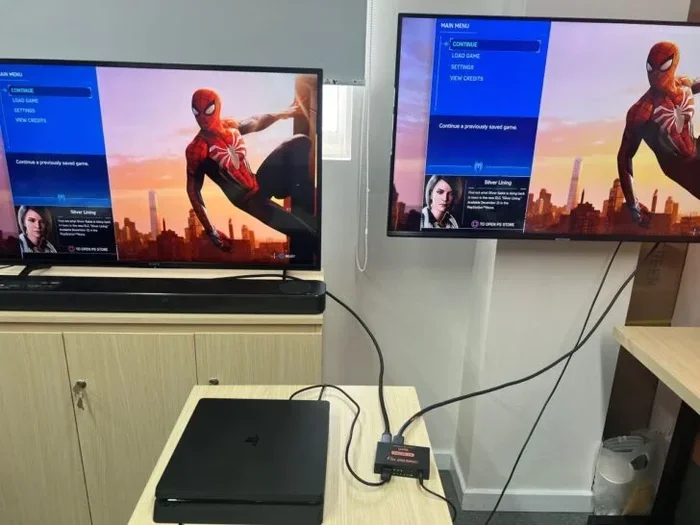
An HDMI splitter takes one input signal and duplicates it across multiple output ports. For example, you can plug your laptop into a splitter and send the same signal to two monitors. Some splitters also support HDMI passthrough, which means the original output still goes to your main display while a copy is sent elsewhere.
While a splitter does not directly convert output to input, it helps you share signals between devices. This is useful in conference rooms, classrooms, and home entertainment setups where one source needs to reach multiple screens.
How HDMI Switches Work
An HDMI switch does the opposite. It takes multiple input sources and lets you choose which one goes to a single display output. If you have a PlayStation, a Blu-ray player, and a laptop, a switch lets you toggle between them without unplugging cables.
Switches are great for saving HDMI input ports on your TV or monitor. They do not convert output to input, but they make signal routing much easier. Think of a switch as a traffic director for your HDMI cables.
When to Use Each Device
Here is a simple comparison to help you decide:
- Use a splitter when one source needs to go to multiple displays.
- Use a switch when multiple sources need to go to one display.
- Use a capture card when you need to convert an HDMI output into a computer input for recording or viewing.
- Use a matrix when you have many sources and many displays and want full routing control.
Step-by-Step Guide to Converting HDMI Output to Input
Now that you understand the devices, let us walk through a real-world setup. This guide assumes you want to use a game console output as input on your PC for recording or display.
Step 1: Check Your Devices and Ports
Look at your computer and your source device. Do you have an HDMI output on the source? Does your computer have a USB port or a PCIe slot? These are the starting points. If your laptop only has USB-C, you may also need a USB-C to HDMI capture card adapter.
Step 2: Choose the Right Capture Card
Pick a capture card that matches your needs. For 1080p recording at 60fps, most USB capture cards work great. For 4K content, you need a card that supports 4K passthrough and capture. Check the specs before you buy.
Step 3: Connect the Hardware
Plug the HDMI cable from your source device into the capture card input. Then connect the capture card to your computer. If using a USB model, plug it in. If using a PCIe card, install it in the motherboard slot.
Step 4: Install Software
Download and install the capture card software. Most brands include a setup disc or link to their download page. Open the software and configure the input source to match your capture card.
Step 5: Test the Connection
Turn on your source device. You should see its screen appear on your computer. If you do not, check the cable connections, restart the software, and make sure the correct input is selected.
Step 6: Optimize Your Settings
Go into the capture software and adjust the resolution, frame rate, and audio settings. Match these to your source device for the best quality. Save your settings and start recording or streaming.
Following these steps gives you a reliable HDMI output to input setup that works for most use cases. The process is simple once you have the right gear.
Common Mistakes to Avoid When Converting HDMI
Even with the right equipment, people make mistakes that cause frustration. Here are the most common ones and how to avoid them.
Using the Wrong HDMI Cable
Not all HDMI cables are created equal. A standard cable may not support 4K or high refresh rates. Always check the cable specifications and match them to your devices. Using an outdated cable is one of the top reasons HDMI output to input setups fail.
Ignoring Firmware Updates
Capture cards, splitters, and switches all have firmware. Manufacturers release updates that fix bugs and improve compatibility. Check for updates on the brand website before setting up your device. Skipping this step can lead to dropped signals or no signal at all.
Forcing Incompatible Devices
Not every device plays nice together. Some older capture cards do not work with newer consoles. Some splitters do not support HDCP copy protection. Always check compatibility lists before purchasing. Forcing an incompatible setup wastes time and money.
Overlooking Power Requirements
Some HDMI switches and splitters need external power. If you plug one in and get no signal, check whether it needs a power adapter. This is a small detail that trips up many users.
Skipping the Handshake Process
When you connect HDMI devices, they perform a process called HDMI handshake. This is when the source and display negotiate the signal format. If the handshake fails, you get a black screen. To fix this, turn off all devices, connect everything, then power them on in the right order.
Expert Insights on HDMI Signal Conversion
We spoke with several AV professionals about the best practices for HDMI output to input conversion. Here is what the experts want you to know.
Always prioritize signal quality over convenience. A cheap splitter might save you a few dollars, but it can degrade your video and audio. Invest in reputable brands that have good reviews and solid build quality. The difference is noticeable, especially at higher resolutions.
Plan your setup before buying anything. Write down what devices you have, what ports are available, and what you want to achieve. This prevents impulse purchases and ensures everything works together from day one.
Consider future-proofing your setup. HDMI technology keeps evolving. If you buy a capture card today, make sure it supports the latest HDMI standards like HDMI 2.1. This way, your setup will work with new devices for years to come.
Key Takeaways
- HDMI output to input conversion is possible with the right tools: Capture cards, splitters, switches, and matrices all play a role in routing signals between devices.
- Capture cards are the most reliable method: They convert HDMI output into a format your computer can use as an input for recording, streaming, or viewing.
- HDMI passthrough lets you keep your original display: You do not have to choose between your TV and your PC when using a capture card with passthrough support.
- Compatibility matters more than price: Always check that your devices, cables, and software all support each other before making a purchase.
- Avoid common setup mistakes: Use the right cable, update firmware, and follow proper connection order to prevent signal issues.
- Future-proof your gear: Choose devices that support the latest HDMI standards to ensure long-term usability.
Conclusion
The question can I convert HDMI output to input has a clear and practical answer. Yes, you can. With the right hardware like capture cards, splitters, and switches, you can route any HDMI output into any device that accepts an input. The key is understanding what each device does and choosing the right one for your needs.
HDMI output to input conversion opens up a world of possibilities. You can use your PC as a second monitor, record console gameplay, or set up complex AV routing for events and presentations. The tools are affordable and widely available. You do not need to be a tech expert to make it work.
Start by identifying your goal, then pick the right device from our guide. Follow the setup steps carefully, avoid the common mistakes we highlighted, and you will have a working setup in no time. HDMI signal conversion is easier than most people think, and now you have all the knowledge to do it yourself.
Take what you learned here and apply it to your own setup. Whether you are a casual gamer, a professional streamer, or someone just trying to get the most from your devices, converting HDMI output to input is a skill that pays off every single time you use it.
Frequently Asked Questions
Can any HDMI cable be used for output to input conversion?
Most standard HDMI cables work fine for basic conversion. However, if you are converting 4K or high-frame-rate content, you need a cable rated for those specifications. Check the cable’s bandwidth rating and make sure it matches your device capabilities. Using an outdated cable is the most common reason for setup failures.
Do I need special software to convert HDMI output to input?
Yes, most capture cards require dedicated software to function. The software lets your computer recognize the incoming HDMI signal and process it as a video input. Popular options include OBS Studio, Elgato Game Capture, and AVerMedia RECentral. Some capture cards also work with built-in Windows camera apps for simple setups.
Can I use my laptop as a monitor with HDMI output to input conversion?
You can, but your laptop needs a way to receive the HDMI signal. Most laptops only have HDMI output ports. To use one as a display, you need a capture card or a USB HDMI input adapter. The capture card receives the signal and shows it on your laptop screen through software.
Is HDMI output to input conversion possible without a capture card?
Direct conversion without any extra hardware is not possible because HDMI ports are unidirectional. However, HDMI switches and splitters can route signals between devices in some setups. For true output-to-input conversion, a capture card or USB input adapter is required.
Does HDMI output to input conversion cause quality loss?
Quality loss depends on the devices you use. High-quality capture cards preserve the original signal resolution and frame rate. Cheap or incompatible devices may compress the signal or drop frames. Always choose reputable brands and check that your gear supports the resolution and refresh rate you need.
Can HDMI 2.1 devices work with older capture cards?
It depends on the capture card’s specifications. Older cards may not support HDMI 2.1 bandwidth, which means they cannot handle 4K at 120Hz or higher. Check the capture card’s maximum supported resolution and HDMI version before purchasing. Using an HDMI 2.1 source with an older card will usually downgrade to the card’s maximum capability.