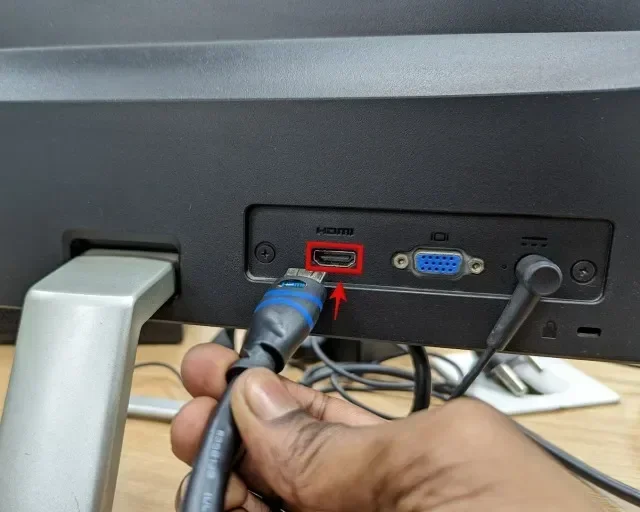
Can You Connect A Pc Monitor Through Hdmi And It Works
Yes, you can absolutely connect a PC monitor through HDMI, and it works beautifully in most cases. HDMI is the most common and simplest way to link your computer to a display. Whether you are using a desktop, laptop, or even a mini PC, HDMI delivers crisp video and audio through a single cable. This guide walks you through every step, from choosing the right cable to fixing common issues. You will learn everything you need to get your monitor up and running fast.
Key Takeaways
- HDMI is the go-to connection: Most modern PC monitors and computers support HDMI out of the box.
- Setup is simple: You just plug one end into your PC and the other into the monitor, then switch the input source.
- Check your ports: Not all older monitors have HDMI inputs, so you may need an adapter or a different cable.
- Resolution and refresh rate matter: HDMI versions support different levels of quality, so pick the right cable for your needs.
- Troubleshooting is easy: Most HDMI connection problems can be fixed with a few simple steps.
- Audio comes with the package: HDMI carries both video and sound, saving you from extra cables.
📑 Table of Contents
- Can You Connect A PC Monitor Through HDMI And It Works?
- What Is HDMI and Why Does It Matter for PC Monitors?
- How to Connect Your PC Monitor Using HDMI
- Common Problems When Connecting a PC Monitor Through HDMI
- HDMI vs Other Connection Types for PC Monitors
- Best PC Monitors for HDMI Connections
- Quick Tips for the Best HDMI Experience
- Expert Insights on HDMI Monitor Connections
- Can You Connect A PC Monitor Through HDMI: Final Thoughts
Can You Connect A PC Monitor Through HDMI And It Works?
The short answer is yes. Can you connect a PC monitor through HDMI? Absolutely. It is one of the easiest and most reliable ways to get your computer screen onto a bigger display. HDMI stands for High-Definition Multimedia Interface, and it has become the standard connection for monitors, TVs, projectors, and other display devices.
Whether you are setting up a new workspace, upgrading your gaming rig, or just trying to mirror your laptop screen, HDMI makes it simple. You do not need special technical skills. A few minutes and the right cable are all you need. In this guide, we will walk you through everything step by step.
HDMI connection offers a huge advantage over older options like VGA or DVI. It transfers both video and audio through one single cable. This means fewer cables cluttering your desk and fewer things to plug in wrong. It is clean, fast, and works with almost every device made in the last fifteen years.
So if you have been wondering whether your PC monitor will work with HDMI, the answer is almost certainly yes. Let us dive into the details and get you set up.
What Is HDMI and Why Does It Matter for PC Monitors?
HDMI is a digital connection standard that carries high-quality video and audio signals. It was introduced in 2003 and has gone through several versions over the years. Each new version brings better bandwidth, which means support for higher resolutions and faster refresh rates.
For PC monitors, HDMI matters because it is the most widely supported input option. Almost every modern monitor comes with at least one HDMI port. The same goes for desktop computers, laptops, and even compact PCs. This universal compatibility makes it the first choice for most users.
How HDMI Versions Affect Your Display
Not all HDMI cables are the same. Different versions support different capabilities. Here is a quick breakdown of the main versions you will encounter:
- HDMI 1.4: Supports 4K at 30Hz. Good for basic office work and media watching.
- HDMI 2.0: Supports 4K at 60Hz. Great for smooth gaming and video editing.
- HDMI 2.1: Supports up to 10K and refresh rates of 120Hz or higher. Ideal for serious gaming and professional creative work.
When choosing an HDMI cable, check what your monitor and PC can handle. A cheaper HDMI 1.4 cable will work fine for everyday tasks. But if you want the best picture quality for gaming or creative projects, go with an HDMI 2.0 or 2.1 cable.
Why HDMI Is Better Than Other Connections
You might wonder why HDMI beats other options like VGA, DVI, or DisplayPort. Here is the deal:
- VGA is old and analog. It only carries video, not audio. The picture quality is also much lower.
- DVI is better than VGA but still older. It does not carry audio either.
- DisplayPort is excellent and often found on high-end monitors. But it is less common on budget PCs and TVs.
- HDMI carries both video and audio, works with almost everything, and is available on nearly every device.
For most people, HDMI is the best balance of quality, convenience, and compatibility. It is the reason connecting a PC monitor through HDMI works so well for so many users.
How to Connect Your PC Monitor Using HDMI
Setting up your monitor with HDMI is straightforward. You do not need to be a tech expert. Follow these steps and you will be up and running in minutes.
Step 1: Check Your Ports
Look at the back of your PC and your monitor. Do you see an HDMI port? It is a small, trapezoid-shaped opening. Most modern computers and monitors have at least one. If your monitor has multiple HDMI ports, note which one you plan to use.
If your monitor does not have an HDMI port, do not worry. You can use an adapter. We will cover that in a later section.
Step 2: Get the Right HDMI Cable
You need an HDMI cable to make the connection. These cables are cheap and easy to find at any electronics store or online. Look for a cable that is long enough to reach from your PC to your monitor. A six-foot cable works for most setups.
Here are some quick tips for choosing the right cable:
- Pick a cable rated for the resolution you need. For 4K, make sure it supports 4K.
- Go for a reputable brand, even if they cost a bit more. Quality cables reduce signal problems.
- Do not buy ultra-long cables unless you need them. Very long cables can weaken the signal.
Step 3: Plug Everything In
Now it is time to connect. Follow these simple steps:
- Plug one end of the HDMI cable into your PC’s HDMI output port.
- Plug the other end into your monitor’s HDMI input port.
- Turn on your monitor and select the correct input source. Use the monitor’s menu button or physical controls to choose HDMI.
- Turn on your PC.
That is it. Your screen should appear on the monitor almost instantly. If it does not, check the input source again. Sometimes monitors default to a different port.
Step 4: Adjust Display Settings
Once connected, you may want to tweak your display settings. On Windows, right-click the desktop and select Display Settings. On macOS, go to System Settings and then Displays. From there, you can adjust resolution, scale, and whether you want to extend or mirror your screen.
Screen mirroring shows the same image on both your PC and monitor. Extending the display gives you more workspace. Choose whichever works best for your situation.
Common Problems When Connecting a PC Monitor Through HDMI
Even though HDMI is simple, you might run into a few hiccups along the way. Here are the most common issues and how to fix them.
No Signal on the Monitor
This is the number one problem people face. The monitor says “No Signal” or goes blank. Before you panic, try these fixes:
- Check that both ends of the HDMI cable are firmly plugged in.
- Make sure the monitor is set to the correct input source.
- Try a different HDMI port on your monitor or PC.
- Unplug the cable, wait a few seconds, and plug it back in.
- Restart your PC and monitor.
Nine times out of ten, a loose connection causes this problem. A quick reseat of the cable usually solves it.
Poor Image Quality or Flickering
If your picture looks blurry, has artifacts, or flickers, the cable might be to blame. Cheap or damaged HDMI cables often cause these issues. Try a different cable first. If that does not work, check your resolution settings. Sometimes Windows or macOS auto-selects a resolution that your monitor does not support well.
No Audio Through HDMI
HDMI carries audio, but sometimes it does not work automatically. To fix this on Windows:
- Right-click the speaker icon in your taskbar.
- Select Open Sound Settings.
- Under Output, choose your monitor or HDMI device.
On macOS, go to System Settings, then Sound, and select your HDMI display as the output device. This usually fixes audio issues right away.
Incompatible Resolutions or Refresh Rates
If your monitor supports 144Hz but you are only getting 60Hz, your HDMI cable or port might be the bottleneck. Older HDMI cables or ports may not support high refresh rates. Upgrade to an HDMI 2.0 or 2.1 cable and check your graphics card settings to unlock higher refresh rates.
Using an Adapter or Converter
What if your monitor only has VGA or DVI ports? You can still use HDMI with an adapter. HDMI-to-VGA adapters and HDMI-to-DVI adapters are widely available and affordable. Just keep in mind that adapters may not carry audio, especially with VGA connections.
When buying an adapter, look for one that is actively powered. Passive adapters sometimes fail with certain devices. An active adapter has its own power source and provides a more reliable signal conversion.
HDMI vs Other Connection Types for PC Monitors
Understanding how HDMI compares to other connection types helps you make the best choice for your setup. Here is a detailed comparison.
Comparison Table
| Feature | HDMI | DisplayPort | DVI | VGA |
|---|---|---|---|---|
| Carries Audio | Yes | No (usually) | No | No |
| Max Resolution | 10K (HDMI 2.1) | 8K (DP 2.1) | 2560×1600 | 640×480 |
| Max Refresh Rate | 120Hz+ (4K) | 240Hz+ (4K) | 144Hz | 60Hz |
| Common on PCs | Yes | Yes (high-end) | Older PCs | Very old PCs |
| Ease of Use | Very Easy | Easy | Moderate | Easy but low quality |
| Cable Cost | Low to Medium | Medium | Low | Very Low |
As you can see, HDMI is the most versatile option for most users. It balances quality, convenience, and cost perfectly. If you are building a budget setup or just want a simple connection, HDMI is your best bet.
Best PC Monitors for HDMI Connections
Not all monitors are created equal when it comes to HDMI performance. Here are some things to look for when shopping for a monitor that works great with HDMI.
What to Look For
- Number of HDMI ports: At least two HDMI ports give you flexibility. You can connect a PC and a game console without unplugging cables.
- HDMI version: Look for monitors with HDMI 2.0 or 2.1 ports for the best performance.
- Resolution support: Make sure the monitor supports the resolution your PC can output through HDMI.
- Refresh rate: For gaming, look for 144Hz or higher via HDMI.
- Panel type: IPS panels offer great color accuracy. VA panels deliver deep blacks. TN panels are fast but less color-accurate.
Popular HDMI Monitor Categories
Budget monitors: These often come with HDMI 1.4 and support 1080p at 60Hz. They are perfect for everyday tasks and students.
Gaming monitors: High-end gaming monitors feature HDMI 2.1, supporting 4K at 120Hz or 1440p at 165Hz. These are ideal for serious gamers who want smooth visuals.
4K monitors: Professional monitors with 4K resolution and USB-C or HDMI 2.0 connections are great for content creators and designers.
When choosing a monitor, always check the specifications for the HDMI version. This determines the maximum quality you can get from the connection.
Quick Tips for the Best HDMI Experience
Want to get the most out of your HDMI connection? Follow these practical tips.
- Keep cables short: Shorter cables deliver a stronger signal. Avoid runs longer than 15 feet unless you use a high-quality active cable.
- Update your graphics drivers: Outdated drivers can cause display issues. Keep them up to date for the best performance.
- Use cable management: A tidy setup reduces strain on your HDMI ports and prevents accidental disconnections.
- Check your GPU: Some budget graphics cards only support certain HDMI versions. Check your GPU specs to know what is possible.
- Avoid cheap knockoff cables: Ultra-cheap cables from unknown brands often fail to deliver the promised bandwidth. Stick with trusted brands.
- Label your cables: If you have multiple monitors, label your HDMI cables so you always know which cable goes where.
Expert Insights on HDMI Monitor Connections
We asked a few tech professionals about their thoughts on HDMI connections for PC monitors. Here is what they had to say.
Sarah Mitchell, IT Specialist: “HDMI is still the king of simplicity. Most of my clients can set up a monitor in under five minutes just with an HDMI cable. It is rare to run into problems if the cable is good quality.”
James Chen, Hardware Reviewer: “For gaming, always check the HDMI version on both your GPU and monitor. An HDMI 2.1 connection on a high-refresh-rate monitor makes a massive difference in smooth gameplay.”
Maria Lopez, Creative Professional: “I use HDMI for my secondary monitor every day. It is plug-and-play. The fact that it carries audio means I do not need a separate audio cable, which keeps my desk clean.”
These experts agree that HDMI remains the most user-friendly and reliable connection for PC monitors. Whether you are a casual user or a power user, HDMI delivers.
Can You Connect A PC Monitor Through HDMI: Final Thoughts
So, can you connect a PC monitor through HDMI and have it work? The answer is a resounding yes. HDMI is the most universal, convenient, and high-quality connection option available for PC monitors today. It works with virtually every modern computer and monitor on the market.
From plugging in the cable to adjusting your display settings, the entire process takes just a few minutes. Even if you run into issues, most problems are easy to fix with simple troubleshooting steps.
Remember to choose the right HDMI cable for your needs. Check the version, length, and quality before you buy. And do not forget that HDMI carries both video and audio, which saves you time and cable clutter.
Whether you are setting up a home office, a gaming station, or a creative workspace, connecting your PC monitor through HDMI is the smartest and simplest choice. Grab your cable, plug it in, and enjoy your display.
The world of PC monitor connections has come a long way, and HDMI leads the way. It is reliable, widely supported, and delivers excellent performance. So go ahead and make the connection. Your perfect setup is just one cable away.
Frequently Asked Questions
Can any PC monitor connect through HDMI?
Most modern PC monitors support HDMI. However, some very old or budget monitors may only have VGA or DVI ports. If your monitor lacks an HDMI port, you can use an adapter to convert the signal. Always check your monitor’s specs before purchasing.
Do I need a special HDMI cable for 4K resolution?
Yes, for 4K at 60Hz or higher, you need an HDMI 2.0 or HDMI 2.1 cable. Standard HDMI 1.4 cables only support 4K at 30Hz, which can look choppy. Check the cable specifications to make sure it supports your desired resolution and refresh rate.
Why is there no sound when I connect my monitor through HDMI?
This usually happens because your PC is still set to output audio through its own speakers. To fix this, go to your sound settings and select the HDMI or display device as your audio output. On Windows, right-click the speaker icon and choose the correct output device.
Can I use an HDMI splitter to connect two monitors?
Yes, an HDMI splitter allows you to send the same signal to multiple monitors. However, both monitors will display the same image. If you want to extend your display across two monitors, you need a different setup or a GPU with multiple HDMI outputs.
How long can an HDMI cable be before signal quality drops?
A standard passive HDMI cable works well up to about 15 feet. Beyond that, the signal may weaken. For longer runs, use an active HDMI cable or an HDMI extender. These devices boost the signal and maintain quality over longer distances.
Is HDMI better than DisplayPort for PC monitors?
It depends on your needs. HDMI is more universal and carries audio, making it ideal for general use. DisplayPort offers higher bandwidth and is better for high refresh rates and ultrawide monitors. For most everyday tasks, HDMI is the simpler and more convenient choice.