Can You Change The Led Color On A Laptop Keyboard Easily
Yes, you can change the LED color on your laptop keyboard, and it is easier than you think. Whether you own a gaming laptop or a basic model, most modern keyboards come with built-in lighting options. This guide walks you through every method, from simple keyboard shortcuts to advanced software settings, so you can customize your keyboard lighting in minutes.
Have you ever looked at your laptop keyboard and thought it looked a bit plain? Maybe you want something that matches your mood or your setup. The good news is that changing the LED color on a laptop keyboard is something many people can do right now. You do not need to be a tech expert either.
The process depends on your laptop brand and model. Some laptops let you switch colors with a simple key combo. Others need dedicated software. And a few laptops do not support color changes at all. This guide covers every scenario so you know exactly what to do. By the end, you will have your keyboard backlight looking exactly how you want it.
Let us dive into the world of laptop keyboard lighting and explore every option available to you.
Key Takeaways
- Multiple Methods Exist: You can change keyboard LED colors using function keys, manufacturer software, or third-party apps.
- Not All Laptops Support It: Only keyboards with RGB or backlit features allow color changes.
- Brand-Specific Software Helps: Brands like HP, Lenovo, Asus, and Dell offer dedicated tools for keyboard color customization.
- Third-Party Apps Add More Options: Programs like OpenRGB and SignalRGB give you extra control over per-key lighting.
- Common Mistakes Can Cause Issues: Using outdated drivers or wrong shortcuts can prevent color changes.
- Gaming Laptops Offer the Most Options: High-end models come with full RGB and extensive lighting profiles.
- It Boosts Both Aesthetics and Function: Custom lighting helps with typing in dark environments and personal expression.
📑 Table of Contents
- Understanding Laptop Keyboard Lighting
- How to Change LED Color Using Keyboard Shortcuts
- Using Manufacturer Software for Keyboard Color Customization
- Third-Party Software for Advanced Keyboard Lighting
- Can You Change LED Color on Every Laptop
- Common Mistakes When Changing Keyboard LED Colors
- Expert Tips for Getting the Best Keyboard Lighting
- Why Custom Keyboard Lighting Matters
- Final Thoughts on Changing Laptop Keyboard LED Colors
Understanding Laptop Keyboard Lighting
Before you try to change anything, it helps to understand how laptop keyboard lighting works. Not all keyboards are the same. The type of lighting your laptop has determines what you can do with it.
Types of Keyboard Backlighting
There are three main types of keyboard illumination found in laptops today. Each type offers different levels of customization.
- Single-Color Backlight: This is the most basic type. The keyboard shines one color, usually white or blue. You can adjust brightness but not color.
- Dual-Color Backlight: These keyboards offer two colors, often white and red. You can switch between them but cannot mix colors.
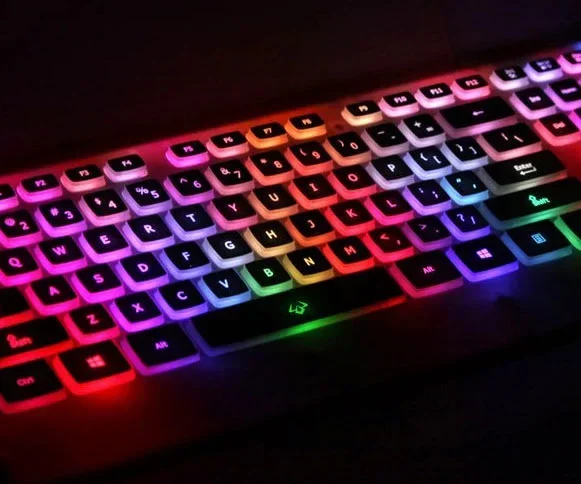
- RGB Per-Key Lighting: This is the most advanced type. Every single key can display a different color. You get full control over RGB lighting and can create custom effects.
If your laptop has an RGB keyboard, you are in luck. You have the most options for keyboard color options and customization. If you have a single-color backlight, your choices will be more limited. But there are still some things you can try.
How to Change LED Color Using Keyboard Shortcuts
The easiest way to change keyboard color is through keyboard shortcuts. Most laptop brands assign a specific key combination for this. You just need to know which keys to press.
Common Shortcut Keys by Brand
Different brands use different key combos. Here are the most common ones:
- HP Laptops: Press Fn + F5 or Fn + F4. This toggles through brightness levels and color modes.
- Lenovo Laptops: Press Fn + Spacebar. This cycles through available keyboard lighting modes.
- Asus Laptops: Press Fn + F4 or Fn + F3. These shortcuts switch between lighting effects.
- Dell Laptops: Press Fn + F10 or Fn + F5. Some Dell models use Fn + Shift + F10.
- Acer Laptops: Press Fn + F9 or Fn + F10. These control keyboard backlight settings.
If none of these work for you, look for a small keyboard icon on your function keys. That icon usually indicates which key controls lighting. Hold down the Fn key and press the one with the icon.
What If the Shortcut Does Not Work
Sometimes shortcuts fail. This can happen for a few reasons. Your keyboard driver might be outdated. The laptop might need a software update. Or your model simply does not support color changes through shortcuts. In these cases, you should try the software method, which we cover next.
Using Manufacturer Software for Keyboard Color Customization
Most laptop brands offer free software that gives you much more control over keyboard lighting control. These programs let you pick exact colors, create profiles, and set effects.
HP HP Quick Launch and HP OMEN Gaming Hub
HP laptops come with built-in tools. The HP Quick Launch app handles basic keyboard settings. For gaming models, HP OMEN Gaming Hub offers full RGB keyboard software control. You can choose any color from a color wheel and save custom profiles.
Lenovo Vantage
Lenovo users should download Lenovo Vantage from the Microsoft Store. This free app includes a keyboard lighting section. You can adjust brightness, change colors, and set up breathing effects. It works on most Lenovo laptops with backlit keyboards.
Asus Armoury Crate
Asus Armoury Crate is a powerful tool for laptop keyboard customization. It supports per-key RGB lighting on compatible models. You can create complex lighting profiles with gradients, waves, and reactive effects. The software also manages other laptop settings like fan speed.
Dell Alienware Command Center
Dell and Alienware laptops use the Alienware Command Center. This app provides extensive keyboard color options. You can choose solid colors, typing effects, and game-reactive lighting. It also lets you sync lighting with other Alienware peripherals.
Acer PredatorSense and Acer Quick Access
Acer laptops use PredatorSense for gaming models and Quick Access for regular laptops. Both apps include keyboard lighting controls. You can adjust colors, brightness, and effects through a simple interface.
Third-Party Software for Advanced Keyboard Lighting
What if your laptop brand does not offer good software? Or what if you want even more features? Third-party programs can fill the gap. These apps work with most keyboards regardless of brand.
OpenRGB
OpenRGB is a free, open-source application. It supports a wide range of devices including LED keyboards. The app lets you control every aspect of per-key lighting. You can pick colors, set effects, and create custom animations. It works best on Windows and Linux systems.
SignalRGB
SignalRGB is another excellent choice. It offers a modern interface with cloud-based profiles. The free version gives you basic keyboard lighting control. The premium version unlocks advanced effects and community-created lighting themes. It supports hundreds of keyboard models.
Razer Chroma Studio
Even if you do not own a Razer keyboard, Chroma Studio can sometimes work with other devices. It offers one of the most extensive lighting ecosystems. You can create wave effects, ripples, and reactive typing animations.
Can You Change LED Color on Every Laptop
This is an important question. The short answer is no. Not every laptop supports LED color changes on the keyboard. Let us look at why and what you can do about it.
Laptops That Support Color Changes
Most modern laptops from 2018 onward have some form of backlit keyboard. Gaming laptops almost always include RGB lighting. Business and productivity laptops may have single-color backlights. Here is a quick comparison:
| Laptop Type | Lighting Type | Color Change Possible |
|---|---|---|
| Gaming Laptop | Full RGB Per-Key | Yes, full color control |
| Mid-Range Laptop | Dual-Color or Single RGB | Limited color options |
| Budget Laptop | Single Color or No Backlight | No color change possible |
| Business Laptop | Single Color Backlight | Brightness only |
What to Do If Your Laptop Does Not Support It
If your laptop does not support keyboard lighting changes, you still have options. You can use external RGB keyboards that connect via USB or Bluetooth. These give you full control over keyboard color options. You can also use USB LED light strips that attach to the back of your laptop. They do not change the keyboard itself but add colorful ambient lighting to your setup.
Common Mistakes When Changing Keyboard LED Colors
Many people run into problems when trying to change the LED color on a laptop keyboard. Here are the most common mistakes and how to avoid them.
Skipping Driver Updates
Outdated keyboard drivers are the number one cause of lighting issues. Always check for driver updates through your laptop manufacturer’s website or Windows Device Manager. A simple update can unlock new keyboard backlight features.
Using the Wrong Software Version
Not all software versions work with all laptop models. Download software only from the official manufacturer website. Using a version meant for a different model can cause errors or crashes.
Ignoring Power Settings
Some laptops automatically turn off keyboard lighting to save battery. Check your power settings to make sure laptop keyboard lighting is enabled during use. You can set it to always stay on or turn off after a period of inactivity.
Overlooking Fn Lock
If your function keys are not working as expected, the Fn Lock might be active. Press Fn + Esc or Fn + NumLock (depending on your model) to toggle it off. This is a small thing that causes big headaches.
Expert Tips for Getting the Best Keyboard Lighting
Want to get the most out of your LED keyboard? Here are some expert tips that make a real difference.
Create Lighting Profiles for Different Uses
Set up different lighting profiles for different situations. Use a soft, dim glow for late-night work sessions. Switch to vibrant colors when gaming. Create a calm blue tone for focused study time. Most software lets you save and switch between profiles instantly.
Keep Your Laptop Cool
RGB lighting can generate a small amount of heat. If you are running intensive tasks, consider reducing lighting effects to keep your laptop cooler. This is especially important for gaming laptops where heat management matters.
Clean Your Keyboard Regularly
Dust and crumbs can block LED light and make your keyboard illumination look uneven. Clean your keyboard weekly with compressed air and a soft cloth. This keeps the lighting looking its best.
Sync With Your Setup
If you have other RGB devices like a mouse, mousepad, or monitor, try to sync them. Many software tools support device synchronization. This creates a cohesive and professional-looking laptop keyboard customization setup.
Why Custom Keyboard Lighting Matters
You might wonder why keyboard color options matter so much. The truth is that lighting affects more than just looks. It has real practical benefits too.
First, keyboard backlight helps you type in dark environments. Whether you are working late at night or sitting in a dim room, proper lighting makes a big difference. Second, color can affect your mood and focus. Soft blue tones promote calm concentration. Bright colors can boost energy during gaming sessions. Third, a well-lit keyboard looks great and makes your laptop feel more personal and premium.
Many people also use per-key lighting to highlight specific keys. For example, you can light up WASD keys in a different color for gaming. This gives you a visual advantage and makes your setup stand out.
Final Thoughts on Changing Laptop Keyboard LED Colors
Changing the LED color on a laptop keyboard is a simple and rewarding process for most users. Whether you use keyboard shortcuts, manufacturer software, or third-party apps, you have plenty of ways to customize your keyboard lighting. The key is knowing what your laptop supports and using the right tools for the job.
Start with the basics. Try the function key shortcuts. If that does not work, download your brand’s official software. Explore the color options and find a setup that fits your style. If your laptop does not support lighting changes, consider external accessories that add color to your workspace.
Take some time today to experiment with your laptop keyboard backlight. You will be surprised how much a simple color change can transform your typing experience and the look of your entire setup.
Frequently Asked Questions
Can I change the LED color on any laptop keyboard?
No, not every laptop supports LED color changes. Only laptops with RGB or multi-color backlit keyboards allow you to change colors. Single-color backlit keyboards and non-backlit keyboards do not support this feature. Check your laptop specifications to confirm what type of lighting your keyboard has.
What is the easiest way to change my laptop keyboard color?
The easiest way is to use keyboard shortcuts. Most laptops use a combination of the Fn key and a function key (like F4 or F5) to cycle through colors. If shortcuts do not work, download your laptop brand’s official software for keyboard lighting control.
Do I need special software to change keyboard LED colors?
It depends on your laptop. Many brands include built-in software like Lenovo Vantage or Armoury Crate. For advanced features, third-party apps like OpenRGB and SignalRGB work with most keyboards. You do not always need special software, but it gives you much more control.
Can I set different colors for individual keys on my laptop?
Yes, but only if your laptop has full RGB per-key lighting. Gaming laptops from brands like Asus, HP, and Dell usually support this. You can use manufacturer software or apps like OpenRGB to assign different colors to each key. Budget and business laptops typically do not offer per-key customization.
Why did my keyboard lighting stop working after a Windows update?
Windows updates can sometimes overwrite or conflict with keyboard drivers. To fix this, update your keyboard driver through Device Manager or your manufacturer’s website. You can also reinstall the laptop’s lighting software. Restarting your laptop after the update often resolves the issue as well.
Is it safe to use third-party keyboard lighting software?
Yes, most third-party software is safe as long as you download it from the official website. OpenRGB and SignalRGB are open-source and widely trusted. Always avoid downloading software from unofficial sources. Check user reviews and verify the download link before installing any new application.
=== CONCLUSION ===
Can you change the LED color on a laptop keyboard easily? Absolutely. With the right tools and a little patience, you can transform your plain keyboard into a vibrant, personalized setup. Start with the simple shortcuts, explore your brand’s software, and if you want even more control, try third-party apps. The world of keyboard color customization is wide open, and your laptop is ready. Take a few minutes today and give your keyboard the makeover it deserves.