How Do I Reset My Password On My 192 168 1 1 Router
Resetting your password on a 192.168.1.1 router is simpler than you think. Whether you forgot your login credentials or want to boost network security, this guide walks you through every step with ease. You will learn how to access your router admin panel, perform a factory reset, and set up a strong new password. We also cover common mistakes and tips to keep your home network safe. By the end, you will feel confident handling your router settings like a pro.
Have you ever sat in front of your computer, trying to connect to the internet, only to realize you forgot your router password? You are not alone. Millions of people face this problem every single day. The good news is that resetting your password on a 192.168.1.1 router is straightforward. You do not need to be a tech expert to get it done. This guide will show you exactly how to do it, step by step.
Your router is the gateway to your entire home network. It controls who can access your internet and how fast your connection runs. If your router admin password is weak or forgotten, your network could be at risk. That is why learning how to manage your router login credentials is so important. In this article, we will cover everything you need to know about resetting your password on a 192.168.1.1 router. We will keep things simple, practical, and easy to follow.
Key Takeaways
- Know your router: The 192.168.1.1 address is the default gateway for most home broadband routers.
- Two reset methods exist: You can reset the password through the admin panel or use the physical reset button.
- Default credentials matter: Many routers still use admin/admin or admin/password as the factory login.
- Write down your new password: Store it safely to avoid getting locked out again.
- Security first: Always create a strong, unique password after resetting your router.
- Backup settings: Export your router configuration before resetting to save custom preferences.
📑 Table of Contents
- What Is the 192.168.1.1 Router Admin Page?
- Why You Might Need to Reset Your Router Password
- How to Reset Your Password on a 192.168.1.1 Router
- What to Do After Resetting Your Router Password
- Common Mistakes When Resetting Your Router Password
- How to Keep Your Router Password Secure
- How to Find Your Router’s IP Address if 192.168.1.1 Does Not Work
- When to Contact Your ISP or Router Manufacturer
- Conclusion
What Is the 192.168.1.1 Router Admin Page?
The address 192.168.1.1 is known as the default gateway. It is the web address you type into your browser to reach your router’s admin panel. Think of it as the control center for your home network. From this page, you can change your Wi-Fi name, set up parental controls, and of course, reset your password.
Most popular router brands use this default IP address. Companies like Netgear, TP-Link, Linksys, and D-Link often ship their routers with 192.168.1.1 as the standard gateway. When you open your browser and type in this address, a login screen appears. You need a router username and password to get inside.
Why the Admin Page Matters
The admin page is where all the magic happens. It is where you configure your broadband router setup. Without access to this page, you cannot change basic settings like your wireless password or security type. If someone else has access to this page, they could change your settings or even slow down your internet. That is exactly why keeping your network administrator password strong and up to date is so critical.
Why You Might Need to Reset Your Router Password
There are several reasons you might need to reset your router password on 192.168.1.1. Let us look at the most common ones.
- You forgot your password. This is the number one reason. We all have too many passwords to remember, and router credentials often get overlooked.
- You bought a used router. A secondhand router may still have the previous owner’s settings in place.
- Someone else changed your password. Maybe a family member or guest changed it and did not tell you.
- You want to improve security. If your password has been the same for years, it might be time for a change.
- You are experiencing slow internet. Sometimes, unauthorized users are hogging your bandwidth. Resetting access helps you kick them out.
No matter the reason, knowing how to reset your router password gives you back control of your network. It is a skill every home internet user should have.
How to Reset Your Password on a 192.168.1.1 Router
Now let us get into the actual steps. There are two main methods to reset your password. You can do it through the admin panel if you still have partial access, or you can perform a full factory reset using the physical button on the router. Let us walk through both.
Method 1: Reset Through the Admin Panel
This method works if you can still log into your router but want to change the password. Here is what you need to do.
- Connect to your router. Make sure your computer or phone is connected to the router, either through Wi-Fi or an Ethernet cable.
- Open your web browser. Chrome, Firefox, Safari, or Edge all work fine. Type 192.168.1.1 into the address bar and press Enter.
- Enter your current login details. If you still remember them, type them in. If not, try the default credentials. Most routers use “admin” for both the username and password. Check the sticker on the back of your router for the exact defaults.
- Navigate to the wireless or security settings. Look for a tab labeled “Wireless,” “Wi-Fi,” or “Security.”
- Find the password field. This is where you can change your Wi-Fi password or your admin login password.
- Type in your new password. Make it strong. Use a mix of letters, numbers, and symbols.
- Save your changes. Click “Apply” or “Save.” Your router may restart briefly.
That is it! You have successfully changed your router admin password. Now let us look at the second method.
Method 2: Factory Reset Using the Physical Button
If you cannot log in at all, the factory reset method is your best bet. This method wipes all custom settings and returns your router to its original state. Here is how to do it.
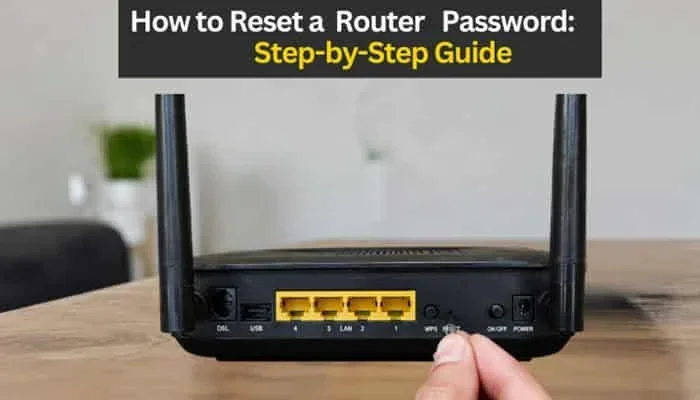
- Locate the reset button. It is usually a small pinhole on the back or bottom of your router. It may be labeled “Reset” or “WPS/Reset.”
- Gather a paperclip or pin. You will need something small and pointed to press the button.
- Power on your router. Make sure it is plugged in and turned on.
- Press and hold the reset button. Use the paperclip to push it gently. Hold it for about 10 to 15 seconds.
- Release the button. Wait for the router lights to blink. This means the reset is in progress.
- Wait for the router to restart. This can take one to two minutes.
- Log in with default credentials. Go to 192.168.1.1 in your browser and use the factory default username and password. These are usually printed on a sticker on the router.
- Set up a new password. Go to the wireless settings and create a strong new password right away.
Important note: A factory reset erases all your custom settings. This means your Wi-Fi name, port forwarding rules, and parental controls will all go back to factory defaults. Make sure you have a backup if you have spent time customizing your setup.
What to Do After Resetting Your Router Password
Resetting the password is only half the battle. After you reset, there are a few important steps you should take to make sure everything works smoothly and your network stays secure.
Update Your Wi-Fi Password on All Devices
Once you change your wireless router password, every device connected to your network will lose access. You will need to reconnect your phones, tablets, laptops, smart TVs, and any other devices. Go to the Wi-Fi settings on each device, select your network, and enter the new password.
Check Your Security Type
While you are in the settings, check your router security settings. Make sure your network is using WPA3 or at least WPA2. Avoid WEP, as it is outdated and easy to crack. A strong security type works hand in hand with a strong password to keep your network safe.
Change the Default Admin Username
Many routers still use “admin” as the default username. This is a well-known fact among hackers. If your router allows you to change the admin username, do it. A unique admin username adds an extra layer of protection to your router configuration page.
Save Your Settings
Most routers let you export a backup file of your current settings. Save this file on your computer or a USB drive. If you ever need to reset again, you can quickly restore your preferences without starting from scratch.
Common Mistakes When Resetting Your Router Password
Even though resetting a router password is simple, people still make avoidable mistakes. Here are some common ones to watch out for.
- Using a weak password. “123456” or “password” might be easy to remember, but they are also easy to guess. Always create a strong password with at least 12 characters.
- Not writing down the new password. You just changed it to something complex. Now you forgot it. Write it down and keep it somewhere safe.
- Forgetting to restart the router. Some settings only take effect after a reboot. Always restart your router after making changes.
- Using the wrong default credentials. Every router brand has different defaults. Check your manual or the sticker on the device before guessing.
- Holding the reset button too briefly. A quick press will not do the job. You need to hold it for at least 10 seconds for the factory reset to work.
- Ignoring firmware updates. After resetting, check if there is a firmware update available. Updates fix security flaws and improve performance.
Avoiding these mistakes will save you time and frustration. It will also keep your home network password strong and your connection running smoothly.
How to Keep Your Router Password Secure
Once you have reset your password, you want to keep it secure going forward. Here are some simple tips to protect your 192.168.1.1 router from unauthorized access.
Create a Strong Password
A strong password is your first line of defense. Use at least 12 to 16 characters. Mix uppercase and lowercase letters, numbers, and special symbols. For example, something like “R0uter!Pass#2024” is much harder to crack than “mypassword123.”
Change Your Password Regularly
Make it a habit to update your router login credentials every few months. Set a reminder on your phone or calendar. Regular changes reduce the risk of someone gaining long-term access to your network.
Disable Remote Management
Most routers have a feature called remote management. It allows you to access your admin panel from outside your home network. Unless you specifically need it, turn it off. This closes a potential entry point for hackers.
Enable Network Encryption
Make sure your Wi-Fi network is encrypted. WPA3 is the latest and most secure option. If your router does not support WPA3, use WPA2-AES. Never leave your network open or unsecured.
Keep Your Router Firmware Updated
Router manufacturers release firmware updates to fix bugs and patch security vulnerabilities. Check for updates regularly in your admin panel. Keeping your firmware current is one of the best things you can do for your internet router settings.
How to Find Your Router’s IP Address if 192.168.1.1 Does Not Work
Sometimes, typing 192.168.1.1 into your browser does not work. Do not panic. Your router might use a different default gateway. Here is how to find the correct one.
On Windows, open the Command Prompt and type ipconfig. Look for the line that says “Default Gateway.” The number next to it is your router’s IP address. On a Mac, go to System Preferences, click on Network, select your connection, and click Advanced. The router address will be listed there.
On a phone, go to your Wi-Fi settings and look for the gateway or router address. Once you find it, type that number into your browser instead of 192.168.1.1.
Some newer routers use 192.168.0.1 or 10.0.0.1 as their default gateway. Always check the sticker on the back of your router or the user manual to confirm the correct address.
When to Contact Your ISP or Router Manufacturer
Most of the time, you can reset your password without any help. But there are situations where you might need professional support. If you have tried both methods and still cannot access your router, contact your internet service provider. They can walk you through the process or remotely access your router to fix the issue.
You can also reach out to the router manufacturer’s customer support. Brands like Netgear, TP-Link, and Linksys have dedicated help lines and live chat support. Have your router model number ready when you call. This helps the support team give you accurate instructions for your specific device.
Remember, there is no shame in asking for help. Your router password recovery journey should not be stressful. With the right guidance, you will have your network back up and running in no time.
Conclusion
Resetting your password on a 192.168.1.1 router does not have to be complicated. Whether you use the admin panel method or the factory reset button, the process is quick and manageable. You now know how to access your router admin panel, change your wireless router password, and keep your network secure. You also learned about common mistakes to avoid and best practices for long-term security.
Take a few minutes today to check your router settings. Update your password if it has been the same for a long time. Write it down and store it somewhere safe. A strong router password is one of the simplest yet most effective ways to protect your home network. Apply what you learned from this guide, and you will enjoy a faster, safer, and more reliable internet connection.
Frequently Asked Questions
What is the default password for a 192.168.1.1 router?
Most routers use “admin” as both the username and password by default. However, some brands use different combinations like “admin” and “password.” Check the sticker on the back or bottom of your router for the exact factory credentials. If you have changed it before and forgot, a factory reset will restore the defaults.
Will resetting my router erase my Wi-Fi network?
A factory reset will erase all custom settings, including your Wi-Fi name and password. The router will revert to its original factory settings. You will need to set up your network again after the reset. This is why it is a good idea to back up your router configuration before performing a reset.
How long does it take to reset a router password?
The entire process usually takes about 5 to 10 minutes. Accessing the admin panel and changing the password takes just a couple of minutes. A full factory reset may take a bit longer because the router needs to restart. Overall, it is a quick and easy task for most users.
Can I reset my router password without losing internet speed?
Yes, resetting your password does not affect your internet speed. The reset only changes your login credentials and custom settings. Your internet plan and connection speed remain the same. If you notice slower speeds after a reset, check your router placement and interference from other devices.
What should I do if I cannot access 192.168.1.1?
First, make sure you are connected to the router’s network. Try using a different browser or clearing your browser cache. If 192.168.1.1 still does not work, your router might use a different IP address. Check your device’s network settings to find the correct default gateway address. You can also try 192.168.0.1 or 10.0.0.1 as alternatives.
Is it safe to perform a factory reset on my router?
Yes, it is completely safe. A factory reset simply restores the router to its original settings. It does not damage the device or affect your internet connection. Just be aware that you will lose any custom configurations like port forwarding or parental controls. You can set those up again once the reset is complete.