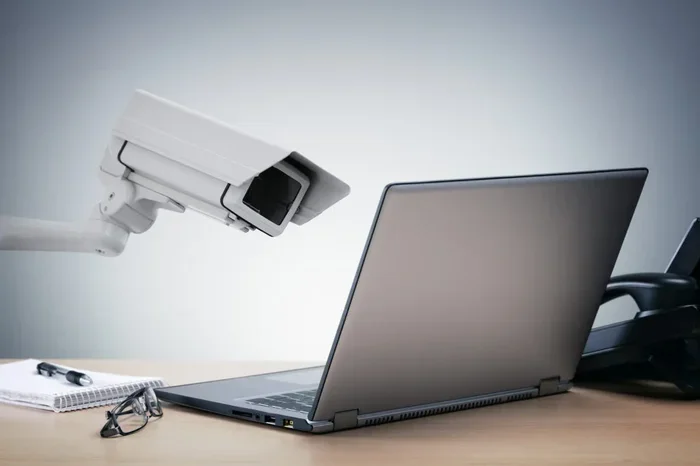
Can You Tell If Your PC Is Being Monitored Learn The Signs
Yes, there are clear signs that can help you tell if your PC is being monitored. From unusual network activity to mysterious software running in the background, your computer often gives away clues. In this guide, we break down how to detect monitoring software, spot suspicious behavior, and take back control of your privacy.
Key Takeaways
- Watch for slow performance: Monitoring tools eat up system resources and can noticeably slow down your computer.
- Check your network activity: Unusual outbound data transfers are a strong sign of surveillance software at work.
- Inspect running processes: Use Task Manager to spot unknown programs that may be monitoring your PC.
- Review installed software: Unfamiliar apps, especially remote access tools, could indicate your PC is being monitored.
- Update and scan regularly: Strong antivirus and anti-malware tools help detect and remove monitoring software.
- Act fast if you suspect monitoring: Disconnect from the internet and run a full security scan immediately.
📑 Table of Contents
- Can You Tell If Your PC Is Being Monitored? Here Is What You Need to Know
- What Does It Mean When Your PC Is Being Monitored?
- Top Signs That Your PC Is Being Monitored
- How to Detect Monitoring Software on Your PC
- Comparing Spyware Types and Their Detection Methods
- How to Protect Your PC from Being Monitored
- What to Do If You Find Monitoring Software
- Expert Insights on PC Monitoring Detection
- Quick Tips for Everyday Protection
- Common Mistakes People Make When Checking for Monitoring
- Key Takeaways
- Frequently Asked Questions
- Conclusion
Can You Tell If Your PC Is Being Monitored? Here Is What You Need to Know
The idea that someone might be watching everything you do on your computer is unsettling. Whether it is a nosy coworker, an overbearing employer, or a hidden hacker, the thought of PC monitoring can make anyone uneasy. The good news is that you can often tell if your PC is being monitored. Your system shows warning signs, and once you know what to look for, you can take action fast.
In this guide, we will walk you through the most common signs of monitoring software. We will also show you how to check your system, remove unwanted surveillance tools, and protect your privacy going forward. By the end, you will feel confident about your ability to detect and respond to any unauthorized access on your device.
What Does It Mean When Your PC Is Being Monitored?
When we say your PC is being monitored, we mean that someone is secretly or openly tracking your activity. This can include logging your keystrokes, recording your screen, capturing passwords, or watching which websites you visit. Computer monitoring can happen through physical devices, software programs, or even cloud-based surveillance tools.
Who Might Monitor Your PC?
There are several reasons someone might monitor your computer. Here are the most common actors:
- Employers: Many companies use employee monitoring software to track productivity. This is often legal but should be disclosed.
- Parents: Parents may install parental control tools to keep kids safe online.
- Hackers: Malicious actors use spyware and keyloggers to steal personal data and commit identity theft.
- Government agencies: In some cases, authorities may monitor PCs under legal surveillance orders.
- Suspicious individuals: A jealous partner or someone with physical access to your device might install monitoring tools.
Not all monitoring is malicious. But when it happens without your knowledge or consent, it becomes a serious privacy breach and a genuine security threat.
Top Signs That Your PC Is Being Monitored
Your computer is pretty good at giving away clues. You just need to know what signs to look for. Here are the most common indicators that monitoring software is running on your system.
1. Your Computer Runs Slower Than Usual
One of the first signs of PC monitoring is a noticeable drop in performance. Surveillance tools run in the background and use up CPU, memory, and network resources. If your computer takes forever to boot up, apps lag, or simple tasks feel sluggish, something might be eating your system power.
Of course, a slow PC does not always mean monitoring. It could be low disk space, outdated drivers, or too many startup programs. But when slowness comes with other signs on this list, you should dig deeper.
2. Unusual Network Activity
This is one of the biggest red flags. If your internet light blinks constantly even when you are not doing anything, your PC might be sending data to an outside source. Unauthorized access through monitoring software often involves uploading recorded data to remote servers.
You can check this by opening your Task Manager and looking at the Network tab. Sort by network usage and see which processes are using the most bandwidth. Unknown processes with heavy network activity deserve a closer look.
3. Unknown Programs or Files Appear
Take a moment to browse your installed programs and file system. Do you see anything unfamiliar? Monitoring tools sometimes disguise themselves with vague names like “System Helper” or “Update Service.” Others hide deep in your system folders.
Look for programs you did not install. Check your Downloads folder, Desktop, and Documents for files you do not recognize. Spyware often leaves behind log files or configuration data that can tip you off.
3. Your Task Manager Shows Suspicious Processes
Open your Task Manager and scan the Processes tab carefully. Look for anything that seems out of place. Strange process names, high resource usage from unknown apps, or duplicate system processes can all point to suspicious activity on your PC.
Do not panic if you see something you do not understand. Some Windows processes have odd names by design. But when you spot something clearly foreign, investigate it further or search the process name online to see if it is legitimate.
5. Your Webcam or Microphone Activates on Its Own
If your webcam light turns on unexpectedly or your microphone picks up audio when you are not using it, that is a serious warning sign. Some surveillance software uses these devices to spy on you in real time. Modern operating systems usually notify you when these devices are in use, so pay attention to those alerts.
6. Browser Extensions and Settings Change Without Permission
Monitoring tools sometimes alter your browser settings. You might notice a new homepage, an unfamiliar search engine, or browser extensions you never added. These changes can track your browsing history and redirect your searches to collect data. If your browser feels “off,” it is worth investigating.
How to Detect Monitoring Software on Your PC
Now that you know the warning signs, let us get hands-on. Here is a step-by-step approach to finding out if monitoring software is running on your computer.
Step 1: Check Your Installed Programs
Go to Settings and then Apps or Programs and Features. Sort the list by install date or name and look for anything unfamiliar. Common monitoring tools include names like mSpy, FlexiSpy, Ghost Recorder, or Teramind. If you find something suspicious, note it down before removing it. Sometimes you need evidence before you delete it.
Step 2: Scan With Antivirus and Anti-Malware Tools
Your antivirus software is your first line of defense. Run a full system scan, not a quick scan. A full scan checks every file and process on your drive. If you do not have antivirus software, consider using a free tool like Malwarebytes or Windows Defender for a thorough check.
For deeper detection, try a second-opinion scanner. Tools like HitmanPro or ESET Online Scanner can catch spyware that your main antivirus might miss. Running multiple scans increases your chances of finding hidden monitoring software.
Step 3: Review Startup Programs
Open Task Manager and go to the Startup tab. This shows every program that launches when you turn on your PC. Monitoring software often runs at startup so it can capture everything from the moment you log in. Disable anything you do not recognize, then restart your computer and see if anything changes.
Step 4: Inspect Network Connections
Open a command prompt and type “netstat -b” to see which programs are making network connections. Look for unknown applications connecting to foreign IP addresses. This is a strong way to catch surveillance tools that send your data elsewhere.
Step 5: Check for Remote Access Tools
Programs like TeamViewer, AnyDesk, LogMeIn, or Chrome Remote Desktop allow someone to control your PC from a distance. If you see any of these installed and you did not set them up, someone may have remote access to your computer. Immediately revoke access and change your passwords.
Comparing Spyware Types and Their Detection Methods
Different monitoring tools work in different ways. Understanding the types helps you choose the right detection strategy. Here is a comparison of common spyware categories:
| Spyware Type | What It Does | How to Detect It |
|---|---|---|
| Keylogger | Records every keystroke you make | Check for unusual keyboard drivers or high CPU usage during typing |
| Screen Recorder | Captures screenshots or video of your screen | Look for video files in unusual folders or unexpected GPU usage |
| Remote Access Trojan | Gives someone full control of your PC | Scan for unknown remote access tools in installed programs |
| Stalkerware | Tracks location and device activity | Check location permissions and battery usage from unknown apps |
| Adware | Displays unwanted ads and tracks browsing | Notice pop-ups, browser redirects, or new toolbars |
Each type leaves different traces. The key is to stay alert and run regular checks. Security threat detection becomes much easier when you combine multiple methods together.
How to Protect Your PC from Being Monitored
Prevention is always better than cure. Here is how you can lock down your PC and reduce the risk of unauthorized monitoring.
Keep Your Software Updated
Updates patch security holes that hackers exploit. Always install the latest Windows updates, browser updates, and application patches. Outdated software is an open door for malware and spyware.
Use Strong, Unique Passwords
If someone gains access to your accounts, they can potentially set up monitoring through your cloud services. Use strong passwords that combine letters, numbers, and symbols. Better yet, use a reputable password manager to keep track of them all.
Enable Your Firewall and Antivirus
Your firewall blocks unauthorized incoming and outgoing connections. Make sure it is turned on at all times. Pair it with reliable antivirus software for layered protection. Together, they form a strong barrier against surveillance tools.
Be Careful With Email Attachments and Downloads
Most spyware arrives through email attachments, fake download buttons, or bundled software. Never open attachments from unknown senders. Only download software from official sources. If a deal looks too good to be true, it probably is a trap.
Secure Your Physical Access
Some monitoring tools require physical access to install. Lock your computer when you step away. Use a strong login password or Windows Hello. If you share your space with others, consider a privacy screen for your monitor.
Regularly Audit Your System
Make it a habit to check your installed programs, startup items, and network connections once a month. Quick routine checks help you catch monitoring software early before it causes real damage. Think of it like checking the locks on your doors at night.
What to Do If You Find Monitoring Software
Finding monitoring software on your PC is a serious situation. Here is what you should do step by step.
- Disconnect from the internet. This stops the software from sending your data to remote servers immediately.
- Document everything. Take screenshots of the suspicious programs, network activity, and any evidence you find. This can be important if you need to report the issue.
- Remove the software. Use your antivirus or anti-malware tool to uninstall it. Do a full scan afterward to catch anything left behind.
- Change all your passwords. Assume that any passwords typed while the software was active have been compromised.
- Report it. If the monitoring is illegal or violates your workplace policies, report it to the appropriate authorities or your HR department.
Do not confront the person who installed the software unless you are in a safe position. Monitoring someone without consent is illegal in many jurisdictions. Let the proper authorities handle it.
Expert Insights on PC Monitoring Detection
Cybersecurity experts recommend a layered approach to detecting and preventing PC monitoring. Here are some professional tips:
- Use behavioral analysis tools. Some advanced security suites monitor your system behavior and flag unusual patterns, like unexpected data transfers or process injections.
- Consider a hardware check. In rare cases, monitoring can happen through hardware keyloggers plugged into your keyboard or USB port. Physically inspect your computer ports regularly.
- Stay skeptical of free software. Many free downloads bundle spyware. Read installation screens carefully and uncheck any optional add-ons during setup.
- Enable two-factor authentication everywhere. Even if someone captures your password through a keylogger, 2FA adds a second layer they cannot easily bypass.
These expert strategies add depth to your defense. No single tool catches everything, so combining methods gives you the best chance of staying safe.
Quick Tips for Everyday Protection
- Restart your computer regularly to clear temporary threats and refresh security processes.
- Use a standard user account for daily tasks instead of an administrator account.
- Disable Remote Desktop unless you actively need it.
- Review Windows privacy settings and limit which apps can access your camera, microphone, and location.
- Keep backups of important data so you can restore your system quickly if needed.
Common Mistakes People Make When Checking for Monitoring
Even when people try to detect monitoring software, they sometimes miss important clues. Here are common mistakes to avoid:
- Only running quick scans. Quick scans skip deep system areas where spyware hides. Always run full scans.
- Ignoring network alerts. Many people dismiss unusual network activity as normal. Treat every unknown connection with suspicion.
- Not checking startup items. Spyware loves to run at startup. Always audit your startup programs.
- Assuming Macs are immune. Mac computers can also be infected with monitoring software. Mac users need to stay just as vigilant.
- Deleting evidence too fast. Before removing anything, document what you found. You may need proof later.
Key Takeaways
Knowing how to tell if your PC is being monitored is an essential skill in today’s digital world. Stay alert to performance changes, strange network behavior, and unfamiliar programs. Use the detection methods we covered, and never skip your regular security routines. Your privacy is worth protecting.
Frequently Asked Questions
How can I tell if my PC is being monitored by my employer?
Employers often use employee monitoring software that may show up in your installed programs or task manager. Check for tools like Teramind, Hubstaff, or ActivTrak. Your company should have a policy disclosing monitoring, so review your employee handbook for details on what is being tracked.
Can monitoring software be hidden from the Task Manager?
Yes, some advanced spyware can hide from the standard Task Manager. However, using tools like Process Explorer from Microsoft Sysinternals or third-party rootkit detectors can reveal hidden processes. A full antivirus scan also helps uncover concealed monitoring software.
Is it legal for someone to monitor my PC without my knowledge?
It depends on your location and situation. In many places, monitoring someone’s computer without consent is illegal and can lead to criminal charges. However, employers may legally monitor company-owned devices if they inform employees. Parents can legally monitor minor children’s devices in most jurisdictions. Always check your local laws.
Will a factory reset remove monitoring software?
A factory reset removes most software, including spyware. However, some deeply embedded monitoring tools or hardware keyloggers may survive a reset. After a reset, install reputable antivirus software immediately and scan before restoring any old files or backups, which could contain reinfected data.
What is the best antivirus for detecting monitoring software?
Top picks include Malwarebytes, Bitdefender, Kaspersky, and ESET. These tools specialize in detecting spyware, keyloggers, and remote access trojans. Using a combination of real-time protection and periodic second-opinion scans gives you the strongest defense against PC monitoring threats.
How can I prevent someone from installing monitoring software on my PC?
Keep your operating system and software up to date, use strong passwords, and never leave your computer unattended in public spaces. Enable your firewall, use antivirus protection, and limit physical access. Being proactive about your computer security makes it far harder for anyone to install surveillance software without your knowledge.
Conclusion
So, can you tell if your PC is being monitored? Absolutely. Your computer gives plenty of signals, from sluggish performance and strange network activity to unknown programs running behind the scenes. The key is knowing what to look for and acting quickly when something feels wrong. By following the detection steps and protection strategies in this guide, you take control of your digital privacy. Stay vigilant, keep your tools updated, and never ignore the warning signs. Your PC and your personal data deserve that protection.