Can You Run An Iso File From A Usb Drive Yes Here Is How
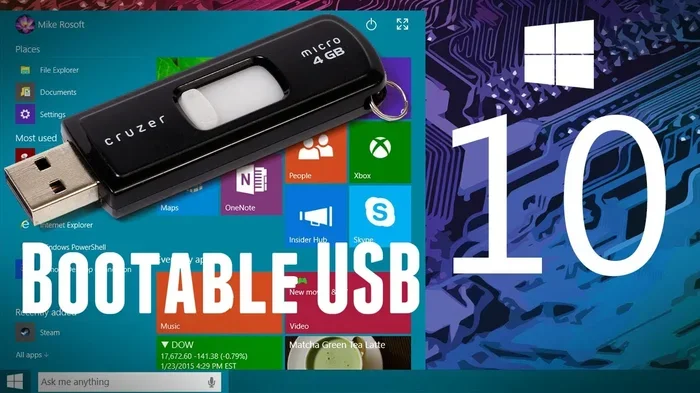
Yes, you can run an ISO file from a USB drive, and it is one of the easiest ways to install an operating system or run portable software. A bootable USB drive works just like a CD or DVD but loads faster and is reusable. In this guide, we will show you step-by-step how to run an ISO file from a USB drive on any computer.
Key Takeaways
- USB drives are a great CD/DVD alternative: You can install operating systems and run software faster from a bootable USB.
- You need the right tool: Programs like Rufus, Ventoy, or UltraISO help you turn an ISO image into a bootable USB.
- BIOS settings matter: Your computer must be set to boot from USB for this to work.
- 8 GB or larger is recommended: Most ISO files need at least 4 GB of space on your external drive.
- Common issues have simple fixes: Problems like boot failure often come down to partition style or file format.
- Alternatives exist: Virtual machines and mounted ISO files offer other ways without a USB drive.
📑 Table of Contents
- Can You Run An Iso File From A Usb Drive? Here Is How
- What Is an ISO File and Why Run It From a USB Drive?
- How to Run an ISO File From a USB Drive (Step-by-Step)
- Tools You Need to Create a Bootable USB Drive
- Common Issues When Running ISO From USB (and How to Fix Them)
- Running ISO Files Without a USB Drive (Alternative Methods)
- Tips for a Smooth Experience Running ISO From USB
- Key Takeaways
- Conclusion
Can You Run An Iso File From A Usb Drive? Here Is How
If you have ever wanted to install a new operating system or run software without a disc, you have probably wondered about using a USB drive instead. The good news is that running an ISO file from a USB drive is not only possible but also highly recommended. It is faster, more reliable, and way easier than using old CDs or DVDs.
An ISO file is basically a copy of an entire disc. It contains all the files needed to install a program or an operating system. When you put that ISO onto a USB flash drive correctly, your computer reads it just like a bootable disc. The process is simple once you know the steps. Let us walk through everything you need to know.
What Is an ISO File and Why Run It From a USB Drive?
Before we get into the how, let us quickly cover the what. An ISO image is a single file that holds the exact data from an optical disc. Think of it as a digital version of a CD or DVD. You often see ISO files when downloading operating systems like Windows or Linux.
Why Use a USB Drive Instead of a Disc?
There are several reasons why a bootable USB drive beats a disc every single time.
- Speed: USB 3.0 drives transfer data much faster than any CD or DVD.
- Durability: Discs scratch easily. A USB flash drive holds up much better.
- Reusability: You can erase and rewrite the same USB drive multiple times.
- Portability: USB drives are small, light, and easy to carry around.
- Availability: Most modern computers do not even have disc drives anymore.
So if you are asking yourself, “Can you run an ISO file from a USB drive?” the answer is a clear yes. Now let us look at exactly how to do it.
How to Run an ISO File From a USB Drive (Step-by-Step)
Follow these steps carefully, and you will have a working bootable USB in no time. This process works for Windows, Linux, and most other operating systems.
Step 1: Download the ISO File
First, get the ISO file you need. Go to the official website for the operating system or software you want. For example, Microsoft lets you download Windows ISO files directly from their site. Always download from trusted sources to avoid corrupted files or malware.
Step 2: Get a USB Flash Drive Ready
Grab a USB drive with at least 8 GB of storage. Anything smaller might not hold the full ISO image. Important: This process will erase everything on the USB drive. Back up any important files first.
Step 3: Choose a Tool to Create the Bootable Drive
You cannot just copy and paste an ISO file onto a USB and expect it to work. You need a dedicated tool. We will cover the best ones in the next section.
Step 4: Burn the ISO to the USB Drive
Open your chosen tool. Select the ISO file and the USB drive. Then click the button to start the process. The tool will format the external drive and write all the necessary boot files. This usually takes 5 to 15 minutes depending on your USB speed.
Step 5: Boot from the USB Drive
Plug the finished USB drive into the computer where you want to install or run the software. Restart the computer. As it starts up, press the boot menu key. This is usually F12, F2, Esc, or Delete. Select the USB drive from the list. Your computer will now load from the bootable media on the USB.
That is the full process. It sounds technical, but once you do it once, you will never go back to discs.
Tools You Need to Create a Bootable USB Drive
Not all tools are created equal. Some are simple. Some offer advanced options. Here are the best programs for turning an ISO image into a bootable USB.
Rufus
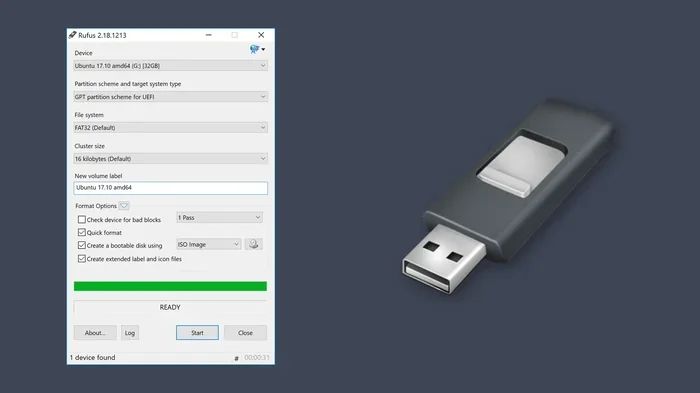
Rufus is the most popular and most trusted tool for this job. It is free, lightweight, and works on all Windows versions. You just open it, pick your ISO file, select your USB drive, and hit Start. It supports MBR and GPT partition types, which covers almost every computer made today. Many experts call it the go-to disk imaging tool for creating startup disks.
Ventoy
Ventoy is a fantastic choice if you want to put multiple ISO files on one USB drive. Instead of reformatting every time, Ventoy creates a special partition that lets you choose which ISO to boot. It supports UEFI and Legacy BIOS modes. This is great if you test different operating systems often.
UltraISO
UltraISO works on Windows and offers both free and paid versions. It lets you create, edit, and extract ISO files. It is handy if you also want to modify the contents of an ISO before burning it to a USB drive.
balenaEtcher
balenaEtcher is known for its simplicity. You select the ISO, pick the USB drive, and click Flash. That is it. It works on Windows, Mac, and Linux. It is a solid choice for beginners who want a no-fuss experience.
Windows USB/DVD Download Tool
Microsoft offers this free tool specifically for creating Windows installation drives. It is straightforward and designed for people who are not tech experts. However, it only works for Windows ISO files.
| Tool | Platform | Best For | Free? |
|---|---|---|---|
| Rufus | Windows | Single ISO bootable USB | Yes |
| Ventoy | Windows, Linux | Multiple ISOs on one USB | Yes |
| UltraISO | Windows | Editing and creating ISOs | Freemium |
| balenaEtcher | All platforms | Beginner-friendly flashing | Yes |
| WinUSB Tool | Windows | Windows-specific installs | Yes |
Quick Tips for Choosing the Right Tool
- For a one-time Windows install, use Rufus.
- For testing multiple Linux distros, use Ventoy.
- For a simple no-thinking-needed option, use balenaEtcher.
- Always check that your tool supports UEFI if your computer is modern.
Common Issues When Running ISO From USB (and How to Fix Them)
Most of the time, things go smoothly. But sometimes problems pop up. Here are the most common issues people face when trying to run an ISO file from a USB drive and how to solve them.
The Computer Will Not Boot From USB
This is the number one issue. Your computer keeps loading from the internal hard drive instead of the USB. The fix is to change the boot order in your BIOS or UEFI settings.
Restart your computer and enter BIOS. Look for a section called Boot Order or Boot Priority. Move the USB drive to the top. Save and exit. Now your computer should try the USB first.
The USB Shows as “Not Bootable”
This usually means the partition style is wrong. Some older computers need MBR. Newer ones need GPT. Open Rufus and check the partition scheme setting. Switch between MBR and GPT and try again. This small change often solves the problem instantly.
Error Messages About File Corruption
If you see errors, the ISO file itself might be damaged. Re-download it and verify the checksum if the website provides one. Also, make sure your USB drive is not physically damaged. Try a different flash drive to rule that out.
The Screen Stays Black or Freezes
This can happen if the USB drive is not formatted correctly. Try using a different file system like NTFS or FAT32. Also, disable Secure Boot in your BIOS settings if you are installing Linux or a custom operating system.
Slow Performance During Boot
If your boot from USB experience is painfully slow, check your USB port. A USB 2.0 port is much slower than USB 3.0. Plug into a blue USB 3.0 port for much better speed. Also, a cheap or old flash drive will bottleneck the process. Use a fast, modern USB 3.0 or USB 3.1 drive for the best results.
Expert Insight
Many tech professionals recommend keeping a dedicated bootable USB around for system recovery and OS installs. It saves time and removes the guesswork when something goes wrong with your main computer. Having a reliable startup disk in your desk drawer is like an insurance policy for your PC.
Running ISO Files Without a USB Drive (Alternative Methods)
Not everyone wants to use a USB flash drive. That is okay. There are other ways to work with an ISO file. Let us look at a few options.
Mount the ISO on Windows
Modern Windows versions let you mount an ISO file directly. Right-click the file and select Mount. Windows treats it like a virtual disc. You can then open files and run programs from inside it. This works well for portable applications stored in ISO format.
Use a Virtual Machine
A virtual machine (VM) runs an operating system inside your current one. Programs like VirtualBox and VMware let you load an ISO file and run the full OS without installing anything on your real hardware. This is perfect for testing software safely. It is also great for trying out Linux before committing to a full install.
Use Third-Party Mounting Software
Tools like Daemon Tools and PowerISO let you mount ISO files as virtual drives on Windows. They offer more features than the built-in Windows option. You can create virtual drives, extract files, and even convert ISOs to other formats.
Burn to a CD or DVD
If you have a disc drive, you can still burn an ISO to a physical disc. Windows has a built-in option for this. Just right-click the ISO and select Burn to disc. While this works, it is slow and outdated. A bootable USB is always the better choice.
Tips for a Smooth Experience Running ISO From USB
Here are some practical tips to make your experience as smooth as possible.
Always Verify Your ISO File
Before burning any ISO to USB, check its integrity. Most official downloads include a SHA256 or MD5 checksum. Use a tool like HashCalc or the built-in Windows certutil command to verify. A corrupted ISO will cause boot failures every time.
Use a High-Quality USB Drive
Not all USB drives are equal. A cheap drive might work once but fail during a critical install. Invest in a reliable brand. Samsung, SanDisk, and Kingston make solid USB 3.0 and USB 3.1 drives that handle heavy use well.
Disable Secure Boot for Non-Windows OS
If you are installing Linux or another operating system, you may need to turn off Secure Boot. Go into your BIOS settings, find Secure Boot under the Security tab, and disable it. You can always turn it back on later.
Know Your Partition Style
This is a small detail that makes a huge difference. Newer computers use UEFI with GPT partitions. Older ones use Legacy BIOS with MBR. Match your tool settings to your computer type. Rufus makes this easy by showing you the recommended settings automatically.
Keep Your USB Drive Clean
After you create your bootable drive, you might want to store other files on it. Be careful. Some tools format the entire drive. Others leave space for extra files. If you want a multi-purpose drive, use Ventoy. It lets you store data and bootable ISOs side by side.
Common Mistakes to Avoid
- Do not just drag and drop the ISO file onto the USB. It will not boot.
- Do not skip verifying the ISO checksum. A bad file leads to bad results.
- Do not use a USB drive smaller than 4 GB. Most modern ISOs are larger than that.
- Do not forget to change boot order in BIOS. Your computer will not know to use the USB.
- Do not pull out the USB during the writing process. This corrupts the drive.
Key Takeaways
Let us wrap up the most important points from this guide.
- A USB drive is the best way to run an ISO file today. It is faster and more practical than discs.
- Use trusted tools like Rufus or Ventoy. They handle the heavy lifting for you.
- Check your BIOS settings before booting. The boot order and Secure Boot settings matter.
- Verify your ISO file before burning. This prevents most boot failures.
- Alternatives exist if you do not have a USB drive. Mounting and virtual machines work great too.
Conclusion
Can you run an ISO file from a USB drive? Absolutely. Whether you are installing Windows, testing Linux, or running portable software, a bootable USB drive is your best friend. The process is straightforward once you have the right tools and understand the basic steps.
The key is to pick a reliable tool like Rufus or Ventoy, verify your ISO file, and make sure your computer is set to boot from USB. Do those things, and you will have a smooth experience every single time. If problems come up, the fixes are usually quick and simple.
So go ahead, grab your USB flash drive, and give it a try. You will wonder why you ever bothered with discs. A well-made bootable USB saves time, prevents frustration, and gives you a portable way to handle almost any operating system task.
Frequently Asked Questions
Can I run an ISO file directly from a USB without making it bootable?
No, simply copying an ISO file to a USB drive will not make it bootable. You need a tool like Rufus or Ventoy to write the boot files correctly. The USB must be formatted as a bootable drive for your computer to load from it.
What is the best free tool to run an ISO from a USB drive?
Rufus is the most widely recommended free tool. It is lightweight, works on all Windows systems, and supports both MBR and GPT partition styles. Ventoy is another excellent choice, especially if you want multiple ISOs on one USB.
Can I run an ISO file from a USB drive on a Mac?
Yes, but the process is slightly different. Mac users can use the built-in Disk Utility to burn an ISO to a USB drive. Third-party tools like balenaEtcher also work across platforms, including macOS.
How do I boot my computer from a USB drive?
Restart your computer and press the boot menu key during startup. Common keys are F12, F2, Esc, or Delete. Select your USB drive from the boot menu. If that does not work, enter BIOS and change the boot priority to put USB first.
Is it better to use a USB drive or a virtual machine to run an ISO?
It depends on your goal. Use a bootable USB drive if you want to install an operating system on real hardware. Use a virtual machine if you just want to test an OS safely without changing your computer. Both methods have their place.
Will running an ISO from USB damage my computer?
No, running an ISO from a USB drive is completely safe as long as the ISO comes from a trusted source. The process does not harm your hardware or internal storage. Just make sure you are installing the software you actually want.
=== FOOTER ===
Running an ISO file from a USB drive is a simple, fast, and reliable method for installing operating systems and running software. With the right tools and a little patience, anyone can do it. Save this guide for your next project!