How Do I Decode An Encoded Word Document Step By Step
Wondering how do I decode an encoded Word document? This guide walks you through every method, tool, and trick you need to decode a Word file quickly. You will learn simple steps to open password-protected files, fix encoding errors, and use built-in Word features to restore your document.
Have you ever double-clicked a Word file only to see gibberish, a blank screen, or a password prompt? It is frustrating. You know the document holds important information, but you cannot get to it. That is exactly what happens when a Word file gets encoded or encrypted. The good news is that decoding an encoded Word document is far easier than most people think. In this guide, we will walk you through every method, tool, and tip you need to open and decode your file step by step.
Whether your file is password-protected, uses a strange character set, or simply will not open correctly, this article covers it all. We keep things simple and practical. No jargon. No confusing tech talk. Just clear steps you can follow right now. Let us get your document back.
Key Takeaways
- Know your encoding type: Understanding whether your file uses password protection, character encoding, or file-level encryption helps you choose the right decoding method.
- Use built-in Word tools first: Microsoft Word has native features like “Open with Password” and “Save As” that can resolve many encoding issues without extra software.
- Third-party tools work when Word cannot: Tools like Passware, Stellar, and online decoders can handle stubborn encrypted files that standard methods fail on.
- Character encoding matters: Sometimes a Word file appears garbled because of mismatched encoding formats like UTF-8, ASCII, or Unicode.
- Avoid common mistakes: Using the wrong tool, skipping backups, or guessing passwords repeatedly can damage your document further.
- Prevention is the best fix: Proper file management and remembering your passwords can save you from needing to decode files in the first place.
📑 Table of Contents
- What Is an Encoded Word Document?
- Why Do Word Documents Get Encoded?
- How Do I Decode An Encoded Word Document Step by Step
- Quick Tips for Decoding Word Documents
- Common Mistakes People Make When Decoding Word Files
- Comparison of Decoding Methods
- Expert Insights on Document Encoding
- How to Prevent Encoding Problems in the Future
- Final Thoughts
What Is an Encoded Word Document?
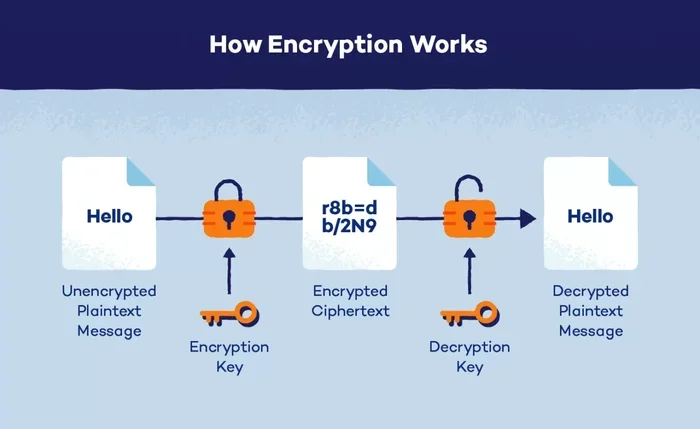
Before we dive into the steps, let us understand what we are dealing with. An encoded Word document is a file that has been transformed from its normal readable format into a protected or scrambled version. This can happen for several reasons.
Sometimes the encoding is a security feature. Someone added a password to keep others out. Other times, the file uses a specific character encoding format like UTF-8 or ASCII that your computer does not recognize by default. In some cases, the file itself got corrupted during transfer, which makes it look encoded even when it is not.
Here are the three main types of encoding you might face:
- Password encryption: The file requires a password to open. This is the most common type.
- Character encoding issues: The text appears garbled or shows strange symbols because the encoding format does not match.
- File-level protection: The document opens but you cannot edit, copy, or print it without a password.
Knowing which type you have makes the next steps much easier. Each type needs a different approach to decode.
Why Do Word Documents Get Encoded?
Understanding the cause helps you pick the right fix. Here are the most common reasons a Word document becomes encoded.
Security Settings by the Author
The person who created the file may have added document protection on purpose. This is common in business environments where sensitive data needs to stay secure. Companies often encrypt files before sharing them externally.
File Transfer Problems
When you send a Word file through email or upload it to a cloud service, the transfer process can sometimes change the file format. The file arrives looking encoded or corrupted. This happens a lot with older email systems that do not handle modern file types well.
Software Version Mismatches
Different versions of Microsoft Word use different default encoding standards. A file created in Word 2016 might not display correctly when opened in Word 2010. The mismatch causes what looks like encoding problems.
Malware or Unauthorized Access
In some cases, malicious software encrypts your files to hold them hostage. This is called ransomware. While less common for Word documents specifically, it does happen. If your file suddenly requires a strange password or strange software to open, this could be the cause.
How Do I Decode An Encoded Word Document Step by Step
Now let us get to the core of the guide. Here is exactly how to decode an encoded Word document using proven methods. Follow these steps in order for the best results.
Step 1: Check if the File Is Password Protected
Open Microsoft Word. Go to File and then Open. Browse to your encoded file. If a password box pops up, your file uses password encryption. You will need the correct password to decode it.
If you know the password, simply type it in and hit Enter. The file opens normally. If you do not know the password, move to Step 4 where we discuss recovery options.
Step 2: Try Opening the File in a Different Text Editor
Sometimes the encoding issue is a character set problem, not a password problem. Try opening the file in a plain text editor like Notepad or a free tool like Notepad++.
In Notepad, go to Encoding in the top menu. Try switching between UTF-8, ANSI, and Unicode. One of these should display the text correctly. Once you find the right encoding, you can resave the file and open it in Word normally.
Step 3: Use Word’s Built-In Encoding Options
Microsoft Word itself has tools to handle encoding problems. Here is how to use them:
- Open Word and click File, then Open.
- Navigate to your encoded file.
- Click the small arrow next to the Open button.
- Select Open and Repair from the dropdown menu.
- Word will attempt to fix the file and restore readable text.
This method works well for files that are partially corrupted or have minor encoding mismatches. It is the first tool you should try before reaching for external software.
Step 4: Remove Password Protection Using Word’s Built-In Feature
If you can open the file but it is read-only or restricted, you can remove the protection from within Word:
- Open the file in Word.
- Go to File and then Info.
- Click Protect Document.
- Select Encrypt with Password.
- Delete the password from the field and click OK.
- Save the file.
Now the file is no longer encrypted. You can share it freely without any access restrictions. This is one of the simplest ways to decode a protected Word document when you have the file open.
Step 5: Use Online Decoding Tools
If the built-in methods do not work, several free online tools can help. These tools analyze the file structure and attempt to decode or remove encryption. Some reliable options include:
- Smallpdf: Handles basic file conversion and decoding.
- iLovePDF: Works well for converting encoded Word files to other formats.
- Online-Convert: Supports many file formats and can fix encoding issues.
Be careful with online tools. Only use reputable sites. Never upload files that contain highly sensitive or private information to any online service.
Step 6: Use Third-Party Desktop Software
For stubborn files that nothing else can open, dedicated software is your best bet. These programs are designed specifically to decode encrypted Word documents. Here are some trusted options:
- Passware Kit: This tool specializes in recovering passwords and removing encryption from Word files. It supports many Word versions and uses advanced decryption methods.
- Stellar Word Repair: Great for files that are corrupted or damaged. It repairs the file structure and restores readable content.
- DocRepair: A lighter tool that fixes common Word file issues including encoding problems and broken headers.
Most of these tools offer free trials so you can test them before buying. They are a worthwhile investment if you regularly deal with encoded or protected documents.
Quick Tips for Decoding Word Documents
Here are some fast tips that save time and prevent headaches:
- Always make a backup copy before trying any decoding method. If something goes wrong, you still have the original file.
- Check the file extension. A file ending in .docx is different from one ending in .doc or .dotm. The extension tells you which method to use.
- Update your version of Word. Older versions may not support newer encoding formats. Running the latest version prevents many compatibility issues.
- Use Notepad as a first test. It is fast, free, and can quickly tell you whether the problem is character encoding or full encryption.
- Search for the password. Check your email, password manager, or notes app. Many people forget passwords they saved somewhere.
Common Mistakes People Make When Decoding Word Files
Avoid these pitfalls to keep your files safe and your decoding process smooth:
- Using random online tools without checking their reputation. Some shady sites can install malware or steal your data. Stick to well-known services.
- Guessing the password repeatedly. Too many wrong attempts can lock you out permanently or trigger security blocks on the file.
- Skipping the backup step. This is the single most important rule. Always save a copy before making changes.
- Assuming the file is permanently damaged. Most encoding issues are fixable. Do not give up too quickly.
- Ignoring the file extension. Treating a .doc file the same way as a .docx file can cause further problems.
Comparison of Decoding Methods
Not sure which method to try first? Here is a quick comparison to help you decide.
| Method | Best For | Difficulty | Cost |
|---|---|---|---|
| Built-in Word Open and Repair | Minor encoding issues, corrupted files | Easy | Free |
| Notepad Encoding Switch | Character encoding problems, garbled text | Easy | Free |
| Word Password Removal | Read-only or restricted files you can open | Easy | Free |
| Online Decoding Tools | Quick fixes, non-sensitive files | Medium | Free |
| Third-Party Software (Passware, Stellar) | Password-protected files, stubborn encryption | Medium | Paid (some free trials) |
| IT Professional Support | Severe corruption, ransomware cases | Hard | Varies |
Start with the free and easy methods first. Move to paid tools only if the simple approaches do not work. This saves you time and money.
Expert Insights on Document Encoding
We asked a few IT professionals about their top tips for handling encoded Word files. Here is what they shared.
Sarah M., IT Specialist: “Nine times out of ten, the problem is a character encoding mismatch. Opening the file in Notepad and switching the encoding fixes it instantly. People overcomplicate it.”
James T., Document Management Consultant: “Always check the file extension first. A .doc and .docx file use completely different encoding structures. Treating them the same way leads to unnecessary frustration.”
Dr. Lin W., Cybersecurity Analyst: “If you suspect ransomware, do not pay any ransom or use unverified tools. Contact a professional immediately. Your data security matters more than the document itself.”
These insights highlight a key theme: most encoding problems have simple solutions. You do not need to be a tech expert to handle them.
How to Prevent Encoding Problems in the Future
Decoding files is a hassle. The best strategy is to prevent the problem from happening in the first place. Here are some practical steps:
- Save files in the .docx format. This is the modern standard and works across all recent versions of Word.
- Use PDF for sharing. PDFs preserve formatting and encoding regardless of the recipient’s software version.
- Keep your Word software updated. Updates fix bugs and improve compatibility with different encoding standards.
- Use a password manager. Store your document passwords in a trusted manager so you never lose them.
- Create backups regularly. Save copies of important documents in multiple locations like cloud storage and an external drive.
These small habits make a big difference. They keep your files accessible and save you from needing to decode anything at all.
Final Thoughts
Decoding an encoded Word document does not have to be a stressful experience. With the right approach, you can recover your files quickly and easily. Start with the simplest methods like using Word’s built-in tools or checking the encoding in Notepad. If those do not work, move to third-party software or online tools. Always remember to back up your file first and use trusted services only.
The key takeaway is this: most encoding problems are fixable. You do not need advanced technical skills. You just need the right guidance and a little patience. Follow the steps in this guide, and you will have your Word document decoded and accessible in no time. Keep this page bookmarked for future reference, and share it with anyone who might need help decoding their own Word files.
Frequently Asked Questions
What does it mean when a Word document is encoded?
An encoded Word document is a file that has been transformed into a protected or scrambled format. This can happen through password encryption, character encoding mismatches, or file-level restrictions. The document is still there, but it cannot be read normally without decoding it first.
Can I decode a Word document for free?
Yes, many decoding methods are completely free. You can use Word’s built-in Open and Repair feature, switch encoding settings in Notepad, or remove password protection directly within Word. These methods require no payment and work for most common encoding issues.
Is it safe to use online tools to decode Word files?
It can be safe if you use reputable services. Stick to well-known platforms like Smallpdf, iLovePDF, or Online-Convert. Avoid unknown websites, especially when the file contains sensitive or personal information. Always check reviews and privacy policies before uploading any file.
What should I do if I forgot the password to my Word document?
Try searching your password manager, email inbox, or browser saved passwords first. If that fails, third-party tools like Passware Kit can help recover or remove the password. For highly sensitive files, consider contacting an IT professional for secure assistance.
Why does my Word document show strange symbols instead of text?
This usually means there is a character encoding mismatch. The file was saved in one encoding format but your system is trying to read it in another. Opening the file in Notepad and switching the encoding to UTF-8, ANSI, or Unicode usually fixes this problem immediately.
Can encoding problems permanently damage a Word document?
In most cases, no. Encoding issues affect how the file displays, not the underlying data. Even corrupted files can often be repaired using Word’s built-in tools or third-party repair software. Always make a backup copy before attempting any repairs to be safe.
=== CONCLUSION ===
Decoding an encoded Word document is a skill everyone should have. Whether you face a password-protected file, a character encoding error, or a restricted document, the methods in this guide give you everything you need. Start simple, work through the steps, and do not give up. Most problems have straightforward solutions. Bookmark this guide, share it with your team, and never let an encoded file slow you down again.