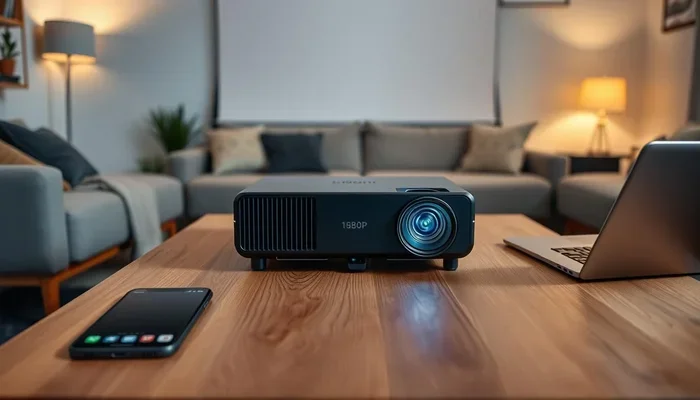
Can You Connect To A Projector Wirelessly And Easily
Can you connect to a projector wirelessly? Yes, absolutely. Modern wireless projection technology lets you stream content from your phone, laptop, or tablet to a wireless projector without any cables. Whether you use a built-in WiFi connection, a wireless HDMI adapter, or screen mirroring, setting up a wireless projector connection is easier than you think. This guide covers every method, tip, and trick you need to go cable-free.
Have you ever wanted to share a movie or a presentation on a big screen without digging through a pile of cables? The good news is that connecting to a projector wirelessly is no longer a luxury. It has become a simple, everyday reality for millions of people around the world.
Whether you are setting up a home theater, giving a business presentation, or hosting a backyard movie night, wireless projector connection saves you time and hassle. You do not need expensive cables or technical expertise. In this guide, we walk you through every method, every option, and every tip you need to know.
The question can you connect to a projector wirelessly comes up more often than you might think. And the answer is a resounding yes. Let us dive into how it all works and what options are available to you.
Key Takeaways
- Multiple wireless options exist: You can connect to a projector using WiFi, Bluetooth, wireless HDMI, screen mirroring, or a streaming dongle.
- Built-in WiFi projectors are the simplest option since they connect directly to your home network without extra hardware.
- Wireless HDMI transmitters offer the best quality for high-definition video and audio without lag.
- Screen mirroring protocols like Miracast, AirPlay, and Chromecast make it easy to cast from phones and laptops.
- Setting up a wireless connection takes just a few minutes if you follow the right steps.
- Common mistakes like poor WiFi signal or outdated firmware can cause issues, but they are easy to fix.
📑 Table of Contents
- How Wireless Projector Connection Works
- Different Ways To Connect To A Projector Wirelessly
- Step By Step Guide To Wireless Projector Setup
- Comparison Of Wireless Projection Methods
- Common Mistakes And How To Avoid Them
- Expert Tips For The Best Wireless Projection Experience
- Which Wireless Method Is Right For You?
- Final Thoughts
How Wireless Projector Connection Works
Understanding the basics of wireless projection technology helps you make smarter choices. At its core, wireless projection sends audio and video signals from your device to a projector through the air instead of through a physical cable. Think of it like streaming music through a Bluetooth speaker, but for video on a big screen.
Understanding Wireless Projection Technology
Wireless projection uses radio frequency signals or your home WiFi network to transmit content. Your phone, laptop, or tablet acts as the source. The projector receives the signal and displays it on the screen. Some projectors have built-in WiFi chips, while others need an external adapter to go wireless.
The quality of your wireless connection depends on a few factors. These include your WiFi speed, the distance between devices, and the type of wireless technology you use. A strong home network makes a huge difference in smooth playback.
Types Of Wireless Connectivity For Projectors
There are several ways to achieve a wireless projector setup. Here are the most common methods:
- Built-in WiFi: Many modern projectors come with WiFi already installed. You just connect to your home network and start streaming.
- Wireless HDMI transmitters: These small devices send high-definition video and audio from your source to the projector without a cable.
- Screen mirroring protocols: Technologies like Miracast, AirPlay, and Chromecast let you mirror your device screen directly to the projector.
- Wireless adapters and dongles: Small USB or HDMI dongles plug into your projector and give it wireless capabilities.
- Bluetooth connectivity: Some projectors support Bluetooth for audio streaming, though this is less common for full video projection.
Different Ways To Connect To A Projector Wirelessly
Now that you understand the basics, let us explore each method in detail. Each option has its own strengths, so the best choice depends on your needs and equipment.
Using A Wireless HDMI Transmitter
A wireless HDMI transmitter is one of the most reliable ways to go cable-free. You plug a small transmitter into the HDMI port on your laptop or streaming device. Then, you plug a small receiver into the HDMI port on your projector. The two devices communicate wirelessly, sending crisp video and clear audio across the room.
These transmitters work well for presentations and home theater setups. Brands like IOGEAR, Nyrius, and Actiontec make popular models. Most support full HD or even 4K resolution. The range is typically 30 to 100 feet, depending on the model.
One of the biggest advantages of a wireless HDMI transmitter is low latency. You get a near-instant connection, which is perfect for gaming or live presentations. The downside is the cost, as quality transmitters can run between $50 and $200.
Built-In WiFi And Smart Projectors
Smart projectors with built-in WiFi are becoming increasingly popular. These projectors connect directly to your home wireless network. You can stream content from apps like Netflix, YouTube, or Hulu right on the projector, no extra device needed.
Some smart projectors also support wireless screen sharing. You can cast your phone or laptop screen to the projector using built-in apps or native screen mirroring features. This makes them incredibly versatile for both entertainment and work.
Popular smart projectors include brands like Anker Nebula, Epson, and BenQ. These projectors often come with built-in operating systems, so they function almost like a big-screen tablet. The convenience factor is hard to beat.
Screen Mirroring And Casting
Screen mirroring is one of the easiest ways to cast to a projector wirelessly. If your projector supports Miracast, AirPlay, or Chromecast, you can mirror your device screen with just a few taps.
For iPhone and iPad users, AirPlay is the go-to option. Just make sure your projector supports AirPlay or use an Apple TV box connected to the projector. For Android users, Google Cast or Chromecast works similarly.
Windows users can use Miracast, which is built into most modern PCs. Simply go to your display settings and choose “Connect to a wireless display.” Your projector should appear as an available device.
Screen mirroring is great for casual use. However, it can sometimes suffer from slight delays or lower image quality compared to a wired connection or a dedicated wireless HDMI transmitter.
Using A Wireless Adapter Or Dongle
If your projector does not have built-in WiFi, a wireless adapter or dongle is a great solution. These small devices plug directly into your projector’s HDMI port or USB port and add wireless capability.
Popular options include the Microsoft Wireless Display Adapter, the Epson Wireless USB Adapter, and various Chromecast devices. These adapters are affordable and easy to set up. Most cost between $30 and $80.
A wireless dongle is a fantastic choice if you want to upgrade an older projector without buying a new one. It gives your existing projector a new lease on life with modern wireless features.
Step By Step Guide To Wireless Projector Setup
Setting up a wireless projector connection is simpler than most people expect. Here is a general walkthrough that applies to most setups.
Setting Up WiFi On Your Projector
First, power on your projector and go to the network or WiFi settings in the menu. If your projector has built-in WiFi, you will see a list of available networks. Select your home network and enter the password. Wait for the connection to establish.
If you are using a wireless adapter or dongle, plug it into the appropriate port on the projector first. Then navigate to the WiFi settings and connect to your network. The adapter will handle the wireless communication for you.
For the best results, place your router close to the projector. A strong WiFi signal ensures smooth, uninterrupted streaming with no buffering or lag.
Connecting Your Phone Or Laptop
Once your projector is connected to WiFi, it is time to connect your source device. Here is how to do it for different devices:
- From a laptop: Go to your display settings and look for “Project” or “Connect to a wireless display.” Select your projector from the list of available devices.
- From an iPhone or iPad: Open the Control Center and tap “Screen Mirroring.” Choose your projector or Apple TV from the list.
- From an Android phone: Open the “Cast” option in your quick settings panel or use the Google Home app to find and connect to your projector.
- From a streaming device: If you are using a Chromecast or Roku stick plugged into the projector, use the respective app on your phone to cast content directly.
Once connected, your device screen should appear on the projector. Adjust the display settings if needed to fit the screen properly.
Comparison Of Wireless Projection Methods
Not all wireless projection methods are created equal. Here is a comparison to help you choose the right one for your situation.
| Method | Best For | Quality | Ease of Use | Cost Range |
|---|---|---|---|---|
| Built-in WiFi Projector | Home theater, casual use | Good to excellent | Very easy | $200-$2000+ |
| Wireless HDMI Transmitter | Presentations, gaming, high quality | Excellent | Easy | $50-$200 |
| Screen Mirroring (Miracast/AirPlay) | Quick sharing, casual use | Good | Very easy | Free (built-in) |
| Wireless Adapter Dongle | Upgrading older projectors | Good | Easy | $30-$80 |
| Bluetooth Audio Only | Audio streaming only | Audio only | Easy | Free (built-in) |
As you can see, each method has its place. For the best overall experience, a wireless HDMI transmitter or a smart projector with built-in WiFi gives you the most reliable and highest-quality connection.
Common Mistakes And How To Avoid Them
Even with the easiest setup, people run into problems from time to time. Here are the most common mistakes and how to avoid them.
Ignoring WiFi Signal Strength
A weak WiFi signal is the number one cause of buffering and lag during wireless projection. If your projector is far from your router, the connection may suffer. Move your router closer to the projector or use a WiFi extender to boost the signal in that room.
Using Outdated Firmware
Your projector and your source devices need to run updated software for the best wireless performance. Check for firmware updates regularly. Manufacturers often release updates that fix connectivity bugs and improve performance.
Choosing The Wrong Wireless Method
Not every wireless method works for every situation. Screen mirroring is great for quick sharing, but it may not deliver the best quality for a movie night. A wireless HDMI transmitter is better for high-definition content. Choose the method that fits your specific use case.
Forgetting About Audio Settings
Sometimes the video works perfectly, but the audio does not. This usually happens when your device sends audio to the wrong output. Check your device’s audio settings and make sure the projector is selected as the audio output device.
Expert Tips For The Best Wireless Projection Experience
Want to get the most out of your wireless projector setup? Here are some expert-backed tips that make a real difference.
Quick Tips For Smooth Streaming
- Use a 5GHz WiFi band: It is faster and less congested than the 2.4GHz band, which means smoother streaming with fewer interruptions.
- Close unnecessary apps: Running too many apps on your source device can slow down the wireless transmission and cause lag.
- Keep devices cool: Overheating can cause performance issues. Make sure your projector and source device have good ventilation.
- Use a dedicated wireless network: If possible, set up a separate WiFi network just for your projector. This reduces interference from other devices.
- Test before the big event: Always test your wireless connection before a presentation or movie night to work out any kinks.
Common Misconceptions About Wireless Projectors
Some people believe that wireless projection always means lower quality than wired connections. This is no longer true. Modern wireless HDMI transmitters and smart projectors deliver stunning picture quality that rivals any cable connection. The technology has come a very long way in just a few years.
Another misconception is that wireless projection is complicated. In reality, most modern systems are designed to be plug-and-play. If you can connect to a WiFi network on your phone, you can connect to a projector wirelessly.
Which Wireless Method Is Right For You?
The right choice depends on what you plan to do with your projector. Here is a quick guide to help you decide.
For home movie nights: A smart projector with built-in WiFi is the easiest option. You can stream directly from apps without any extra devices. The Anker Nebula and Epson Home Cinema series are excellent choices.
For business presentations: A wireless HDMI transmitter gives you the most reliable, high-quality connection. It works with any projector that has an HDMI port and ensures your slides and videos look sharp.
For casual screen sharing: Screen mirroring through Miracast or AirPlay is perfect for quick, informal sharing. It requires no extra hardware and takes just seconds to set up.
For budget-conscious users: A wireless adapter dongle is the most affordable way to add wireless capability to an existing projector. You get modern features without spending a lot of money.
Final Thoughts
The answer to can you connect to a projector wirelessly is a clear and definitive yes. Whether you use a smart projector with built-in WiFi, a wireless HDMI transmitter, screen mirroring, or a simple dongle, going cable-free has never been easier. Each method offers a different balance of convenience, quality, and cost, so you can find the perfect fit for your needs.
Wireless projector connection opens up a world of flexibility. You can present from anywhere in the room, stream movies without tangled cables, and share content with just a few taps. The technology is reliable, the quality is excellent, and the setup is straightforward.
Take some time to explore your options and choose the method that works best for you. With the right setup, your projector becomes a truly wireless entertainment hub. You will wonder how you ever lived with cables.
Start your wireless projector setup today and enjoy the freedom of a completely cable-free experience. Your big screen is waiting.
Frequently Asked Questions
Can any projector be made wireless?
Yes, almost any projector can be made wireless. If your projector has an HDMI port, you can use a wireless HDMI transmitter or a streaming dongle like Chromecast to add wireless capability. Even older projectors can be upgraded with a simple adapter.
Is wireless projection as good as wired?
Modern wireless projection is very close to wired quality in most cases. A good wireless HDMI transmitter delivers excellent picture and sound with minimal lag. For most users, the difference is barely noticeable, and the convenience far outweighs any minor trade-offs.
What is the best wireless projector for home use?
Some of the best options include the Anker Nebula Cosmos Max, the Epson Home Cinema series, and the BenQ TH series. These projectors offer great built-in WiFi, smart features, and excellent picture quality for movies and entertainment.
Does wireless projection have lag or delay?
Lag depends on the method you use. Wireless HDMI transmitters have very low latency and are great for gaming and live presentations. Screen mirroring may have slight delays, which is fine for watching movies but less ideal for fast-paced gaming.
Can I connect multiple devices to a wireless projector?
Yes, most wireless projectors support multiple device connections. You can switch between devices easily using your projector’s input menu or the connection app. Some smart projectors even allow two devices to connect simultaneously, so you can take turns without disconnecting.
Do I need a strong WiFi connection for wireless projection?
A stable WiFi connection is important for smooth wireless projection. A 5GHz network is recommended for the best results. If your WiFi signal is weak in the projector’s location, consider moving your router closer or using a WiFi range extender to improve the connection.
=== CONCLUSION ===
Can you connect to a projector wirelessly and easily? Absolutely. With so many wireless options available today, going cable-free with your projector is simpler than ever. From built-in WiFi smart projectors to wireless HDMI transmitters and screen mirroring, there is a solution for every budget and every need.
Take the time to find the right method for your setup, follow the tips in this guide, and enjoy the freedom of wireless projection. Your movies, presentations, and games will never look better on the big screen.