How Can I Turn Off The Double Tap From My iPhone Easily
Struggling with accidental double taps on your iPhone? You can easily turn off this feature through your Accessibility settings. This guide walks you through every method, from disabling Back Tap gestures to adjusting touch sensitivity, so your iPhone responds exactly how you want it to.
If you have ever accidentally opened an app or triggered a function just because you tapped your iPhone screen twice too fast, you know how frustrating it can be. The double tap feature on iPhone is designed to help you zoom in on photos, open quick actions, and navigate faster. But sometimes it gets in the way. The good news is that turning off the double tap on your iPhone is simple and takes just a few minutes. You do not need to be a tech expert to do it either.
In this guide, we will walk you through every method to disable the double tap gesture on your iPhone. We will cover Back Tap settings, touch sensitivity adjustments, and other helpful features that give you full control over how your phone responds to your fingers. Whether you have an older iPhone or the newest model, these steps will work for you. Let us get started and take back control of your iPhone gestures.
Key Takeaways
- Disable Back Tap: Turn off double tap gestures through the Back Tap menu in Accessibility settings.
- Adjust Touch Sensitivity: Reduce accidental taps by changing your iPhone’s touch sensitivity settings.
- Triple Click Alternative: Use Triple Click as a shortcut instead of relying on double tap.
- AssistiveTouch Option: Enable AssistiveTouch for an alternative way to navigate your iPhone.
- Works on All Models: These steps apply to iPhone 8 and later, including iPhone 15 and 16 models.
- Quick Reversal: You can always re-enable double tap anytime through the same settings menu.
📑 Table of Contents
- What Is the Double Tap Feature on iPhone
- How to Turn Off Double Tap on iPhone Using Back Tap
- Adjusting Touch Sensitivity to Reduce Accidental Taps
- Turning Off Double Tap on the Side Button
- Using AssistiveTouch as an Alternative Navigation Method
- Quick Tips to Prevent Accidental Double Taps
- How to Re-Enable Double Tap If You Change Your Mind
- Which iPhone Models Support These Settings
- Final Thoughts on Turning Off Double Tap on iPhone
What Is the Double Tap Feature on iPhone
The double tap feature on iPhone lets you perform actions by tapping the screen or the side of your phone twice quickly. Apple built this gesture into the iPhone to make navigation faster and more convenient. For example, you can double tap the screen to zoom in on a photo in the Photos app. You can also set up double tap on the side button to open your favorite app or shortcut.
However, not everyone wants this feature active. Some users find that accidental double taps cause problems. You might open a random app, trigger a zoom you did not want, or activate a shortcut without meaning to. This is especially common for people with larger hands or those who use their phone while walking or exercising.
The double tap gesture lives in different places depending on what exactly you want to turn off. There is the Back Tap feature, the Zoom function, and the Touch Sensitivity settings. Each one controls a different part of how your iPhone responds to taps. Understanding these differences helps you fix the exact problem you are facing.
How Double Tap Works on iPhone
When you double tap the screen, your iPhone registers two quick touch events within a very short time frame. The system interprets this as a deliberate gesture and triggers the assigned action. Apple keeps the timing window fairly short, usually around a quarter of a second between taps. This makes the gesture feel responsive but also means that quick, accidental taps can sometimes register as a double tap.
On newer iPhones with Face ID, you can also use double tap on the side button. This feature, introduced with iOS 14, lets you assign actions like opening Apple Pay, your camera, or a shortcut. While useful, this can also lead to accidental triggers when you pick up your phone or adjust your grip.
How to Turn Off Double Tap on iPhone Using Back Tap
The most common way people experience the double tap feature on iPhone is through Back Tap. This setting lets you assign actions when you tap the back of your phone once or twice. If you want to turn off the double tap from your iPhone, disabling the Back Tap gesture is usually the first step you should take.
Step-by-Step Guide to Disable Back Tap
Follow these simple steps to turn off double tap on the back of your iPhone:
- Open the Settings app on your iPhone. You will find it on your home screen with the gear icon.
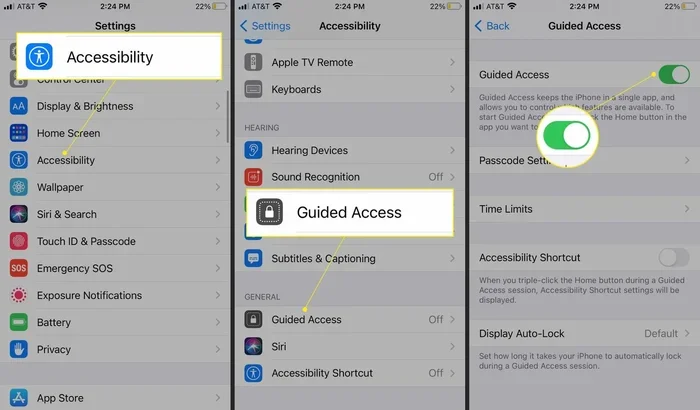
- Scroll down and tap Accessibility. This section contains all the features that help you customize how your iPhone works.
- Tap on Touch. This menu controls how your iPhone responds to your touch and gestures.
- Select Back Tap. You will see options for Double Tap and Triple Tap here.
- Tap on Double Tap. This opens the action menu for your double tap gesture.
- Choose No Action. This disables the double tap on the back of your phone completely.
That is it. Your double tap on the back of the iPhone is now turned off. You will no longer accidentally trigger whatever action was assigned to that gesture. If you ever want to turn it back on, just repeat these steps and select a different action instead of No Action.
What If You Want to Turn Off Triple Tap Instead
While you are in the Back Tap menu, you might also want to adjust the Triple Tap setting. Triple Tap works the same way as double tap but requires three quick taps on the back of your phone. Some users assign Zoom or other accessibility features to Triple Tap. If you find that Triple Tap is also causing accidental triggers, you can turn it off the same way by selecting No Action.
You can also use Triple Tap for something useful if you want. For example, you can set it to open your camera quickly or toggle Dark Mode. The choice is yours. But if it is causing more trouble than it is worth, disabling it is the way to go.
Adjusting Touch Sensitivity to Reduce Accidental Taps
Sometimes the problem is not just the double tap gesture itself but how sensitive your iPhone screen is to touch. If your screen responds too quickly, you might get accidental double taps even when you only meant to tap once. Adjusting your touch sensitivity can help reduce these frustrating moments.
How to Change Touch Sensitivity on iPhone
Here is how you can make your iPhone screen less sensitive to quick taps:
- Go to Settings and tap Accessibility.
- Select Touch.
- Tap on Touch Accommodation. This feature lets you control how your iPhone handles touch input.
- Turn on Touch Accommodation. Once enabled, you will see new options appear.
- Adjust the Hold Duration. This setting tells your iPhone how long a touch needs to last before it registers. Increasing this slightly can help prevent accidental taps from being interpreted as double taps.
- Explore the Ignore Repeat option. This setting helps your iPhone ignore repeated taps that happen too quickly, which can cut down on accidental double taps.
These small changes can make a big difference in how your iPhone responds to your touch. You do not need to turn off the double tap entirely if you just want fewer accidental triggers. Adjusting touch sensitivity gives you a middle ground between full functionality and frustration-free use.
Who Benefits Most From Touch Sensitivity Adjustments
People with certain motor conditions or those who use their phone in active environments often benefit the most from touch sensitivity changes. If you exercise frequently, work with your hands a lot, or simply have a habit of tapping quickly, these settings can help your iPhone keep up with your actual intent rather than reacting to every quick movement of your fingers.
Turning Off Double Tap on the Side Button
On newer iPhone models, you can also assign actions to a double tap on the side button. This is the button on the right side of your phone. If you have accidentally opened Apple Pay or your camera by double tapping the side button, you can turn this off easily.
Step-by-Step: Disable Side Button Double Tap
- Open Settings on your iPhone.
- Tap Accessibility.
- Select Side Button. This option is available on iPhone models that support Back Tap and side button actions.
- Look for the Double Tap option. You may see options for what happens when you double press the side button.
- Change the action to None or disable it. The exact wording may vary depending on your iOS version.
Once you do this, your iPhone will no longer respond to double taps on the side button. You can still use single presses and long presses for their default functions like locking your screen or activating Siri.
What Actions Can You Assign to Side Button Double Tap
Before you turn off the side button double tap, you might want to know what it can do. Apple lets you assign several actions to this gesture:
- Apple Pay: Quickly open your wallet for contactless payments.
- Camera: Launch your camera app instantly.
- Shortcuts: Run any custom shortcut you have created in the Shortcuts app.
- Home Screen: Go directly to your home screen from anywhere.
If you use any of these regularly, consider whether you want to keep them. If the double tap side button action causes more problems than it solves, turning it off is a smart move.
Using AssistiveTouch as an Alternative Navigation Method
If you are turning off double tap because you find gestures unreliable or frustrating, you might want to explore AssistiveTouch. This accessibility feature adds a floating button to your iPhone screen that gives you quick access to common actions without relying on complex gestures.
How to Enable AssistiveTouch on iPhone
- Open Settings and go to Accessibility.
- Tap on Touch.
- Select AssistiveTouch.
- Turn on AssistiveTouch. A floating button will appear on your screen.
- Customize the menu to include the actions you use most. You can add things like Home, Lock Screen, Notification Center, and custom shortcuts.
AssistiveTouch is a great alternative for people who prefer simple, single-tap navigation over multi-gesture controls. It works on all iPhone models and can be especially helpful if you have trouble with certain gestures due to hand tremors, arthritis, or other conditions.
Benefits of Using AssistiveTouch
There are several reasons why AssistiveTouch is worth trying even if you do not have a disability:
- Simpler navigation: Everything is one tap away instead of requiring multi-finger gestures.
- Customizable: You can build a menu that matches exactly how you use your phone.
- Reduces accidental inputs: Since it uses deliberate single taps, there is less chance of triggering actions by mistake.
- Works alongside other gestures: You can keep using standard gestures while also having AssistiveTouch as a backup.
Quick Tips to Prevent Accidental Double Taps
Even after you turn off the double tap feature, you may still experience accidental taps on your iPhone screen. Here are some quick tips to help minimize them:
- Use a thicker phone case. A bulky case can reduce how often your screen registers accidental touches when you pick up your phone or put it in your pocket.
- Turn on Raise to Wake carefully. This feature wakes your screen when you pick up your phone. If your screen is active, your fingers might accidentally tap it. Consider turning off Raise to Wake if this happens often.
- Adjust the Auto-Lock timer. Setting your screen to lock after 30 seconds of inactivity means fewer chances for accidental taps when you set your phone down.
- Use a screen protector. Matte screen protectors can reduce the sensitivity of your screen slightly, which helps with accidental inputs.
- Review your accessibility settings regularly. iOS updates sometimes reset or change gesture settings. Checking back every few months ensures everything is still set the way you want it.
Common Mistakes People Make When Adjusting iPhone Gestures
When trying to turn off the double tap from their iPhone, many people make a few common mistakes. First, they only turn off one gesture setting but leave the others active. For example, they might disable Back Tap double tap but forget that the screen zoom double tap is still on. Second, some users change the wrong setting entirely, turning off Triple Tap when they meant to turn off Double Tap. Third, people forget to test their changes after making them, so they do not know if the fix actually worked.
To avoid these mistakes, go through each setting one at a time. Make one change, test it, and then move on to the next. This systematic approach ensures you do not miss anything and you can pinpoint exactly which setting was causing the problem.
Expert Insight: Why Apple Keeps Gestures So Complex
Apple designs iPhone gestures to be fast and efficient for power users. The double tap, triple tap, and Back Tap features are part of a larger system of shortcuts that let you navigate your phone without even looking at it. For many users, these gestures become second nature and significantly speed up daily tasks. However, Apple also understands that not everyone wants the same level of gesture control. That is why they put all these settings in Accessibility, giving you the power to customize your experience exactly to your preferences.
The key is to find the right balance. You do not have to turn off every gesture to have a smooth experience. Sometimes just adjusting one or two settings is enough to eliminate the frustration while keeping the features you actually use. Experiment with different combinations until you find what works best for your lifestyle and usage habits.
How to Re-Enable Double Tap If You Change Your Mind
Maybe you turned off the double tap feature but now you miss it. That is perfectly fine. Re-enabling it is just as easy as turning it off. Simply go back to the same settings menu where you disabled it and choose a different action. For Back Tap, you would go to Settings, then Accessibility, then Touch, then Back Tap, and select Double Tap. From there, you can assign any action you like, such as opening your camera, launching a shortcut, or activating your wallet.
Similarly, if you adjusted your touch sensitivity and want to go back to the default settings, you can reset all accessibility settings. Just go to Settings, then Accessibility, then scroll to the bottom and tap Reset Accessibility Settings. This will not delete any of your other data or settings. It simply returns all accessibility features to their original defaults.
Which iPhone Models Support These Settings
The double tap and Back Tap features are available on most modern iPhone models. Here is a quick breakdown:
- iPhone 8 and later: All models support Back Tap and side button double tap gestures.
- iPhone X and later: These models also support the Raise to Wake feature, which can interact with accidental taps.
- iPhone 13, 14, 15, and 16 series: These newer models have the most refined gesture controls and the latest iOS accessibility features.
- Older models running iOS 14 or later: Even if you have an older iPhone, you can still access most of these settings as long as you are running a supported iOS version.
If you are unsure whether your specific iPhone model supports a particular gesture setting, you can always check by looking for the option in the Accessibility menu. If it is not there, your model may not support it, or your iOS version may be too old. Updating to the latest iOS version is always a good idea to get the most out of your iPhone.
Final Thoughts on Turning Off Double Tap on iPhone
Turning off the double tap from your iPhone is a simple process that can make a real difference in your daily experience. Whether you are dealing with accidental zoom-ins, unwanted app launches, or just prefer a simpler interaction with your phone, the steps in this guide give you full control. You can disable Back Tap, adjust touch sensitivity, turn off side button double tap, and explore AssistiveTouch as an alternative. Each of these options works independently, so you can mix and match to create the perfect setup for your needs.
The beauty of iPhone accessibility settings is that they are designed to be flexible. Apple wants every user to feel comfortable and in control of their device. You do not need to keep a feature just because it is there. If the double tap is causing you frustration, take a few minutes to turn it off. Your iPhone experience will feel smoother, cleaner, and more tailored to how you actually use your phone every day.
Remember, you can always change these settings back whenever you want. There is no permanent commitment. So go ahead, explore the settings, and make your iPhone work exactly the way you want it to. Your fingertips will thank you.
Frequently Asked Questions
Can I turn off double tap without going into Accessibility settings?
Unfortunately, no. The double tap settings on iPhone are located within the Accessibility menu. There is no way to turn off double tap directly from the home screen or Control Center. You will need to navigate to Settings, then Accessibility, and then find the specific gesture setting you want to adjust.
Will turning off double tap affect other iPhone features?
No, turning off double tap will not break any other features on your iPhone. You will still be able to use single taps, long presses, swipes, and all other standard gestures. The only change is that the double tap action will no longer trigger whatever you had assigned to it. Everything else works exactly as before.
Can I turn double tap back on after disabling it?
Absolutely. You can re-enable double tap at any time by going back to the same settings menu where you turned it off. Simply select a new action for the double tap gesture, and it will work again immediately. There is no need to restart your iPhone or update your software.
Does turning off double tap save battery life?
Not significantly. The double tap gesture uses very little battery power because it relies on the touchscreen sensor, which is always active. However, if you also adjust other settings like Raise to Wake or reduce touch sensitivity, you may notice a small improvement in battery life over time.
Can I customize what double tap does instead of turning it off completely?
Yes, you can. When you go to the Back Tap or Side Button settings and select Double Tap, you will see a list of actions you can assign. These include opening your camera, launching Apple Pay, running a custom shortcut, or activating the Accessibility Shortcut. You can choose any action that works for you.
Why does my iPhone still register accidental double taps even after I turn them off?
If you are still experiencing accidental taps after turning off double tap, the issue might be with your screen sensitivity or your phone case. Try adjusting the Touch Accommodation settings or using a thicker phone case. Also make sure you did not accidentally leave another gesture setting active that could be causing the issue.
=== CONCLUSION ===
Turning off the double tap from your iPhone is easier than you might think. Whether you use the Back Tap settings, adjust your touch sensitivity, or explore AssistiveTouch as an alternative, you have complete control over how your iPhone responds to your gestures. The steps in this guide work on all modern iPhone models and take just a few minutes to complete.
Do not let accidental double taps ruin your iPhone experience. Take a few minutes right now to go through the settings and make the changes that work for you. You will be surprised at how much smoother and more enjoyable your phone feels once you have everything set up exactly the way you want it. Your iPhone is a powerful tool, and you should be the one in control of how it works, not the other way around.