Do I Need Both A Router And A Modem For My Home Network
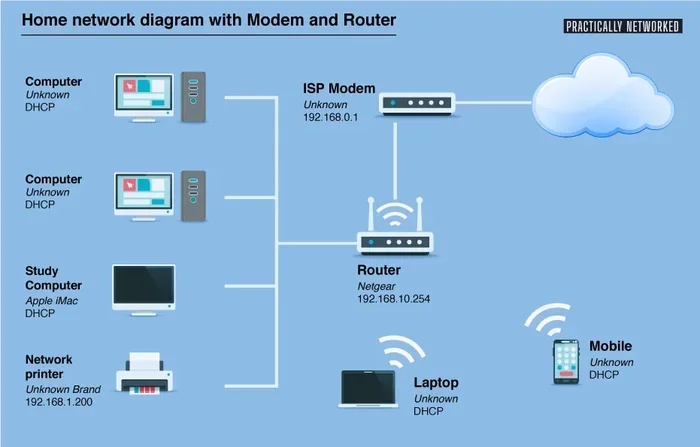
Do I Need Both A Router And A Modem? The short answer is yes, most of the time. A modem connects your home to the internet, while a router shares that connection with all your devices. Understanding this difference helps you set up a faster, more reliable home network and avoid paying for extra gear you don’t need.
Setting up a home network can feel confusing. You walk into an electronics store or browse online, and suddenly you see terms like modem, router, gateway, and access point. It is easy to feel lost. One question comes up again and again: do I need both a router and a modem? The answer is simpler than you think. Let us break it all down in plain language so you can make the right choice for your home.
Most people need both a modem and a router. But some homes work great with just one device that does both jobs. This guide will help you understand exactly what each piece of equipment does. You will learn when you need two separate devices and when a single unit is enough. By the end, you will feel confident about your home network setup.
Key Takeaways
- A modem and a router do two different jobs: one brings the internet in, and the other spreads it around your home.
- You usually need both devices unless you buy a modem-router combo unit.
- Your ISP may provide a gateway device that combines both functions in one box.
- A separate router gives you better Wi-Fi speed and more control over your network.
- Modem-router combos save space and work well for small homes with light internet use.
- Check with your ISP before buying any equipment to avoid compatibility issues.
- The right setup depends on your home size and how many devices you use online.
📑 Table of Contents
What Does a Modem Do?
A modem is the device that connects your home to the internet. Think of it as the bridge between your house and your internet service provider, or ISP. Without a modem, none of your devices can reach the internet. It takes the signal from your ISP and turns it into something your devices can use.
How a Modem Connects You to the Internet
Your ISP sends internet data through a cable, a phone line, or a fiber optic line. The modem receives that signal and translates it. It then sends the data out through an ethernet cable to your computer or router. The modem does not create a Wi-Fi network on its own. It only handles the connection to the outside world.
There are different types of modems based on your internet type. Cable modems work with coaxial cables. DSL modems use phone lines. Fiber modems connect to fiber optic lines. Each type matches the kind of internet service your ISP provides. You need the right modem for your specific internet connection.
Types of Modems You Might Encounter
- Cable modems: These work with cable TV lines. They are very common in cities and suburbs.
- DSL modems: These use traditional phone lines. They are common in rural areas.
- Fiber modems: These connect to fiber optic cables for super fast speeds.
- Dial-up modems: These are old school and very slow. Most people do not use them anymore.
Your ISP often lets you rent a modem from them. This costs a monthly fee, usually around 10 to 15 dollars. Buying your own modem can save you money over time. Just make sure the modem is compatible with your ISP before you buy it.
What Does a Router Do?
A router takes the internet signal from your modem and shares it with all your devices. It creates a local network inside your home. This lets your phone, laptop, smart TV, and tablets connect to the same internet source at the same time.
How a Router Shares Your Internet Connection
Without a router, you could only connect one device to the internet at a time using a cable. A router solves this problem. It sends out a Wi-Fi signal so multiple devices can go online wirelessly. It also assigns each device a local IP address. This helps your network run smoothly without conflicts.
Routers also handle traffic between your devices. When your phone downloads a movie while your laptop checks email, the router manages both requests. It makes sure each device gets the data it needs without slowing things down.
Key Features of Modern Routers
- Wi-Fi standards: Newer routers support Wi-Fi 6 and Wi-Fi 6E for faster speeds.
- Dual-band or tri-band: These routers use multiple frequency bands to reduce congestion.
- Security features: Good routers include firewalls and encryption to keep your network safe.
- Parental controls: Many routers let you manage screen time and block certain websites.
- Quality of Service: This feature prioritizes traffic for things like video calls and gaming.
A router does not give you internet on its own. It needs a modem to provide the actual internet connection. Think of the modem as the door to the internet and the router as the hallway that connects every room in your house to that door.
Modem vs Router: The Key Differences
People often mix up modems and routers. They look similar and both are important for your home network. But they do very different things. Here is a simple way to remember the difference.
Modem vs Router Comparison Table
| Feature | Modem | Router |
|---|---|---|
| Main job | Connects your home to the internet | Shares that connection with your devices |
| Creates Wi-Fi? | No | Yes |
| Connects to ISP? | Yes | No |
| Assigns IP addresses? | No | Yes |
| Needed for internet? | Yes | Only for multiple devices |
| Has ethernet ports? | Usually one | Usually four or more |
| Can work alone? | Yes, with one wired device | No, needs a modem for internet |
The modem talks to your ISP. The router talks to your devices. Both are essential for a full home network with wireless access. If you want to use your phone, tablet, or laptop wirelessly, you need a router. If you want any device to access the internet at all, you need a modem.
Why the Confusion Happens
Internet service providers often give you a single box that works as both a modem and a router. This is called a gateway or a modem-router combo. Because everything comes in one box, it is easy to think the modem and router are the same thing. They are not. They just share a case.
Do You Need Both a Router and a Modem?
Now for the big question. Do I need both a router and a modem? It depends on your situation. Let us look at the different scenarios so you can figure out what works best for your home.
When You Need Both Devices
You need both a modem and a router if you want to use Wi-Fi with multiple devices. You also need both if you want a wired network with several computers, game consoles, or smart TVs. Most households today have at least three to five connected devices. In that case, a separate modem and router is the best setup.
Having separate devices also gives you more control. You can upgrade your router without changing your modem. You can choose a router with better range or faster speeds. This flexibility is a big advantage for tech-savvy users and growing families.
When You Can Skip One Device
You can skip a separate router if you only have one device that needs internet. For example, if you only use a desktop computer connected by an ethernet cable, the modem alone is enough. No router is needed in this case.
You can also skip buying a separate modem if your ISP provides a gateway device. A gateway is a modem-router combo that handles both jobs. Many people use these because they are convenient. They save space and reduce the number of cables on your desk.
Common Home Network Setups
Here are the three most common setups you will see in homes today:
- Modem + separate router: This is the best setup for most homes. It gives you the fastest Wi-Fi and the most control.
- Gateway device (modem-router combo): This works well for small apartments and light internet users. It is simple and takes up less space.
- Modem only: This works if you have just one wired device. It is rare but still useful in some situations.
Modem-Router Combos: The Best of Both Worlds?
A modem-router combo is also called a gateway. It is one device that handles both the modem and router functions. Your ISP loves these because they reduce support calls. But are they the best choice for you?
Pros of Using a Gateway Device
- Less clutter: One box instead of two saves space.
- Easier setup: Fewer devices means fewer cables and less hassle.
- Lower upfront cost: One device costs less than buying two separate ones.
- ISP support: Your provider can manage the device remotely.
Cons of Using a Gateway Device
- Slower upgrades: You cannot upgrade just the router part. You have to replace the whole unit.
- Weaker performance: Combo devices usually have less powerful hardware than standalone routers.
- Limited features: You may miss out on advanced settings and controls.
- Rental fees: ISPs often charge 10 to 15 dollars per month to rent these devices.
For most people, buying a separate modem and a good router is the better long-term choice. You save money by not paying monthly rental fees. You also get better Wi-Fi performance and more features. But if you live in a small space with basic internet needs, a gateway device can work just fine.
How to Choose the Right Setup for Your Home
Choosing the right network setup depends on a few factors. Let us walk through them so you can make a smart decision.
Consider Your Home Size
Small apartments usually need less Wi-Fi power. A basic modem-router combo or a simple standalone router works well here. Larger homes with multiple floors need a stronger router or even a mesh Wi-Fi system. The size of your home affects how far your Wi-Fi signal needs to reach.
Think About Your Internet Usage
Do you stream movies, play online games, or work from home? Heavy internet users need a faster modem and a better router. Light users who just check email and browse the web can get by with basic equipment. Your usage habits help determine the quality of gear you need.
Count Your Connected Devices
Every device that connects to your Wi-Fi adds demand. Smartphones, laptops, tablets, smart TVs, smart speakers, and security cameras all compete for bandwidth. The more devices you have, the better your router needs to be. A strong dual-band or tri-band router handles multiple devices without slowing down.
Check Compatibility with Your ISP
Not all modems work with every internet provider. Before you buy a modem, check your ISP’s approved device list. This saves you from buying gear that will not work with your service. Your ISP’s website usually has a list of compatible modems and routers.
Budget Considerations
Buying your own equipment costs more upfront but saves money over time. Renting from your ISP adds up month after month. A good standalone modem costs 50 to 100 dollars. A solid router costs 80 to 200 dollars. Compare that to paying 15 dollars a month in rental fees, which adds up to 180 dollars a year.
You can also find great deals on refurbished modems and routers. Just make sure they are certified and compatible with your ISP. Spending a little more on quality equipment pays off in better speed and reliability.
Quick Tips for Setting Up Your Network
- Place your router in a central location for the best Wi-Fi coverage.
- Keep your router away from walls, metal objects, and microwaves.
- Update your router firmware regularly for security and performance.
- Change the default Wi-Fi password to something strong and unique.
- Restart your modem and router once a month to keep things running smoothly.
- Use an ethernet cable for devices that need the fastest, most stable connection.
Common Mistakes to Avoid
- Putting the router in a closet or basement: Walls and doors block Wi-Fi signals. Keep it out in the open.
- Ignoring firmware updates: Old firmware can slow down your router and create security risks.
- Buying the wrong modem type: Make sure your modem matches your internet type (cable, DSL, or fiber).
- Skipping a router when you need one: A modem alone will not give you Wi-Fi for multiple devices.
- Overpaying for ISP rentals: Buying your own gear is almost always cheaper in the long run.
Expert Insights on Home Network Setup
Network experts agree that separating your modem and router gives you the best performance. A standalone router always outperforms the router built into a gateway device. This is because standalone routers have better antennas, faster processors, and more memory. They handle heavy traffic much better than combo units.
If you live in a larger home, consider a mesh Wi-Fi system. These use multiple units to spread Wi-Fi coverage throughout your house. They eliminate dead zones and give you strong speeds in every room. Mesh systems are more expensive but worth it for homes over 2,000 square feet.
Your internet speed also matters. If you have a fast internet plan, a cheap router will hold you back. Make sure your router can handle the speeds your ISP provides. Look for routers that support at least the same speed tier as your internet plan.
Final Thoughts
So, do I need both a router and a modem? For most homes, the answer is yes. You need a modem to bring the internet into your home, and a router to share it with all your devices. A modem-router combo can work if you want simplicity and have basic needs. But for the best performance and value, separate devices are the way to go.
Take the time to understand your internet setup. Check what your ISP provides and what you actually need. A little research goes a long way toward a faster, more reliable home network. You deserve internet that works well without headaches or extra costs.
Start by figuring out your internet type and how many devices you connect. Then choose the right modem and router for your situation. Your home network will run better, and you will save money in the long run. Making the right choice today means fewer problems tomorrow.
Frequently Asked Questions
Can I use a router without a modem?
Yes, but only for local networking. A router without a modem can connect your devices to each other. You can share files and print wirelessly. But you will not have access to the internet. A modem is required to bring the internet signal into your home.
What is a gateway device?
A gateway is a single box that combines a modem and a router. It handles both jobs in one unit. Many ISPs provide these devices to their customers. They are convenient but often less powerful than separate modem and router setups.
How do I know if I need a new modem or router?
If your internet is slow or your Wi-Fi keeps dropping, your equipment might be outdated. Check the age of your devices. Modems older than five years may not support newer internet speeds. Routers older than four years may struggle with modern usage demands.
Can I buy my own modem instead of renting from my ISP?
Yes, you can buy your own modem. Just make sure it is compatible with your ISP. Check the approved device list on your provider’s website. Buying your own modem saves money over time by eliminating monthly rental fees.
Do I need a separate router if my modem has Wi-Fi built in?
Not always. If you have a modem with built-in Wi-Fi and your internet works fine, you may not need a separate router. However, a standalone router usually offers better speed, range, and features. It is worth the extra cost if you have many devices or need strong Wi-Fi coverage.
What is the difference between a router and an access point?
A router manages your home network and shares the internet connection. An access point just extends the Wi-Fi signal. It does not have modem functions or network management features. Access points work best when paired with an existing router to expand coverage in larger homes.
=== CONCLUSION ===
Do I need both a router and a modem? For most home networks, yes. A modem brings the internet in, and a router spreads it to all your devices. Understanding this basic difference helps you make smarter choices about your home network setup. Whether you go with separate devices or a modem-router combo, the key is matching your equipment to your needs.
Take a look at your current setup. Count your connected devices. Think about your home size and internet habits. Use what you learned here to pick the right gear. A well-planned network gives you faster speeds, better coverage, and fewer headaches. You will wonder why you did not upgrade sooner.