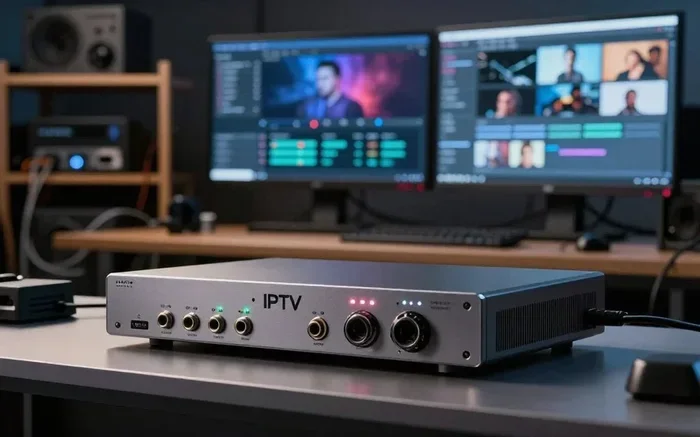
Do I Need An Encoder To Stream And Why You Need One
Do I need an encoder to stream? The short answer is yes — but it depends on your setup. A video encoder converts your raw gameplay or camera feed into a streamable format for platforms like Twitch and YouTube. Whether you use a hardware encoder built into your GPU or a software encoder like OBS Studio, understanding your options helps you achieve broadcast quality streams without wasting money or effort.
Do I need an encoder to stream? If you have ever wondered about this, you are not alone. Thousands of people start their live streaming journey every single day. Many of them ask the same question. The truth is, an encoder is at the heart of every streaming setup. Without one, your raw video signal cannot reach platforms like Twitch, YouTube, or Facebook Live.
But here is the good news. You probably already have an encoder. Modern computers and consoles come with built-in encoding capabilities. A software encoder like OBS Studio or a hardware encoder inside your GPU does the heavy lifting for you. You do not always need to buy extra gear. What you do need is the right knowledge to set things up properly.
In this guide, we will walk you through everything you need to know about video encoders for streaming. We will cover hardware vs software options, when you need a separate encoder, and how to pick the best one for your streaming gear. By the end, you will feel confident about your live broadcast setup.
Key Takeaways
- An encoder is essential for streaming: It compresses raw video into a format platforms can accept.
- Hardware encoders use your GPU: They are faster and free if you have a compatible graphics card.
- Software encoders offer more control: Programs like OBS give you fine-tuned encoder settings for better quality.
- You don’t always need a separate encoder: Many modern GPUs and cameras have built-in encoding.
- Your streaming setup depends on your goals: Casual streamers need less gear than professional content creators.
- Bitrate and resolution matter: Choosing the right stream bitrate and resolution affects viewer experience.
- A capture card can help: It allows you to stream console gameplay or use external cameras easily.
📑 Table of Contents
- What Is a Video Encoder and Why Does It Matter?
- Hardware Encoder vs Software Encoder: What Is the Difference?
- Do You Always Need a Separate Encoder?
- How to Choose the Right Encoder for Your Streaming Setup
- Common Streaming Encoder Mistakes and How to Avoid Them
- Expert Tips for Better Streaming Quality
- Final Thoughts on Whether You Need an Encoder to Stream
What Is a Video Encoder and Why Does It Matter?
A video encoder is a tool that converts raw video into a compressed digital format. Think of it like a translator. Your camera or capture card produces raw, uncompressed video. That video is too large to send over the internet in real time. The encoder shrinks it down into a manageable file while keeping the stream quality as high as possible.
Without an encoder, platforms like Twitch would not be able to display your stream. Every live streaming session uses some form of encoding. The question is not whether you need one. The question is what type works best for you.
How Encoding Works in Simple Terms
When you hit the “Go Live” button on Twitch, your streaming software sends your video to an encoder. The encoder applies video compression algorithms to reduce file size. It then packages the video with audio and sends it to the streaming platform. This all happens in milliseconds. Viewers see a smooth, real-time live broadcast on their screens.
The quality of this process depends on several factors. Your encoder settings, your computer’s processing power, and your internet upload speed all play a role. A good encoder balances quality and performance so your viewers have a great experience.
Hardware Encoder vs Software Encoder: What Is the Difference?
Understanding the difference between a hardware encoder and a software encoder is crucial. Each has its strengths and weaknesses. Your choice depends on your budget, your computer, and your streaming goals.
Hardware Encoders
A hardware encoder uses a dedicated chip or component to handle encoding. This takes the load off your CPU. Most modern GPUs from NVIDIA and AMD include built-in hardware encoders. NVIDIA calls theirs NVENC. AMD calls theirs VCE or AMF.
Hardware encoders are fast and efficient. They use very little CPU power, which means your games run smoother while you stream. For most content creators, the built-in hardware encoder on their GPU is more than enough.
Some standalone streaming gear also uses hardware encoders. Devices like the Elgato Stream Deck or dedicated encoding boxes offer plug-and-play simplicity. These are great for people who want a clean, minimal setup.
Software Encoders
A software encoder uses your computer’s CPU or GPU to process video. The most popular streaming software with a built-in software encoder is OBS Studio. Other options include Streamlabs OBS, XSplit, and vMix.
Software encoders give you more control over your encoder settings. You can tweak every detail, from color space to keyframe intervals. This level of control helps you achieve broadcast quality streams. However, software encoding uses more of your computer’s resources.
If you have a powerful computer with a good CPU, a software encoder can produce excellent results. Many professional streamers prefer software encoders because of the flexibility they offer.
Do You Always Need a Separate Encoder?
The short answer is no. Most people do not need a separate, standalone encoder. Your computer or console likely handles encoding already. Let us break down when you need extra gear and when you do not.
When You Do NOT Need a Separate Encoder
- You are streaming from a PC: Your GPU’s built-in encoder handles the job. NVIDIA, AMD, and Intel GPUs all have hardware encoding support.
- You use OBS or Streamlabs: These programs use your GPU or CPU as an encoder automatically.
- You are a casual streamer: If you stream a few times a week for fun, your built-in encoder is perfect.
- Your console has streaming built in: PlayStation and Xbox offer native streaming features that include encoding.
When You DO Need a Separate Encoder
- Your computer is too old or weak: If your PC struggles to encode video while gaming, a dedicated encoder box can help.
- You stream console gameplay: You need a capture card with its own encoder to pull and compress your console signal.
- You run a professional setup: High-end live streaming operations sometimes use dedicated encoding hardware for reliability.
- You stream from multiple cameras: A hardware encoder can manage several video inputs without overloading your PC.
How to Choose the Right Encoder for Your Streaming Setup
Choosing the right streaming encoder depends on your specific needs. There is no one-size-fits-all answer. Here are the key factors to consider when setting up your streaming setup.
Consider Your Streaming Platform
Different platforms have different requirements. Twitch recommends a stream bitrate of 3,000 to 6,000 kbps for 1080p. YouTube Live supports higher bitrates for better stream quality. Your encoder must be able to hit these targets consistently.
Some platforms prefer certain video codecs. H.264 is the most widely supported codec across all platforms. H.265 (HEVC) offers better compression but is not as universally supported. Stick with H.264 for the best compatibility.
Check Your Computer’s Specs
Your computer’s hardware determines which encoder you should use. Here is a quick guide:
- NVIDIA GPU: Use NVENC. It is fast, efficient, and produces excellent quality.
- AMD GPU: Use AMD’s hardware encoder. It works well for most streaming needs.
- Intel CPU: Intel Quick Sync Video offers a solid hardware encoding option.
- Weak CPU and no GPU: Use a software encoder with lower resolution or frame rate to avoid lag.
Set the Right Encoder Settings
Getting the right encoder settings can make or break your stream. Here are some tips:
- Match your bitrate to your upload speed: Use about 70 to 80 percent of your available upload bandwidth.
- Choose the right resolution: 1080p at 60fps is ideal. 720p at 60fps is a good fallback for weaker systems.
- Use CBR (Constant Bitrate): This ensures a steady stream without quality drops.
- Set your keyframe interval to 2 seconds: This helps platforms process your stream more efficiently.
- Tune your preset: In OBS, choose a preset like “Quality” or “P5” for NVENC to balance quality and performance.
Common Streaming Encoder Mistakes and How to Avoid Them
Even experienced streamers make encoder mistakes. These errors can cause lag, poor stream quality, or dropped frames. Here are the most common ones and how to fix them.
Using Too High a Bitrate
One of the biggest mistakes is setting your stream bitrate too high. If your bitrate exceeds your upload speed, your stream will stutter and buffer. Always test your upload speed first. Then set your bitrate to about 70 to 80 percent of that number.
Ignoring Encoder Presets
Many beginners use default encoder presets without thinking. This can waste your computer’s resources or produce poor quality. Take a few minutes to adjust your encoder settings in OBS or your streaming software. A small tweak can make a big difference.
Overlooking CPU Usage
If you use a software encoder and your CPU is already at 90 percent while gaming, your stream will suffer. Watch your CPU usage in Task Manager while streaming. If it is too high, switch to a hardware encoder or lower your stream resolution.
Not Updating Your Drivers
Outdated GPU drivers can cause encoder issues. NVIDIA and AMD regularly improve their encoding performance through driver updates. Keep your drivers up to date for the best streaming performance.
Expert Tips for Better Streaming Quality
Want to take your live streaming to the next level? These expert tips will help you get the best results from your encoder.
Use a Two-PC Setup for Heavy Streaming
Some serious content creators use a two-PC setup. One PC handles gaming. The other handles encoding and streaming. This eliminates the performance hit from encoding and ensures a smooth live broadcast every time.
Invest in a Good Capture Card
If you stream console gameplay, a quality capture card is essential. Look for one with a built-in hardware encoder. This gives you clean, compressed video without taxing your PC. Popular options include the Elgato HD60 X and the AVerMedia Live Gamer 4K.
Monitor Your Stream Health
Most streaming platforms provide a stream health dashboard. Watch for dropped frames, encoding lag, and bitrate fluctuations. These are signs that your encoder is struggling. Adjust your settings or upgrade your streaming gear if needed.
Test Before You Go Live
Always do a test stream before your actual broadcast. OBS has a “Start Recording” option that lets you check your quality locally. Review the recording for any issues. Fix them before your viewers see them.
Final Thoughts on Whether You Need an Encoder to Stream
So, do you need an encoder to stream? The answer is built into almost every modern device you own. Your GPU has a hardware encoder. Your streaming software has a software encoder. Together, they handle the job of turning your raw video into a smooth, watchable live stream.
You only need a separate encoder if your current setup cannot handle the workload. A capture card with a built-in encoder can solve console streaming challenges. A dedicated encoding box can help if your PC is too old or weak.
The most important thing is to understand your options. Know what a video encoder does. Learn how to set your encoder settings correctly. Choose the right video codec and stream bitrate for your platform. With this knowledge, you can create high-quality live streaming content that your audience will love.
Start simple. Use what you have. Upgrade only when you need to. Your streaming journey is unique, and the right encoder setup is the foundation that supports it.
Frequently Asked Questions
Do I need an encoder if I stream from a console?
Consoles like PlayStation and Xbox have built-in encoding for streaming directly to platforms. However, if you want to stream to a PC first or use a capture card, you will need an encoder. Most capture cards include their own hardware encoder, so you do not need a separate one.
Can I stream without any encoder software?
No, every stream uses an encoder. The question is whether it is built into your hardware or software. OBS and similar tools use your GPU or CPU as an encoder automatically. You cannot stream without encoding happening behind the scenes.
Is a hardware encoder better than a software encoder?
Hardware encoders are faster and use less CPU power. Software encoders offer more control and customization. For most streamers, the built-in hardware encoder on their GPU is the best choice. Professional streamers who need fine-tuned control may prefer a software encoder.
What is the best encoder for streaming on Twitch?
NVIDIA’s NVENC encoder is widely considered the best for Twitch streaming. It offers excellent quality with low CPU usage. If you do not have an NVIDIA GPU, AMD’s hardware encoder or Intel Quick Sync are solid alternatives. OBS Studio supports all of them.
How much does a standalone encoder cost?
Standalone hardware encoders range from $100 to $500 or more. Most streamers do not need one because their GPU or streaming software already includes encoding. A capture card with built-in encoding costs between $100 and $200 and is often enough for console streaming needs.
Does bitrate affect encoder performance?
Yes, bitrate directly affects your stream quality and encoder workload. A higher bitrate means better quality but requires more processing power and faster internet. Set your bitrate based on your upload speed and platform recommendations. Too high or too low a bitrate will hurt your viewer experience.