Do I Need A Modem With A Linksys Wireless Router Setup
Yes, in most cases you need a modem to use a Linksys wireless router. The modem connects to your internet service provider and brings the signal into your home, while the Linksys router distributes that signal wirelessly. Understanding how these two devices work together saves time and money during setup.
Setting up a home network can feel confusing. One question people ask all the time is, do I need a modem with a Linksys wireless router? The short answer is yes, but there is more to the story. This guide breaks everything down in plain language. You will learn what each device does, how they work together, and what to look for during setup.
Whether you are a complete beginner or someone who just bought a new Linksys router, this article has you covered. We will walk through modem types, compatibility checks, and step-by-step instructions. By the end, you will feel confident setting up your wireless network setup the right way.
Key Takeaways
- A modem is usually required: Most Linksys wireless routers need a separate modem to access the internet.
- Modem-router combos exist: Some ISP gateways combine both functions, but standalone gear offers more control.
- Check compatibility first: Not every modem works with every Linksys router model.
- Setup is straightforward: Connecting a modem to a Linksys router takes just a few minutes with an Ethernet cable.
- Bridge mode is an option: You can put your ISP gateway in bridge mode and use your own Linksys router.
- Your internet speed depends on both devices: A slow modem can bottleneck a fast Linksys router.
📑 Table of Contents
- What Does a Modem Actually Do?
- What Does a Linksys Wireless Router Do?
- Do I Need a Modem With a Linksys Wireless Router Setup?
- Modem and Router Combo vs. Standalone Setup
- How to Set Up a Modem With a Linksys Wireless Router
- Common Mistakes to Avoid
- Expert Tips for the Best Linksys Wireless Router Setup
- How to Know If Your Modem Is Compatible With Linksys
- Frequently Asked Questions
- Final Thoughts
What Does a Modem Actually Do?
A modem is the bridge between your home and your internet service provider. It takes the signal from your ISP and translates it into data your devices can use. Without a modem, your Linksys router has nothing to distribute. Think of the modem as the front door to the internet.
How a Modem Connects to the Internet
Your ISP sends a signal through a cable, phone line, or fiber connection. The modem receives that signal and converts it into a format your devices understand. Different types of internet connections use different kinds of modems.
- Cable modem: Works with coaxial cable connections from providers like Xfinity or Spectrum.
- DSL modem: Uses a phone line and works with DSL internet providers.
- Fiber ONT: Fiber internet uses a special terminal device instead of a traditional modem.
- Satellite modem: Used for satellite internet services like HughesNet or Viasat.
Each type of modem serves the same basic purpose. It brings the internet into your home. But the connection method changes depending on what kind of internet you have.
What Does a Linksys Wireless Router Do?
A Linksys wireless router takes the internet signal from the modem and shares it with your devices. It creates a Wi-Fi network so your phones, laptops, smart TVs, and other gadgets can connect without cables. The router also manages traffic between devices on your home network.
Key Features of Linksys Routers
Linksys makes a wide range of routers for different needs. Here are some features you might find:
- Dual-band or tri-band Wi-Fi: Offers multiple frequency bands for faster speeds.
- Linksys app setup: Lets you configure your router from your phone.
- Parental controls: Helps manage screen time and content access.
- Guest network support: Keeps visitors on a separate network.
- Beamforming technology: Focuses Wi-Fi signal toward connected devices.
The Linksys EA series, for example, includes popular models like the EA6350 and EA7500. These routers deliver strong Wi-Fi coverage for most homes. But none of them can create a wireless network without a modem feeding them an internet signal first.
Do I Need a Modem With a Linksys Wireless Router Setup?
This is the core question, and the answer depends on your situation. In most cases, yes, you need a separate modem. However, some scenarios change the equation. Let us look at when you need a modem and when you might not.
When You Definitely Need a Modem
If your internet service provider delivers internet through a cable, DSL, or phone line, you need a modem. The Linksys wireless router cannot connect directly to the ISP signal. Here are the situations where a modem is essential:
- Cable internet: You need a cable modem to connect to the coaxial outlet in your wall.
- DSL internet: A DSL modem plugs into the phone jack and brings the signal in.
- Fiber internet with separate router: Some fiber setups still require a modem or ONT device before the router.
In all these cases, the Linksys router connects to the modem using an Ethernet cable. The modem handles the ISP connection, and the router handles the wireless distribution. This two-device setup gives you more flexibility and better performance in most cases.
When You Might Not Need a Separate Modem
Some ISPs provide a gateway device that combines a modem and router into one box. These gateway devices handle both jobs. If you are currently using an ISP gateway, you might think you do not need a modem. But that is not quite accurate.
What you really have is a modem-router combo. The gateway already has a modem built in. If you want to replace the gateway with a dedicated Linksys wireless router, you still need a modem. You just buy a separate modem instead of using the ISP-provided gateway.
Another exception is if you only want a local network without internet access. In that case, a Linksys router alone can share files and printers between devices. But for actual internet access, the modem is a must-have.
Modem and Router Combo vs. Standalone Setup
Many people wonder whether they should use a modem-router combo or buy separate devices. Both approaches have pros and cons. Let us compare them so you can make the best choice for your home.
Modem-Router Combo (Gateway)
An ISP gateway is a single device that acts as both modem and router. It simplifies setup because there is only one box to plug in. Many ISPs prefer these because they can manage the equipment remotely.
But gateway devices often come with tradeoffs:
- Limited features: ISP gateways usually have fewer settings than standalone routers.
- Slower updates: Firmware updates may lag behind what standalone Linksys routers receive.
- Rental fees: Most ISPs charge a monthly fee to rent their gateway device.
- Performance limits: Gateway devices may not match the speed of a premium standalone router.
Standalone Modem + Linksys Router
Buying your own modem and pairing it with a Linksys wireless router gives you more control. You choose the exact modem model that matches your ISP and internet speed tier. You also get the full feature set of your Linksys router.
Here is what standalone setup offers:
- Better performance: A dedicated Linksys router often outperforms ISP gateways.
- No rental fees: After buying your own modem, you save money every month.
- Faster firmware updates: Linksys pushes updates directly for their routers.
- More customization: You get access to advanced settings and configurations.
- Easier troubleshooting: It is simpler to isolate problems when devices are separate.
Quick Comparison Table
| Feature | ISP Gateway (Combo) | Standalone Modem + Linksys Router |
|---|---|---|
| Monthly cost | Rental fee ($10-$15/month) | One-time purchase, no rental |
| Setup complexity | Simple, one device | Slightly more steps |
| Wi-Fi performance | Basic to moderate | Excellent, especially with Linksys EA series |
| Customization | Limited | Full access to all settings |
| Firmware updates | Controlled by ISP | Direct from Linksys |
| Long-term cost | Higher over time | Pays for itself within a year |
For most people, the standalone setup wins. You get better Wi-Fi signal strength, more features, and long-term savings. A Linksys wireless router paired with a compatible modem is the best approach for a home network that performs well.
How to Set Up a Modem With a Linksys Wireless Router
The setup process is simpler than most people think. You do not need to be a tech expert. Follow these steps and you will be online in no time.
Step 1: Gather Your Equipment
Before you start, make sure you have everything you need:
- A modem compatible with your ISP
- Your Linksys wireless router
- An Ethernet cable (usually included with the router)
- A computer or smartphone for configuration
- Your ISP account information
Check your modem compatibility list before buying. Not every modem works with every ISP. Linksys provides a helpful compatibility guide on their website. This small step saves a lot of frustration later.
Step 2: Connect the Modem
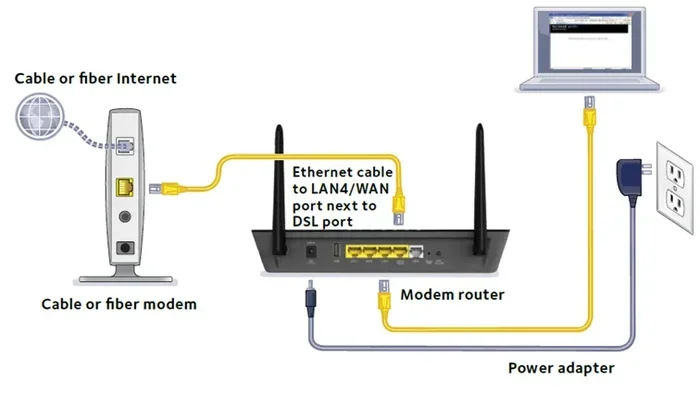
Plug the modem into the appropriate wall outlet. For cable internet, this is a coaxial outlet. For DSL, use a phone jack. Power on the modem and wait for the lights to stabilize. This usually takes one to two minutes. The online or status light should turn solid.
Step 3: Connect the Router to the Modem
Take the Ethernet cable and plug one end into the modem. Plug the other end into the WAN or Internet port on the back of your Linksys router. The WAN port is usually a different color from the other ports. This connection passes the internet signal from the modem to the router.
Power on the Linksys router and wait for it to start up. The power light and Wi-Fi light should come on. This process takes about two minutes.
Step 4: Configure the Router
Now comes the fun part. You can configure your Linksys router in two ways:
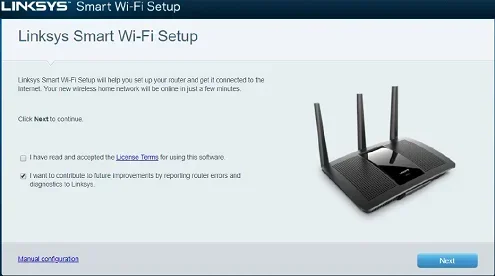
- Using the Linksys app: Download the Linksys app on your smartphone, connect to the router’s default Wi-Fi network, and follow the on-screen prompts.
- Using a web browser: Type the router’s default IP address into your browser, log in, and walk through the setup wizard.
During setup, you will create a network name (SSID) and a strong password. Use a unique name and a password with at least 12 characters. This keeps your wireless network setup secure from unwanted guests.
Step 5: Test Your Connection
Once setup is complete, connect a device to your new Wi-Fi network. Open a web browser and visit any website. If the page loads, you are all set. Run a speed test to confirm you are getting the speeds your internet plan promises.
If the connection does not work, try restarting both the modem and the router. Unplug both devices, wait 30 seconds, and plug the modem in first. Wait for it to fully start, then power on the router. This simple trick fixes most connection issues.
Common Mistakes to Avoid
Setting up a modem with a Linksys wireless router is not complicated, but people do make mistakes. Here are the most common ones to watch out for.
Skipping the Compatibility Check
Not every modem works with every ISP. Some modems only support certain connection types. Buying a modem without checking compatibility is the fastest way to end up with a useless box on your shelf. Always verify that your modem supports your ISP’s network type and speed tier.
Plugging the Ethernet Cable Into the Wrong Port
This mistake happens more often than you would think. The Ethernet cable from the modem must go into the WAN or Internet port on the Linksys router. If you plug it into one of the numbered LAN ports instead, the router will not receive the internet signal. Check the port label on the back of your router before connecting.
Ignoring Firmware Updates
Linksys regularly releases firmware updates that improve performance and fix security issues. Many people set up their router and never check for updates again. Log into your Linksys router settings periodically and install any available firmware updates. This keeps your wireless network setup running smoothly and securely.
Using the Default Admin Password
Every Linksys router comes with a default admin password printed on a sticker or in the manual. Leaving this password unchanged is a security risk. Change the admin password during setup so no one can access your router settings without permission. This is a small step that makes a big difference.
Placing the Router in a Bad Location
The position of your Linksys router affects your Wi-Fi signal strength. Putting it in a closet, behind a TV, or in a basement weakens the wireless coverage. Place your router in a central, elevated location for the best results. Keep it away from thick walls and metal objects that can block the signal.
Expert Tips for the Best Linksys Wireless Router Setup
Getting the right equipment is only part of the equation. How you set things up matters just as much. Here are some expert tips that make a real difference in your home network performance.
Consider Bridge Mode for Your ISP Gateway
If you currently use an ISP gateway but want better Wi-Fi performance, put the gateway in bridge mode. Bridge mode turns the gateway into a modem only. Your Linksys wireless router then handles all the Wi-Fi and routing duties. This setup combines the reliability of the ISP connection with the superior performance of a Linksys router.
Invest in a Quality Modem
A cheap modem can bottleneck your internet speed. If you have a fast internet plan, make sure your modem supports those speeds. Look for a modem rated for your ISP’s maximum speed tier. Spending a little extra on a good modem pays off in faster, more stable connections.
Use the Linksys App for Easy Management
The Linksys app makes managing your wireless network setup simple. You can check connected devices, run speed tests, update firmware, and set parental controls from your phone. It is a great tool for both beginners and experienced users.
Update Your Router Placement Over Time
Your home changes, and your router placement should change with it. If you add new rooms or rearrange furniture, consider moving the router to a better central spot. Good placement is one of the easiest ways to improve Wi-Fi coverage without buying new equipment.
How to Know If Your Modem Is Compatible With Linksys
Compatibility is key when setting up a Linksys wireless router with a modem. Not all modems work with all routers, even though they use standard connections. Here is how to check.
First, confirm your modem supports the internet type your ISP provides. Cable modems work with cable internet. DSL modems work with DSL service. Fiber internet uses an ONT device, which is different from a traditional modem.
Second, check the modem’s speed rating. If your internet plan offers 500 Mbps, your modem must support at least that speed. A modem rated for 100 Mbps will limit your connection, no matter how powerful your Linksys router is.
Third, verify the modem has an Ethernet output port. This is the port you use to connect the modem to the Linksys router. Nearly all modern modems have this port, but it is worth double-checking before you buy.
Linksys provides a list of recommended modems on their support page. Checking this list before purchasing saves time and ensures a smooth setup experience.
Frequently Asked Questions
Can I use a Linksys wireless router without a modem?
You can use a Linksys router without a modem for a local network. This means devices can share files and printers with each other. But without a modem, the router cannot connect to the internet. A modem is required for any internet access through your Linksys router.
What happens if I connect my Linksys router directly to my ISP without a modem?
In most cases, nothing will work. ISPs send signals that require a modem to decode. A Linksys router alone cannot interpret these signals. You need a modem between the ISP connection and the router for the internet to reach your devices.
Is a modem-router combo as good as a standalone Linksys router?
In most cases, a standalone Linksys router outperforms an ISP gateway combo. Standalone routers offer better speeds, more features, and stronger Wi-Fi coverage. They also receive firmware updates directly from Linksys instead of waiting for your ISP to push updates.
How do I put my ISP gateway in bridge mode?
Bridge mode settings are usually found in your ISP gateway’s admin panel. Log in through a web browser, look for a bridge mode or passthrough option, and enable it. The exact steps vary by ISP and gateway model. Consult your ISP’s support documentation for specific instructions.
Can I use any modem with my Linksys router?
Not every modem works with every Linksys router. The modem must be compatible with your ISP’s network type and support the correct speed tier. Check both the modem and Linksys router compatibility lists before purchasing to ensure they work together properly.
Do I need to buy a new modem if I already have one?
Not necessarily. If your current modem is compatible with your ISP and supports your internet speed tier, you can keep using it. However, older modems may not support the fastest speeds available today. Upgrading to a newer modem can improve performance and reliability.
Final Thoughts
The question do I need a modem with a Linksys wireless router setup has a clear answer for most people. Yes, you need a modem. The modem brings the internet into your home, and the Linksys router shares it wirelessly with all your devices. Together, they form the foundation of a strong home network.
Choosing between a gateway combo and a standalone setup is an important decision. Standalone gear gives you better performance, more features, and long-term savings. A Linksys wireless router paired with a compatible modem delivers the best internet experience for most households.
Follow the setup steps outlined in this guide, avoid the common mistakes, and take advantage of the expert tips. Your wireless network setup will be fast, reliable, and secure. The effort you put into getting the right equipment and configuration pays off every single day. Take the time to do it right, and you will enjoy a seamless internet experience for years to come.