How Do I Play My Iphone On My Car Speakers In Seconds
Playing your iPhone on your car speakers is easier than you think. Whether you use Bluetooth, an aux cable, or an FM transmitter, you can stream music, podcasts, and calls through your car audio system in just a few steps. This guide covers every method so you can play your iPhone on car speakers quickly and reliably.
Key Takeaways
- Bluetooth pairing is the most popular and wireless way to connect your iPhone to car speakers.
- An aux cable works as a simple, no-setup backup for older car systems.
- FM transmitters are a great option when your car lacks Bluetooth or an aux port.
- Apple CarPlay offers the most seamless iPhone-to-car integration experience.
- USB connection charges your iPhone while streaming audio through your car stereo.
- AirPlay-compatible car stereos let you stream wirelessly with high-quality sound.
- Avoid common mistakes like forgetting to pair, using damaged cables, or ignoring software updates.
📑 Table of Contents
- How Do I Play My Iphone On My Car Speakers In Seconds
- Why Connecting Your iPhone to Car Speakers Matters
- Method 1: Bluetooth Pairing — The Easiest Wireless Option
- Method 2: Using an Aux Cable for a Simple Wired Connection
- Method 3: FM Transmitter — Best for Cars Without Aux or Bluetooth
- Method 4: USB Connection for Charging and Audio
- Method 5: Apple CarPlay for the Ultimate iPhone Car Experience
- Method 6: AirPlay for Wireless Streaming
- Comparison Table: Which Method Is Right for You?
- Common Mistakes to Avoid When Playing iPhone on Car Speakers
- Expert Tips for the Best iPhone Car Audio Experience
- Key Takeaways
- Frequently Asked Questions
- Conclusion
How Do I Play My Iphone On My Car Speakers In Seconds
You are driving down the road. Your favorite playlist is sitting right there on your iPhone. But your car speakers are silent. It happens to everyone. The good news is that connecting your iPhone to your car speakers is not hard at all. You can do it in seconds once you know the right method. This guide walks you through every option step by step.
There are several ways to get audio from your iPhone into your car. Some are wireless. Some use cables. Each method has its own benefits. We will cover Bluetooth, aux cables, FM transmitters, USB connections, Apple CarPlay, and AirPlay. By the end, you will know exactly which method works best for your car and your lifestyle.
Whether you drive a new car with smart features or an older model with a basic stereo, there is a solution for you. Let us dive in and get your music playing.
Why Connecting Your iPhone to Car Speakers Matters
Your iPhone holds your entire music library. It has podcasts, audiobooks, and streaming apps. Your car speakers are the perfect output device. Playing your iPhone through car speakers makes every drive more enjoyable. You get better sound than your phone speaker alone. You also get hands-free calling through your car’s microphone system.
Many modern cars support Bluetooth car audio right out of the box. Older cars may need a simple adapter. No matter what year your car is, there is a way to connect. The key is finding the method that fits your setup. Once connected, you control everything from your iPhone screen or your car’s dashboard.
Benefits of Wireless Connection
Wireless streaming means no tangled cables. You pair your phone once and it connects automatically every time you get in the car. This is the most convenient option for daily drivers. Bluetooth pairing also lets you take calls through your car speakers. Your voice comes through the car’s audio system clearly. The person on the other end hears you through your car’s microphone.
Benefits of Wired Connection
A wired connection is reliable. You do not have to worry about battery drain or signal drops. An aux cable gives you a direct audio path from your iPhone to your car stereo. It works with almost any car that has an aux input. Wired connections also tend to have slightly better sound quality in some cases.
Method 1: Bluetooth Pairing — The Easiest Wireless Option
Bluetooth is the most popular way to play your iPhone on car speakers. Nearly every car made after 2015 has Bluetooth built in. It is fast, wireless, and very convenient. Here is how to do it.
Step-by-Step Bluetooth Setup
- Turn on your car’s infotainment system.
- Go to the Bluetooth settings on your car stereo.
- Put your car in pairing mode. This usually means selecting “Add New Device.”
- On your iPhone, open the Settings app.
- Tap on Bluetooth and make sure it is turned on.
- Your car should appear in the list of available devices.
- Tap on your car’s name to pair.
- Wait a few seconds for the connection to establish.
That is it. Your iPhone is now connected to your car speakers. You can play music, podcasts, or take calls. The sound comes through your car audio system. Some cars will also show song information on the display screen.
Tips for Better Bluetooth Sound Quality
- Keep your iPhone close to the car’s Bluetooth receiver. Sitting in the driver’s seat is ideal.
- Make sure your car stereo and iPhone are running the latest software.
- Reduce interference by turning off other Bluetooth devices nearby.
- If sound is choppy, try disconnecting and reconnecting the Bluetooth connection.
- Some cars offer different Bluetooth codecs. Check your car settings for audio quality options.
Troubleshooting Bluetooth Connection Issues
Sometimes Bluetooth does not work the first time. Do not worry. This is normal. Try turning Bluetooth off and back on your iPhone. Restart your car’s infotainment system. Delete the old pairing on both devices and try again. If problems persist, check for software updates on both your iPhone and your car stereo.
Method 2: Using an Aux Cable for a Simple Wired Connection
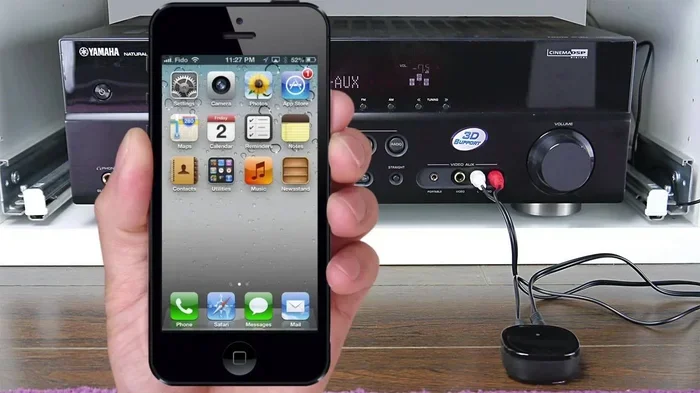
Not every car has Bluetooth. Many older vehicles do not support wireless audio. An aux cable solves this problem easily. An aux cable is a simple 3.5mm audio cable. It plugs into your iPhone’s headphone jack or Lightning adapter. The other end goes into your car’s aux input.
How to Set Up an Aux Connection
- Find the aux input on your car stereo. It is usually on the front panel.
- Plug one end of the aux cable into the aux port on your car.
- Plug the other end into your iPhone or into a Lightning-to-3.5mm adapter.
- Set your car stereo to Aux mode.
- Play music on your iPhone.
- You should hear sound through your car speakers immediately.
An aux cable is one of the simplest iPhone car audio solutions. It does not require any setup or pairing. It just works. The sound quality is solid and consistent. You do not need Wi-Fi or Bluetooth for it to function.
When to Use an Aux Cable
- Your car does not have Bluetooth.
- You want a plug-and-play connection with zero setup.
- You are in an area with poor Bluetooth signal.
- You need a backup connection when Bluetooth fails.
- You want the most reliable wired audio path.
Quick Tip: Keep a spare aux cable in your glove box. Cables can wear out or get lost. Having a backup saves you from silence on the road.
Method 3: FM Transmitter — Best for Cars Without Aux or Bluetooth
An FM transmitter is a small device that plugs into your iPhone. It broadcasts your iPhone’s audio over an FM frequency. Your car radio picks up that frequency and plays the sound. This is a great option for older cars that lack modern audio inputs.
How an FM Transmitter Works
You plug the FM transmitter into your iPhone’s charging port or headphone jack. You then tune your car radio to an empty FM frequency. The transmitter sends your iPhone’s audio to that frequency. Your car speakers play it just like a radio station. It is simple and effective.
Setting Up an FM Transmitter
- Plug the FM transmitter into your iPhone.
- Turn on your car radio.
- Tune to an empty FM frequency. Try 88.1, 91.5, or 107.9.
- Set the FM transmitter to the same frequency.
- Play audio on your iPhone.
- Adjust the volume on both your iPhone and car radio.
Pros and Cons of FM Transmitters
FM transmitters are affordable and easy to use. They work with almost any car. However, the sound quality is not as good as Bluetooth or aux. You may also experience some static or interference from nearby radio stations. Choosing a clear FM frequency helps reduce this problem.
Method 4: USB Connection for Charging and Audio
Many modern cars have USB ports built into the dashboard. A USB cable can do two things at once. It charges your iPhone and streams audio through your car speakers. This is a very clean and convenient setup.
How to Connect via USB
- Plug one end of a USB cable into your iPhone.
- Plug the other end into your car’s USB port.
- Your car stereo should recognize the iPhone automatically.
- Select USB or iPhone as the audio source on your car stereo.
- Play music or podcasts from your iPhone.
A USB connection is one of the most stable iPhone car integration methods. You never run out of battery while driving. The audio quality is usually very good. Some car stereos also display album art and song names on their screen when connected via USB.
When USB Is the Best Choice
- You need to charge your iPhone while driving.
- Your car has a USB port but no Bluetooth.
- You want a stable, interference-free audio connection.
- You use navigation apps and want them displayed on your car screen.
Method 5: Apple CarPlay for the Ultimate iPhone Car Experience
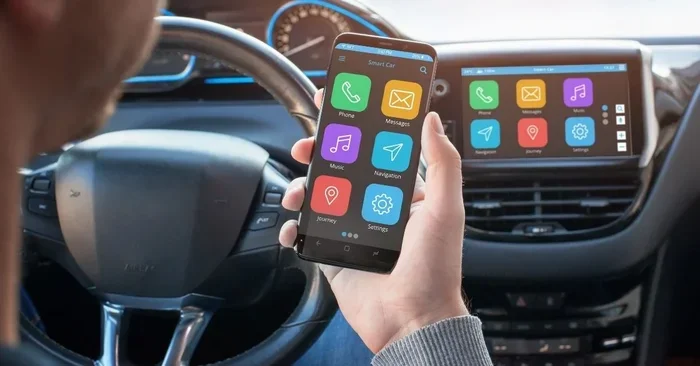
Apple CarPlay is Apple’s smart integration system for cars. It mirrors your iPhone’s interface on your car’s display screen. You get access to music, maps, messages, and more. It is the most advanced way to use your iPhone with your car.
What You Need for Apple CarPlay
- A car that supports Apple CarPlay. Check your car’s manual or manufacturer website.
- A Lightning cable or wireless CarPlay support.
- iOS 7.1 or later on your iPhone.
Setting Up Apple CarPlay
- Connect your iPhone to your car using a USB cable (or wirelessly if supported).
- Your car should display the CarPlay interface automatically.
- Tap the CarPlay icon on your car screen if it does not appear.
- Navigate to the Music app or any audio app.
- Select your car speakers as the audio output.
- Start playing your content.
Apple CarPlay makes iPhone car speakers feel like a seamless experience. You control everything from your car’s screen or voice commands. Siri integration lets you change songs or make calls without touching your phone. This is the best option for drivers who want safety and convenience combined.
Method 6: AirPlay for Wireless Streaming
AirPlay is Apple’s wireless streaming technology. Some modern car stereos support AirPlay directly. This lets you stream audio from your iPhone to your car speakers without any cables or extra devices. It works over Wi-Fi, so the connection is stable and high quality.
How to Use AirPlay in Your Car
- Make sure your car stereo supports AirPlay. Check the manufacturer’s specifications.
- Connect your iPhone and car stereo to the same Wi-Fi network.
- Open Control Center on your iPhone.
- Tap the AirPlay icon.
- Select your car stereo from the list of available devices.
- Play audio on your iPhone. It streams directly to your car speakers.
AirPlay offers excellent sound quality. It also allows you to control playback from your iPhone or car screen. The main requirement is that your car stereo must support AirPlay. If it does, this is one of the best wireless methods available.
Comparison Table: Which Method Is Right for You?
| Method | Wireless? | Setup Difficulty | Sound Quality | Best For |
|---|---|---|---|---|
| Bluetooth | Yes | Easy | Good | Daily wireless streaming |
| Aux Cable | No | Very Easy | Very Good | Older cars, quick backup |
| FM Transmitter | Yes | Easy | Fair | Cars without aux or Bluetooth |
| USB Connection | No | Easy | Very Good | Charging + audio together |
| Apple CarPlay | Yes/No | Medium | Excellent | Modern cars with smart features |
| AirPlay | Yes | Easy | Excellent | Car stereos with AirPlay support |
Common Mistakes to Avoid When Playing iPhone on Car Speakers
Even with the right method, things can go wrong. Here are common mistakes and how to avoid them.
1. Forgetting to Enable Bluetooth on Your iPhone
It sounds simple, but many people forget to turn Bluetooth on. Always check your iPhone settings before troubleshooting the car stereo. A quick toggle in Control Center can save you a lot of frustration.
2. Using a Damaged or Old Cable
Worn-out aux cables or USB cables cause audio dropouts and static. Inspect your cables regularly. Replace them if you notice fraying or loose connections. A new cable costs just a few dollars but makes a big difference.
3. Ignoring Software Updates
Both your iPhone and your car stereo benefit from software updates. Updates fix bugs and improve compatibility. Always keep your devices updated for the best iPhone car connection experience.
4. Choosing the Wrong FM Frequency
If you use an FM transmitter, picking a crowded frequency causes static. Scan your radio for the clearest empty frequency in your area. Write it down and set your transmitter to match.
5. Not Restarting Devices When Problems Occur
A simple restart fixes most connection issues. Restart your iPhone and your car’s infotainment system. This clears temporary glitches and refreshes the connection. It is the first thing you should try when something goes wrong.
Expert Tips for the Best iPhone Car Audio Experience
Want to take your car audio setup to the next level? Here are some expert tips that make a real difference.
Invest in a Good Car Stereo
If your car has an old or basic stereo, consider upgrading. Modern car stereos with Bluetooth 5.0 or later offer much better sound and range. Some units also include built-in GPS, backup cameras, and smartphone integration. The upgrade pays for itself in convenience and enjoyment.
Use a High-Quality Aux Cable
Not all aux cables are created equal. A shielded, high-quality cable reduces interference and improves sound clarity. Look for cables with gold-plated connectors for the best signal transfer.
Keep Your iPhone Charged
Streaming audio uses battery power. If your iPhone dies while driving, you lose your music and navigation. Use a USB connection or a car charger to keep your phone powered throughout your drive.
Clean Your Audio Ports Regularly
Dust and debris can build up in your iPhone’s charging port and aux connections. Use a soft brush or compressed air to keep ports clean. This ensures a solid connection every time you plug in.
Key Takeaways
- Bluetooth pairing is the most popular and wireless way to connect your iPhone to car speakers.
- An aux cable works as a simple, no-setup backup for older car systems.
- An FM transmitter is a great option when your car lacks Bluetooth or an aux port.
- Apple CarPlay offers the most seamless iPhone-to-car integration experience.
- USB connection charges your iPhone while streaming audio through your car stereo.
- AirPlay-compatible car stereos let you stream wirelessly with high-quality sound.
- Avoid common mistakes like forgetting to pair, using damaged cables, or ignoring software updates.
Frequently Asked Questions
Can I play my iPhone on car speakers without Bluetooth?
Yes, you can. You have several options without Bluetooth. Use an aux cable for a direct wired connection. An FM transmitter works well too. You can also use a USB cable if your car has a USB port. Each method lets you stream audio from your iPhone to your car speakers without needing Bluetooth at all.
Why is there no sound when I connect my iPhone to my car?
No sound usually means the connection is not set correctly. First, check that Bluetooth is turned on and paired. If using a cable, make sure it is plugged in firmly. Set your car stereo to the right input source, like Bluetooth or Aux. Also check that your iPhone volume is turned up and not muted. Restarting both devices often fixes the issue quickly.
Does using Bluetooth drain my iPhone battery faster?
Bluetooth does use some battery power, but not a lot. Modern Bluetooth technology is very efficient. The battery drain is minimal compared to the convenience it provides. If you are worried about battery life, connect your iPhone via USB while driving. This charges your phone at the same time you stream audio.
Can I use Siri to control music on my car speakers?
Yes, you can. If your car supports Apple CarPlay or Bluetooth, you can use Siri hands-free. Just say “Hey Siri” and tell it what you want to play. Siri can change songs, adjust volume, and even read your messages aloud. This keeps your eyes on the road and your hands on the wheel.
What is the best aux cable for iPhone car audio?
Look for a braided aux cable with gold-plated connectors. Braided cables are more durable and last longer. Gold-plated connectors reduce signal loss and resist corrosion. A cable length of 3 to 6 feet works well for most cars. Avoid very cheap cables as they may cause audio issues or break quickly.
Can I connect my iPhone to multiple cars using Bluetooth?
Yes, you can. Your iPhone can store Bluetooth pairings for multiple devices. When you get in a different car, go to Bluetooth settings and select that car’s name. The connection process is the same as pairing with a new device. This makes it easy to switch between cars or share your iPhone with passengers who want to play their own music.
Conclusion
Playing your iPhone on your car speakers is a simple process with many options available. Whether you choose Bluetooth, an aux cable, an FM transmitter, USB, Apple CarPlay, or AirPlay, you can get audio flowing through your car in just seconds. Each method has its strengths. Bluetooth offers the most convenience. An aux cable gives you reliable simplicity. Apple CarPlay provides the most advanced integration.
Start with the method that fits your car and your needs. Follow the steps in this guide and you will be listening to your favorite content in no time. Keep your cables in good shape, update your software regularly, and avoid the common mistakes we covered. With the right setup, every drive becomes more enjoyable.
Now that you know how to connect your iPhone to your car speakers, the only thing left to do is try it. Pick your favorite method, follow the steps, and hit play. Your car is about to become your personal concert hall. Enjoy the ride and the music.