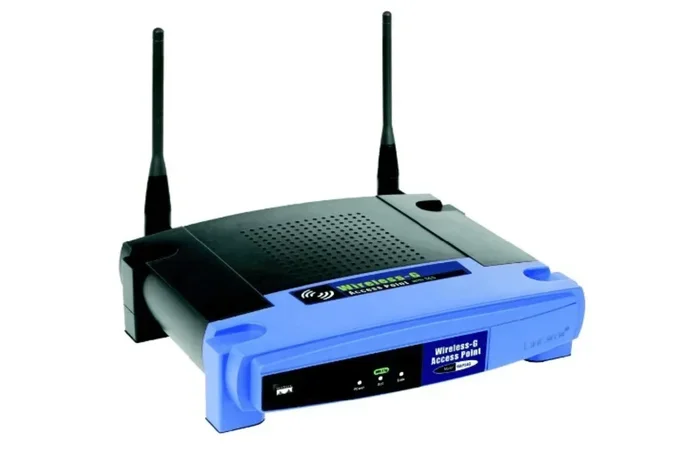
Do Access Points Have Their Own IP Address Explained
Do access points have their own IP address? Yes, most access points do get their own IP address, but it depends on how they are set up in your network. An access point IP address allows it to communicate with your router and devices. Understanding this helps you configure and troubleshoot your wireless network with confidence.
Have you ever wondered how your wireless access point connects to your home or office network? The answer lies in a simple but essential number — the IP address. Do access points have their own IP address? The short answer is yes. But the full story is much more interesting.
When you set up a Wi-Fi network, you probably focus on the router. You pick a strong password. You choose a good channel. But the access point sitting on your wall or ceiling? It does a lot of behind-the-scenes work. And part of that work involves having its own unique IP address. Understanding how access point IP addresses work can save you from frustrating network problems. It also helps you get the best performance from your Wi-Fi setup.
In this guide, we will walk through everything you need to know. We will cover how access points get their IP addresses. We will compare access points to routers. And we will give you practical tips for finding and managing your access point IP. Whether you are a home user or a network administrator, this article has you covered.
Key Takeaways
- Access points do have their own IP address: They act as separate devices on your network and need an IP to function properly.
- DHCP handles automatic IP assignment: Most home and office networks use DHCP to give access points an IP without manual setup.
- You can assign a static IP: Setting a static IP address on your access point prevents connection issues caused by IP changes.
- Access point vs. router matters: A wireless access point and a wireless router serve different roles but both need IP addresses.
- Enterprise access points need special configuration: Business networks often use controllers and VLANs to manage access point IP addresses.
- Knowing your access point IP helps with troubleshooting: You can log in to the admin panel to fix Wi-Fi problems and optimize network performance.
📑 Table of Contents
- What Is an Access Point and Why Does It Need an IP?
- How Does an Access Point Get Its IP Address?
- Access Point vs. Router: What Is the Difference?
- Finding Your Access Point IP Address
- Access Point IP Address in Enterprise Networks
- Common Access Point IP Address Problems and How to Fix Them
- Best Practices for Managing Access Point IP Addresses
- Why Knowing Your Access Point IP Matters for Network Security
- Conclusion
What Is an Access Point and Why Does It Need an IP?
A wireless access point is a device that lets other devices connect to your network through Wi-Fi. Think of it as a bridge. It connects your wireless devices — phones, laptops, tablets — to your wired network. But how does it do that? It uses an IP address.
Every device on a network needs an IP address. This includes your laptop, your phone, your smart TV, and yes — your access point too. Without an IP address, the access point cannot talk to your router. It cannot send or receive data. It simply would not work.
Here is a simple way to think about it. Imagine a post office. Every house needs a unique address so mail gets delivered correctly. In the same way, every device on your network needs a unique IP address. The access point is no different. It is just another “house” on your network.
How IP Addresses Work on a Network
An IP address is a string of numbers that identifies a device. In most home networks, your router assigns these numbers automatically. This process is called DHCP. When your access point joins the network, it asks the router for an IP address. The router gives one. And just like that, your access point is online.
There are two main types of IP addresses used in networks:
- IPv4 addresses: These look like 192.168.1.100. They are the most common type used in home and small business networks.
- IPv6 addresses: These are longer and newer. They provide a much larger pool of available addresses for growing networks.
Most access points use IPv4 addresses in everyday setups. But as networks grow, IPv6 is becoming more common in enterprise environments.
How Does an Access Point Get Its IP Address?
There are two main ways an access point gets its IP address. The first is automatic. The second is manual. Let us look at both.
Automatic IP Assignment Through DHCP
DHCP stands for Dynamic Host Configuration Protocol. It sounds technical, but it is very simple. Your router acts as a DHCP server. When a new device joins the network, the router hands it an IP address automatically.
This is how most home networks work. You plug in your access point. It connects to your router. The router says, “Here is an IP address. Use it.” The access point then uses that IP to communicate with the rest of the network.
The benefit of DHCP is convenience. You do not have to configure anything by hand. The access point gets its IP address without any effort from you. This works great for most home setups and small offices.
Manual IP Assignment (Static IP)
Sometimes, you want more control. That is where a static IP address comes in. Instead of letting the router pick an IP, you set one yourself.
Why would you do this? There are several good reasons:
- Easier troubleshooting: You always know where to find the access point on your network.
- No IP conflicts: DHCP can sometimes assign the same IP to two devices. A static IP prevents this.
- Port forwarding: If you need to access the access point remotely, a fixed IP makes this much simpler.
- Network stability: The access point keeps the same IP even after a reboot.
To set a static IP, you usually log into the access point’s admin panel. You go to the network settings. Then you manually enter the IP address, subnet mask, and default gateway. We will talk more about how to do this later in this guide.
Access Point vs. Router: What Is the Difference?
Many people confuse access points with routers. They are not the same thing, even though they work together. Understanding the difference helps you understand IP addresses better.
A wireless router does several jobs at once. It routes traffic between your network and the internet. It acts as a firewall. It assigns IP addresses through DHCP. And it often includes a built-in access point for Wi-Fi.
An access point, on the other hand, does one main job. It extends your Wi-Fi coverage. It does not route traffic to the internet. It does not assign IP addresses. It simply connects wireless devices to your existing network.
So does an access point have its own IP address? Yes, it does. But it gets that IP address from the router, not on its own. The router and access point work as a team. Each has its own role. And each has its own IP address on the local network.
| Feature | Wireless Router | Wireless Access Point |
|---|---|---|
| Assigns IP addresses | Yes (via DHCP) | No |
| Connects to the internet | Yes | No |
| Has its own IP address | Yes | Yes |
| Provides Wi-Fi coverage | Yes | Yes |
| Firewall and security | Yes | No |
| Used in large networks | Rarely alone | Often multiple units |
Finding Your Access Point IP Address
Now that you know access points do have their own IP address, you might want to find yours. This is useful for troubleshooting or making configuration changes. Here is how you can do it.
Method 1: Check Your Router’s Admin Panel
The easiest way is to look at your router’s connected devices list. Log into your router’s admin panel. You usually do this by typing 192.168.1.1 or 192.168.0.1 into your web browser. Look for a section called “Connected Devices” or “DHCP Client List.” Your access point should be listed there with its IP address.
Method 2: Use the Command Prompt
If you are on a Windows computer, you can use the command prompt. Open it and type the following command:
arp -a
This shows a list of all devices on your network along with their IP addresses. Look for the device name that matches your access point brand or model.
Method 3: Check the Access Point Itself
Many access points have a default IP printed on a sticker on the bottom or back. Common defaults include 192.168.1.2 or 192.168.0.50. If you have not changed the settings, this is likely the IP address you need.
Method 4: Use a Network Scanner App
Apps like Fing or Advanced IP Scanner make this very easy. You install the app on your phone. It scans your network and shows all connected devices. You can quickly spot your access point and see its IP address.
Quick Tip: Write down your access point IP address once you find it. Keep it somewhere safe. You will thank yourself the next time you need to troubleshoot a network issue.
Access Point IP Address in Enterprise Networks
In a home network, managing one access point is simple. But in a large office or enterprise setting, things get more complex. Companies often run dozens or even hundreds of access points. Each one needs its own IP address.
How Enterprise Networks Handle Access Point IPs
Enterprise access points are usually managed by a central controller. This controller handles IP assignment, configuration, and monitoring. The access points connect to the network through Ethernet cables. They receive their IP addresses from a DHCP server, just like home setups. But the process is more structured.
Here are some key differences in enterprise networks:
- VLANs separate traffic: Access points might be placed on a dedicated VLAN for better security and performance.
- DHCP reservations: Network administrators often reserve specific IP addresses for each access point. This ensures consistency.
- Centralized management: A single dashboard lets administrators see every access point IP on the network.
- Monitoring and alerts: If an access point goes offline or loses its IP, the system sends an alert immediately.
Expert Insight: In enterprise environments, the access point IP address is not just a number. It is a key part of network management. Proper IP planning prevents conflicts and makes scaling your network much easier.
Bridge Mode and Its Effect on IP Addresses
Some access points can be set to bridge mode. In bridge mode, the device connects two network segments. It does not create a new subnet. But it still needs its own IP address to function. The IP address allows it to communicate with the router and other devices on the network.
If you are using bridge mode, make sure your access point has a valid IP address on the main network. Without it, bridging will not work properly.
Common Access Point IP Address Problems and How to Fix Them
Even with a solid setup, IP address issues can happen. Here are the most common problems and how to solve them.
Problem 1: IP Address Conflict
An IP conflict happens when two devices on the same network have the same IP address. This causes connection problems for both devices. Your access point might lose its Wi-Fi signal or drop connections randomly.
How to fix it: Check your router’s DHCP settings. Make sure the IP range is large enough for all devices. Or set your access point to a static IP outside the DHCP range. This prevents the router from accidentally assigning the same IP to another device.
Problem 2: Access Point Loses Its IP After Reboot
If your access point keeps losing its IP address after a reboot, DHCP is likely the cause. The router might assign a different IP each time the access point reconnects.
How to fix it: Set a DHCP reservation on your router. This ties the access point’s MAC address to a specific IP address. No matter how many times it reboots, it always gets the same IP.
Problem 3: Cannot Access the Access Point Admin Panel
If you type the access point IP into your browser and get an error, the device might not be reachable. This could mean the access point has a different IP than you think. Or it could mean the connection between the access point and router is not working.
How to fix it: Use a network scanner app to find the actual IP. Also check that the access point is properly connected to the network via Ethernet cable or Wi-Fi mesh link.
Problem 4: Access Point Has No IP Address at All
Sometimes the access point connects to the network but does not get any IP address. This usually means the DHCP server is not responding or there is a configuration issue.
How to fix it: Restart both the access point and the router. Check the DHCP settings on the router. Make sure the DHCP pool has available addresses. If the problem continues, try assigning a static IP manually to see if the access point can connect.
Quick Tip: Always reboot your access point and router before diving into complex troubleshooting. A simple restart solves many IP-related problems.
Best Practices for Managing Access Point IP Addresses
Managing access point IP addresses does not have to be hard. A few best practices can keep your network running smoothly. Here is what the pros recommend.
- Use DHCP reservations for all access points. This gives each access point a fixed IP without the hassle of manual configuration on every device.
- Document your network. Keep a simple spreadsheet that lists each access point’s IP address, model, and location. This saves a lot of time during troubleshooting.
- Keep access points outside the DHCP range. If your router assigns IPs from 192.168.1.100 to 192.168.1.200, set your access points to static IPs like 192.168.1.10 or 192.168.1.20. This avoids conflicts.
- Update access point firmware regularly. Firmware updates often include fixes for network connectivity issues, including IP-related bugs.
- Use a network monitoring tool. Tools like Nagios, PRTG, or even simple apps like Fing can alert you if an access point goes offline or loses its IP address.
Following these steps helps you maintain a stable and reliable wireless network. Whether you have one access point or fifty, good IP management makes a big difference.
Why Knowing Your Access Point IP Matters for Network Security
Your access point IP address is not just a number for troubleshooting. It also plays a role in network security. If someone gains unauthorized access to your access point’s admin panel, they could change settings or intercept data. Protecting that IP is important.
Here are a few steps to keep your access point secure:
- Change the default login credentials. Most access points come with admin/admin as the default username and password. Change these immediately.
- Use WPA3 or WPA2 encryption. This keeps your wireless traffic encrypted and safe from eavesdroppers.
- Disable remote management unless needed. This prevents outsiders from accessing your access point settings over the internet.
- Keep your firmware updated. Manufacturers release security patches regularly. Staying current protects you from known vulnerabilities.
By taking these steps, you protect not just the access point but your entire network. A secure access point is a healthy access point.
Conclusion
So, do access points have their own IP address? Yes, they absolutely do. Every access point on your network needs a unique IP address to communicate with your router and your devices. Whether it gets that IP automatically through DHCP or you set it manually as a static IP, the process is straightforward once you understand the basics.
Access point IP addresses are the foundation of any wireless network. They let your access points do their job — extending Wi-Fi coverage, connecting devices, and keeping your network running. By knowing how to find, manage, and troubleshoot these IP addresses, you take control of your network like a pro.
Start by checking your access point IP today. Use one of the methods we covered. Write it down. Set up a DHCP reservation if you have not already. These small steps make a huge difference in network performance and reliability.
Your wireless network works hard for you every day. Give it the attention it deserves by understanding the basics of access point IP addresses. You will be glad you did.
Frequently Asked Questions
Can two access points have the same IP address?
No, they cannot. Every device on a network must have a unique IP address. If two access points share the same IP, you will experience an IP conflict. This causes both devices to lose connectivity or behave unpredictably. Always make sure each access point has its own distinct IP address on the network.
What is the default IP address for most access points?
Many access points use default IPs like 192.168.1.2, 192.168.0.50, or 192.168.1.254. However, the exact default depends on the manufacturer and model. Check the label on the back of the device or the user manual. If you have changed the IP before, it may no longer be the default.
Do mesh access points have their own IP addresses?
Yes, mesh access points have their own IP addresses just like regular access points. Each node in a mesh network connects to your router and receives a unique IP. This allows the mesh system to manage traffic efficiently across all nodes. You can view all mesh node IPs from your router’s admin panel.
Should I set my access point to a static or dynamic IP?
For most users, a DHCP reservation is the best of both worlds. It gives your access point a fixed IP without manual configuration. However, if you prefer full control, setting a static IP manually works too. The key is to avoid IP conflicts by keeping the static IP outside the router’s DHCP range.
How can I change the IP address of my access point?
Log into the access point’s admin panel using its current IP address. Navigate to the network settings or LAN configuration section. Look for the IP address field and enter your new desired IP. Save the changes and reconnect using the new address. Always make sure the new IP is not already in use by another device.
Why can I not access my access point’s admin page?
This usually happens when you are using the wrong IP address or the access point is not connected properly. Double-check the IP using your router’s device list or a network scanner app. Also make sure your computer is on the same network as the access point. A simple reboot of both devices often fixes the issue.