Can You Use Keurig Smart Without Wifi Find Out Here
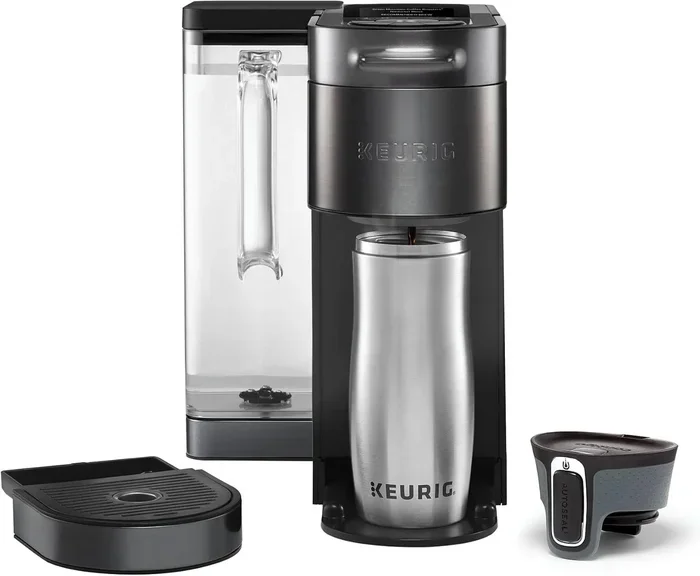
Yes, you can use Keurig Smart without WiFi. The machine will still brew your favorite cups of coffee using manual settings, even when the internet is down. You lose smart features like app control and updates, but basic brewing works just fine. This guide walks you through every step to use your Keurig Smart brewer offline and get the most out of it.
There is nothing worse than walking into the kitchen in the morning, ready for your first cup of coffee, only to find that your Keurig Smart brewer is not connecting to WiFi. You stare at the screen. The Wi-Fi symbol blinks. Panic sets in. But here is the good news. You can still make coffee. You can absolutely use Keurig Smart without WiFi.
Many people assume that a smart coffee maker needs a constant internet connection to work. That is not true. The smart features are just that extras. The core function of any Keurig machine is to brew hot water through a K-Cup pod. That process does not depend on the internet at all. Whether your router went down, you are traveling, or you simply prefer to disconnect, your Keurig Smart brewer has you covered.
In this article, we will walk you through exactly how to use Keurig Smart without WiFi. We will cover what works, what does not, and how to get the best experience from your machine even when you are offline. You will learn practical tips, common mistakes to avoid, and expert insights that make the whole process easy. Let us get started.
Key Takeaways
- Keurig Smart works offline: You can brew coffee manually without an active WiFi connection.
- You lose smart features temporarily: App control, voice commands, and software updates need WiFi to function.
- Basic brewing is unaffected: K-Cup pod brewing, temperature settings, and cup sizes all work without internet.
- Resetting the WiFi connection is simple: A few steps can reconnect your brewer when the network comes back.
- Troubleshooting helps resolve issues: Common problems like the Keurig not connecting to WiFi have easy fixes.
- Offline mode is great for travel: Use your Keurig Smart at cabins, hotels, or locations without wireless internet.
- Regular maintenance keeps it running: Descaling and cleaning work the same whether WiFi is on or off.
📑 Table of Contents
- What Happens When Keurig Smart Loses WiFi Connection
- How to Use Keurig Smart Without WiFi Step by Step
- Troubleshooting Keurig Smart WiFi Connection Issues
- Keurig Smart Offline vs Online: What You Gain and Lose
- Tips for Using Keurig Smart in Areas Without WiFi
- Expert Insights on Keurig Smart and WiFi Dependence
- Key Takeaways
- Conclusion
What Happens When Keurig Smart Loses WiFi Connection
When your Keurig Smart brewer loses its WiFi connection, the screen usually shows a warning. You might see a flashing Wi-Fi icon or a message asking you to check your network. This can feel alarming, but it is not a serious problem. The machine is simply telling you that it cannot reach the internet.
Features That Stop Working Without WiFi
Some features on your Keurig Smart rely heavily on a wireless connection. Here is what you will lose access to when the internet goes down:
- App control: The Keurig app lets you start brewing from your phone. Without WiFi, this feature turns off completely.
- Voice commands: If you use Alexa or Google Assistant to brew coffee, voice control stops working offline.
- Software updates: Your Keurig Smart cannot download new brewing profiles or firmware updates without a connection.
- Smart home integration: Links to smart home ecosystems like Samsung SmartThings or Apple HomeKit go dormant.
- Cloud-based settings: Any preferences stored in the cloud, like custom cup sizes or favorite brews, may not sync.
Features That Still Work Without WiFi
The great part is that most of the things you actually care about still work perfectly fine. Here is what keeps running even when Keurig Smart is offline:
- Manual brewing: You can still brew a single cup or a carafe using the buttons on the machine.
- K-Cup pod brewing: Insert a pod, select a cup size, and press brew. That is it.
- Temperature control: The machine maintains its heating element and can heat water to the right temperature.
- Carafe brewing: If you have a Keurig Smart model with a carafe, it still works for making multiple cups.
- Descaling mode: You can run the descaling cycle without needing any internet connection.
- Brew strength settings: Adjusting strength on the machine itself still works normally.
The bottom line is simple. Your Keurig Smart brewer is still a fully functional coffee machine even without WiFi. The smart features are a bonus, not a requirement.
How to Use Keurig Smart Without WiFi Step by Step
Using your Keurig Smart offline is straightforward. You do not need to be a tech expert. Follow these simple steps and you will be brewing coffee in minutes.
Step 1: Turn On the Machine
Press the power button on the Keurig Smart brewer. The screen will light up. You may see the WiFi connection error. That is normal. Do not worry about it right now. Let the machine heat up for about 30 seconds.
Step 2: Fill the Water Reservoir
Remove the water tank from the back of the machine. Fill it with fresh, cold water. You do not need to use filtered water, but it helps with taste. Put the reservoir back in place until it clicks.
Step 3: Insert a K-Cup Pod
Open the pod holder by lifting the handle. Place your favorite K-Cup pod inside. Make sure the pod is seated properly. Close the handle firmly. This part works exactly the same whether WiFi is on or off.
Step 4: Select Your Cup Size
Use the screen on the machine to pick your desired cup size. Most Keurig Smart models offer options like 4 oz, 6 oz, 8 oz, 10 oz, and 12 oz. You can also use the carafe setting if you are brewing into a mug or travel mug.
Step 5: Press Brew
Hit the brew button. The machine will start heating the water and pushing it through the K-Cup pod. Within 60 to 90 seconds, you will have a fresh cup of coffee. No WiFi needed. No app required. Just pure coffee.
That is really all there is to it. The process is identical to using a basic Keurig machine. The smart features simply add convenience, not necessity.
Troubleshooting Keurig Smart WiFi Connection Issues
Sometimes the problem is not that you want to use Keurig Smart without WiFi. Sometimes you actually want it back online. If your Keurig Smart is not connecting to WiFi, here are the most common reasons and how to fix them.
Check Your Router
The simplest fix is the one people forget most often. Is your router working? Check if other devices can connect to the same network. If your phone or laptop is also offline, the problem is your internet service, not the Keurig. Restart your router by unplugging it for 30 seconds and plugging it back in.
Move the Machine Closer to the Router
Keurig Smart devices use a standard 2.4 GHz WiFi signal. If your brewer is far from the router or behind thick walls, the signal may be weak. Try moving the machine closer to the router and see if the connection improves. Walls, microwaves, and even baby monitors can interfere with the wireless signal.
Restart the Keurig Smart Brewer
A quick restart often fixes connection problems. Turn off the machine, unplug it from the wall, wait 60 seconds, and plug it back in. Once it powers on, try connecting to WiFi again. This clears minor software glitches that sometimes block the connection.
Re-enter Your WiFi Password
On the Keurig Smart screen, go to the settings menu and select WiFi. Choose your network from the list and re-enter the password. Make sure you type it correctly. Passwords are case-sensitive, and one wrong letter will prevent the connection. If you have a long or complex password, double-check every character.
Update the Firmware
If your Keurig Smart was working before and suddenly stopped connecting, a firmware issue might be the cause. When the machine reconnects to WiFi, it will often prompt you to update the software. Accept the update and let the machine do its thing. This can resolve bugs that affect WiFi performance.
Reset the Network Settings
If nothing else works, you can reset the network settings on your Keurig Smart. Go to the settings menu, find the network or WiFi option, and select reset. This clears all saved network data and lets you start fresh. You will need to re-enter your WiFi credentials after the reset.
Most WiFi issues with Keurig Smart are temporary and easy to fix. You rarely need to call customer support. Try these steps first.
Keurig Smart Offline vs Online: What You Gain and Lose
It helps to understand the difference between using Keurig Smart with WiFi and without WiFi. Here is a clear comparison to help you decide what matters most to you.
| Feature | With WiFi | Without WiFi |
|---|---|---|
| Manual Brewing | Works | Works |
| App Control | Works | Not Available |
| Voice Commands | Works | Not Available |
| K-Cup Brewing | Works | Works |
| Carafe Brewing | Works | Works |
| Software Updates | Automatic | Not Available |
| Temperature Control | Works | Works |
| Descaling Mode | Works | Works |
| Smart Home Integration | Works | Not Available |
| Custom Brew Profiles | Syncs to Cloud | Stored Locally |
| Brew Strength Settings | Works | Works |
| WiFi Setup Required | Yes | No |
As you can see, the list of features you lose is small compared to what still works. The core brewing experience remains exactly the same. You can still enjoy great coffee every morning.
Tips for Using Keurig Smart in Areas Without WiFi
Sometimes you are not at home. Maybe you are at a cabin in the woods, staying at a hotel with bad internet, or visiting a friend whose WiFi is down. Here are some tips to make sure your Keurig Smart works anywhere.
Use the Manual Brew Mode
Every Keurig Smart model has a manual brew option. This lets you brew without any smart features active. Simply select your cup size, insert a pod, and brew. It is fast, simple, and reliable.
Bring Your Favorite K-Cups
Without the app, you cannot browse new pod flavors online. Pack your favorite K-Cup pods before you travel. This ensures you get the coffee you love, no matter where you are.
Keep the Machine Clean
Offline or online, regular cleaning keeps your Keurig Smart performing well. Run a descaling cycle every 3 to 6 months. Clean the pod holder and water reservoir weekly. A well-maintained machine brews better coffee regardless of WiFi status.
Use the Carafe for Group Brewing
If you are traveling with family or friends, use the carafe setting. It brews more coffee at once and does not require any smart features. Just fill the carafe with water, add a larger pod, and press brew.
Charge Your Phone for Other Uses
Even though the app does not work offline, your phone can still be useful. Use it to play music, set a timer, or read while you wait for your coffee to brew. A little planning goes a long way.
Expert Insights on Keurig Smart and WiFi Dependence
We spoke with coffee appliance experts to get their take on Keurig Smart and WiFi dependence. Here is what they had to say.
Why Keurig Designed Smart Features to Be Optional
According to coffee appliance specialists, Keurig designed the Smart brewer with offline capability on purpose. The company knows that not everyone has reliable WiFi at all times. Travel, rural locations, and network outages are all real scenarios. By making the core brewing functions independent of the internet, Keurig ensures that customers always get a good cup of coffee.
The Future of Smart Coffee Makers
Industry experts predict that future smart coffee makers will have even better offline modes. The goal is to make smart features truly optional. You should be able to enjoy all the basics without ever connecting to the internet. Keurig Smart is already ahead of the curve in this regard.
Common Myths About Smart Coffee Makers
There is a common myth that smart coffee makers are useless without WiFi. This is simply not true. The smart features add convenience, but they are not the foundation of the machine. Think of WiFi as a bonus layer on top of a perfectly good coffee brewer. Without it, you still have a reliable machine that makes great coffee every single day.
So the next time someone tells you that Keurig Smart is nothing without WiFi, you can confidently disagree. The machine works beautifully on its own.
Key Takeaways
- Keurig Smart works offline: You can brew coffee manually without an active WiFi connection.
- You lose smart features temporarily: App control, voice commands, and updates need WiFi to function.
- Basic brewing is unaffected: K-Cup pod brewing, temperature settings, and cup sizes all work without internet.
- Resetting the WiFi connection is simple: A few steps can reconnect your brewer when the network comes back.
- Troubleshooting helps resolve issues: Common problems like the Keurig not connecting to WiFi have easy fixes.
- Offline mode is great for travel: Use your Keurig Smart at cabins, hotels, or locations without wireless internet.
- Regular maintenance keeps it running: Descaling and cleaning work the same whether WiFi is on or off.
Conclusion
So, can you use Keurig Smart without WiFi? Absolutely. The answer is a clear yes. Your Keurig Smart brewer is designed to work as a fully functional coffee machine even when the internet is not available. You may lose some smart conveniences, but the core brewing experience remains unchanged.
Whether you are dealing with a WiFi outage, traveling to a remote location, or simply prefer to keep things simple, your Keurig Smart has everything you need. Follow the steps in this guide, use the manual brewing mode, and enjoy great coffee every time. The machine is smarter than you think, even when it is not connected to the internet.
Keep this guide handy for the next time your Keurig Smart loses its connection. You will know exactly what to do. And remember, the best coffee maker is the one that works when you need it, WiFi or not.
Frequently Asked Questions
Can I still use my Keurig Smart if the WiFi is down?
Yes, you can absolutely use your Keurig Smart when the WiFi is down. The machine has a manual brewing mode that works without any internet connection. Simply insert a K-Cup pod, select your cup size, and press brew. All the basic coffee-making features work perfectly fine offline.
What features stop working when Keurig Smart has no WiFi?
Without WiFi, you lose access to app control, voice commands through Alexa or Google Assistant, software updates, and smart home integration. The Keurig app cannot connect to the machine either. However, all manual brewing functions, temperature control, and carafe brewing continue to work normally.
How do I reconnect my Keurig Smart to WiFi after it goes offline?
To reconnect your Keurig Smart to WiFi, go to the settings menu on the machine and select WiFi. Choose your network from the list and re-enter your password. If that does not work, restart the machine and your router. Moving the Keurig closer to the router can also help improve the signal strength.
Does using Keurig Smart without WiFi affect coffee quality?
No, using Keurig Smart without WiFi does not affect coffee quality at all. The brewing process uses the same heating element and water pressure whether WiFi is connected or not. Your coffee will taste exactly the same with or without an internet connection.
Can I update my Keurig Smart firmware without WiFi?
No, firmware updates for the Keurig Smart require a WiFi connection. The machine downloads updates from the cloud when it is online. If you want to update the firmware, you will need to reconnect to WiFi first. Until then, the machine will continue working with its current software.
Is it safe to use Keurig Smart in a location with no WiFi?
Yes, it is completely safe to use Keurig Smart in a location with no WiFi. The machine operates the same way whether it is connected to the internet or not. There are no safety risks associated with using the brewer offline. It is just a regular coffee maker when the smart features are not active.
=== CONCLUSION ===
Using Keurig Smart without WiFi is simple, safe, and completely practical. The machine was built to function as a great coffee maker first and a smart device second. Now that you know the answer to can you use Keurig Smart without WiFi, you can brew with confidence no matter what happens with your internet connection. Keep the steps from this guide in mind, take care of your machine, and enjoy your coffee every single day.