Can You Listen To Smart Tv With Wireless Headphones
Yes, you can listen to your Smart TV with wireless headphones. Most modern Smart TVs support Bluetooth wireless headphones through built-in Bluetooth or a Bluetooth transmitter adapter. This guide covers how to connect wireless headphones to your TV, the best options available, and how to avoid common problems like audio lag and latency issues. Whether you use wireless earbuds, over-ear Bluetooth headphones, or a wireless streaming setup, you will find practical solutions here.
Key Takeaways
- Wireless Connection Is Easy: Most Smart TVs can pair with Bluetooth headphones directly or through a transmitter.
- Audio Lag Is the Main Challenge: Latency issues can cause lip-sync problems, but they are fixable with the right settings.
- Multiple Headphone Types Work: From wireless earbuds to over-ear models, you have many wireless listening options.
- Bluetooth Transmitters Help Older TVs: A Bluetooth transmitter adds wireless capability to any TV with an audio output port.
- Battery Life Matters: Choose headphones with long battery life for extended movie nights or binge-watching sessions.
- Multipoint Connection Is a Bonus: Some Bluetooth headphones support multipoint connection, letting you switch between devices easily.
- How Wireless Headphones Connect to Smart TVs
- Benefits of Using Wireless Headphones with Your Smart TV
- Choosing the Right Wireless Headphones for Smart TV
- Bluetooth Transmitters: Your Best Friend for TV Audio
- Common Problems and Easy Fixes
- Tips for the Best Wireless Listening Experience
- Expert Tips for Better Wireless TV Audio
- Conclusion
📑 Table of Contents
How Wireless Headphones Connect to Smart TVs
Watching your favorite show late at night? Can you listen to smart TV with wireless headphones? The short answer is yes. Most Smart TVs today come with Bluetooth wireless headphones support built right in. This means you can enjoy your wireless streaming content without disturbing anyone in the house.
But the process is not always plug-and-play. Different TV brands use different audio output methods. Some TVs have native Bluetooth pairing built into their settings menu. Others need an external device called a Bluetooth transmitter to make the connection work.
Built-In Bluetooth vs. External Transmitters
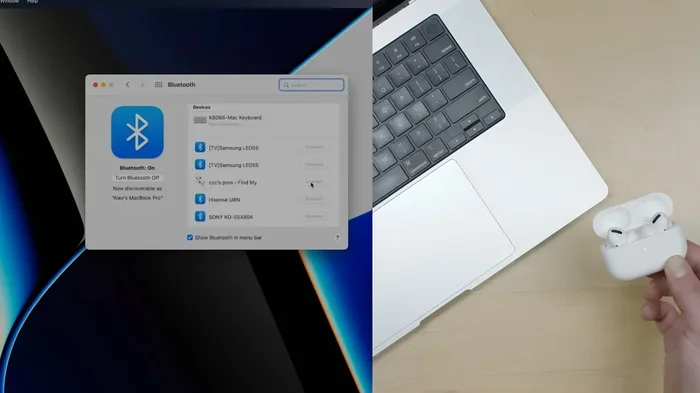
Newer Smart TVs from brands like Samsung, LG, and Sony often include Bluetooth 5.0 support. This is great news because it means you can pair your wireless headphones directly from the TV settings. You go to Settings, find the Bluetooth menu, and pair your device just like you would with your phone.
Older TVs or budget models might not have Bluetooth at all. In that case, a Bluetooth transmitter is your best friend. This small device plugs into the TV’s audio output port. It sends the audio signal wirelessly to your Bluetooth headphones. These transmitters are affordable and work with almost any TV.
Types of Wireless Headphones That Work with Smart TVs
Not all wireless headphones are the same when it comes to TV use. Here are the main types you can consider:
- Over-Ear Bluetooth Headphones: These offer the best battery life and comfort for long viewing sessions. They also deliver rich, immersive surround sound that makes movies feel cinematic.
- Wireless Earbuds: Compact and lightweight. Great for casual viewing. However, their small size means shorter battery life and less powerful audio.
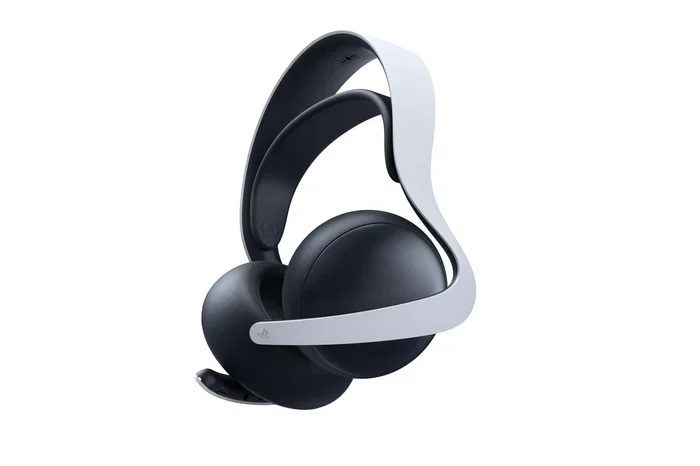
- TV-Specific Wireless Headphones: Some brands make headphones designed specifically for TV use. They often come with their own charging dock and low-latency technology.
- Bone Conduction Headphones: These sit on your cheekbones instead of covering your ears. They are a unique option for people who want to stay aware of their surroundings.
Quick Comparison: Wireless Headphone Types for Smart TV
| Type | Battery Life | Sound Quality | Best For |
|---|---|---|---|
| Over-Ear Bluetooth | 20-40 hours | Excellent | Long movie nights |
| Wireless Earbuds | 4-8 hours | Good | Casual viewing |
| TV-Specific Models | 10-20 hours | Very Good | Dedicated TV use |
| Bone Conduction | 6-10 hours | Moderate | Awareness + audio |
Benefits of Using Wireless Headphones with Your Smart TV
There are many reasons to use wireless headphones with your Smart TV audio setup. Let us explore the biggest benefits.
Private Listening Without Disturbing Others
This is the number one reason people use wireless listening devices with their TV. Maybe your partner is sleeping. Maybe the kids are upstairs. Either way, wireless headphones let you enjoy full volume without anyone else hearing a thing. You can watch late-night movies or intense action scenes at full blast while everyone else sleeps peacefully.
Better Sound Quality Than TV Speakers
Let us be honest. Most Smart TV speakers are not great. They sound thin and tinny. Wireless headphones deliver much richer, clearer audio. Many Bluetooth headphones now support advanced codecs like aptX and low latency codec technology. These deliver studio-quality sound right to your ears.
Freedom of Movement
With a wireless connection, you are not tied to your couch. You can walk around the house, make a snack, or even step outside while your show continues playing. This wireless streaming freedom is a game changer for anyone who likes to move around during long viewing sessions.
Volume Control for Sensitive Ears
Some people are sensitive to loud sounds. Wireless headphones let you set your own volume level without affecting others. This is especially helpful for families with young children or elderly members who share the living space.
Expert Insight: Why Audio Quality Matters
According to audio engineers, the audio output quality of your headphones can make or break your viewing experience. A good pair of Bluetooth headphones with aptX support will deliver significantly better sound than your TV speakers. Look for headphones that support Bluetooth 5.0 or higher for the most stable wireless connection.
Choosing the Right Wireless Headphones for Smart TV
Not all Bluetooth headphones are created equal. Some work great with Smart TVs. Others have issues that will frustrate you. Here is what to look for when shopping.
Latency and Audio Lag
Audio lag is the biggest complaint people have when using wireless headphones with TV. It is that annoying delay where you see lips move but hear the words a second later. This latency issue happens because Bluetooth takes time to transmit audio data.
To avoid audio lag, look for headphones that support low latency codec technology. Some brands use proprietary tech like aptX Low Latency to reduce this delay to almost zero. These headphones sync audio and video almost perfectly.
Battery Life Considerations
Nothing ruins a movie marathon faster than dead headphones. Check the battery life before you buy. Over-ear models typically last 20 to 40 hours on a single charge. Wireless earbuds usually last 4 to 8 hours per charge. For binge-watching sessions, choose headphones with at least 20 hours of battery life.
Comfort for Long Sessions
You might wear your wireless headphones for hours during a movie or gaming session. Comfort is critical. Look for soft ear cushions, adjustable headbands, and lightweight designs. If you choose wireless earbuds, make sure they fit snugly and do not cause ear fatigue after an hour or two.
Multipoint Connection
A multipoint connection is a great feature. It lets your headphones connect to two devices at the same time. For example, your headphones can stay connected to your Smart TV and your phone simultaneously. When a call comes in, the audio automatically switches to your phone. This is incredibly convenient for wireless listening in a shared household.
Quick Tips for Choosing the Right Headphones
- Look for Bluetooth 5.0 or higher for a stronger wireless connection.
- Choose aptX or low latency codec support to minimize audio lag.
- Check battery life ratings and charging time.
- Read reviews specifically about TV use and latency issues.
- Try before you buy if possible to test comfort.
- Consider a Bluetooth transmitter if your TV lacks built-in Bluetooth.
Bluetooth Transmitters: Your Best Friend for TV Audio
If your Smart TV does not have built-in Bluetooth, do not worry. A Bluetooth transmitter solves this problem easily. These small devices are affordable and incredibly useful.
How Bluetooth Transmitters Work
A Bluetooth transmitter connects to your TV through an audio output port. This could be a 3.5mm headphone jack, an optical audio port, or an RCA connection. The transmitter then sends the audio signal wirelessly to your Bluetooth headphones. It is like giving your TV the ability to talk to your headphones.
Most Bluetooth transmitters support Bluetooth 5.0 or newer. They also support aptX and low latency codec formats. This means you get high-quality audio with minimal audio lag. Some transmitters can even connect to multiple headphones at once, so you and your partner can watch together.
Top Bluetooth Transmitter Features to Look For
- Low Latency Mode: Reduces audio lag for better lip-sync.
- Multipoint Support: Connects to multiple headphones simultaneously.
- Long Range: A strong wireless connection that works across rooms.
- Easy Pairing: Simple Bluetooth pairing process with clear instructions.
- Compact Design: Small enough to plug in and forget about.
Setting Up a Bluetooth Transmitter
Setting up a Bluetooth transmitter is simple. Plug it into your TV’s audio output port. Turn it on and put it in pairing mode. Open the Bluetooth settings on your wireless headphones and pair them with the transmitter. That is it. You are ready to enjoy wireless listening in just a few minutes.
Common Mistakes to Avoid
- Skipping the firmware update: Always update your Bluetooth transmitter firmware for the best performance and fewer latency issues.
- Using a cheap transmitter: Budget transmitters often lack low latency codec support. They cause noticeable audio lag that ruins the experience.
- Ignoring the audio output setting: Make sure your TV is set to output audio through the correct port. Otherwise, the transmitter will not receive any signal.
- Placing the transmitter too far away: Keep the transmitter within 30 feet of your listening position for the strongest wireless connection.
Common Problems and Easy Fixes
Using wireless headphones with a Smart TV is not always perfect. Here are the most common issues and how to fix them.
Audio Lag and Lip-Sync Issues
Audio lag is the most frustrating problem. You see the action but hear it a beat late. This happens because Bluetooth has a slight delay in transmitting data. The good news is that modern low latency codec technology has dramatically reduced this issue.
To fix audio lag, try these steps:
- Make sure your headphones and TV support the same low latency codec format.
- Update the firmware on both your TV and headphones.
- Move closer to the TV to strengthen the wireless connection.
- Use a Bluetooth transmitter with aptX Low Latency support.
- Reduce the number of devices competing for the same wireless connection.
Connection Drops and Interference
Sometimes your wireless headphones disconnect unexpectedly. This usually happens because of interference from other wireless devices. Microwaves, baby monitors, and even neighboring Wi-Fi networks can disrupt the Bluetooth pairing.
To fix connection drops:
- Move your router away from your TV area.
- Keep your headphones within range of the TV or transmitter.
- Switch to a less crowded Wi-Fi channel.
- Turn off other wireless devices that might be causing interference.
No Sound or Low Volume
If you connect your Bluetooth headphones but hear no sound, check a few things first. Make sure the TV volume is turned up. Check that the audio is not muted. Also, verify that the TV is set to output audio through the Bluetooth audio output and not the TV speakers.
Some TVs have separate volume controls for Bluetooth audio output. You may need to adjust the volume on your headphones directly or through the TV settings. This is a common Smart TV audio issue that trips up many users.
Tips for the Best Wireless Listening Experience
Want to get the most out of your wireless headphones and Smart TV? Follow these practical tips.
Optimize Your TV Audio Settings
Go into your TV settings and look for the audio output options. Set the output to Bluetooth or wireless. Some TVs let you choose between different audio formats. Select the highest quality option available. This ensures your Smart TV audio sounds as good as possible through your headphones.
Keep Your Headphones Charged
Nothing is worse than halfway through a great movie and your headphones die. Make it a habit to charge your wireless headphones after every use. Most modern Bluetooth headphones have battery indicators that tell you exactly how much charge is left. Use this to plan your viewing sessions.
Update Firmware Regularly
Both your Smart TV and your Bluetooth headphones receive firmware updates. These updates often improve Bluetooth pairing stability and reduce latency issues. Check for updates regularly in your TV settings and headphone app. Keeping everything updated ensures the smoothest wireless listening experience.
Use the Right Positioning
Place your TV or Bluetooth transmitter in an open area. Avoid hiding it behind cabinets or other electronics. The more open the space, the stronger and more stable your wireless connection will be. This simple change can dramatically reduce audio lag and connection drops.
Expert Tips for Better Wireless TV Audio
Audio professionals recommend a few extra steps to improve your wireless listening experience with a Smart TV.
First, invest in headphones that support aptX or aptX Low Latency. These codecs compress and transmit audio more efficiently than standard Bluetooth. The result is better sound quality and less audio lag. If you are serious about Smart TV audio, this is the single best upgrade you can make.
Second, consider a dedicated wireless streaming ecosystem. Some brands offer complete packages that include a transmitter, headphones, and even a soundbar. These systems are designed to work together seamlessly. They eliminate most of the compatibility issues that come with mixing and matching devices.
Third, if you share your TV with others, look for headphones with multipoint connection. This lets you and your partner each wear a pair of headphones connected to the same TV. You both get private wireless listening without fighting over one pair of Bluetooth headphones.
Finally, do not ignore the TV speakers entirely. Some people prefer to use wireless headphones for late-night viewing and the TV speakers for daytime watching. You can switch between the two easily in most Smart TV settings. This gives you the best of both worlds.
Conclusion
Can you listen to Smart TV with wireless headphones? Absolutely. The technology has made it incredibly easy to enjoy private, high-quality audio from your Smart TV. Whether you use built-in Bluetooth, a Bluetooth transmitter, or a dedicated wireless streaming setup, the options are plentiful and affordable.
The key is choosing the right Bluetooth headphones for your needs. Pay attention to latency issues, battery life, and comfort. Set up your audio output correctly and keep your devices updated. With the right setup, you can enjoy immersive wireless listening every single day.
So go ahead. Grab a pair of wireless headphones, settle into your favorite chair, and enjoy your Smart TV in complete silence. Your neighbors and sleeping family members will thank you.
Frequently Asked Questions
Can any wireless headphones connect to a Smart TV?
Most Bluetooth headphones can connect to a Smart TV if the TV has built-in Bluetooth support. If your TV does not have Bluetooth, you can use a Bluetooth transmitter to add wireless capability. Check your TV’s specifications to confirm what audio output options are available.
Why is there audio lag when using wireless headphones with my Smart TV?
Audio lag happens because Bluetooth transmission takes a small amount of time. This causes a delay between what you see on screen and what you hear. Using headphones that support low latency codec technology or aptX Low Latency can dramatically reduce this latency issue and improve wireless listening.
Do I need a Bluetooth transmitter if my TV has built-in Bluetooth?
No, you do not need a transmitter if your Smart TV has native Bluetooth. You can pair your wireless headphones directly through the TV settings menu. A transmitter is only necessary for TVs that lack built-in Bluetooth or when you want to connect multiple headphone pairs simultaneously.
What is the best type of wireless headphones for Smart TV use?
Over-ear Bluetooth headphones are generally the best choice for TV use. They offer the longest battery life, the most comfortable fit for extended sessions, and the best sound quality. Wireless earbuds work well for casual viewing but may feel uncomfortable during long movies.
Can I connect multiple wireless headphones to one Smart TV?
Yes, but it depends on your setup. Some Bluetooth transmitters support multipoint connection and can pair with two or more headphone pairs at once. Some Smart TVs also allow multiple Bluetooth devices to connect, though this feature varies by brand and model.
How can I improve the wireless connection between my headphones and Smart TV?
Keep your headphones within 30 feet of the TV or transmitter. Reduce interference from other wireless devices like routers and microwaves. Update the firmware on both devices regularly. Also, make sure nothing is blocking the signal path between the two devices for the strongest wireless connection.
=== CONCLUSION ===
Can you listen to Smart TV with wireless headphones? Yes, and it is easier than you might think. Whether your TV has built-in Bluetooth or needs a Bluetooth transmitter, you have options for private, high-quality wireless listening. The right pair of Bluetooth headphones can transform your viewing experience, giving you immersive sound, freedom of movement, and the ability to watch at any hour without disturbing anyone.
Remember to choose headphones with low latency, good battery life, and comfortable design. Set up your audio output correctly, keep your devices updated, and enjoy every moment of your favorite shows and movies. Happy wireless streaming!