Can Usb C Be Converted To Usb And Work With Everything
Yes, USB-C can be converted to USB-A and other older USB standards using simple adapters and cables. USB-C to USB-A converters let you connect modern devices to older ports without any hassle. This guide explains everything about USB-C compatibility, converter types, and how to avoid common pitfalls.
You just bought a shiny new laptop, and it only has USB-C ports. But your favorite flash drive, printer, or controller has a chunky old USB-A connector. What do you do? Can USB-C be converted to USB, or are you out of luck? The short answer is yes. The longer answer is what this guide is all about.
Can USB-C be converted to USB is one of the most common questions people ask today. The good news is that USB-C is designed to be flexible. With the right USB-C adapter, you can connect almost anything. Whether you want to plug in an older USB-A device, charge your gear, or transfer files, there is a solution for you.
In this article, we will walk through everything you need to know. We will cover how USB-C to USB-A conversion works, what types of adapters exist, which devices benefit most, and the mistakes you should avoid. By the end, you will feel confident buying and using USB-C converters without any guesswork.
Key Takeaways
- USB-C can be converted to USB-A: Simple adapters and cables make this possible and widely available.
- Not all USB-C adapters are equal: Some support data transfer, some only support charging, and others handle both.
- Check your device specs first: Understanding your port capabilities prevents buying the wrong adapter.
- USB-C offers backward compatibility: With the right adapter, it works seamlessly with older USB standards.
- Quality matters: Cheap adapters can cause slow speeds, overheating, or damage to your devices.
- Thunderbolt USB-C adds more power: Thunderbolt 3 and 4 ports offer even greater versatility with adapters.
📑 Table of Contents
What Is USB-C and Why Is Everyone Using It?
USB Type-C is a small, reversible connector that has become the new standard for many devices. Unlike the older USB-A port, which has a specific up-and-down orientation, USB-C plugs in either way. No more flipping the cable three times before it fits.
The USB-C connector is also smaller than its predecessors. It measures about 8.4 millimeters by 2.6 millimeters. This compact size allows manufacturers to build thinner laptops, phones, and tablets. It also means one port type can handle multiple tasks.
What Makes USB-C Different From Older USB Types
Older USB types like USB 2.0, USB 3.0, and USB 3.1 all used the rectangular USB-A shape. USB-C is a completely different design. But here is the key point. USB-C is a connector shape, not a speed or power standard. You can have a USB-C port that supports USB 3.2 speeds, or one that only supports USB 2.0 speeds. The connector shape does not tell the whole story.
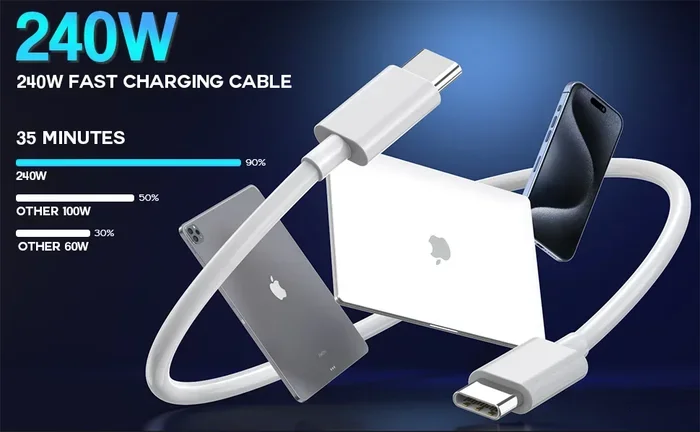
USB-C power delivery is another big deal. A USB-C port can deliver up to 100 watts of power using the USB Power Delivery standard. This means you can charge a laptop, tablet, or phone through a single cable. Older USB ports simply cannot do that.
Here is a quick look at what sets USB-C apart:
- Reversible design: Plug it in either direction.
- Smaller footprint: Fits in slim devices easily.
- Higher power delivery: Up to 100 watts with USB-PD.
- Faster data speeds: Supports up to 40 Gbps with Thunderbolt 4.
- Multi-function capability: Carries data, power, and video signals.
Because of these features, USB-C has become the go-to port for modern electronics. But that also means many people have older devices with USB-A ports. And that is exactly where USB-C conversion comes in.
Can USB-C Be Converted to USB-A
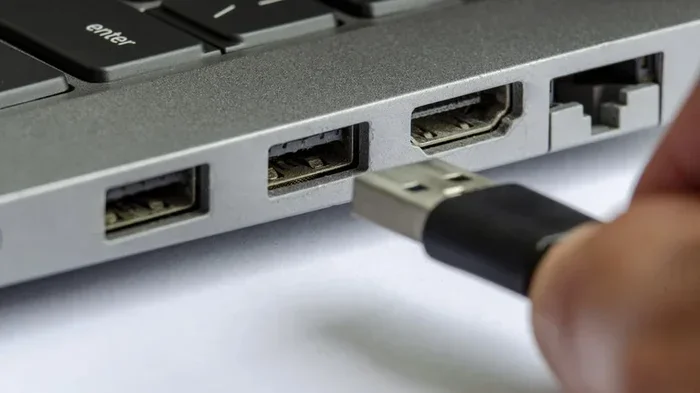
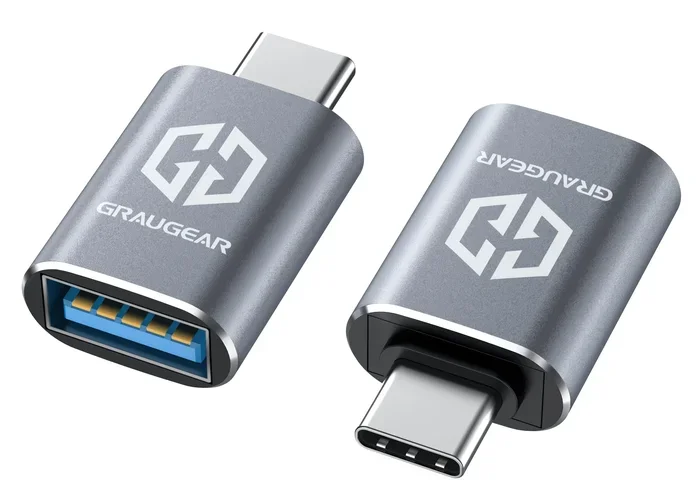
The answer is a clear yes. USB-C can be converted to USB-A using a USB-C to USB-A adapter or cable. This is one of the most common conversion setups. You plug the USB-C end into your modern device, and the USB-A end connects to your older accessory.
This conversion works for a wide range of tasks. You can connect a USB-A flash drive to a laptop with only USB-C ports. You can plug in a USB-A printer. You can even hook up a USB-A game controller. The USB-C adapter acts as a bridge between the two standards.
How USB-C to USB-A Adapters Work
Inside a USB-C to USB-A adapter, the pins are mapped from one connector standard to the other. The USB-C connector has 24 pins. The USB-A connector has 4 pins. The adapter handles the signal routing so data and power flow correctly between the two.
Most USB-C to USB-A adapters are plug-and-play. You do not need to install drivers or software. Just plug in the adapter, connect your USB-A device, and your computer should recognize it instantly. This makes the process simple for almost everyone.
However, there is an important detail. Not every USB-C to USB-A adapter supports the same speeds. A basic adapter might only support USB 2.0 speeds. A higher-quality adapter can support USB 3.0 or even USB 3.1 speeds. If you need fast file transfers, check the adapter specifications before buying.
Types of USB-C to USB-A Adapters
There are several types of adapters available on the market. Here is what you will commonly find:
- USB-C to USB-A adapter: A small dongle that converts one port to another. Great for occasional use.
- USB-C adapter cable: A cable with USB-C on one end and USB-A on the other. Better for devices where you need the extra length.
- USB-C hub with USB-A ports: A hub that adds multiple ports, including USB-A, HDMI, SD card slots, and more.
- USB-C docking station: A larger dock that connects to USB-C and provides many ports for a desktop setup.
Each type serves a different need. A simple adapter works well for quick tasks. A hub or dock is better if you connect multiple USB-A devices regularly.
How USB-C Converters and Adapters Work
USB-C converters are not all the same. They come in different shapes, sizes, and capabilities. Understanding how they work helps you choose the right one for your needs.
The Role of the USB-C Controller Chip
Inside most quality USB-C converters, there is a small controller chip. This chip manages the communication between the USB-C port on your device and the USB-A device you are connecting. It handles protocol negotiation, speed detection, and power management.
Cheap adapters often skip this chip or use a low-quality version. This can lead to slow speeds, connection drops, or even failure to recognize the device. This is why spending a little more on a reputable brand pays off.
Data Transfer Speeds Across Adapters
The speed of your USB-C data transfer depends on several factors. First, it depends on the USB-C port in your device. Does it support USB 3.2 Gen 1 (5 Gbps) or USB 3.2 Gen 2 (10 Gbps)? Second, it depends on the adapter itself. A low-cost adapter might cap your speed at USB 2.0 levels (480 Mbps).
Here is a simple breakdown of what to expect:
- USB 2.0 adapter: Up to 480 Mbps. Fine for keyboards, mice, and basic flash drives.
- USB 3.0 adapter: Up to 5 Gbps. Good for large file transfers and external drives.
- USB 3.1 Gen 2 adapter: Up to 10 Gbps. Great for fast SSDs and video capture devices.
- Thunderbolt 3 or 4 adapter: Up to 40 Gbps. Best for professionals who need maximum speed.
When buying a USB-C adapter, always check what speed it supports. The packaging or product listing should clearly state this.
Video Output Through USB-C Adapters
One of the coolest things about USB-C is its ability to carry video signals. With the right adapter, you can connect your laptop to a monitor, projector, or TV. USB-C to HDMI and USB-C to DisplayPort adapters are very popular for this purpose.
Not all USB-C ports support video output, though. Only USB-C ports that support DisplayPort Alt Mode or Thunderbolt can output video. Before buying a video adapter, check your device specifications to confirm this capability.
Devices That Support USB-C and USB-A
Understanding which devices use USB-C and which use USB-A helps you figure out what adapters you need. The landscape is shifting quickly, and many people have a mix of old and new gear.
Modern Devices With USB-C Ports
Most new laptops, tablets, and phones now come with USB-C ports. Here are some common examples:
- Apple MacBook (2016 and newer models)
- Google Pixel phones
- Samsung Galaxy phones (many models)
- Dell XPS laptops
- Microsoft Surface devices
- Nintendo Switch (with dock)
- Many Android tablets
These devices rely on USB-C for charging, data transfer, and sometimes video output. If you want to connect them to older USB-A devices, you need a USB-C adapter.
Older Devices That Still Use USB-A
Many peripherals still use the classic USB-A port. These include:
- USB flash drives and thumb drives
- Printers and scanners
- Wireless keyboards and mice
- External hard drives
- USB microphones
- Game controllers
- Older cameras and card readers
If your device only has a USB-A port, a USB-C to USB-A adapter or cable lets you connect it to a modern USB-C device. This is where backward compatibility really shines.
Common Mistakes When Using USB-C Adapters
Using a USB-C adapter is generally simple. But there are a few common mistakes that trip people up. Knowing these can save you time, money, and frustration.
Buying a Cheap, Unverified Adapter
The biggest mistake people make is grabbing the cheapest adapter they can find. A USB-C dongle that costs a dollar or two might not work properly. It could overheat, fail to transfer data at full speed, or even damage your device.
Always buy adapters from reputable brands or trusted sellers. Look for certifications like USB-IF certification. This ensures the adapter meets quality and safety standards.
Assuming All USB-C Ports Are the Same
This is a big one. Not every USB-C port is created equal. Some support Thunderbolt 4, some support USB 3.2, and some only support USB 2.0. Plugging a USB-C to USB-A adapter into a USB 2.0 port will not suddenly give you USB 3.0 speeds.
Before buying an adapter, check what your device’s USB-C port actually supports. Look at the manufacturer’s specifications or user manual.
Using the Wrong Adapter for Your Task
Not every USB-C adapter does the same thing. Some adapters only support charging. Others support data transfer. Some support both. And some also support video output.
If you want to connect a USB-A printer, you need an adapter that supports data. If you just want to charge your phone, a simple USB-C to USB-A cable will work. Always match the adapter to your specific need.
Ignoring Power Delivery Limitations
Some USB-C adapters and hubs do not pass through USB-C power delivery. This means if you plug a charger into the hub while using a USB-A device, the hub might not charge your laptop at the same time.
If you need to charge your device while using USB-A peripherals, look for an adapter or hub that supports USB-C power delivery pass-through.
Expert Tips for Getting the Most Out of USB-C
Here are some practical tips from people who work with USB-C adapters every day:
- Keep a spare adapter in your bag. You never know when you will need to connect a USB-A device to a USB-C laptop. A small USB-C adapter is light and easy to carry.
- Label your adapters. If you have several, label them with their capabilities. This saves you from grabbing the wrong one.
- Check firmware updates. Some devices benefit from firmware updates that improve USB-C compatibility with adapters.
- Invest in a good USB-C hub. A quality USB-C hub with multiple ports is more versatile than buying individual adapters. Look for one that supports USB 3.0 or higher.
- Test your setup before important tasks. Do not wait until a big presentation to discover your adapter does not work with your projector. Test everything in advance.
Key Takeaways
- USB-C can be converted to USB-A: Simple adapters and cables make this possible and widely available.
- Not all USB-C adapters are equal: Some support data transfer, some only support charging, and others handle both.
- Check your device specs first: Understanding your port capabilities prevents buying the wrong adapter.
- USB-C offers backward compatibility: With the right adapter, it works seamlessly with older USB standards.
- Quality matters: Cheap adapters can cause slow speeds, overheating, or damage to your devices.
- Thunderbolt USB-C adds more power: Thunderbolt 3 and 4 ports offer even greater versatility with adapters.
Conclusion
Can USB-C be converted to USB and work with everything? Absolutely. With the right USB-C adapter, you can connect your modern devices to almost any older USB-A peripheral. The key is understanding what you need, choosing the right adapter type, and avoiding common pitfalls like cheap, unverified products.
USB-C compatibility has improved dramatically over the years. Today, most USB-C converters work seamlessly with minimal setup. Whether you need a simple USB-C to USB-A cable for a flash drive or a full USB-C hub for your desk, there is a solution that fits your needs and budget.
The world of USB-C adapters might seem confusing at first. But once you understand the basics, it all makes sense. Focus on what your devices need, pick a quality adapter, and you will be up and running in seconds. Embrace the flexibility of USB-C, and you will never have to worry about incompatible ports again.
FAQs
Do I need to install drivers for a USB-C to USB-A adapter?
In most cases, no. USB-C adapters are plug-and-play. Your operating system should recognize the device automatically. However, some specialized adapters like those for audio interfaces or certain printers might require a driver. Always check the product documentation to be sure.
Can a USB-C adapter support fast charging while connected to a USB-A device?
It depends on the adapter. Some USB-C adapters pass through USB-C power delivery while also connecting a USB-A device. Others only support data transfer and do not charge your device. Look for adapters that explicitly mention power delivery support if charging is important to you.
Why is my USB-C adapter so slow when transferring files?
The most common reason is that the adapter only supports USB 2.0 speeds. Another reason could be that your device’s USB-C port only supports USB 2.0. Check both the adapter and your device specifications to find the bottleneck. Upgrading to a USB 3.0 or USB 3.1 adapter can dramatically improve speeds.
Are Thunderbolt USB-C adapters different from regular USB-C adapters?
Yes. Thunderbolt 3 and 4 adapters support much faster data speeds (up to 40 Gbps) and can also carry video signals and more power. They are backward compatible with standard USB-C devices. However, you need a Thunderbolt-capable port on your device to take full advantage of these adapters.
Can I use a USB-C adapter with a USB 3.0 device?
Yes. A USB-C to USB-A adapter works perfectly with USB 3.0 devices. Just make sure your adapter supports USB 3.0 speeds to get the best performance. A basic USB 2.0 adapter will work but will limit your transfer speeds.
How do I know if my USB-C port supports video output?
Check your device’s specifications for DisplayPort Alt Mode or Thunderbolt support. If either is listed, your USB-C port can output video. You can then use a USB-C to HDMI or USB-C to DisplayPort adapter to connect an external display.