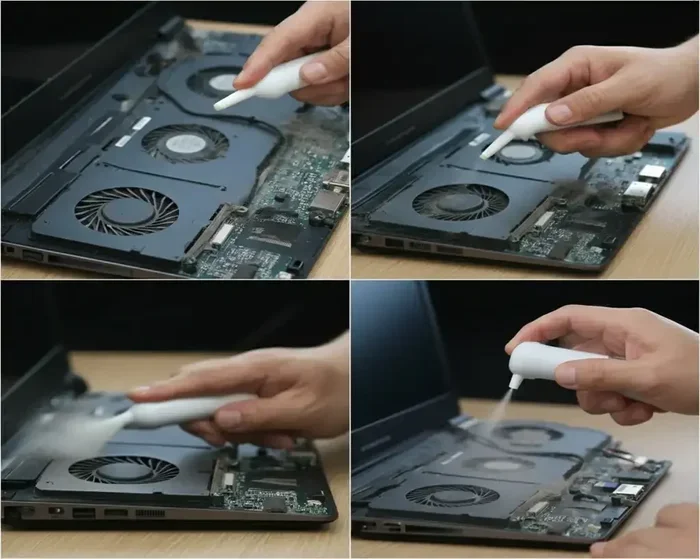
Can You Clean Laptop Fan With Vacuum Without Damage
Can you clean laptop fan with vacuum? The short answer is yes, but with caution. Using a regular household vacuum can generate static electricity that damages sensitive laptop components. However, with the right anti-static precautions and proper technique, you can safely remove dust buildup from your laptop’s cooling system. This guide covers every risk, method, and step you need to know.
Your laptop works hard every single day. Whether you are gaming, streaming, or just browsing, the internal laptop cooling system keeps things running smoothly. But here is the problem — dust loves to sneak inside. Over time, dust buildup clogs the fan vents, traps heat, and forces your laptop to work harder than it should.
So what do you do? Many people ask, can you clean laptop fan with vacuum? It sounds like a quick and easy fix. And honestly, it can be — if you know what you are doing. The wrong approach, however, can cause serious harm to your device. In this guide, we will walk you through everything you need to know about cleaning your laptop fan safely, the risks involved, and the best alternatives that actually work.
We will cover laptop maintenance tips, step-by-step cleaning methods, and common mistakes that can destroy your hardware. By the end, you will feel confident about keeping your laptop cool and running fast. Let us get into it.
Key Takeaways
- Avoid standard vacuums: Regular household vacuums create static electricity that can fry laptop circuits and damage the fan motor.
- Use compressed air instead: Canned air or a low-pressure air compressor is the safest and most recommended method for cleaning laptop fans.
- Disassemble carefully: If you must use a vacuum, open the laptop first and use a low-suction setting with an anti-static brush attachment.
- Clean every 3-6 months: Regular maintenance prevents overheating, improves performance, and extends your laptop’s lifespan significantly.
- Watch for warning signs: Loud fan noise, slow performance, and frequent overheating all signal it is time to clean your laptop.
- Never use water or liquids: Moisture and electronics are a dangerous combination that can cause permanent damage to internal components.
📑 Table of Contents
- Why Your Laptop Fan Gets Dirty
- Can You Clean Laptop Fan With Vacuum Safely
- Best Methods to Clean Your Laptop Fan
- Step-by-Step Guide to Cleaning Your Laptop Fan
- Common Mistakes to Avoid
- How Often Should You Clean Your Laptop Fan
- Comparison: Vacuum vs. Compressed Air vs. Manual Cleaning
- Quick Tips for Safe Laptop Fan Cleaning
- When to Seek Professional Help
- Conclusion
Why Your Laptop Fan Gets Dirty
Understanding why dust accumulates inside your laptop is the first step toward better laptop maintenance. Most people do not realize how quickly dirt finds its way inside the machine.
Laptops pull in air from the bottom and sides to cool the processor and graphics card. That air carries dust particles, pet hair, crumbs, and even tiny fibers from your carpet or clothing. Over weeks and months, these particles build up around the fan blades and heat sink. Eventually, the airflow gets blocked.
Here are the most common reasons dust accumulates:
- Using your laptop on beds or couches: Fabric surfaces block vents and pull in more lint.
- Pet hair: Animals shed constantly, and their fur gets sucked into vents easily.
- Smoking or cooking nearby: Smoke residue sticks to internal components and creates a sticky layer of grime.
- Old or worn-out thermal paste: When thermal paste degrades, heat builds up faster, and the fan spins harder, pulling in more dust.
- Living in a dusty environment: Homes near construction sites or in dry climates collect more dust.
The result is the same — your laptop cooling system struggles to keep up. And when the cooling system fails, your laptop overheats.
Signs Your Laptop Fan Needs Cleaning
How do you know it is time to clean your laptop? Watch for these warning signs:
- The fan runs loudly or constantly, even during light tasks.
- The laptop feels hot to the touch on the bottom or keyboard.
- Performance drops during gaming or video editing.
- Your laptop shuts down unexpectedly without warning.
- You hear grinding or rattling sounds from the fan area.
If you notice any of these, it is time to take action. But before you grab that vacuum cleaner, read on.
Can You Clean Laptop Fan With Vacuum Safely
This is the big question, and the answer is more complicated than a simple yes or no. Can you clean laptop fan with vacuum? Technically, yes. But should you? That depends on the type of vacuum, the method you use, and how careful you are.
A household vacuum cleaner is one of the most common cleaning tools people reach for. It is powerful, convenient, and already sitting in your closet. But here is the catch — regular vacuums are not designed for electronics. They generate static electricity that can damage sensitive laptop components like the motherboard, RAM, and CPU.
The Risks of Using a Vacuum on Your Laptop
Using a vacuum on your laptop comes with real dangers. Let us break them down:
- Static discharge: Vacuums create static electricity through friction. This static can jump from the vacuum hose to your laptop and fry delicate circuits. Even a small zap can kill components silently, meaning your laptop might stop working days or weeks later.
- Too much suction force: Household vacuums pull air at high pressure. This can rip fan blades off their motors or damage the thin wires inside your laptop. Laptop fans are small and fragile, and they are not built to withstand strong suction.
- Physical damage to vents: The vacuum nozzle is rigid and can scratch or dent the plastic vents on your laptop if you press too hard.
- Dislodging components: Strong suction can accidentally pull loose cables or connectors inside the laptop if it is open during cleaning.
These risks sound scary, and honestly, they are. But that does not mean you are stuck with a dusty laptop forever. There are safer ways to handle the job.
When a Vacuum Might Be Okay
There are a few situations where using a vacuum can work — but only under specific conditions:
- You use an ESD-safe vacuum (electrostatic discharge protected) designed for electronics.
- You clean the external vents only without opening the laptop.
- You use a low-suction handheld vacuum made for keyboards and electronics.
- You attach an anti-static brush to the vacuum nozzle to reduce direct contact.
Even in these cases, compressed air remains the safer and more popular choice among experts. Let us look at why.
Best Methods to Clean Your Laptop Fan
If you want to avoid the risks of vacuuming, there are several tried-and-true methods that work beautifully. Each has its own advantages depending on your situation and comfort level.
Method 1: Compressed Air
Compressed air is the gold standard for cleaning laptop fans. It is safe, effective, and widely available. You can buy canned air at any electronics store or office supply shop for just a few dollars.
Here is why compressed air wins:
- It produces no static electricity.
- The pressure is gentle enough not to damage fan blades.
- It is easy to aim at specific vents and crevices.
- You do not need to open the laptop to use it.
How to use compressed air:
- Turn off your laptop and unplug it from the power source.
- Hold the laptop at a 70-degree angle so gravity helps dust fall out.
- Spray short bursts of air into the vents. Do not hold the can upside down, as this can release liquid propellant.
- Move the nozzle around each vent for 5-10 seconds.
- Repeat on the other side and any additional vents.
Pro tip: Use a small handheld air blower (the kind photographers use) for even more control. These are static-free and gentle on electronics.
Method 2: Manual Cleaning with a Brush
If you are comfortable opening your laptop, you can use a soft brush to manually remove dust. This method gives you the most control and allows you to see exactly what you are cleaning.
You will need:
- A soft-bristled brush (a clean makeup brush or anti-static brush works great).
- A flashlight or phone light.
- A Phillips-head screwdriver.
- An anti-static wrist strap (optional but recommended).
Gently brush dust away from the fan blades and heat sink. Be very gentle — you do not want to bend or break the blades. Work in a well-lit area and take your time. This method pairs well with compressed air for a thorough internal cleaning.
Method 3: Isopropyl Alcohol and Cotton Swabs
For sticky grime around the vents, isopropyl alcohol (90% or higher) works wonders. Dip a cotton swab in the alcohol and gently wipe the vent grates. The alcohol evaporates quickly and leaves no residue. Just make sure your laptop is completely powered off and dry before turning it back on.
Step-by-Step Guide to Cleaning Your Laptop Fan
Ready to clean your laptop? Follow this simple guide to get the best results without any damage.
Step 1: Power Down and Unplug
Shut down your laptop completely. Unplug the charger and remove the battery if it is removable. This prevents any electrical accidents during cleaning.
Step 2: Find a Clean Workspace
Work on a clean, flat surface. A table with good lighting is ideal. Lay down a soft towel to prevent scratches and catch falling dust.
Step 3: Use Compressed Air on the Vents
Hold the can upright and spray short bursts into each vent. Angle the laptop so dust falls out rather than deeper inside. Spend about 30 seconds per vent.
Step 4: Open the Laptop (Optional)
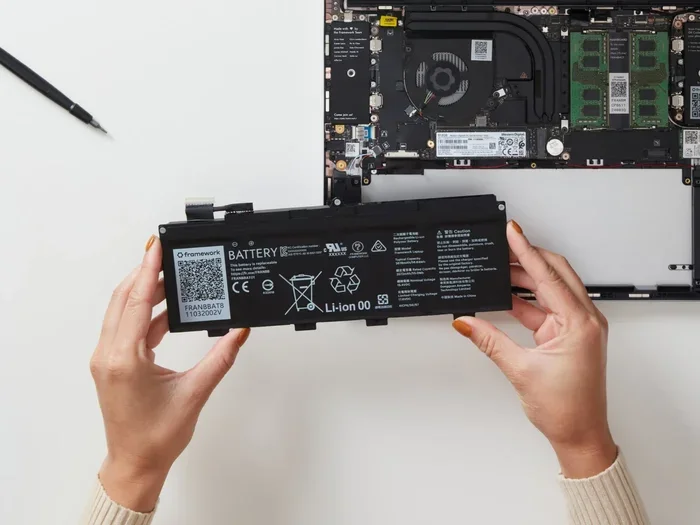
If dust is still visible or your laptop is still overheating, consider opening the back panel. Use the right screwdriver size and keep track of every screw. Refer to your laptop model’s disassembly guide online if needed.
Step 5: Brush and Blow Away Remaining Dust
Use a soft brush to gently loosen dust from the fan and heat sink. Then use compressed air to blow it out. Repeat until no more dust comes out.
Step 6: Reassemble and Test
Put the laptop back together carefully. Plug in the charger and power it on. Listen for quieter fan operation and feel for cooler temperatures. Your laptop should feel noticeably better.
Common Mistakes to Avoid
Even with the best intentions, people make mistakes when cleaning their laptops. Here are the most common ones and how to avoid them:
- Using a regular household vacuum: This is the number one mistake. The static electricity risk is too high. Stick to compressed air or ESD-safe tools.
- Spraying compressed air while the laptop is on: Always power down first. Running fans during cleaning can pull dust deeper inside.
- Shaking the canned air can: This releases liquid propellant that can damage components. Keep the can upright at all times.
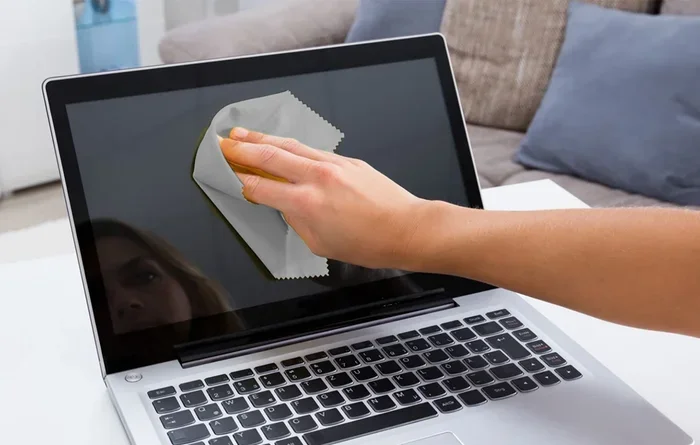
- Using a vacuum on the external vents only: Even external vacuuming can generate static. Use a dry cloth or brush for exterior cleaning instead.
- Forcing the laptop open: If you are not comfortable disassembling your laptop, stick to external cleaning methods. Forcing screws or panels can break them.
- Skipping regular maintenance: One cleaning session is not enough. Build a laptop maintenance schedule and stick to it every few months.
Expert Insight
Most laptop repair technicians agree that compressed air is the safest and most effective tool for routine cleaning. Vacuums should only be used by experienced technicians with ESD-safe equipment. If you are not confident in your abilities, a professional laptop cleaning service is always a good option.
How Often Should You Clean Your Laptop Fan
Regular cleaning keeps your laptop performance at its best. But how often should you do it?
As a general rule, clean your laptop every 3 to 6 months. If you use your laptop in a dusty environment or on fabric surfaces, aim for every 2-3 months. Gamers and heavy users should clean more frequently because their laptops run hotter and pull in more air.
Here is a simple maintenance schedule you can follow:
- Every month: Wipe down external vents with a dry cloth.
- Every 3 months: Use compressed air on all vents and fans.
- Every 6 months: Open the laptop and perform a deep clean of internal components.
- Once a year: Consider replacing the thermal paste on your CPU and GPU for optimal heat transfer.
Sticking to this schedule will keep your laptop running cool, quiet, and fast. It also extends the laptop lifespan and prevents costly repairs down the road.
Comparison: Vacuum vs. Compressed Air vs. Manual Cleaning
Not sure which method is right for you? Here is a quick comparison of the three most popular laptop cleaning methods.
| Method | Safety | Effectiveness | Ease of Use | Cost |
|---|---|---|---|---|
| Household Vacuum | Low (static risk) | Moderate | Easy | $0 (if you own one) |
| ESD-Safe Vacuum | High | High | Moderate | $30-$60 |
| Compressed Air | Very High | High | Very Easy | $5-$10 per can |
| Manual Brush Cleaning | Very High | High | Moderate | $5-$15 for a brush |
| Air Blower (Photographer’s) | Very High | High | Very Easy | $10-$20 |
As you can see, compressed air and manual cleaning are the safest options for most users. They are affordable, easy to use, and highly effective. If you still want to use a vacuum, invest in an ESD-safe model designed for electronics cleaning.
Quick Tips for Safe Laptop Fan Cleaning
- Always power off and unplug your laptop before cleaning.
- Use short bursts of compressed air — never continuous spraying.
- Hold the fan blade still while blowing air to prevent spinning and potential motor damage.
- Work in a well-ventilated area — the dust has to go somewhere.
- Wear an anti-static wrist strap if you are opening the laptop.
- Keep your laptop on a hard, flat surface during use to reduce dust intake.
- Consider a laptop cooling pad to help manage heat between cleanings.
When to Seek Professional Help
Sometimes, cleaning your laptop fan is not a DIY job. If you are uncomfortable opening your device or if the dust buildup is severe, it is perfectly fine to seek professional help. A qualified laptop repair technician can perform a thorough internal cleaning without risking damage. Many computer repair shops offer affordable cleaning services, and it is worth the peace of mind.
Also, if your laptop continues to overheat after cleaning, the problem might be deeper. Worn-out thermal paste, a failing fan motor, or a blocked heat pipe could be the culprit. A professional can diagnose and fix these issues quickly.
Conclusion
So, can you clean laptop fan with vacuum? Yes, you can — but it comes with risks that most users should avoid. A standard household vacuum can generate static electricity that damages your laptop’s internal components. The suction force can also break fragile fan blades and dislodge important connections.
The safest and most effective approach is to use compressed air for routine cleaning. It is affordable, easy to use, and completely static-free. Pair it with a soft brush for deeper cleaning, and you will keep your laptop running smoothly for years.
Remember, regular laptop maintenance is the key to preventing overheating, boosting performance, and extending your device’s life. Clean your vents every few months, keep your laptop on hard surfaces, and treat it well. Your laptop will thank you with faster speeds, cooler temperatures, and fewer headaches.
Take a few minutes today to clean your laptop. Your future self will appreciate it.
Frequently Asked Questions
Is it safe to use a vacuum cleaner on a laptop?
Using a standard household vacuum on a laptop is not recommended. Vacuums generate static electricity that can damage sensitive electronic components. If you must use a vacuum, choose an ESD-safe model and only clean external vents with low suction.
What is the best way to clean a laptop fan?
Compressed air is the best and safest method for cleaning a laptop fan. It is static-free, gentle on components, and easy to use. You can also use a soft brush and isopropyl alcohol for manual cleaning of stubborn dust and grime.
How often should I clean my laptop fan?
You should clean your laptop fan every 3 to 6 months. If you use your laptop in a dusty environment, on fabric surfaces, or for heavy gaming, clean it every 2 to 3 months for best results.
Can dust cause my laptop to overheat?
Yes, absolutely. Dust blocks airflow through the vents and coats the fan blades, reducing cooling efficiency. When your laptop cannot cool itself properly, it overheats, which leads to slower performance, unexpected shutdowns, and long-term hardware damage.
What happens if I use a vacuum and damage my laptop?
If static electricity from a vacuum damages your laptop, you may experience random shutdowns, slow performance, or a completely unresponsive device. In severe cases, the motherboard or fan motor may fail entirely, requiring costly repairs or replacement.
Can I use a hair dryer instead of compressed air?
No, a hair dryer is not recommended. Even on a cool setting, a hair dryer can generate static electricity and blow dust deeper into the laptop. Stick to canned compressed air or a dedicated ESD-safe air blower for safe and effective cleaning.