Can Vga Cable Be Used As Hdmi And What You Need To Know
A VGA cable cannot directly replace an HDMI cable because they carry different signals. Can Vga Cable Be Used As Hdmi? Yes, with the right active adapter or converter that changes the analog signal to digital and handles audio. This guide explains how the conversion works, what limits you’ll face, and how to get the best results.
So, can Vga Cable Be Used As Hdmi? The short answer is no, not without help. These two cables speak entirely different languages. One carries an old analog video signal, while the other sends a modern digital stream that includes sound.
If you plug a VGA cable straight into an HDMI port, nothing will show up. The devices simply can’t understand each other. But don’t worry. You can still make them work together with the right tool. This guide walks you through exactly how that works, what you can expect, and the mistakes to avoid.
Many people have old laptops, desktop monitors, or projectors that only offer a VGA output. Meanwhile, modern TVs and displays rely on HDMI. You might think you need to buy a whole new device. That’s not true. A simple adapter can bridge the gap. Below, we break down every detail so you can set up your system with confidence.
Key Takeaways
- Direct Connection Won’t Work: VGA and HDMI use different signal types, so a plain cable can’t bridge them.
- Active Adapters Are Essential: You need a powered converter to change analog video to digital and add audio.
- Resolution Will Drop: Expect a max of 1080p or lower when converting from VGA.
- Audio Requires a Separate Path: VGA carries no sound, so you must route audio through another cable.
- Cable Quality Matters: A cheap adapter can cause flickering, noise, or signal loss.
- Old Devices Still Have Value: With the right setup, you can use legacy laptops and projectors on modern TVs.
- Check for HDCP: Some content may be blocked if the converter doesn’t support HDCP.
📑 Table of Contents
Understanding VGA and HDMI Basics
What Is VGA?
VGA stands for Video Graphics Array. It’s an older standard that dates back to 1987. The connector has 15 pins and carries only video. It uses an analog signal, which means the image is sent as a continuous wave of electricity. This design was perfect for CRT monitors. But digital screens like LCDs and LEDs need a different approach.
When you send a VGA signal to a flat panel, the display must convert it back to digital. That extra step can reduce quality. The analog waveform is also more prone to interference. Nearby power cables or even microwave ovens can introduce noise. That’s why VGA cables are often thicker and shielded.
What Is HDMI?
HDMI stands for High-Definition Multimedia Interface. It was introduced in 2003 and quickly became the universal standard. An HDMI cable does two jobs at once. It carries uncompressed digital video and multi-channel audio through a single cable. The connector has 19 pins and a locking tab that prevents accidental disconnection.
HDMI supports high resolutions like 4K and even 8K on newer versions. It also handles copy protection called HDCP. This makes it perfect for modern TVs, projectors, and monitors. The digital signal stays crisp until the point where the signal is too weak to read. That’s a huge advantage over analog.
Analog vs Digital Signals
The core difference is the signal type. VGA uses analog waves. HDMI uses digital ones and zeros. Analog signals degrade with distance and interference. Digital signals remain perfect until the threshold is crossed. Understanding this helps you see why a direct cable swap fails. You can’t just plug one into the other and expect a picture.
The analog-to-digital conversion process requires a real-time sampler. The chip reads the VGA voltage levels and translates them into binary data. It also must sync the timing to match the display’s refresh rate. This is why a simple shape-changing adapter won’t work. You need active processing.
Can Vga Cable Be Used As Hdmi? The Short Answer
Why a Direct Cable Won’t Work
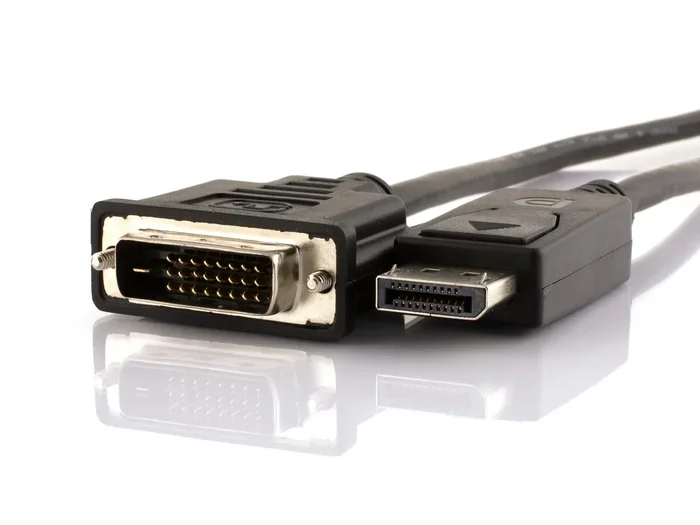
A VGA plug has 15 pins arranged in three rows. An HDMI plug has 19 pins in a single row. The shapes are completely different. You can’t force them together. Even if you used a mechanical adapter that changed the shape, the signal would still be wrong.
VGA sends a fluctuating voltage that represents brightness and color. HDMI expects a timed stream of digital data packets. The TV would see garbage and show no image. So a direct cable is physically and electrically impossible. You must use a converter box.
The Signal Conversion Challenge
To make VGA work with HDMI, you must convert the signal. The analog video needs a chip to sample it and turn it into digital data. That chip also needs to sync the timing. VGA doesn’t carry audio, so the converter must create a separate audio path.
This is why a simple cable won’t cut it. You need a device that does the math in real time. The converter takes the VGA input, processes it, and outputs a clean HDMI signal. It also combines the audio from a separate source. All of this happens in milliseconds.
Using an Adapter or Converter
VGA to HDMI Adapter Solutions
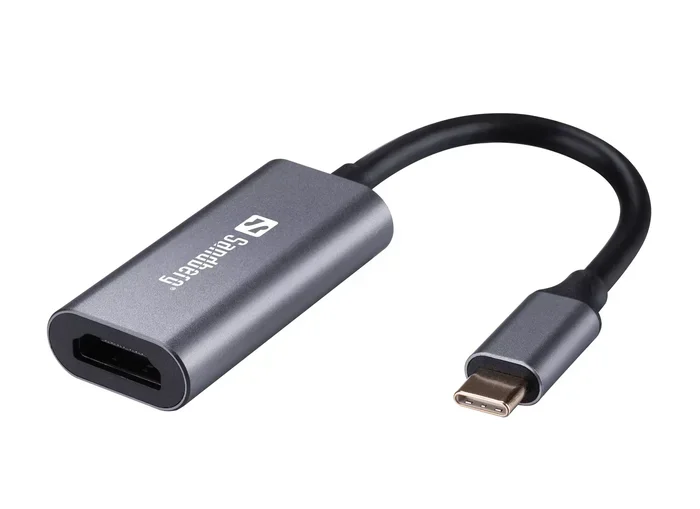
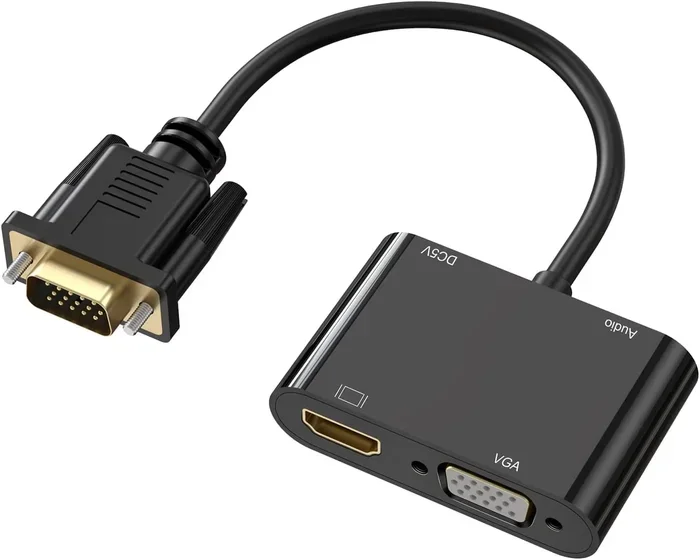
The most common solution is a VGA to HDMI adapter. These small boxes have a VGA input on one side and an HDMI output on the other. They contain a built-in converter chip. Many also include a 3.5mm audio jack so you can plug in a speaker cable.
You’ll need a USB cable or power source to run the chip. These adapters are affordable and easy to find. They turn an old desktop or laptop into a modern display device. Just remember that the box does the heavy lifting. Without it, the connection is dead.
Active vs Passive Converters
Not all adapters are the same. Some are passive, which just change the shape of the connector. A passive VGA-to-HDMI cable will not work. You need an active converter that has its own processing chip. Active adapters require power, often from a USB port.
They do the heavy lifting of converting analog to digital. Always check the product description to confirm it is an active converter. Passive adapters only change the physical plug shape. They cannot translate the signal type. Buying the wrong one is a common mistake.
| Feature | Passive Adapter | Active Converter |
|---|---|---|
| Signal Conversion | No conversion, just shape change | Converts analog VGA to digital HDMI |
| Power Required | None | USB or external power |
| Audio Support | None | Yes, via 3.5mm input |
| Works with HDMI? | No, will not work | Yes, outputs digital HDMI signal |
| Price Range | $5 to $10 | $15 to $40 |
| HDCP Support | No | Yes, on many models |
Handling Audio Separately
VGA carries no sound. So even with a video converter, you’ll have no audio. Most active adapters include a separate audio input. You run a small cable from your device’s headphone jack to the adapter. This gives you sound through the HDMI connection.
If your adapter lacks this, you can use the TV’s built-in speakers with a separate audio cable from the source device. Some users connect a Bluetooth speaker to the laptop instead. The key is to know that VGA and audio are two separate paths. You must manage both for a complete experience.
Quick Tips for the Best Setup
- Always use an active converter, not a passive cable.
- Check that the adapter supports your target resolution.
- Use a short, high-quality VGA cable to reduce signal loss.
- Connect audio separately if the adapter doesn’t bundle it.
- Update your display drivers before testing.
- Test the setup before a permanent install.
Quality and Resolution Limitations
Max Resolution You Can Expect
VGA was designed for lower resolutions. Most VGA cables handle up to 2048×1536 at 85Hz. But in practice, you’ll rarely go beyond 1080p when converting to HDMI. The analog signal degrades at higher pixel counts. You might see blurry text or color fringing.
If you try to push 4K through a VGA-to-HDMI adapter, the image will be poor. Stick to 1080p for the best results. The converter chip also has limits. Many budget models only support up to 1080p at 60Hz. Higher refresh rates may cause flicker or drop the resolution further.
Audio Transmission Issues
Because VGA has no audio, you must manage sound separately. Some cheap adapters ignore audio entirely. They only convert video. This can be frustrating if you want a single cable solution. Always choose an adapter that explicitly mentions audio support.
Test the sound before mounting the device permanently. A missing audio channel is a common complaint. It’s easy to check by plugging in headphones to the source device first. Then confirm the TV speakers work after conversion.
Signal Degradation Over Distance
VGA cables lose quality over long runs. A 10-foot cable is fine. A 50-foot cable may show ghosting or flicker. HDMI also has distance limits, but the converter adds another point of failure.
Use a high-quality VGA cable and keep it as short as possible. If you must run long distances, consider an HDMI extender that starts with a digital source. The analog video path is the weakest link. A poor cable will ruin the image no matter how good the converter is.
Common Use Cases and Setups
Connecting Old PCs to Modern TVs
Many people have a spare desktop PC with only VGA output. They want to use it as a media center on a big TV. An active VGA-to-HDMI adapter makes this possible. You plug the VGA cable from the PC into the adapter. Run an audio cable from the PC’s headphone jack to the adapter.
Then connect an HDMI cable from the adapter to the TV. Switch the TV to the HDMI input. You’ll see the desktop and hear sound. This is a great way to repurpose old hardware. It saves money and keeps e-waste out of landfills.
Projector Setups in Offices
Conference rooms often have ceiling projectors with VGA inputs. Presenters bring laptops with HDMI only. A converter solves this. You can use an HDMI-to-VGA adapter for the reverse situation. But the question remains: can Vga Cable Be Used As Hdmi? In this case, you need an HDMI-to-VGA converter, not the other way around.
The principle is the same. You need active conversion to bridge the gap. Always test the projector with the converter before a meeting. A flickering image during a presentation is embarrassing and unprofessional.
Gaming and Home Theater Limits
Gaming on a converted VGA setup is not ideal. The added latency from the converter can cause delays. The resolution cap at 1080p also limits the experience. For casual games or retro titles, it’s fine. For competitive gaming or 4K Blu-ray, stick to native HDMI.
The converter adds a small but noticeable lag. If you’re playing a fast-paced shooter, that delay matters. For watching older movies or using legacy software, the setup works well. Know your use case before buying the adapter.
Expert Tips and Common Mistakes
Expert Insights: Why Active Converters Are Worth the Investment
Expert Insight: The best results come from matching your source’s native resolution to the converter’s capabilities. If your old laptop outputs 720p via VGA, set the TV to 720p too. This avoids scaling artifacts and keeps the image sharp. A converter that upscales poorly can make text look fuzzy.
Also, choose a converter that supports the color depth you need. Many budget models only handle 8-bit color. If you work with graphics or video, look for a 10-bit or higher model. The extra cost pays off in color accuracy.
Common Mistakes to Avoid
- Buying a passive adapter and expecting it to convert the signal.
- Ignoring audio and wondering why there’s no sound.
- Using a long, thin VGA cable and blaming the converter for poor image.
- Forcing connectors that don’t fit.
- Assuming 4K will work through a VGA path.
Another mistake is using a converter that doesn’t support HDCP. If you try to play protected Blu-ray content, it may refuse to play. Check the product specs for HDCP 1.4 or 2.2 support. This is especially important for movie streaming.
Key Takeaways
- An active converter is mandatory for VGA-to-HDMI use.
- Audio must be routed separately unless the adapter includes it.
- Resolution will drop to 1080p or lower in most cases.
- Cable quality and length directly affect image stability.
- Always test with your specific devices before relying on the setup.
In the end, can Vga Cable Be Used As Hdmi? The answer is yes, with the right active converter. You cannot use a VGA cable as a direct HDMI replacement, but you can absolutely connect old devices to new screens. The process requires a little extra gear and patience. You’ll sacrifice some resolution and need a separate audio path. But for many situations, it works perfectly.
Now you know exactly what you need to make it happen. Grab the right adapter, check your audio setup, and enjoy your old device on a modern display. A little knowledge goes a long way toward solving connection problems. Happy setup!
Frequently Asked Questions
Can I use a VGA cable with an HDMI port using a simple adapter?
No. A simple adapter only changes the physical shape. It does not convert the analog signal to digital. You need an active converter box with a processing chip to make the signals compatible.
Will I lose audio when using a VGA cable?
Yes. VGA carries only video. You must route audio separately through a 3.5mm cable, Bluetooth, or the TV’s speakers. Choose an adapter that includes an audio input if you want sound through HDMI.
What is the best resolution I can get with a VGA to HDMI converter?
Most converters support up to 1080p at 60Hz. Some high-end models reach 1080p at higher refresh rates. 4K is not possible because VGA’s analog design cannot carry that much data cleanly.
Do I need to install drivers for a VGA to HDMI adapter?
Most active adapters are plug-and-play and don’t need drivers. However, updating your graphics drivers can improve compatibility and resolution options. Check the manufacturer’s website if you experience issues.
Can I use a VGA cable for gaming on a modern TV?
It’s possible but not ideal. The converter adds input lag, and the resolution is capped at 1080p. For casual or retro games, it works fine. For competitive or high-resolution gaming, use a native HDMI connection.
How can I reduce flickering when using a VGA to HDMI setup?
Use a short, high-quality VGA cable. Ensure the converter has power. Match the source resolution to the TV’s native resolution. Avoid long VGA runs and keep cables away from power cords to reduce interference.