Can Thunderbolt Be Used For Display And Why It Matters
Can Thunderbolt Be Used For Display output? Absolutely yes. Thunderbolt ports carry both data and video signals through a single cable, making them one of the most versatile connection options available today. Whether you use a Thunderbolt 3 or Thunderbolt 4 port, you can connect external monitors, docking stations, and pro displays with ease. This guide covers everything you need to know about using Thunderbolt for your display setup, from compatibility to troubleshooting tips.
Key Takeaways
- Thunderbolt supports display output natively: Both Thunderbolt 3 and Thunderbolt 4 can carry video signals to external monitors without extra adapters in most cases.
- Single cable simplicity is a game changer: You get data transfer, charging, and display output through one Thunderbolt cable, reducing cable clutter.
- Thunderbolt 4 offers better display support: It supports two 4K monitors or one 8K display, while Thunderbolt 3 supports up to two 4K displays.
- Daisy chaining is possible: You can connect multiple monitors in a chain from a single Thunderbolt port on your laptop or desktop.
- Compatibility matters: Not all Thunderbolt cables or docks support display output, so always check specifications before buying.
- Common issues are easy to fix: Most Thunderbolt display problems stem from cable quality, firmware, or display settings rather than hardware failure.
📑 Table of Contents
- What Is Thunderbolt and Why Does It Matter for Displays
- Can Thunderbolt Be Used For Display Output
- Thunderbolt 3 vs Thunderbolt 4 for Display Connections
- How to Connect a Monitor Using a Thunderbolt Port
- Daisy Chaining Monitors Through Thunderbolt
- Common Thunderbolt Display Problems and How to Fix Them
- Who Benefits Most From Thunderbolt Display Setups
- Conclusion
What Is Thunderbolt and Why Does It Matter for Displays
Thunderbolt is a hardware interface developed by Intel in partnership with Apple. It lets you connect all kinds of peripherals through a single port. This includes external hard drives, audio interfaces, and most importantly, displays.
The technology has evolved a lot over the years. Thunderbolt 1 and 2 used the Mini DisplayPort connector. Thunderbolt 3 and 4 switched to the USB-C connector. This shift made Thunderbolt far more universal and easier to use.
So why does this matter for your display setup? Because Thunderbolt combines high-speed data transfer with video output in one cable. You no longer need separate cables for charging, data, and your monitor. This is a huge win for anyone who wants a clean, minimalist workspace.
The bandwidth available through Thunderbolt is also impressive. Thunderbolt 3 offers up to 40 Gbps of bandwidth. Thunderbolt 4 maintains that same 40 Gbps minimum but with stricter certification requirements. This bandwidth is more than enough to power high-resolution displays at smooth refresh rates.
A Brief History of Thunderbolt and Display Support
Thunderbolt first launched in 2011. It used the same connector as Mini DisplayPort. This meant Thunderbolt had native display support from day one. Apple was the first major adopter, building Thunderbolt ports into its Mac lineup.
In 2015, Thunderbolt 3 arrived with the USB-C connector. This was a turning point. USB-C is tiny and reversible. It became the standard connector for many laptops, tablets, and phones. Thunderbolt 3 made it possible to use one USB-C port for everything.
Thunderbolt 4 launched in 2020. It brought better security features and stricter performance standards. For display users, Thunderbolt 4 guarantees support for at least one 4K display or two 1080p displays. It also supports USB4, which further expanded compatibility.
Can Thunderbolt Be Used For Display Output
The short answer is yes. Thunderbolt was designed from the start to carry display signals. When you plug a monitor into a Thunderbolt port, the video signal travels through the same cable that handles data and power.
Thunderbolt uses DisplayPort protocol internally to transmit video. This means it supports high resolutions and color depths. You can drive 4K displays at 60Hz or even 8K displays with the right equipment.
Here is what you need to know about Thunderbolt display capabilities:
- Thunderbolt 1 and 2: Support one 2560×1600 display or two 1080p displays.
- Thunderbolt 3: Supports two 4K displays at 60Hz or one 5K display (on Mac).
- Thunderbolt 4: Supports two 4K displays at 60Hz or one 8K display.
- USB4 (Thunderbolt compatible): Varies by implementation but generally supports similar display output to Thunderbolt 3.
When you ask Can Thunderbolt Be Used For Display, the answer is always yes for Thunderbolt 3 and newer. The real question is how many monitors and at what resolution. Your answer depends on the specific Thunderbolt version and your computer’s graphics capabilities.
Native DisplayPort Alt Mode vs. Thunderbolt Display
Some USB-C ports support DisplayPort Alt Mode without being Thunderbolt. This is an important distinction. DisplayPort Alt Mode carries video only. It does not carry data or power through the same cable.
Thunderbolt goes further. It carries video, data, and power simultaneously. This is why Thunderbolt is superior for display setups. You get a true single-cable solution that simplifies your workspace and reduces clutter.
If your laptop has a USB-C port that is not Thunderbolt, it may still support video output. But you will not get the full benefits of Thunderbolt. Always check your device specifications to confirm whether your USB-C port supports Thunderbolt.
Thunderbolt 3 vs Thunderbolt 4 for Display Connections
Both Thunderbolt 3 and Thunderbolt 4 can be used for display output. But there are important differences that affect your experience. Understanding these differences helps you make the right choice for your setup.
| Feature | Thunderbolt 3 | Thunderbolt 4 |
|---|---|---|
| Max Bandwidth | 40 Gbps | 40 Gbps |
| Min Display Support | One 4K display | Two 4K displays |
| Charging Power | Up to 100W | Up to 100W |
| Wake from Sleep | Not guaranteed | Supported |
| Security Features | Basic | Direct Memory Access Protection |
| Cable Length Guarantee | 0.5m for full speed | 2m for full speed |
Thunderbolt 4 is the better choice for display setups. It guarantees support for two 4K monitors. Thunderbolt 3 can technically support two 4K displays, but it depends on your specific hardware. Thunderbolt 4 removes that guesswork.
Thunderbolt 4 also supports wake from sleep. This means you can close your laptop lid and connect to an external display. When you open the lid, your display wakes up instantly. This is a small feature that makes a big difference for daily productivity.
If you are buying a Thunderbolt dock or cable for display purposes, Thunderbolt 4 gives you better peace of mind. The certification requirements ensure consistent performance across all Thunderbolt 4 devices.
USB4 and Its Display Capabilities
USB4 is the newer standard built on the Thunderbolt 3 protocol. It offers up to 40 Gbps of bandwidth. However, USB4 does not require Thunderbolt certification. This means some USB4 devices may have reduced display support.
USB4 supports two 4K displays at 60Hz. But the actual performance depends on the specific implementation. Some USB4 devices may only support one display. If you need reliable multi-monitor support, Thunderbolt 4 is the safer choice.
How to Connect a Monitor Using a Thunderbolt Port
Setting up a Thunderbolt display is straightforward. Here is a step-by-step guide to get you started.
Step 1: Check your port. Look for the Thunderbolt symbol next to your port. It looks like a lightning bolt. If you see this symbol, your port supports Thunderbolt. If you only see the USB symbol, it is a regular USB-C port.
Step 2: Choose your connection method. You have several options:
- Direct connection: Use a Thunderbolt cable to connect your monitor directly to your laptop or desktop. This works with Thunderbolt-enabled monitors like the Apple Pro Display XDR or LG UltraFine displays.
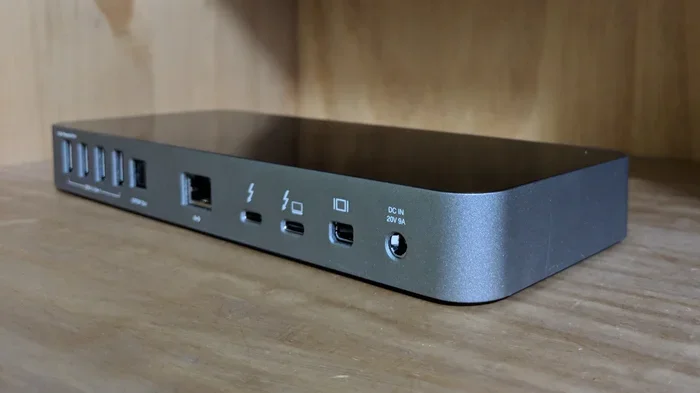
- Thunderbolt dock: Connect a Thunderbolt docking station to your laptop. Then connect your monitor to the dock. This gives you extra ports and flexibility.
- Adapter: Use a Thunderbolt to HDMI or Thunderbolt to DisplayPort adapter if your monitor uses a different input.
Step 3: Plug in and configure. Connect the cable and your monitor should be recognized automatically. On Mac, the display should work immediately. On Windows, you may need to go to Display Settings to detect the new monitor.
Step 4: Adjust settings. Set your preferred resolution, refresh rate, and display arrangement. Most operating systems make this easy through their built-in display settings.
Quick Tips for a Smooth Setup
- Use a Thunderbolt-certified cable for best results. Cheap cables can cause display issues.
- Update your display drivers before connecting a new monitor.
- If your monitor is not detected, try disconnecting and reconnecting the cable.
- Use the shortest cable possible for the best signal quality.
- Check that your monitor supports the resolution and refresh rate you want.
Daisy Chaining Monitors Through Thunderbolt
One of the most powerful features of Thunderbolt is daisy chaining. This means you can connect multiple monitors in a chain from a single Thunderbolt port. Each monitor passes the signal to the next one in the chain.
To daisy chain monitors, you need Thunderbolt-enabled displays or a Thunderbolt dock with multiple display outputs. Connect your first monitor to your computer, then connect the second monitor to the first one. Repeat for additional displays.
This approach reduces cable clutter significantly. You only need one cable running from your computer to your first monitor. The rest connect in a chain behind your desk.
Daisy chaining works best with Thunderbolt 3 and Thunderbolt 4. These versions provide enough bandwidth to support multiple high-resolution displays. Make sure your computer’s graphics card can also handle the total resolution across all connected displays.
Setting Up a Daisy Chain: Step by Step
- Connect the first monitor to your computer using a Thunderbolt cable.
- Connect the second monitor to the first monitor’s Thunderbolt output port.
- Connect additional monitors in the same chain if needed.
- Configure display settings in your operating system to arrange the monitors.
- Test each display to make sure it is working correctly.
Daisy chaining is especially useful for professionals who need multiple screens. Designers, video editors, and programmers benefit greatly from this setup. It keeps your workspace clean and organized while boosting productivity.
Common Thunderbolt Display Problems and How to Fix Them
While Thunderbolt display connections are reliable, you may encounter issues from time to time. Here are the most common problems and their solutions.
Monitor Not Detected
If your monitor is not being recognized, start with the basics. Check that the Thunderbolt cable is firmly connected at both ends. Try a different Thunderbolt cable if the current one is damaged or too long.
Next, check your display settings. On Windows, go to Settings > System > Display and click Detect. On Mac, go to System Settings > Displays and hold the Option key to reveal the Detect Displays button.
If the monitor still is not detected, try a different Thunderbolt port. Some computers have multiple Thunderbolt ports, and one may be malfunctioning.
Flickering or Distorted Display
Flickering screens are often caused by a low-quality or damaged cable. Replace the Thunderbolt cable with a certified one and see if the issue resolves.
Resolution and refresh rate settings can also cause flickering. Try lowering the resolution temporarily to see if the display stabilizes. If it does, your cable or port may not support the higher resolution.
Another common cause is an outdated graphics driver. Update your display drivers through your device manufacturer’s website or through Windows Update.
No Audio Through Thunderbolt Display
Thunderbolt displays often have built-in speakers. If you are not getting audio, check your sound output settings. On Mac, go to System Settings > Sound and select the Thunderbolt display as the output device. On Windows, right-click the speaker icon and choose the display as your audio output.
Slow Performance with External Display
If your external display feels sluggish, it may be a bandwidth issue. Running multiple high-resolution displays over a single Thunderbolt connection uses a lot of bandwidth.
Try reducing the number of connected displays or lowering the resolution. You can also check if other Thunderbolt devices are using bandwidth simultaneously. External drives and other peripherals share the Thunderbolt bus.
Who Benefits Most From Thunderbolt Display Setups
Thunderbolt display connections are useful for many people. But some groups benefit more than others. Here are the users who get the most value from Thunderbolt for display.
Professionals and creatives. Designers, video editors, and photographers need color-accurate, high-resolution displays. Thunderbolt supports the bandwidth needed for 4K and even 8K displays. It also allows them to connect multiple monitors for extended workspace.
Remote workers and laptop users. Thunderbolt lets you connect your laptop to an external monitor with a single cable. You get video, data, and charging through one connection. This makes it easy to switch between laptop mode and desktop mode throughout the day.
Mac users. Apple has been a pioneer in Thunderbolt adoption. MacBooks and Mac Studios feature Thunderbolt ports that deliver excellent display performance. The Apple Pro Display XDR is a Thunderbolt display designed specifically for Mac users.
Minimalists and workspace organizers. If you hate cable clutter, Thunderbolt is your best friend. One cable for everything means fewer cords, fewer adapters, and a cleaner desk.
Developers and programmers. Multiple monitors boost coding productivity. Thunderbolt makes it easy to connect two or more external displays to a laptop without sacrificing port availability for other devices.
Thunderbolt Display Accessories Worth Considering
A few accessories can enhance your Thunderbolt display setup:
- Thunderbolt-certified cable: Look for cables certified by the Thunderbolt Certification Program. These cables guarantee full bandwidth and reliability.
- Thunderbolt dock: A good dock expands your connectivity options. Choose one that supports the number of displays you need.
- Monitor stand or arm: Position your Thunderbolt display at the right height for ergonomic comfort.
- USB-C to HDMI/DisplayPort adapter: Useful if your monitor uses a different input type than Thunderbolt.
Conclusion
Can Thunderbolt Be Used For Display? Yes, and it is one of the best ways to connect your monitors today. Thunderbolt delivers video, data, and power through a single cable. It supports high resolutions, multiple displays, and daisy chaining. Whether you use Thunderbolt 3 or Thunderbolt 4, you get a reliable and versatile display connection.
The key is to use certified cables and compatible devices. Check your hardware specifications before purchasing adapters or docks. And when issues arise, most can be solved with a simple cable swap or driver update.
Thunderbolt has transformed how we connect to our displays. It offers a level of convenience and performance that older connection standards simply cannot match. If you have not yet tried a Thunderbolt display setup, now is the perfect time to experience the difference it makes in your daily workflow.
Frequently Asked Questions
Can I use a Thunderbolt cable to connect any monitor?
You can use a Thunderbolt cable with any monitor that has a Thunderbolt input. Many modern monitors include Thunderbolt ports. If your monitor only has HDMI or DisplayPort inputs, you will need a Thunderbolt to HDMI or Thunderbolt to DisplayPort adapter to make the connection work.
Is Thunderbolt the same as USB-C for display output?
No, they are not the same. USB-C is a connector type, while Thunderbolt is a technology that uses the USB-C connector. Some USB-C ports support display output through DisplayPort Alt Mode, but Thunderbolt provides faster bandwidth and more features. Always check if your USB-C port is Thunderbolt-enabled for the best display experience.
Can I connect two 4K monitors to a Thunderbolt 3 port?
Yes, Thunderbolt 3 can support two 4K monitors at 60Hz. However, this depends on your computer’s graphics capabilities. Some systems may only support one 4K display or two 4K displays at lower refresh rates. Thunderbolt 4 guarantees support for two 4K displays, making it the more reliable choice for multi-monitor setups.
Do I need a special Thunderbolt monitor to use display output?
No, you do not need a special Thunderbolt monitor. Any monitor with a Thunderbolt input will work. You can also use a Thunderbolt dock or adapter to connect standard HDMI or DisplayPort monitors. The Thunderbolt port handles the video signal conversion automatically, so your setup is flexible and adaptable.
Why is my Thunderbolt display flickering or not working?
Flickering or non-functioning displays are usually caused by a faulty cable, outdated drivers, or incorrect display settings. Start by replacing the Thunderbolt cable with a certified one. Then update your graphics drivers and check your display settings. If the problem persists, try a different Thunderbolt port or test the monitor on another computer to isolate the issue.
Can I daisy chain non-Thunderbolt monitors through a Thunderbolt port?
No, daisy chaining requires Thunderbolt-compatible monitors or a Thunderbolt dock with multiple outputs. Standard HDMI or DisplayPort monitors cannot pass Thunderbolt signals through to the next device. If you want to daisy chain, make sure each display in the chain supports Thunderbolt or use a Thunderbolt dock with multiple display outputs.
=== CONCLUSION ===
Can Thunderbolt Be Used For Display connections is a question with a clear and confident answer: yes. Thunderbolt technology has made external display setups simpler, faster, and more versatile than ever before. Whether you are a creative professional, a remote worker, or a tech enthusiast, Thunderbolt delivers the performance and convenience you need.
By understanding your Thunderbolt version, choosing the right cables and accessories, and troubleshooting common issues, you can build a display setup that works beautifully. The single-cable simplicity of Thunderbolt is a game changer. It saves time, reduces clutter, and lets you focus on what really matters: getting your work done.