Can I Use My Laptop As A Monitor Simple Steps Inside
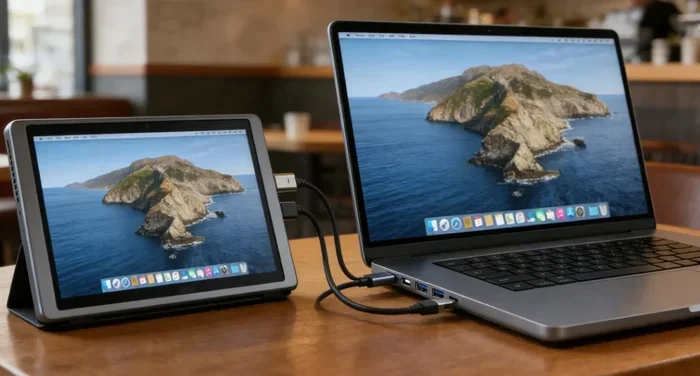
Yes, you can use your laptop as a monitor for another computer, console, or device. Whether you want to extend your workspace or reuse an old laptop screen, there are several easy methods to make it work. This guide covers HDMI connections, capture cards, USB-C adapters, and remote desktop software. You will learn step-by-step instructions for every approach, along with tips to avoid common pitfalls. By the end, you will know exactly how to set up your laptop as a second display or primary monitor.
Have you ever looked at your old laptop sitting in a drawer and thought, “This screen is still great. Why not use it?” The good news is that using your laptop as a monitor is totally possible. You do not need to buy a new external display. With a few cables or a small piece of software, your laptop screen can become a second monitor or even your main display. This guide walks you through every method in plain language. No tech degree needed. Just follow along and you will be up and running in no time.
People want to use their laptop as a monitor for many reasons. Maybe your desktop monitor broke and you need a quick replacement. Perhaps you are a gamer who wants to play console games on a bigger screen. Or maybe you just want a dual monitor setup without spending extra money. Whatever your reason, this article has you covered. We will explore every option, from wired connections to wireless solutions. Let us dive in and figure out how to make your laptop work as a display.
Key Takeaways
- Multiple methods work: You can use HDMI, USB-C, capture cards, or remote desktop software to turn your laptop into a monitor.
- Check your ports first: Not all laptops have HDMI input, so knowing your laptop model matters before you start.
- Capture cards are the most reliable: They work with almost any laptop and deliver lag-free screen sharing.
- Remote desktop is free and simple: Software like Chrome Remote Desktop lets you use your laptop as a monitor over Wi-Fi.
- Avoid common mistakes: Using the wrong cable or wrong input port is the top reason people fail at this setup.
- It works for consoles too: You can hook up a PlayStation, Xbox, or Nintendo Switch to your laptop screen easily.
- Performance depends on your method: Some methods add slight delay, so pick the right one for your needs.
📑 Table of Contents
- Why Would You Want to Use Your Laptop As a Monitor?
- How to Connect Your Laptop to Another Computer
- Using a Capture Card to Turn Your Laptop Into a Monitor
- Using Remote Desktop Software (Wireless Method)
- Can You Use a Laptop As a Monitor for a Console?
- Common Mistakes and How to Avoid Them
- Laptop As Monitor for Mac and Windows: Key Differences
- Quick Tips for the Best Laptop Monitor Experience
- Comparison Table: Methods at a Glance
- Final Thoughts
Why Would You Want to Use Your Laptop As a Monitor?
Before we get into the how, let us talk about the why. Understanding your goals helps you pick the right method. Not every laptop monitor setup is the same, and different methods suit different needs.
Here are some common reasons people turn their laptop into a second screen:
- Save money: Why buy a new monitor when you already have a working laptop screen?
- Extend your workspace: A dual monitor setup boosts productivity. You can have your email open on one screen and your work document on the other.
- Gaming on the go: You can hook up a PlayStation or Xbox to your laptop and play games anywhere.
- Repurpose an old laptop: That old laptop collecting dust still has a perfectly good LCD panel inside.
- Travel convenience: Some people carry a lightweight laptop instead of a bulky external monitor when traveling.
- Testing and development: Web developers and designers often need extra screen space for previewing work.
No matter your reason, knowing what you want helps you choose the best method. Some approaches work better for certain situations than others. We will cover each one in detail below.
How to Connect Your Laptop to Another Computer
The most direct way to use your laptop as a monitor is by connecting it to another computer. But here is the catch: most laptops only have HDMI output ports, not input ports. This means your laptop can send a signal out, but it usually cannot receive one. Let us break down what works and what does not.
Check Your Laptop for HDMI Input
Some laptops, especially certain gaming models, do include HDMI input ports. These are rare but they exist. Brands like Alienware and certain ASUS ROG models have HDMI-in ports specifically designed for this purpose. Check the back or side of your laptop for a port labeled “HDMI In” or “HDMI ARC.”
If your laptop has an HDMI input, the process is simple:
- Get an HDMI cable.
- Plug one end into the HDMI output of your desktop PC or source device.
- Plug the other end into the HDMI input of your laptop.
- Switch your laptop to the correct input source.
- Adjust the display settings on your laptop to extend or duplicate the screen.
That is it. You now have a laptop as a monitor for PC setup. The image will appear on your laptop screen just like it would on a regular monitor.
What If Your Laptop Does Not Have HDMI Input?
Do not worry. Most laptops do not have HDMI input, and that is completely normal. In that case, you have other great options. Let us look at those next.
Using a USB-C to HDMI Adapter for DisplayLink
Some modern laptops support DisplayLink technology through USB-C. This allows you to receive a video signal through a USB-C port. You need a USB-C to HDMI adapter that supports DisplayLink. Plug the adapter into your laptop, connect an HDMI cable from your source device, and your laptop should recognize the input.
Quick Tip: Not all USB-C adapters support video input. Look for adapters that specifically mention “DisplayLink” or “video input” on the packaging. A regular USB-C to HDMI adapter that only outputs will not work.
Using a Capture Card to Turn Your Laptop Into a Monitor
This is hands down the most reliable method for using your laptop as a monitor. A capture card acts as a bridge between your source device and your laptop. It captures the video signal and sends it to your laptop screen through USB.
What Is a Capture Card?
A capture card is a small device that takes a video input and converts it into a digital signal your computer can display. You probably know capture cards from the streaming world. Gamers use them to capture console gameplay on their PCs. But they work just as well for using a laptop as a monitor.
Popular capture cards include the Elgato HD60, AVerMedia Live Gamer Mini, and generic USB capture cards you can find online for under $30.
How to Set Up a Capture Card
Setting up a capture card is straightforward. Follow these steps:
- Plug the capture card into a USB port on your laptop.
- Connect an HDMI cable from your source device (desktop PC, console, or DVD player) to the capture card input.
- Connect another HDMI cable from the capture card output to… wait, no. The capture card receives the signal and sends it through USB to your laptop.
- Open the capture card software on your laptop. Most cards come with their own app or work with OBS Studio.
- The source device screen will now appear on your laptop.
That is all there is to it. You have successfully created a laptop as external monitor setup using a capture card. The video quality depends on your capture card model, but most modern cards support 1080p at 60fps, which is more than enough for everyday use.
Quick Tip: For the lowest latency, use a USB 3.0 capture card rather than a USB 2.0 one. The faster connection reduces delay and gives you a smoother experience.
Using Remote Desktop Software (Wireless Method)
If you do not want to deal with cables at all, remote desktop software is your best friend. This method lets you use your laptop as a monitor for PC wirelessly over your home network.
How Remote Desktop Works
Remote desktop software mirrors or extends your main computer screen to your laptop. Both devices need to be on the same Wi-Fi network. The software sends the video feed over your wireless connection, and your laptop displays it just like a normal monitor.
Best Remote Desktop Options
- Chrome Remote Desktop: Free, easy to set up, and works on both Windows and Mac. You just need the Chrome browser on both devices.
- Microsoft Remote Desktop: Built into Windows Pro. Great for Windows laptop monitor setups.
- TeamViewer: Works across all platforms including Mac laptop as monitor scenarios. Free for personal use.
- AnyDesk: Lightweight and fast. Good for laptop as a monitor for PC with minimal lag.
Setting Up Chrome Remote Desktop (Step by Step)
- Install the Chrome Remote Desktop extension on your main PC.
- Install the same extension on your laptop.
- Sign in to the same Google account on both devices.
- On your main PC, click “Share My Screen” and choose “Extend” instead of “Full Screen.”
- On your laptop, connect to your main PC from the remote desktop app.
- Your laptop now acts as an extended display.
This method is perfect for people who want a laptop as a second monitor without buying any extra hardware. The trade-off is a slight delay compared to wired methods. For office work and browsing, this delay is barely noticeable. For fast-paced gaming, it might be too laggy.
Expert Insight: Remote desktop works best when both devices are on a 5GHz Wi-Fi band. A 2.4GHz connection is slower and can introduce more lag. If your router supports it, always choose the 5GHz network for screen sharing.
Can You Use a Laptop As a Monitor for a Console?
Yes! Using your laptop as a monitor for a gaming console is one of the most popular reasons people search for this topic. Whether you have a PlayStation 5, Xbox Series X, or Nintendo Switch, you can play on your laptop screen. Let us look at how.
Using a Capture Card for Console Gaming
The capture card method works perfectly for consoles. Here is how:
- Connect your console to the capture card using an HDMI cable.
- Plug the capture card into your laptop via USB.
- Open the capture card software on your laptop.
- Your console screen will appear on your laptop.
You can play games, watch streaming content, or use any console feature directly on your laptop display. The picture quality is excellent with a good capture card, and the input lag is minimal.
Using HDMI Input (If Your Laptop Supports It)
If your laptop has an HDMI input port, you can connect your console directly. This gives you the best performance with zero lag. Simply run an HDMI cable from your console to your laptop, switch to the correct input, and you are gaming.
Using Remote Desktop for Console Streaming
Some people use remote desktop to stream their console screen to a laptop. However, this method adds noticeable delay and is not recommended for gaming. It works fine for watching movies or browsing the console interface, but for actual gameplay, a capture card or direct HDMI connection is much better.
Common Mistakes and How to Avoid Them
Many people try to use their laptop as a monitor and run into problems. Most of these issues are easy to avoid if you know what to watch out for.
Mistake 1: Assuming All HDMI Ports Are the Same
The biggest mistake people make is assuming any HDMI port on their laptop can receive a signal. Most laptops only have HDMI output. Plugging a cable into an HDMI-out port will not give you an input. Always check your laptop manual or look for an “HDMI In” label before you buy cables.
Mistake 2: Using the Wrong Adapter
Not every USB-C adapter supports video input. Many adapters are designed only to output video from your laptop to an external display. Make sure your adapter specifically supports input. Look for “DisplayLink” or “video input” compatibility on the product listing.
Mistake 3: Ignoring Display Settings
Even after you get the connection working, you still need to configure your display settings properly. Go to Settings > Display on Windows or System Preferences > Displays on Mac. Choose “Extend” if you want a separate workspace on your laptop screen, or “Duplicate” if you want the same image on both screens.
Mistake 4: Overlooking Resolution and Refresh Rate
Your laptop screen has its own native resolution. When you use it as an external monitor, the source device may try to output a different resolution. This can cause blurry text or a poor image. Match the resolution settings on both devices for the best results. Most modern laptops support 1920×1080 (Full HD), which is standard for most use cases.
Mistake 5: Using a Cheap, Low-Quality Capture Card
If you go the capture card route, do not buy the absolute cheapest option. Very cheap generic capture cards often have terrible color accuracy, heavy compression, and high latency. Spend $25 to $50 on a reputable brand for a much better experience.
Laptop As Monitor for Mac and Windows: Key Differences
Your operating system matters when you use your laptop as a monitor. Windows and Mac handle external displays differently. Here is what you need to know.
For Windows laptop monitor setups, the process is generally straightforward. Windows has built-in support for extending your desktop to external displays. Most capture cards and adapters work seamlessly with Windows 10 and 11. The display settings menu makes it easy to arrange your screens and adjust resolution.
For a Mac laptop as monitor, the process is a bit different. Apple does not natively support receiving video input on most MacBooks. This means you cannot just plug in an HDMI cable and expect it to work. Your best options for a Mac are:
- A USB capture card with compatible software
- Remote desktop software like Chrome Remote Desktop or TeamViewer
- Third-party apps like Luna Display or Duet Display (these are hardware + software combos designed specifically for this purpose)
Quick Tip: If you have a Mac with a Thunderbolt port, you can use a Thunderbolt to HDMI adapter for some input scenarios. However, native support for receiving video input on MacBooks remains limited compared to Windows laptops.
Quick Tips for the Best Laptop Monitor Experience
Here are some pro tips to make your laptop monitor setup work flawlessly:
- Use a short HDMI cable: Longer cables can degrade signal quality. Keep your cables under 6 feet for the best picture.
- Close your laptop lid: If you are using your laptop screen as an external monitor, you can close the lid to save desk space. Just make sure your laptop does not go to sleep when the lid is closed. You can change this setting in Power Options.
- Adjust brightness and contrast: Laptop screens are optimized for indoor use. You may need to tweak brightness when using it as a dedicated monitor for extended periods.
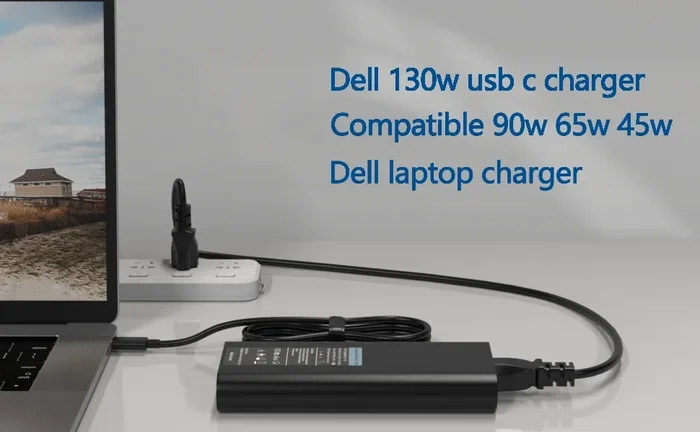
- Keep your laptop plugged in: Using your laptop as a display draws more power. Keep it connected to a charger to avoid battery drain.
- Update your graphics drivers: Outdated drivers can cause display issues. Always keep your GPU drivers up to date for the smoothest experience.
- Test your setup before relying on it: Run a quick test before you depend on your laptop as your only monitor. Make sure the image is clear, colors look right, and there is no noticeable lag.
Comparison Table: Methods at a Glance
| Method | Cost | Setup Difficulty | Latency | Best For |
|---|---|---|---|---|
| HDMI Input (direct) | Free (just a cable) | Very Easy | None | Laptops with HDMI In port |
| Capture Card | $25 – $100 | Easy | Low | Consoles, PCs, any laptop |
| USB-C DisplayLink | $15 – $40 | Easy | Low | Modern laptops with USB-C |
| Remote Desktop Software | Free | Very Easy | Medium | Quick wireless setups |
| Third-Party Hardware (Duet/Luna) | $80 – $150 | Easy | Low | Mac users, premium setups |
Final Thoughts
Using your laptop as a monitor is easier than most people think. You have multiple paths to get there, and each one works well for different situations. If you want zero lag and your laptop supports HDMI input, a direct cable is the way to go. For most people, a capture card provides the best balance of ease, reliability, and performance. Remote desktop software is perfect for quick, wireless setups when you do not want to spend a dime.
Remember to check your laptop ports before you start. Know whether you have HDMI input, USB-C with DisplayLink support, or neither. This single step saves you from buying the wrong cables or adapters. Pick the method that fits your needs and budget, follow the steps in this guide, and you will be displaying on your laptop screen in minutes.
Do not let that old laptop collect dust any longer. Give it a second life as a monitor. Whether you are extending your workspace, gaming on your console, or just need a spare screen, your laptop can absolutely do the job. Now that you know how, the only thing left to do is try it out. Happy setup!
Frequently Asked Questions
Can any laptop be used as a monitor?
Most laptops can be used as a monitor with the right method. If your laptop has an HDMI input port, you can connect it directly with a cable. If it does not, you can use a capture card, USB-C adapter, or remote desktop software. Even older laptops can work as long as they have a working screen and a way to receive a video signal.
Do I need any special equipment to use my laptop as a monitor?
It depends on the method you choose. For a direct HDMI connection, you only need an HDMI cable. For a capture card method, you need a capture card and two HDMI cables. For remote desktop, you only need both devices to be on the same Wi-Fi network. A USB-C adapter may be needed for some laptops. Most setups cost under $50.
Will using my laptop as a monitor damage the screen?
No. Using your laptop as a monitor will not damage the screen. The laptop display works the same way whether it is showing your laptop’s own content or receiving an external signal. The only thing to watch out for is leaving the brightness too high for extended periods, which can strain your eyes. Adjust brightness to a comfortable level and you are fine.
Is there lag when using a laptop as a monitor?
Lag depends on the method you use. Direct HDMI connections have zero lag. Capture cards have very low lag, usually unnoticeable for work and gaming. Remote desktop software has more noticeable lag because the signal travels over Wi-Fi. For office tasks, remote desktop lag is fine. For competitive gaming, a wired method like a capture card is much better.
Can I use my laptop as a monitor for a PlayStation or Xbox?
Absolutely. The capture card method works great for consoles. Plug your PlayStation or Xbox into the capture card with an HDMI cable, then connect the capture card to your laptop via USB. Open the capture card software and your console screen will appear on your laptop. If your laptop has an HDMI input port, you can even connect the console directly without a capture card.
What is the best free method to use my laptop as a monitor?
The best free method is remote desktop software like Chrome Remote Desktop or TeamViewer. Both are free for personal use and require no extra hardware. You just need both devices on the same Wi-Fi network. The setup takes about five minutes. The downside is slightly more lag compared to wired methods, but for everyday tasks like browsing, email, and document editing, it works great.
=== CONCLUSION ===
Can I use my laptop as a monitor? The answer is a clear yes. You now have everything you need to know to make it happen. From direct HDMI connections to capture cards, USB-C adapters, and remote desktop software, there is a method for every situation and budget. The key is knowing your laptop’s ports and choosing the right approach for your needs.
Remember the steps we covered. Check your laptop for HDMI input first. If that is not available, grab a capture card or try remote desktop software. Set up your display settings correctly, and you are good to go. Avoid the common mistakes we highlighted, and your setup will run smoothly from day one.
Using your laptop as a second monitor or even a primary display saves money and gives old hardware new purpose. Try it today and see how much more productive and versatile your setup becomes. With the simple steps in this guide, you have no reason not to give it a try.