Can I Stream From My Phone To My TV Without WiFi Today
Yes, you can stream from your phone to your TV without WiFi. There are several reliable ways to do this, including HDMI cables, Bluetooth connections, and mobile hotspots. Whether you want to watch offline content or share photos on a bigger screen, these methods work great without needing an internet connection.
Key Takeaways
- HDMI cables offer the best quality: A simple cable connection gives you HD or even 4K streaming without any WiFi needed.
- Bluetooth works for audio and some video: You can cast sound or mirror your screen wirelessly within short range.
- Mobile hotspots create a mini network: Your phone becomes the WiFi source, letting smart TVs and streaming devices connect.
- Offline streaming apps exist: Many apps let you download content and play it directly on your TV through a wired or wireless link.
- Screen mirroring doesn’t always need WiFi: Some devices support direct screen mirroring without a router or internet.
- Wired connections are the most stable: If you want zero lag or buffering, a cable is your best bet.
- Multiple methods suit different TVs: Smart TVs, older TVs, and portable TVs all have options for phone-to-TV streaming.
📑 Table of Contents
- Can I Stream From My Phone To My TV Without WiFi?
- Why Stream Without WiFi?
- Method 1: Use an HDMI Cable (Best Quality)
- Method 2: Bluetooth Connection
- Method 3: Create a Mobile Hotspot
- Method 4: Use a Streaming Device with Offline Support
- Method 5: Screen Mirroring Without WiFi
- Best Apps for Offline Phone-to-TV Streaming
- Which Method Should You Choose?
- Tips for the Best Streaming Experience Without WiFi
- Common Mistakes People Make When Streaming Without WiFi
- Is Streaming Without WiFi Safe?
- Conclusion
Can I Stream From My Phone To My TV Without WiFi?
Let’s cut straight to the chase. Can I stream from my phone to my TV without WiFi? The short answer is yes. You absolutely can. And the good news is that you have more options than you might think.
Maybe your WiFi is down. Maybe you’re at a cabin in the woods. Or maybe you just don’t want to deal with the hassle of a wireless connection. Whatever the reason, streaming your phone content to a bigger screen without WiFi is totally doable.
In this guide, we will walk you through every method that works. From simple cables to clever workarounds, you will find the right solution for your setup. Let us dive in and explore your options.
Why Stream Without WiFi?
You might wonder why anyone would want to stream without WiFi. There are actually plenty of good reasons. Let us look at a few common scenarios where streaming without WiFi comes in handy.
You Are Traveling or Camping
When you are on the road or out in nature, WiFi is often unavailable. But you still want to watch movies or share photos on a big screen. Your phone has all that content stored right on it. A simple cable or Bluetooth connection can bring it to your TV anywhere.
Your WiFi Is Too Slow or Unstable
Even when WiFi exists, it is not always reliable. Buffering, lag, and dropped connections can ruin your viewing experience. A wired method like HDMI gives you smooth, high-quality playback with zero buffering. It is the most stable way to enjoy mobile streaming without any interruptions.
You Want Better Quality
Wireless connections compress your content to send it through the air. This can reduce quality. A direct cable connection sends the full signal without compression. That means sharper images and better sound. If quality matters to you, a wired connection is the way to go.
Privacy and Security
Some people prefer not to use WiFi for privacy reasons. Wireless signals can be intercepted. A direct cable or Bluetooth connection keeps your content more secure. This matters if you are sharing personal videos or sensitive files.
Method 1: Use an HDMI Cable (Best Quality)
The simplest and most reliable way to cast phone to TV without WiFi is with an HDMI cable. This method gives you the best picture and sound quality. It also requires zero internet connection.
What You Need
Here is what you will need for this setup:
- An HDMI cable that fits your TV
- A compatible adapter for your phone
- A TV with an HDMI port
For iPhones, you need a Lightning to HDMI adapter or a USB-C to HDMI adapter if you have a newer model. For Android phones, a USB-C to HDMI cable or adapter works perfectly. These adapters are cheap and easy to find online or at any electronics store.
How to Set It Up
Setting up an HDMI connection is straightforward. Follow these steps:
- Plug the HDMI cable into your TV.
- Connect the adapter to your phone.
- Join the adapter and HDMI cable together.
- Switch your TV to the correct HDMI input.
- Your phone screen should now appear on the TV.
That is it. No WiFi. No apps. No setup headaches. Your phone becomes a remote control, and your TV displays everything on the small screen but bigger.
Pros and Cons
Let us look at the advantages and disadvantages of this method:
- Pros: Best video and audio quality. No lag or delay. Works with any TV that has an HDMI port. No internet needed. Simple plug-and-play setup.
- Cons: You need to stay close to the TV since the cable limits your movement. Adapters can sometimes be flimsy. You need to buy the right adapter for your phone model.
Quick Tip: Look for a high-speed HDMI adapter to support 1080p or even 4K resolution. Cheap adapters may not deliver the best quality. Spend a few extra dollars for a reliable brand.
Method 2: Bluetooth Connection
Bluetooth streaming is another option for sending content from your phone to your TV without WiFi. This method works best for audio, but it can also handle some video content depending on your devices.
How Bluetooth Streaming Works
Bluetooth creates a short-range wireless connection between two devices. Your phone pairs directly with your TV, and content flows between them. Since Bluetooth has a limited range of about 30 feet, you need to stay relatively close to the TV.
Setting Up Bluetooth Streaming
Here is how you can connect your phone to your TV using Bluetooth:
- Turn on Bluetooth on your phone.
- Go to your TV settings and enable Bluetooth pairing mode.
- Search for available devices on your phone.
- Select your TV from the list.
- Confirm the pairing on both devices.
Once paired, you can stream music, podcasts, and some video content directly from your phone. The experience is smooth and cable-free.
Limitations of Bluetooth
Bluetooth is not perfect for video streaming. Here are some things to keep in mind:
- Video quality may be lower than HDMI.
- There can be a slight audio delay or sync issue.
- Bluetooth has a shorter range than WiFi-based casting.
- Not all TVs support Bluetooth for video input.
Quick Tip: Bluetooth works great for music and audio-only content. If you want to watch movies, HDMI is still the better choice. But for casual listening or sharing a playlist, Bluetooth gets the job done nicely.
Method 3: Create a Mobile Hotspot
This is a clever workaround that many people do not think about. You can turn your phone into a WiFi hotspot and connect your TV to it. This creates a mini network that does not need an internet connection.
How This Method Works
Your phone creates its own WiFi network using cellular data or just as a standalone hotspot. Your TV connects to this network. Now your phone and TV are on the same local network, even though neither is connected to the internet. This allows you to use casting features like Chromecast or AirPlay without a home WiFi network.
Step-by-Step Setup
- Open your phone settings and turn on the hotspot feature.
- Set a network name and password for your hotspot.
- On your TV, go to WiFi settings.
- Find your phone’s hotspot and connect to it.
- Open your casting app on the phone and select the TV.
Now you can cast content from your phone to your TV. Since both devices are on the same network, the connection stays local and private.
Things to Watch Out For
- Using a hotspot drains your phone battery quickly. Keep it plugged in while streaming.
- If you use cellular data, it can eat through your data plan fast. Monitor your usage.
- Some smart TVs may not support hotspot connections. Check your TV manual first.
- This method works best for local content or offline files on your phone.
Expert Insight: This method is perfect for hosting movie nights outdoors or in locations without WiFi. You can load up your phone with downloaded movies and share them on the big screen with friends and family.
Method 4: Use a Streaming Device with Offline Support
Some media streaming devices support offline content playback. You can load content directly onto these devices and then control them from your phone. Let us look at a few popular options.
Google Chromecast (Guest Mode)
Chromecast has a feature called Guest Mode that allows casting without WiFi. When enabled, nearby devices can discover and connect to the Chromecast directly. This is useful for quick sharing without setting up a full network.
Amazon Fire TV Stick
You can sideload apps onto a Fire TV Stick and play offline content. Connect your phone to the Fire Stick using the Fire TV app. This gives you a remote control experience without needing WiFi.
Apple TV
If you have an Apple TV, you can use AirPlay in conjunction with a wired connection or hotspot. Apple TV also supports offline content playback if you download movies or shows directly to the device.
Comparison Table
| Device | Offline Support | Phone Connection | WiFi Required |
|---|---|---|---|
| Chromecast | Limited | Guest Mode casting | No (with hotspot) |
| Fire TV Stick | Yes (sideloaded apps) | Fire TV app | No (with hotspot) |
| Apple TV | Yes (downloaded content) | AirPlay | No (with hotspot) |
| Roku | Limited | Roku app | No (with hotspot) |
Quick Tip: Before you buy any streaming device, check if it supports the specific screen mirroring or casting features you need. Not all devices are created equal, and compatibility varies by model.
Method 5: Screen Mirroring Without WiFi
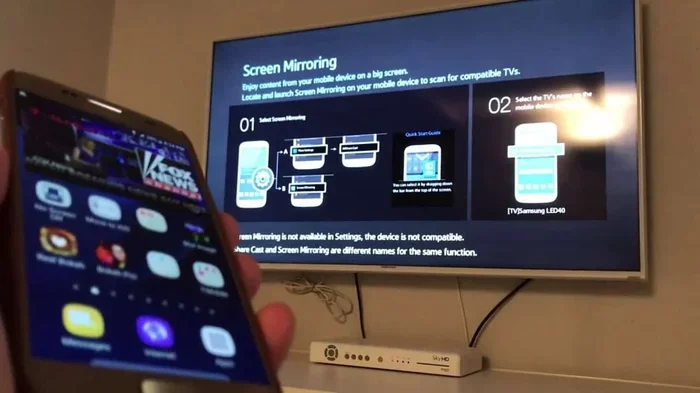
Screen mirroring lets you display everything on your phone directly on your TV. Some people think this always requires WiFi, but that is not true. There are ways to mirror your screen without a wireless internet connection.
Mirroring via USB-C or Lightning
Many modern phones support video output through their charging port. You can connect your phone directly to your TV using the right cable. This mirrors your entire screen in real time without any WiFi involvement.
Using Third-Party Apps
Some apps enable direct device-to-device connections without WiFi. These apps create a peer-to-peer connection between your phone and TV. They work by using Bluetooth or a direct WiFi signal between the two devices, not through a router.
Popular apps for this include:
- AirScreen – Works with both Android and iOS
- LetsView – Supports direct mirroring
- ApowerMirror – Offers USB and wireless options
What to Expect
Screen mirroring without WiFi may have slightly more latency than wired methods. The video might not be as smooth as an HDMI connection. But for casual use like sharing photos, presenting slides, or watching downloaded videos, it works well.
Common Mistakes: Do not assume all screen mirroring apps work without WiFi. Many popular apps require both devices to be on the same network. Always check the app description before downloading. Look for apps that specifically mention direct connection or peer-to-peer mode.
Best Apps for Offline Phone-to-TV Streaming
If you want to stream from phone to TV without WiFi, having the right apps makes a big difference. Here are some of the best options for offline viewing and local casting.
VLC Media Player
VLC is a free, powerful media player that supports almost every video format. You can transfer files to your phone, open them in VLC, and cast or mirror to your TV. VLC works with both wired and wireless connections and does not need internet access to play local files.
Kodi
Kodi is an open-source media center that lets you organize and play your own content library. You can load movies, TV shows, and music onto a device and control playback from your phone. Kodi supports local network streaming and offline playback beautifully.
Plex (Offline Mode)
Plex is known for streaming, but it also has an offline mode. You can download content to your device and then play it on your TV through a Plex connection. This works without internet as long as both devices are on the same local network or connected directly.
LocalCast
LocalCast is an Android app designed specifically for casting local files to your TV. It supports DLNA, Chromecast, and direct connections. You do not need internet to use it, making it ideal for streaming without internet scenarios.
Key Takeaway: Download your content before you need it. Whether it is movies, music, or photos, having files saved locally on your phone ensures you can enjoy them on your TV anytime, anywhere, with or without WiFi.
Which Method Should You Choose?
With so many options available, choosing the right method can feel overwhelming. Here is a simple guide to help you decide.
Choose HDMI If…
You want the best quality and do not mind a cable. HDMI is perfect for movie nights, presentations, and situations where picture quality matters most. It is the most reliable method for phone to TV cable connections.
Choose Bluetooth If…
You mainly want to stream audio or share music. Bluetooth is convenient, wireless, and works well for casual listening. It is not ideal for video but gets the job done for audio content.
Choose a Mobile Hotspot If…
You want the convenience of wireless casting without home WiFi. This method works great for smart TVs that support casting protocols. Just remember to manage your battery and data usage.
Choose a Streaming Device If…
You want a dedicated media setup that supports offline content. Devices like Fire TV Stick or Apple TV give you more features and flexibility than casting directly from your phone.
Choose Screen Mirroring If…
You want to share your entire phone screen, including apps, photos, and presentations. Screen mirroring is versatile and works for many different use cases.
Tips for the Best Streaming Experience Without WiFi
No matter which method you choose, these tips will help you get the most out of your setup:
- Download content in advance. Do not rely on streaming online. Save your movies, shows, and music to your phone before you need them.
- Use high-quality cables. A good HDMI cable makes a noticeable difference in picture and sound quality. Avoid the cheapest options.
- Keep your phone charged. Streaming drains battery fast, especially without WiFi. Use a power bank or keep your phone plugged in.
- Check your TV inputs. Make sure your TV has the right ports for your chosen method. Older TVs may need an adapter.
- Test before the big moment. Set everything up and test it before guests arrive or before you need it for an important presentation.
- Close unnecessary apps. This frees up memory and processing power for smoother playback.
- Adjust your phone settings. Turn on airplane mode to prevent notifications from interrupting your stream.
Common Mistakes People Make When Streaming Without WiFi
Avoid these common pitfalls to save time and frustration:
- Assuming all smart TVs support Bluetooth casting. Many TVs only support WiFi-based casting. Always check your TV specifications before assuming.
- Using a low-quality adapter. Cheap adapters can cause signal loss, poor video quality, or connection drops. Invest in a reputable brand.
- Forgetting to download content. Without WiFi, you cannot stream from the internet. Everything must be saved locally on your device.
- Ignoring audio format compatibility. Some TVs do not support all audio formats. If you get no sound, try converting your file to a more compatible format like MP3 or AAC.
- Overlooking battery drain. Streaming from your phone uses a lot of power. Keep your phone charged or plugged in at all times.
- Not checking cable length. A short HDMI cable might not reach from your phone to the TV. Plan your setup and get the right cable length.
Expert Insight: The most common mistake is assuming that streaming always requires internet. In reality, your phone already stores plenty of content. You just need the right connection method to bring it to your TV screen. Once you understand this, the whole process becomes much simpler.
Is Streaming Without WiFi Safe?
Many people worry about security when streaming without WiFi. The good news is that direct connections are generally safer than wireless ones. When you use an HDMI cable, your content stays within the physical connection. There is no signal floating through the air that someone could intercept.
Bluetooth connections are also relatively secure. Modern Bluetooth uses encryption to protect data between devices. However, always make sure you are pairing with a trusted device to avoid unauthorized connections.
When using a mobile hotspot, set a strong password. This prevents strangers from connecting to your network and potentially accessing your data. A simple password like “12345678” is not enough. Use something unique and complex.
Overall, streaming without WiFi can actually be more secure than streaming over public WiFi networks. If privacy is a concern for you, direct connections are the way to go.
Conclusion
Can I stream from my phone to my TV without WiFi? Absolutely. You now know multiple methods that work great without any internet connection. Whether you prefer the simplicity of an HDMI cable, the convenience of Bluetooth, or the cleverness of a mobile hotspot, there is a solution that fits your needs.
Each method has its strengths. HDMI gives you the best quality. Bluetooth offers wireless convenience for audio. A mobile hotspot unlocks wireless casting features. Streaming devices add dedicated functionality. And screen mirroring lets you share everything on your phone with a bigger audience.
The key is to choose the method that matches your situation. Consider what you are streaming, how long you will be streaming, and what equipment you already have. With the right setup, you can enjoy your favorite content on the big screen anytime, anywhere, with no WiFi required.
So go ahead and try it out. Pick a method, gather your equipment, and start streaming. You will be amazed at how easy it is to bring your phone content to life on your TV without ever connecting to a wireless network.
Frequently Asked Questions
Can I stream Netflix from my phone to my TV without WiFi?
Yes, but only if you have downloaded the content for offline viewing first. Use an HDMI cable or mobile hotspot to connect your phone to your TV. Then open the Netflix app and play the downloaded title. The content will display on your TV without needing an active WiFi connection.
Do I need any special equipment to stream without WiFi?
It depends on the method. For HDMI, you need a cable and an adapter. For Bluetooth, most modern TVs have built-in support. For a mobile hotspot, you only need your phone. For screen mirroring apps, you may need a compatible TV or streaming device. Most methods require minimal equipment that is affordable and easy to find.
Can I use an old TV that is not a smart TV?
Yes, as long as your TV has an HDMI input or an available audio input. You can use an HDMI adapter for direct connection. If your TV is older and only has RCA inputs, you can use an HDMI-to-RCA converter. This lets you connect almost any phone to any TV, regardless of how old it is.
Is HDMI better than wireless methods for phone-to-TV streaming?
Yes, HDMI generally offers better quality and reliability. It provides uncompressed video and audio with zero lag or buffering. Wireless methods can experience compression artifacts, latency, and connection drops. If you want the best viewing experience, HDMI is the clear winner for streaming from phone to TV without WiFi.
How do I mirror my iPhone to my TV without WiFi?
You can use a Lightning to HDMI adapter to connect your iPhone directly to your TV. This mirrors your entire screen without needing WiFi. Alternatively, you can create a personal hotspot and use AirPlay to connect your iPhone to a smart TV that supports the feature. Both methods work without a home WiFi network.
Can I use USB to connect my phone to my TV?
Yes, many TVs have USB ports that can play media files from a connected phone. You can transfer video, music, or photo files to your phone and then plug it into your TV using a USB cable. Your TV will recognize the phone as a storage device and let you browse and play the files directly on the big screen.