Can I Plug Usb C Into Regular Usb Without Any Issues
Yes, you can plug USB C into regular USB with the right adapter. USB-C and USB-A are different connector types, but they work together using a simple USB-C to USB-A adapter. You can transfer data, charge devices, and connect peripherals without major problems, though you may lose some speed or power features depending on the adapter quality.
Have you ever picked up your shiny new USB-C device only to realize your old cable has a completely different plug on the other end? You are not alone. Millions of people face this exact confusion every single day. The short answer is yes, you can plug USB C into regular USB. But there are a few things you should know before you do it.
USB-C and USB-A look nothing alike. One is small and oval-shaped. The other is the big, rectangular plug you have seen on computers for years. Despite their differences, they can work together. You just need the right adapter or cable. In this guide, I will walk you through everything you need to know. I will cover compatibility, speed limits, power delivery, and common mistakes to avoid.
Whether you are trying to connect a new phone to an old laptop or plug a USB-C flash drive into a desktop, this article has you covered. I will keep things simple and practical. No tech jargon. No confusing diagrams. Just clear answers you can use right away.
Key Takeaways
- USB-C and USB-A are compatible: You can connect them using a simple adapter or cable.
- Speed may vary: Your connection speed depends on the slower of the two ports involved.
- Power delivery can differ: USB-C supports faster charging, but a USB-A port may limit charging speed.
- Adapters are affordable: Most USB-C to USB-A adapters cost just a few dollars and work reliably.
- Check your port version: USB 3.0 and USB 2.0 ports behave differently when paired with USB-C devices.
- Not all cables are equal: The quality of your USB-C cable affects performance and safety.
📑 Table of Contents
- What Is the Difference Between USB-C and Regular USB?
- Can You Plug USB C Into a Regular USB Port?
- Does Plugging USB C Into Regular USB Affect Charging Speed?
- Common Issues When Plugging USB C Into Regular USB
- Quick Tips for Using USB C with Regular USB Ports
- When Should You Use a USB-C Hub Instead?
- Is It Safe to Use USB C with Regular USB?
- The Future of USB: Why USB-C Is Taking Over
- Key Takeaways
- Conclusion
What Is the Difference Between USB-C and Regular USB?
Before we dive into whether you can mix these connectors, let us talk about what makes them different. Understanding the basics makes everything else much easier to grasp.
USB-A: The Classic Connector
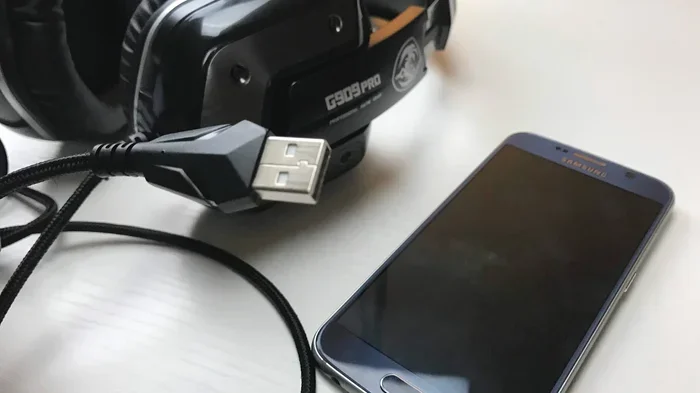
USB-A is the traditional rectangular connector. It has been around since the late 1990s. You will find it on almost every desktop computer, older laptop, gaming console, and wall charger. The USB-A connector has a flat, wide design. It only plugs in one way, which can be frustrating at times.
USB-A comes in different versions too. USB 2.0 is the most common. It transfers data at up to 480 Mbps. USB 3.0 and USB 3.1 offer much faster speeds. USB 3.0 can reach 5 Gbps, and USB 3.1 can hit 10 Gbps. But the connector shape stays the same across all these versions. The port is always that familiar blue or black rectangle.
USB-C: The Modern Connector
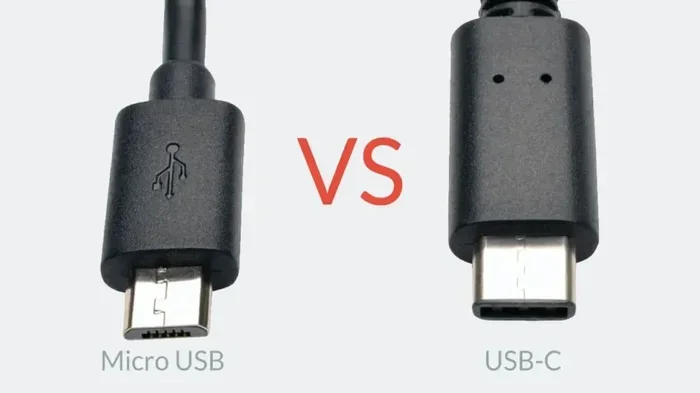
USB-C is the newer standard. It is small, about the size of a micro SD card. The connector is oval-shaped and reversible. That means you can flip it either way and it will plug in. No more flipping it three times to get the right orientation.
USB-C supports much faster data transfer. With USB 3.1 or USB 3.2, you can get speeds up to 10 or 20 Gbps. USB4 takes it even further with 40 Gbps. USB-C also supports USB Power Delivery, which can charge devices at up to 100 watts. That is why most modern phones, tablets, and laptops now use USB-C.
The Key Differences at a Glance
Here is a simple comparison to help you understand the differences between USB-C and USB-A:
- Shape: USB-C is oval and small. USB-A is rectangular and larger.
- Reversibility: USB-C plugs in either way. USB-A only works one direction.
- Speed: USB-C supports faster data transfer standards.
- Power: USB-C handles more wattage through USB Power Delivery.
- Age: USB-A is older. USB-C is the newer standard.
Can You Plug USB C Into a Regular USB Port?
Now for the main question. The direct answer is no, you cannot plug a USB-C plug directly into a USB-A port. The shapes are completely different. But you absolutely can make them work together. You just need an adapter or a hybrid cable.
Using a USB-C to USB-A Adapter
The most common way to connect USB-C to USB-A is with an adapter. These little dongles are inexpensive and widely available. You plug the USB-C end into your device. Then you plug a regular USB-A cable or device into the other end of the adapter.
These adapters are small and portable. Many people keep one on their keychain. They come in all shapes and sizes. Some adapters have a USB-A female port built in. Others have additional ports like HDMI or SD card slots. The basic ones are the most reliable and least likely to cause problems.
Using a USB-C to USB-A Cable
Another option is a hybrid cable. One end has a USB-C connector. The other end has a USB-A connector. These cables let you skip the adapter entirely. Just plug one end into your USB-C device and the other end into your USB-A port.
Hybrid cables work great for simple tasks. They are perfect for connecting a USB-C phone to a USB-A car charger. Or plugging a USB-C flash drive into a USB-A computer port. Just make sure you buy a quality cable. Cheap cables can cause slow speeds or even damage your devices.
Does It Work for Data Transfer?
Yes, you can transfer data between a USB-C device and a USB-A port. The transfer speed will match the slower of the two ports. If your USB-C device supports USB 3.1 speeds but your USB-A port is only USB 2.0, your speed will be limited to USB 2.0 levels. This is something many people overlook when setting up their connections.
For everyday file transfers like photos or documents, this speed difference usually does not matter much. But if you are moving large video files or backing up big folders, it can make a noticeable difference. In those cases, try to use a USB 3.0 or higher USB-A port when possible.
Does Plugging USB C Into Regular USB Affect Charging Speed?
Charging is one of the biggest reasons people use USB-C. The fast charging capability is a major advantage. But when you use an adapter or cable to connect USB-C to USB-A, charging speed can change.
USB-C Power Delivery vs. USB-A Charging
USB-C with USB Power Delivery can charge devices at up to 100 watts. That is enough to power a laptop. USB-A ports, on the other hand, typically deliver 5 to 15 watts. Some newer USB-A ports with USB BC 1.2 can reach 7.5 watts. The difference is huge.
When you plug a USB-C device into a USB-A port through an adapter, your device will only get the power the USB-A port can provide. Your phone or tablet will still charge. It just may take longer. This is especially true for larger devices like tablets or laptops.
What to Expect in Real Life
Here are some realistic charging scenarios you might encounter:
- Phone on USB-A port: Charges at a normal rate. No major issues for most phones.
- Tablet on USB-A port: Charges slowly. May barely charge during heavy use.
- Laptop on USB-A port: May not charge at all or charge very slowly.
- Earbuds or smartwatch on USB-A: Charges fine. These devices need very little power.
If fast charging matters to you, try to use a USB-C port directly when possible. The USB-C to USB-A adapter will not give you the full USB-C charging experience. It will still work, but the speed will be limited.
Common Issues When Plugging USB C Into Regular USB
Most of the time, connecting USB-C to USB-A works without a hitch. But there are some common issues you should watch out for. Knowing these problems ahead of time saves a lot of frustration.
Slow Data Transfer Speeds
This is the number one complaint people have. They plug in their USB-C flash drive and expect fast speeds. But because the USB-A port is older, the transfer crawls. Remember, your speed is always limited by the slowest link in the chain.
To avoid this, check what version of USB your port supports. Look for the USB symbol next to the port. If it has a “SS” logo, it is a USB 3.0 or higher port. If not, it is likely USB 2.0. Using a USB 3.0 USB-A port will give you much better results.
Adapter Compatibility Problems
Not all adapters are created equal. Some cheap adapters do not work well with certain devices. They might disconnect randomly or fail to recognize the device. This is especially common with no-name adapters bought from unknown sellers.
To avoid compatibility issues, buy adapters from reputable brands. Anker, Belkin, and Cable Matters are good options. A quality adapter costs a few dollars more but works reliably every time.
Physical Fit and Connection Issues
Sometimes the USB-C plug does not fit snugly into the adapter. This can cause a loose connection. The device might disconnect when you bump the table or move the cable slightly.
If you experience this, try a different adapter. Some adapters have tighter tolerances than others. Also, make sure you are not forcing the connector in. A proper fit should feel firm and secure without excessive pressure.
Power Limitations
As I mentioned earlier, USB-A ports cannot deliver the same power as USB-C ports. This limits charging speed and may prevent some devices from charging at all. High-powered devices like gaming laptops need more wattage than a standard USB-A port can provide.
If your device is not charging through a USB-A port, do not keep trying. It will not work. Use a USB-C charger or wall plug instead. Trying to force a connection that does not meet the power requirements can also damage your device over time.
Quick Tips for Using USB C with Regular USB Ports
Here are some practical tips that will make your life easier when working with both USB-C and USB-A ports:
- Buy a quality adapter: A good adapter costs around $5 to $10. It makes a big difference in reliability and performance.
- Check your USB version: Look for the USB symbol on your port. USB 3.0 is blue inside. USB 2.0 is usually black or white.
- Use short cables: Shorter cables give better performance, especially for data transfer and charging.
- Keep adapters plugged in firmly: Loose connections cause disconnects and data loss.
- Label your cables: It helps you know which cable goes where and avoids confusion.
- Avoid cheap no-name cables: They may not handle the power or data speeds properly and could even be unsafe.
When Should You Use a USB-C Hub Instead?
Sometimes a simple adapter is not enough. If you need to connect multiple devices to a USB-C laptop, a USB-C hub is the better choice. A hub gives you several ports in one compact device.
What Does a USB-C Hub Do?
A USB-C hub connects to your USB-C port and expands it into multiple ports. Most hubs include USB-A ports, HDMI outputs, SD card readers, and sometimes Ethernet ports. This lets you connect all your old and new devices at once.
USB-C hubs are especially useful for laptop users. Modern laptops often have only a couple of USB-C ports. A hub lets you connect USB-A peripherals like keyboards, mice, printers, and external hard drives without swapping cables constantly.
Are USB-C Hubs Worth It?
For most people, yes. A good USB-C hub costs between $20 and $50. It saves you from buying multiple adapters and cables. It also keeps your workspace clean and organized. If you work with both USB-C and USB-A devices daily, a hub is a smart investment.
Is It Safe to Use USB C with Regular USB?
Safety is a valid concern when mixing different USB types. The good news is that using a USB-C to USB-A adapter or cable is generally safe. The USB standard includes built-in protections. These prevent overcurrent, overheating, and short circuits in most cases.
However, safety depends on the quality of your adapter or cable. Cheap, uncertified products may not have proper safety circuits. They could overheat or damage your device. Always look for USB-IF certification or buy from trusted brands. This ensures your adapter meets safety standards.
Another safety tip is to never force a connector. If it does not fit, stop and check the adapter. Forcing connectors can bend pins or damage the port. A proper USB-C to USB-A connection should feel smooth and secure.
The Future of USB: Why USB-C Is Taking Over
USB-C is becoming the universal standard. The European Union has even passed regulations requiring USB-C on all phones, tablets, and cameras by 2024. Apple has already switched its entire laptop line to USB-C. Most new Android phones use USB-C too.
This shift means USB-A ports are slowly disappearing from new devices. Within a few years, most computers will have only USB-C ports. Until then, adapters and hybrid cables will remain essential tools. Understanding how to use USB-C with USB-A now will serve you well during this transition period.
The good news is that adapters are getting cheaper and better all the time. USB-C is also more durable than USB-A. The connector is designed to last for thousands of insertions. So you are investing in a connector that will serve you for years to come.
Key Takeaways
- USB-C and USB-A are compatible with an adapter: You can connect them easily using a USB-C to USB-A adapter or hybrid cable.
- Speed depends on the slower port: Your data transfer rate will match the slower of the two connected ports.
- Charging speed may be slower: USB-A ports deliver less power than USB-C, so charging takes longer.
- Buy quality adapters and cables: Cheap adapters can cause connection issues and may not be safe.
- USB-C hubs are great for multiple connections: They save you from constantly swapping adapters.
- USB-C is the future: More devices are adopting USB-C, making adapters essential during the transition.
- It is safe when done correctly: Use certified adapters and never force a connection.
Conclusion
So can you plug USB C into regular USB? Absolutely yes. You just need the right adapter or cable to bridge the gap between the two connector types. The process is simple, affordable, and works reliably for most everyday tasks.
Keep in mind that your experience will depend on the quality of your adapter and the USB version of your ports. You may see slower speeds or reduced charging power compared to using native USB-C connections. But for general use like file transfers, charging phones, and connecting peripherals, the setup works perfectly fine.
Invest in a few good adapters and cables now. They will save you time and frustration as USB-C becomes the universal standard. And remember, when in doubt, check the port version and buy quality accessories. A small upfront investment pays off in reliability and performance for years to come.
Now that you know the answer, go ahead and connect your devices with confidence. The days of worrying about USB compatibility are numbered. With the right adapter in your bag, you are ready for anything.
Can I plug USB C into regular USB without an adapter?
No, you cannot plug a USB-C connector directly into a USB-A port. The shapes are physically different. You need either a USB-C to USB-A adapter or a hybrid cable that has one USB-C end and one USB-A end. Without an adapter or hybrid cable, the connection simply will not work.
Will I lose data transfer speed when using USB C with USB A?
Yes, your speed will be limited to the slower port. If your USB-C device supports fast speeds but your USB-A port is USB 2.0, your transfer rate drops to USB 2.0 levels. Using a USB 3.0 or higher USB-A port helps maintain better speeds.
Can I charge my laptop using USB C to USB A?
Most likely not, or it will charge very slowly. USB-A ports typically deliver 5 to 15 watts. Laptops usually need 45 to 100 watts to charge properly. You should use a USB-C charger or wall plug for laptop charging.
Are USB C to USB A adapters safe to use?
Yes, they are safe when you buy quality adapters from reputable brands. Look for USB-IF certified products. Cheap uncertified adapters may lack proper safety protections and could potentially damage your devices.
Do I need a special USB C cable for regular USB A ports?
You need a USB-C to USB-A hybrid cable or a USB-C adapter with a USB-A port. Any standard USB-C to USB-A cable from a trusted brand will work for most purposes. Avoid extremely cheap cables as they may not handle power or data properly.
Why is USB C better than regular USB A?
USB-C is better in several ways. It is reversible, so you can plug it in either direction. It supports faster data transfer speeds. It delivers more power through USB Power Delivery. And it is smaller, making it ideal for modern thin and light devices like laptops and phones.
Frequently Asked Questions
What is Can I Plug Usb C Into Regular Usb?
Can I Plug Usb C Into Regular Usb is an important topic with many practical applications.